
PDF takeoff
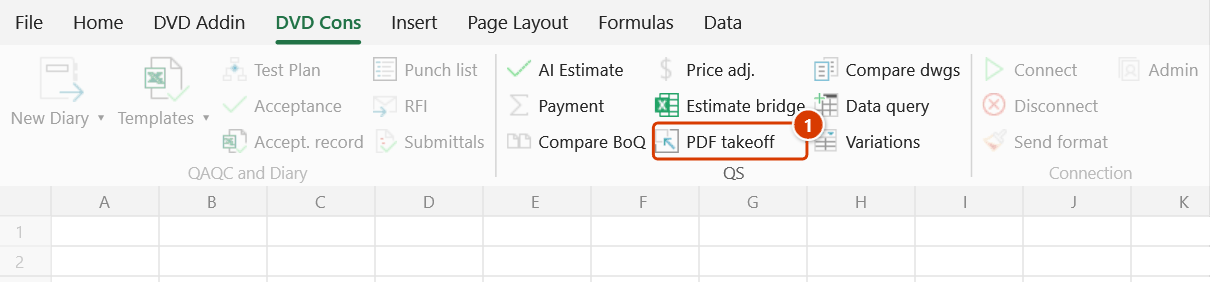
Ribbon location: DVD Cons tab → QS group
Command ID: btnPdfTakeoff
PRO feature
This command is part of the PRO plan. STANDARD accounts activated before 01/07/2026 keep access until their licence expires; other Standard accounts get an upgrade prompt when they click it.
What it does
Measure quantities directly on a PDF drawing — no CAD, and no printing it out to use a scale rule.
Open the drawing, calibrate the scale once per page, then measure with the mouse: lengths, areas, perimeters, volumes, counts. Click Export to Excel and you get a takeoff sheet.
The window does not lock Excel — a takeoff session runs for hours, and you still want the estimate sheet next to you.
Three steps, in order
1. Calibrate the scale — per page
Click Calibrate, draw a line across a dimension that is printed on the drawing, and type the real length (5000 mm, say).
The scale is stored per page. A drawing set has plans at 1:100 and details at 1:20 in the same file — one scale for the whole set makes every number on the detail sheets wrong by a factor of five.
An uncalibrated page shows NOT CALIBRATED in red on the status bar, and measurements on it produce no quantity — the reason is reported rather than a silent zero. A zero quantity buried in a table is one nobody notices.
2. Cross-check the scale
Click Check scale and measure a different known dimension (a door, a column spacing). The add-in tells you what it measured and how far off it is.
This step earns its keep because a wrong scale never announces itself: every number is wrong by the same factor, the table still looks reasonable, and nobody catches it until the valuation. More than 2% out and the add-in flags it.
3. Measure
| Tool | Gives | How |
|---|---|---|
| Length | m | Click each point, Enter or double-click to finish |
| Area | m² | A polygon; click back on the first point to close it |
| Perimeter | m | A closed polygon |
| Volume | m³ | Polygon × thickness (in metres) |
| Count | no. | Click each one; no scale needed |
- The Snap button (on by default; F3 toggles it) pulls each click onto the nearest endpoint, corner, intersection or centre on the drawing.
- Hold Shift to force a segment horizontal or vertical. Drawings are full of straight lines and hands are not — without this every measurement drifts a few percent.
- Backspace removes the last point, ESC abandons the shape.
- Ctrl + wheel zooms; hold the middle button to scroll.
- The running measurement shows on the status bar while you draw.
Deductions
A wall takeoff has to lose its openings. Switch on Deduct and measure the door — that measurement is subtracted instead of added, and still appears as its own line so it can be checked.
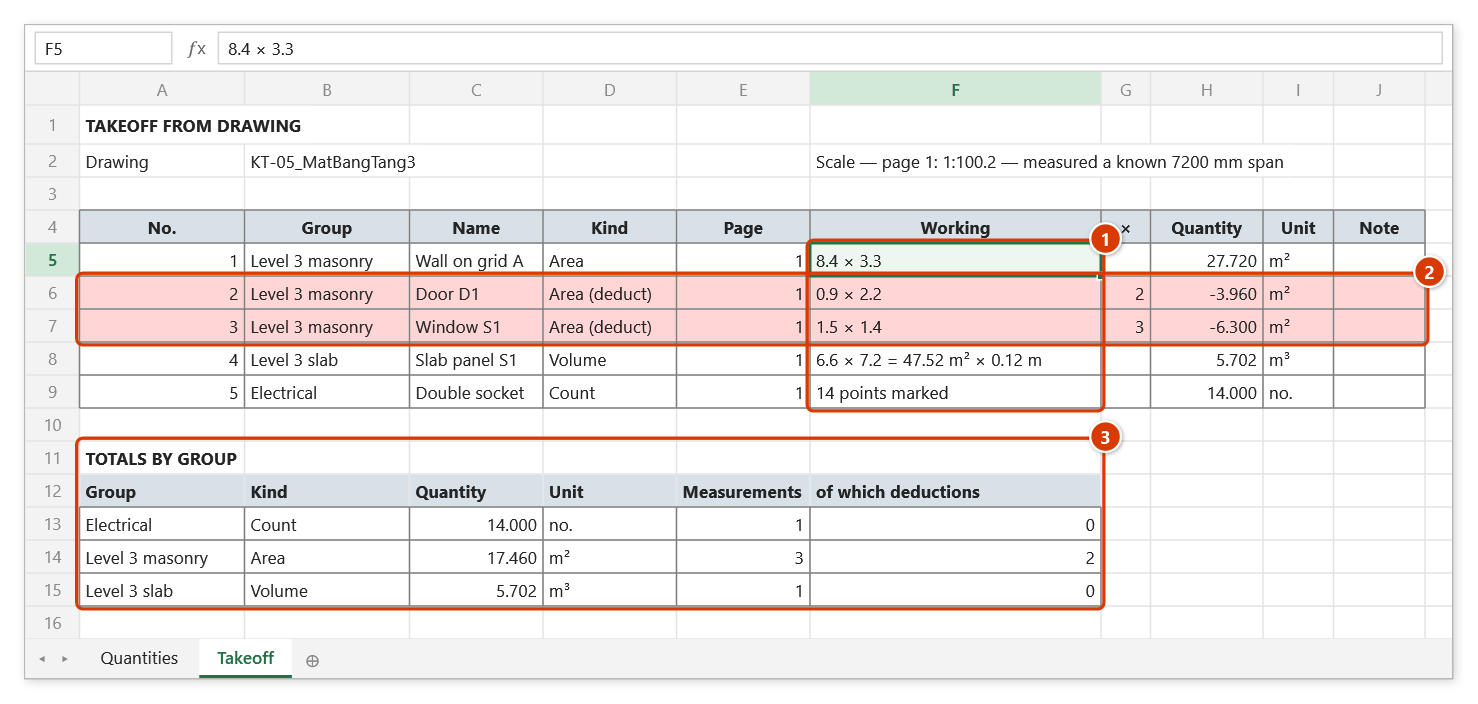
On the drawing a deduction is drawn as a red dashed outline; in the Excel sheet the row is filled pale red.
If the deductions exceed the measured area the total comes out negative — the add-in keeps the negative and reports it rather than clamping to zero. Deducting more than you measured means the takeoff is wrong, and that needs fixing, not hiding.
Repeats
Measure an identical detail once and set the repeat count. The sheet shows 3 × so the reviewer can see it.
What the export gives you
A new sheet with:
- The detail table: no., group, name, kind, page, working, repeats, quantity, unit, note.
- Totals by group: summed by (group, kind), deductions already taken off.
- Needs checking: the measurements that produced no quantity, and why.
The Working column spells out the dimension chain for each row — 4.2 × 3.1, 2.15 + 3.4 + 1.05, 12.85 m² × 0.12 m. A takeoff that does not show its working leaves the reviewer with nothing to do but trust it or measure it again, which is why most takeoffs come back.
The head of the sheet records the scale used on each page, and says plainly which scales were assumed from the title block rather than measured.
Video tutorial
Narrated in Vietnamese, with Vietnamese subtitles. Đo bóc PDF và So bản vẽ · 8 min 03 s · 26 cases · Download the video
Commands in this video: PDF takeoff · Compare drawings
Chapters (32)
- Giới thiệu
- Mở lệnh
- Phần 1 · Đo bóc PDF
- 1 · Mở bản vẽ, cửa sổ đo
- 2 · Chuẩn hoá tỷ lệ
- 3 · Gõ 7.200 – add-in hỏi lại
- 4 · Kiểm tra chéo tỷ lệ
- 5 · Chiều dài
- 6 · Diện tích, số lần lặp
- 7 · Chu vi
- 8 · Thể tích = diện tích × dày
- 9 · Đếm số lượng
- 10 · Truy bắt điểm, bản scan
- 11 · Trang khác, tỷ lệ khác
- 12 · Trừ lỗ
- 13 · Sửa, xoá phép đo
- 14 · Xuất bảng khối lượng
- 15 · Đóng cửa sổ là mất phép đo
- Phần 2 · So bản vẽ
- 16 · Chọn bản cũ, bản mới
- 17 · Add-in tìm chỗ đổi thế nào
- 18 · Bản mới, mây soát xét
- 19 · Bản cũ – bấm qua lại
- 20 · Chồng ảnh đỏ – xanh
- 21 · Không đổi, lệch gốc in
- 22 · Khác khổ, khác tỷ lệ
- 23 · Độ nhạy, độ nét, cặp trang
- 24 · So cả tập, thêm bớt tờ
- 25 · PDF đánh dấu, lưu ảnh
- 26 · Bảng thay đổi ra Excel
- Mẹo
- Kết thúc
Illustrated walkthrough
Step 1. On the ribbon, open the DVD Cons tab → QS group → click PDF takeoff.
Step 2. Pick the PDF drawing in the file dialog. The DVD Addin — PDF takeoff window opens and does not lock Excel: toolbar on top, drawing in the middle, list of measurements on the right, status bar at the bottom.
Step 3. For each page, click Calibrate, draw a line across a dimension written on the drawing, type the real length, pick the unit (e.g. 7200 mm) and click OK. Until a page is calibrated the status bar shows NOT CALIBRATED in red and no measurement on it gives a number. Then click Check scale and measure another known dimension — a difference above 2% is flagged in red.
Step 4. Pick Length, Area, Perimeter, Volume or Count and click the points on the drawing; press Enter or double-click to finish the shape (hold Shift to force horizontal/vertical, Backspace removes the last point). After each shape the New measurement box asks for the Group, Name, Repeats and Note; for an opening tick DEDUCTION (or turn on Deduct on the toolbar before measuring). The quantity is shown in the box before you click OK.
Step 5. Click Export to Excel: the add-in writes a Takeoff sheet with the detail table and a Working column for every row (1), deduction rows shaded light red and multiplied by their repeat count (2), then the Totals by group with the deductions taken off (3). The scale used on each page is noted at the top.
Notes
- Vietnamese drawings print dimensions as
5.000. Type it that way and the add-in asks whether you mean5or5000rather than guessing — guessing wrong here makes every length wrong by a thousand and every area wrong by a million, with nothing to show for it. - A scale assumed from the title block (1:100) is only right if the PDF was exported at true paper size. Choosing "fit to page" when printing to PDF quietly destroys it — which is why calibrating by measurement is the more trustworthy route, and why the export labels the assumed ones.
- Re-calibrating a page that already has measurements asks first, because every quantity on that page will change.
- Count needs no scale, so it works even on a drawing photographed at an unknown size.
- Points are stored in PDF page coordinates, so zooming and scrolling never change a measurement.
- Each shape stays within one page — clicking onto another page mid-shape is ignored.
- Clicking Export while Excel is mid-edit in a cell means Excel refuses the write; the add-in says so instead of a vague failure.
See also
- Estimate bridge — take the quantities into estimating software.
- BoQ compare · Payment valuation · Variation register
- Read PDF · Stamp PDF