
Read PDF
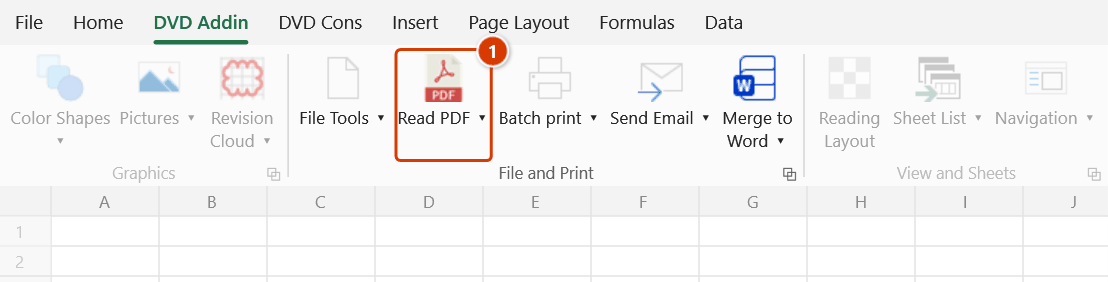
Location on ribbon: Tab DVD Addin → Group File and Print
Command ID: btnReadPdf
What it does
Opens a PDF in DVDAddin's own PDF viewer window alongside Excel: page through it, zoom, mark it up, edit the text already on the page (like Acrobat's Edit PDF), print it, or hand it over to the page manager.
Use it when you are taking off quantities from a shop drawing, a design drawing or a scanned record while typing into Excel — no more jumping between Excel and Acrobat, and because the window has its own taskbar button, it does not disappear when Excel is minimised.
How to use
- Go to tab DVD Addin → group File and Print → click Read PDF.
- A file dialog opens (filtered to
*.pdf) → pick the drawing or document → Open. - The View PDF - DVDAddin (filename) window opens with:
- – / + buttons for zoom.
- A page number box in the middle of the toolbar (type a number and press Enter to jump) with the total page count.
- 💾 Save and 💾 Save As to write your markup back into the PDF.
- ↶ Undo / ↷ Redo for markup actions (or content edits while in edit mode).
- ✎ Edit content to edit the text already on the page — see Edit PDF content.
- 🖨 Print PDF to print directly.
- ⚙ Manage Pages to hand the file to PDF Manager for merging, splitting, rotating and reordering.
- To annotate the drawing, use the markup tools in the window and then click 💾 Save.
- Close the window when done; if any markup is unsaved, the add-in asks before closing.
Video tutorial
Narrated in Vietnamese, with Vietnamese subtitles. Đọc PDF, PDF Manager, Đóng dấu PDF · 9 min 09 s · 28 cases · Download the video
Commands in this video: Read PDF · PDF Manager · Stamp PDF
Chapters (35)
- Giới thiệu
- Mở lệnh
- Phần 1 · Đọc PDF
- 1 · Mở bản vẽ để xem
- 2 · Lật trang, thu phóng
- 3 · Thanh công cụ ghi chú
- 4 · Đa đoạn, mây đa giác
- 5 · Văn bản, ghi chú, chú dẫn
- 6 · Sửa, xoá, hoàn tác
- 7 · Lưu ghi chú vào file
- 8 · In PDF
- 9 · Đóng cửa sổ, Quản lý trang
- Phần 2 · PDF Manager
- 10 · Nạp PDF và ảnh
- 11 · Sắp xếp, xoay, xoá trang
- 12 · Chép, trang trắng, xuất ảnh
- 13 · Tách ra file riêng
- 14 · Cắt khổ: giữ nửa trang
- 15 · Khổ lẫn lộn: về khổ A4
- 16 · Cắt lề trắng, chọn trang
- 17 · LƯU, LƯU THÀNH, bookmark
- 18 · File hỏng, có mật khẩu
- Phần 3 · Đóng dấu PDF
- 19 · Thêm file, thêm thư mục
- 20 · Đánh số nối tiếp cả tập
- 21 · Mỗi file đánh lại từ 1
- 22 · Mẫu chữ, đệm số 0
- 23 · Bỏ trang bìa – bẫy tổng
- 24 · Đóng dấu chữ
- 25 · Đóng dấu ảnh con dấu
- 26 · Bản vẽ xoay ngang
- 27 · Nơi ghi file kết quả
- 28 · Nhập sai, file lỗi, dừng
- Mẹo
- Kết thúc
Illustrated walkthrough
Step 1. On the ribbon, open the DVD Addin tab → File and Print group → click Read PDF.
Step 2. In the file box (filter *.pdf) choose the drawing or document, for example KC-3F-01.pdf, and click Open.
Step 3. The View PDF - DVDAddin (KC-3F-01.pdf) window opens full screen with its own taskbar button, so it is not minimized together with Excel. The top bar has - / + to zoom, 💾 Save / 💾 Save As to write the markups into the PDF, ↶ Undo / ↷ Redo, the page box in the middle (type a number and press Enter to jump), ⚙ Manage Pages to switch to PDF Manager and 🖨 Print PDF. Use the markup toolbar below it to annotate the drawing, then click 💾 Save.
Edit PDF content
Click ✎ Edit content on the top bar (needs an active account or the trial, like PDF Manager). Every text block on the page gets a dotted box, as in Acrobat's Edit PDF, and the markup toolbar is replaced by the text-editing toolbar. Click the button again to go back to markup — your edits are kept.
Narrated in Vietnamese, with Vietnamese subtitles. Sửa nội dung PDF · 4 min 44 s · 10 cases · Download the video
Chapters (14)
- Giới thiệu
- Mở tệp
- 1 · Bật chế độ sửa
- 2 · Sửa chữ ngay trên trang
- 3 · Đoạn văn nhiều dòng
- 4 · Định dạng chữ
- 5 · Dời khối, xoá khối
- 6 · Thêm chữ mới
- 7 · Ảnh trên trang
- 8 · Thêm ảnh con dấu
- 9 · Trang ảnh quét
- 10 · Hoàn tác và lưu
- Mẹo
- Kết thúc
- Edit text: click a block and type right there. The editor keeps the block's font, size, colour, bold / italic, indents, bullets and line spacing. Enter starts a new paragraph; Esc or a click outside finishes. Multi-line paragraphs re-wrap within the block width and keep their alignment (left / centre / right / justified); a one-line block (heading, label, table cell) grows with the text.
- Formatting: select text in the editor and change Font, Size, B (Ctrl+B), I (Ctrl+I), 🎨 Colour; the four alignment buttons apply to the whole block. Select a block (without opening the editor) and restyle to change the whole block.
- Move, resize: drag a block to move it; drag the handle on its left / right edge to change its width (the text re-wraps).
- Delete: select a block and press Delete (or 🗑 Delete).
- Add text: click + Add text, then click on the page where the text goes (font / size / colour from the toolbar).
- Images: click an image to select it; drag to move, drag a corner to resize (keeps the aspect ratio, hold Shift to resize freely); ↻ Rotate image turns it 90°, ⇄ Replace image swaps in another image file (keeps the width), 🖼 Add image then click on the page to place it, Delete removes it. An image that covers almost the whole page (a scanned page) cannot be selected, so it is not dragged by accident.
- Scanned page: click 🔍 Recognize text — the text lines on the image become blocks you can edit like normal text (see the notes below).
- ↶ Undo / ↷ Redo (Ctrl+Z / Ctrl+Y) step by step. The window title shows ● while there are unsaved changes.
- 💾 Save overwrites the open file, 💾 Save As writes a new one (suggested name … - edited.pdf); markup you drew is flattened at the same time. 🖨 Print PDF prints the edited version. Until you save, the file on disk is unchanged.
The old text is really removed from the page, not covered with white: searching or copying text in the saved file no longer finds it, and the other text on the page keeps its exact position.
Notes on editing
- Fonts: edited text is drawn with the font already embedded in the PDF whenever that font has every character needed (changing numbers, dates, word order…) — identical to the original, including the spacing between letter pairs, no font needed on your computer, and the file barely grows. A word containing a character the embedded font lacks uses the Windows font of the same name (Times New Roman, Arial…) for that word only. The unedited start of a paragraph keeps its original line breaks.
- Files that use TCVN3 (.VnTime) or VNI fonts: the edited block's text becomes Unicode (Times New Roman) so it can be searched and copied.
- Password-protected files: enter the open password when opening the file; a file that blocks editing asks for the owner password when you click ✎ Edit content. The saved file keeps the original passwords and permissions.
- Text inside an embedded graphics block (Form XObject — logos, title blocks, shared templates) is editable: only the spot you edit changes, other pages that share the block stay as they are. Vertical text is editable too (each column is a paragraph).
- Scanned pages: 🔍 Recognize text uses the existing hidden text layer if the file has already been OCR'd (no network needed); otherwise the add-in cuts out the text lines of the image and sends them to the AI OCR service chosen in Options → AI Assistant (needs an API key). Editing or deleting a block covers the old lines with the paper colour and draws the new text as real text (searchable and copyable). On patterned or stained paper the covered area may show; handwriting, signatures and stamps are not recognized.
- Not editable: text using Type 3 fonts or a custom CMap encoding (rare) — such blocks show no box.
Example
While taking off slab reinforcement on level 3 you need to cross-check drawing ST-3F-01.pdf.
Click Read PDF, open the drawing, zoom into gridlines A–C, mark the zones you have already measured, type a page number to jump to the section view, and go back to Excel to enter the quantities — the PDF window stays visible beside the workbook.
Notes
- Requires the pdfium.dll library shipped with the installer; if it is missing the add-in reports an error when opening the PDF (reinstalling DVDAddin fixes it).
- The command does not dump PDF content into cells; it is a viewer, markup and editing window. To turn PDF text into data, use OCR.
- Markup is only written into the PDF after you click Save or Save As; reopen the file afterwards to see the stored annotations.
- The window runs independently of Excel (its own taskbar button), so minimising Excel does not hide it.
- In a scanned PDF the text is an image: to edit it, turn on ✎ Edit content and click 🔍 Recognize text; to bring the text into a sheet, use OCR.
Related
- PDF Manager — merge, split, rotate and reorder PDF pages.
- OCR — recognise text in a PDF or image and bring it into the sheet.
- Screen Clip OCR — grab a table displayed on the PDF drawing in one step.
- Word → PDF — produce the PDFs you then review here.