
Word → PDF
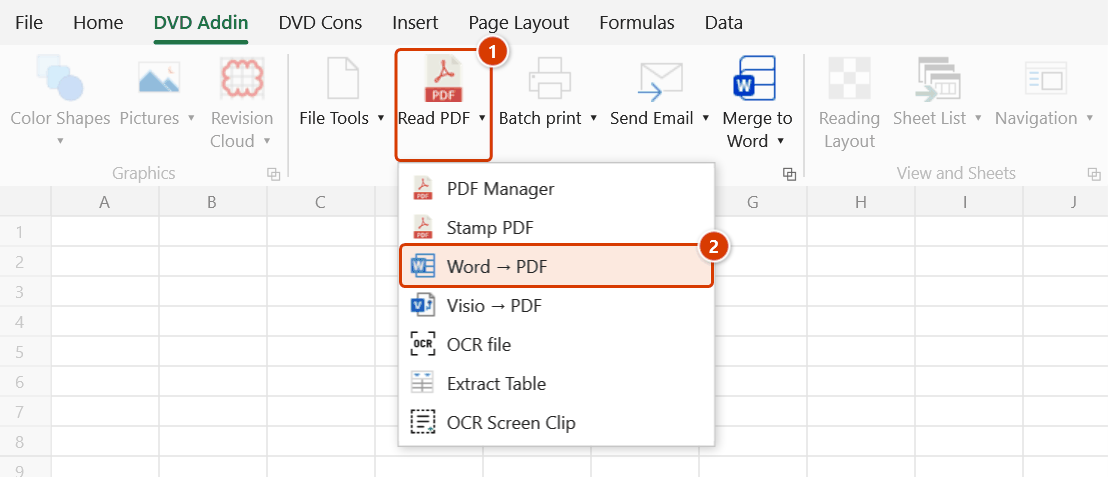
Location on ribbon: Tab DVD Addin → Group File and Print → the arrow next to Read PDF
Command ID: btnWordtoPDF
What it does
Converts many Word documents to PDF in one pass, preserving formatting, straight from Excel. The add-in starts a hidden Microsoft Word session, opens each document read-only and exports it to a PDF with the same name in the same folder.
This is the submission workflow: dozens of inspection records, submittals and request-for-inspection forms written in Word all have to be handed over as PDF. Instead of opening each file and doing Save As PDF, you select them all once.
How to use
- Go to tab DVD Addin → group File and Print → the arrow next to Read PDF → click Word → PDF.
- The "Pick Word documents" dialog opens, filtered to
*.doc; *.docx. - Select multiple files at once (Ctrl for individual picks, Shift for a range, Ctrl+A for everything) → Open.
- The add-in launches Word invisibly, opens each file read-only and exports a PDF with the same name, in the same folder as the Word file.
- When it finishes, the hidden Word session is closed and a message reports the result, e.g. "Converted 18/20 Word files to PDF.", together with a list of every file not converted and the reason.
Video tutorial
Narrated in Vietnamese, with Vietnamese subtitles. Chuyển Word, Visio sang PDF và xử lý ảnh · 5 min 52 s · 13 cases · Download the video · Practice workbook for the video
Commands in this video: Word → PDF · Export Images · Resize Images · Visio → PDF
Chapters (18)
- Giới thiệu
- Mở lệnh
- 1 · Word → PDF cả lô
- 2 · PDF đã có, file lỗi
- 3 · Hai file trùng tên
- 4 · Thiếu Word, Esc
- 5 · Visio → PDF
- 6 · Visio báo lỗi
- Lệnh xử lý ảnh
- 7 · Thu nhỏ ảnh
- 8 · Ảnh dọc, ảnh đã nhỏ
- 9 · HEIC, PNG, thư mục con
- 10 · Chạy lại, nhập sai
- 11 · Xuất ảnh
- 12 · Ảnh nào ra
- 13 · Xuất ảnh báo lỗi
- Mẹo
- Kết thúc
Illustrated walkthrough
Step 1. On the ribbon, open the DVD Addin tab → File and Print group → open Read PDF → choose Word → PDF.
Step 2. In the Pick Word documents box (filtered to *.doc; *.docx), select several files at once — Ctrl for individual picks, Shift for a range, Ctrl+A for everything — then click Open.
Step 3. The add-in starts Word hidden, opens each file read-only and exports a PDF with the same name, in the same folder as the source: D:\DuAn\NhaVanPhong9Tang\BienBanNT\BB_NT_XayTo_T5_01.docx → BB_NT_XayTo_T5_01.pdf. An existing PDF of that name is overwritten; press ESC to stop between two files.
Step 4. When it finishes, the hidden Word session is closed and a message reports the result, e.g. Converted 18/20 Word files to PDF., with a Not converted list giving each file name and the reason (password-protected document, target PDF open in a PDF reader…).
Example
Folder D:\Records\InspectionRecords holds 20 .docx inspection records for level-5 blockwork and plastering.
Run the command, select all 20 → about a minute later each .docx has a matching .pdf beside it. Then use PDF Manager to merge the 20 PDFs into one dossier in index order.
Notes
- Microsoft Word must be installed; otherwise the command reports "Microsoft Word is not installed." and stops.
- PDFs are written next to the source document with the same name; an existing PDF of that name is overwritten without asking. A target PDF that is open in a PDF reader cannot be overwritten, though — that file is reported in the failure list; close the PDF and run again.
- Files that fail (corrupt, locked…) are skipped so the rest of the batch keeps going, but they are listed by name with the reason in the final message.
- A document with an open password fails immediately with a clear message instead of leaving a hidden Word session waiting for the password — open it in Word, remove the password and run again.
- Word alerts are suppressed during the run, so no hidden dialog can stall the batch.
- Press ESC to stop; the command stops between files, and the files already converted are kept.
- Word runs hidden while the batch executes — do not kill the Word process manually mid-run.
- Close any open Word documents beforehand to avoid file-lock conflicts.
- The output follows the page setup of each Word document (paper size, margins, headers and footers).
Related
- Visio → PDF — the same idea for Visio drawings.
- PDF Manager — merge the resulting PDFs into a single dossier.
- Selected Sheets to PDF — produce PDFs from Excel sheets instead.
- Merge Word — generate Word documents from Excel data, then convert them here.