
Merge to Word
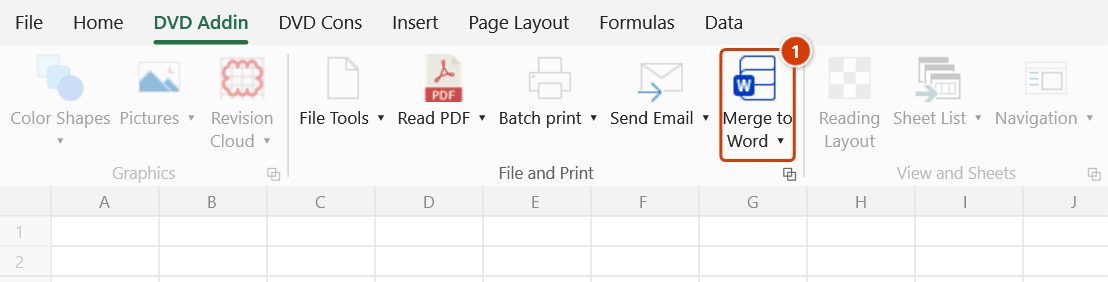
Location on ribbon: Tab DVD Addin → Group File and Print
Command ID: btnMergeWord
License required
This command needs an active DVDAddin account (Standard or PRO). During the trial period it is fully available.
What it does
The command merges an Excel range into Word templates: each data row produces one Word file. In the template you leave placeholders written as [ColumnHeader], and the add-in replaces them with the value from the matching column on the row being processed.
This is how you issue a run of documents that share a layout but differ in content: inspection records per element, inspection requests per work package, labour contracts per crew, meeting invitations per organisation. Several templates can be selected at once so a single data row yields a complete document set.
How to use
- Prepare the data range on the sheet with the first row as the column headers — those header names are the placeholder names you will use in Word.
- Prepare the Word templates, marking each blank as
[ColumnHeader]exactly as the header reads, and keep them all in one folder. - Go to tab DVD Addin → group File and Print → click Merge to Word.
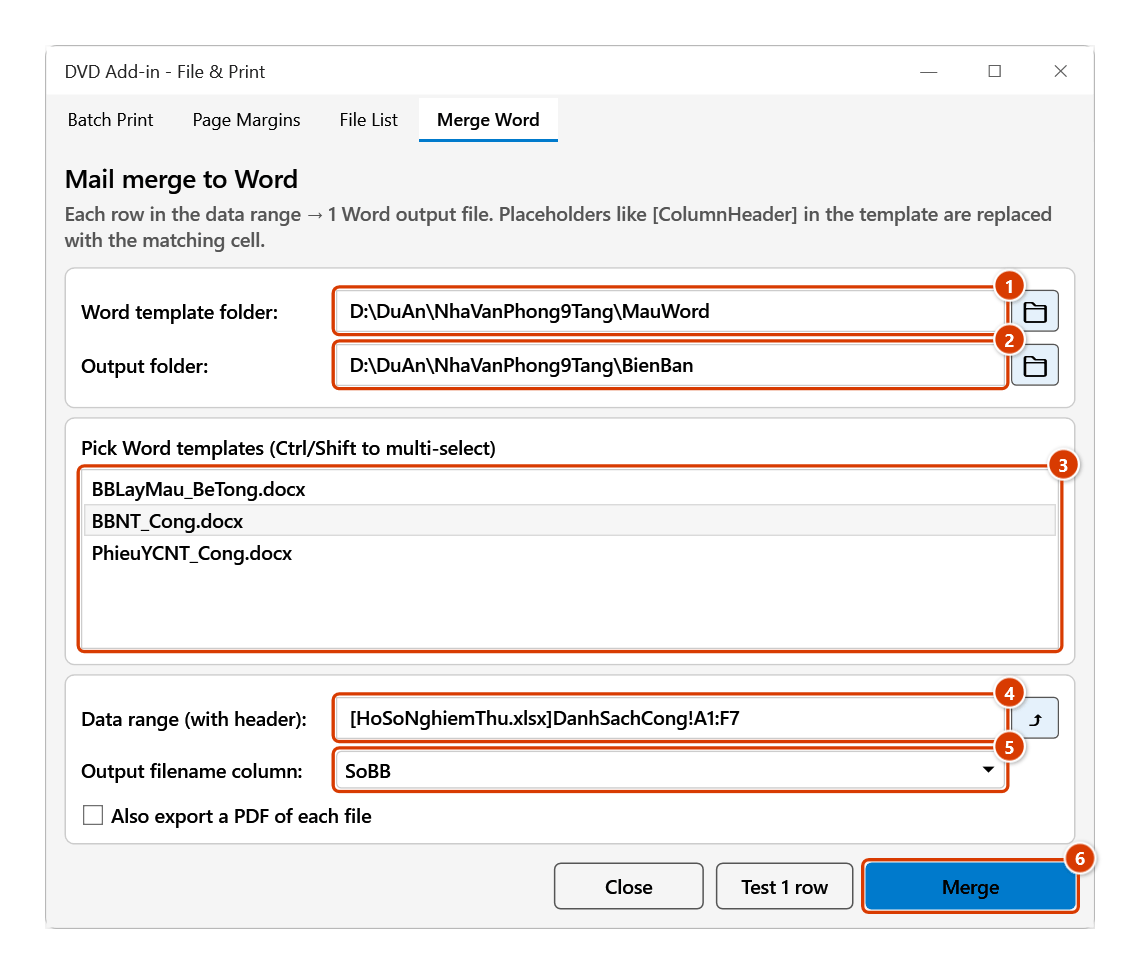
- On the Word template folder row, click 📁 and choose the folder holding the templates.
- On the Output folder row, click 📁 and choose where the results should go.
- In the Pick Word templates list, select the templates you need; hold Ctrl or Shift to pick several.
- In Data range (with header), type the address or click ⤴ to drag-select it on the worksheet.
- In Output filename column, choose the column whose value names each generated file — each file is named
<template name>_<column value>.docx. - Click Merge. The add-in checks first and asks (files to create, files to be overwritten, duplicate values, placeholders the template lacks) — merging starts only when you agree. The status line beside the button reports progress; when it ends, the Word files are waiting in the output folder.
Video tutorial
Narrated in Vietnamese, with Vietnamese subtitles. Trộn sang Word · 6 min 00 s · 14 cases · Download the video · Practice workbook for the video
Commands in this video: Merge to Word · Create Title
Chapters (18)
- Giới thiệu
- Mở lệnh
- 1 · Mỗi dòng một file Word
- 2 · Trộn thử 1 dòng
- 3 · Số, ngày, tiền như trên sheet
- 4 · Ô nhiều dòng, chữ dài
- 5 · Trường gõ không khớp
- 6 · Đặt tên file theo cột
- 7 · Nhiều mẫu cùng lúc
- 8 · Xuất PDF, chạy lại ghi đè
- 9 · Dòng ẩn, ô gộp, dòng trống
- 10 · Chèn ảnh theo đường dẫn
- 11 · Chèn bảng từ Excel
- 12 · Tạo tiêu đề [ … ]
- 13 · Chạy Tạo tiêu đề hai lần
- 14 · Khi thiếu hoặc nhập sai
- Mẹo
- Kết thúc
Illustrated walkthrough
Practice
Download this command's sample workbook — the data matches the pictures below (sheet DanhSachCong), so you can follow each step right away.
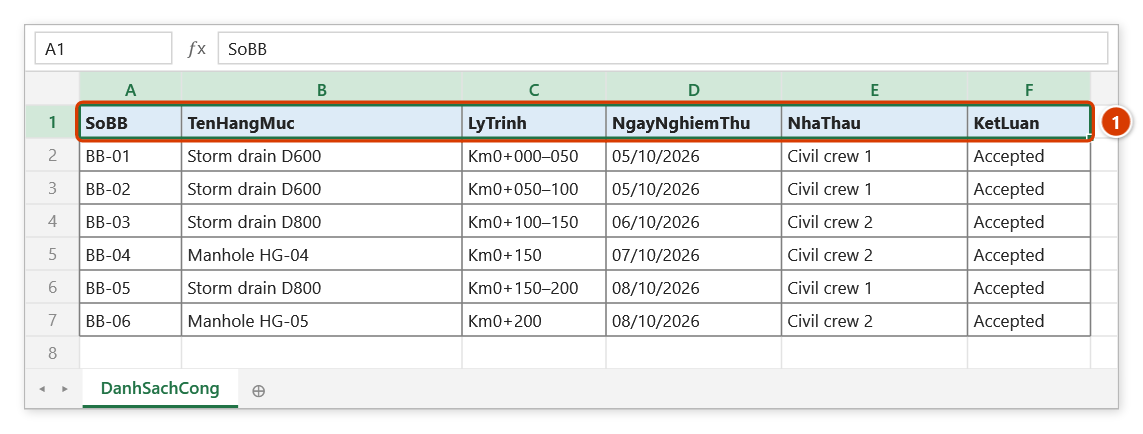
Step 1. Prepare the data range with column headers in the first row (1) — each header is the placeholder name used in the Word template, e.g. template BBNT_Cong.docx contains Today, [NgayNghiemThu], at chainage [LyTrinh]…. Every row below produces one Word file.
Step 2. On the ribbon, open the DVD Addin tab → File and Print group → click Merge to Word.
Step 3. The Merge Word tab opens. Click 📁 to choose the Word template folder (1) and the Output folder (2), then select the template(s) in the list (3) (Ctrl/Shift for several). In Data range (with header) type the address or click ⤴ to drag over A1:F7 (4), pick the Output filename column (5) and tick Also export a PDF of each file if needed. To check one file first click Test 1 row; then click Merge (6).
Step 4. The add-in checks first and asks: This will create 6 Word file(s) (6 row(s) × 1 template(s)) in: D:\DuAn\NhaVanPhong9Tang\BienBan, with warnings for files that would be overwritten, duplicate file-name values (suffixed _2, _3) or placeholders the template lacks. On yes, Word runs hidden and writes BBNT_Cong_BB-01.docx … BBNT_Cong_BB-06.docx (template name + _ + file-name column value); the status line reads Done — 6 file(s). and the output folder opens.
Example
You need to issue 35 work inspection records, one per drainage culvert section.
On the Culverts sheet, range A1:F36 has the headers RecordNo, WorkItem, Chainage, InspectionDate, Contractor, Conclusion. The template Culvert_Record.docx contains sentences such as: "On [InspectionDate], at chainage [Chainage], the parties inspected [WorkItem] executed by [Contractor]." You choose the template folder, set the output folder to D:\Project\Records, tick Culvert_Record.docx, set the data range to A1:F36, choose RecordNo as the filename column, and click Merge. The output folder receives 35 Word files named by record number (Culvert_Record_<RecordNo>.docx), already filled in and ready to print and sign.
Notes
- Pre-merge check: pressing Merge first tells you how many files will be created, which files in the output folder will be overwritten, which file-name values are duplicates (later files get a _2, _3 suffix instead of silently overwriting earlier ones) and which placeholders the Word template lacks — then asks before merging.
- Test 1 row: merges the first data row into a temp folder and opens it — the output folder is untouched.
- Placeholders in headers/footers and text boxes are now replaced too; values longer than 255 characters (which Word's Find/Replace skips silently) are replaced occurrence by occurrence.
- Number/date cells come out exactly as displayed on the sheet (07/10/2026, 1,234,567) — dates used to carry 00:00:00 and numbers lost their thousands separators.
- Option Also export a PDF of each file — saved next to the .docx with the same name.
- Table insertion (Table… columns) no longer goes through the clipboard — whatever you had copied stays there.
- The data range must include a header row; placeholders in Word have to match those headers exactly, including accents and spacing.
- The filename column should be unique per row — two rows with the same value do not overwrite each other, but the later file gets a
_2,_3suffix, which makes it hard to tell which file belongs to which row. - Selecting several templates multiplies the output: each data row produces one file per template, so check disk space before a large run.
- Microsoft Word must be installed on the machine to open and write the template files.
- Picture placeholders (the value is an image path) and table placeholders (Table… columns) are only searched in the body text — placed in a header, footer or text box they are not replaced; use Test 1 row before issuing the whole batch.
- Output files with a name that already exists in the folder are overwritten, and this cannot be undone.
- The ⤴ pick button opens a range picker that does not lock Excel: this window steps aside while you pick, and you can scroll, switch sheets or switch workbooks. Click OK or press Enter on the sheet to fill the box; Cancel or Esc leaves it unchanged. If the box already holds an address, the picker starts from it.
Related
- Send Email — use the same data table to send batch mail with attachments.
- Batch print — the same idea for printing and PDF from an Excel form.
- Word to PDF — convert the merged Word files to PDF in bulk.
- Rename files — rebrand the output file names to your document numbering convention.