
Send Email
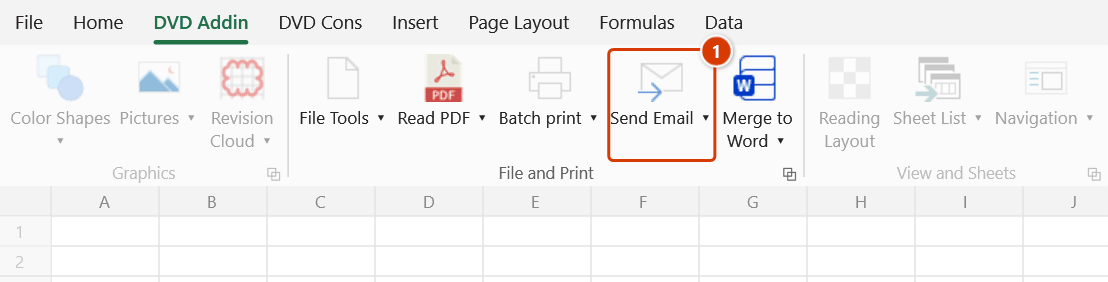
Location on ribbon: Tab DVD Addin → Group File and Print
Command ID: btnSendEmail
License required
This command needs an active DVDAddin account (Standard or PRO). During the trial period it is fully available.
What it does
The command opens a compose window that sends through Outlook, in which every field can point at an Excel cell instead of being typed. The cell value is read at the moment of sending, so the message always reflects the current state of the sheet.
Combined with batch mode, one click can produce dozens of different emails: each iteration writes a number into a driver cell, the sheet recalculates recipient, subject and body, and the relevant sheets can even be exported to PDF and attached automatically. That is how you issue inspection requests, progress notices, or payment reminders to many subcontractors without composing each message by hand.
How to use
- Prepare the data sheet: columns for recipient address, recipient name, company, subject, body, and attachment paths.
- Go to tab DVD Addin → group File and Print → click Send Email.
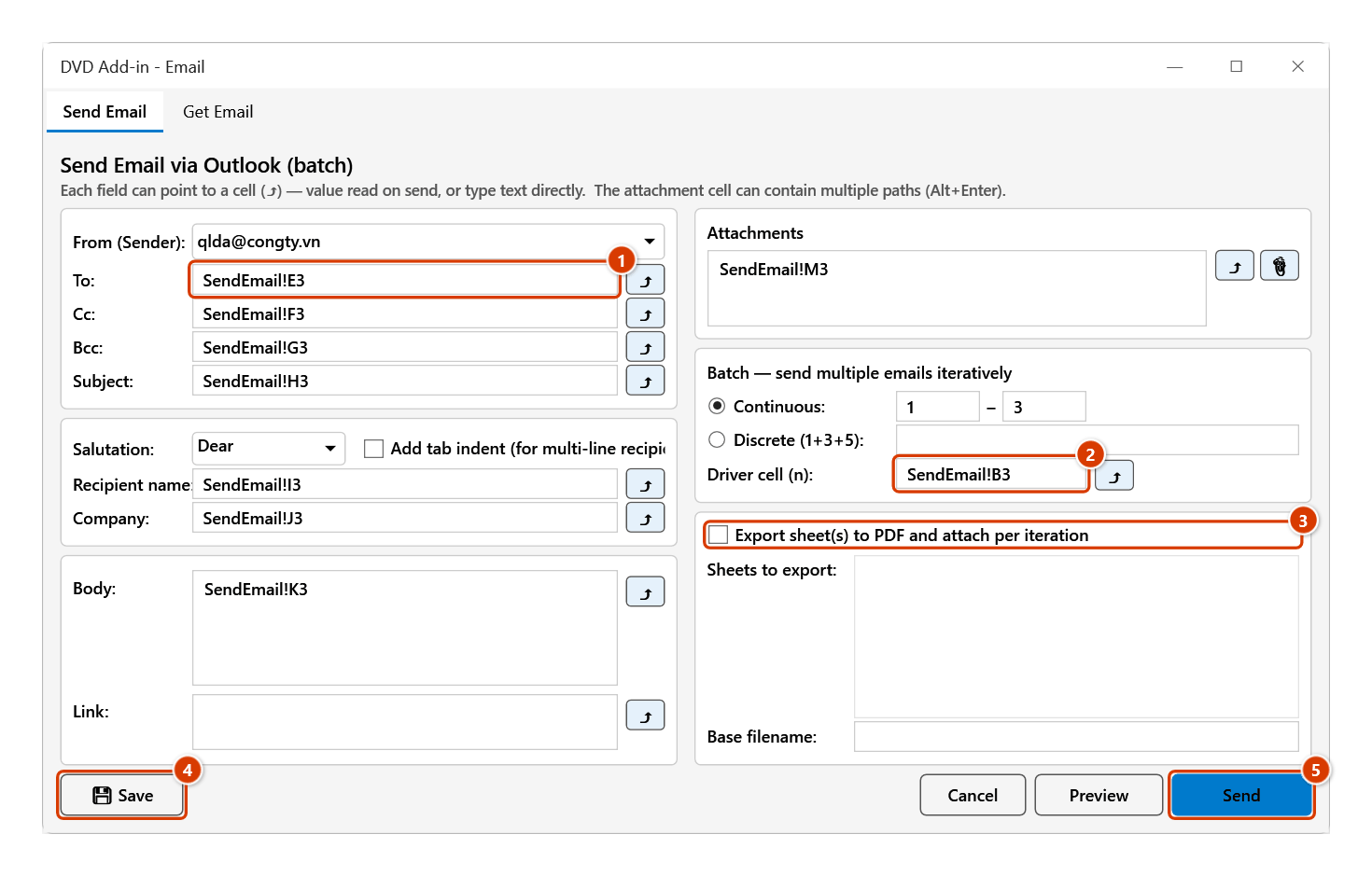
- Fill in the message: From (Sender), To, Cc, Bcc, Subject, Salutation, Recipient name, Company, Body. For each field either type the text or click the ⤴ button to point at the cell that holds it.
- Tick Add tab indent when the recipient list spans several lines and you want it indented.
- In Link, put one link per line, either as
Label: urlor just the url. - In Attachments, put one file path per line, pick files through the Windows file dialog, or point at an Excel cell holding several paths (use Alt+Enter inside the cell for line breaks).
- For batch sending, enable the Batch section: choose a Continuous range or a Discrete (1+3+5) list, and set the Driver cell (n) — that cell receives the iteration value before each email goes out.
- To attach a PDF per iteration, enable Export sheet(s) to PDF and attach per iteration, select the sheets (Ctrl/Shift for several — they all go into one PDF) and enter a Base filename; the add-in appends
_+ the iteration number +.pdf. - Click 💾 Save to remember the configuration, Preview to open the Outlook compose window for review without sending, or Send — the Preview the e-mails list appears; once checked, click Send N e-mail(s) to dispatch (Back to edit).
Video tutorial
Narrated in Vietnamese, with Vietnamese subtitles. Gửi và lấy Email Outlook · 7 min 44 s · 14 cases · Download the video · Practice workbook for the video
Commands in this video: Send Email · Email Template · Import Email
Chapters (19)
- Giới thiệu
- Mở lệnh
- Cửa sổ Gửi Email
- 1 · Ô driver và thư nháp
- 2 · Gửi cả loạt – bảng xem trước
- 3 · Nhiều người nhận
- 4 · Lời chào, tên và đơn vị
- 5 · Nội dung đổi theo từng thư
- 6 · Tệp đính kèm – tệp thiếu
- 7 · Gửi lại vài thư (Riêng lẻ)
- 8 · Kèm PDF của sheet
- 9 · Lưu cấu hình vào file
- 10 · Khi nhập thiếu, Outlook lỗi
- 11 · Mẫu Email
- 12 · Lọc bảng chọn người nhận
- 13 · Lấy Email về sheet
- 14 · Lấy lại – ghi đè, hoàn tác
- Mẹo
- Kết thúc
Illustrated walkthrough
Practice
Download this command's sample workbook — the data matches the pictures below (sheet SendEmail), so you can follow each step right away.
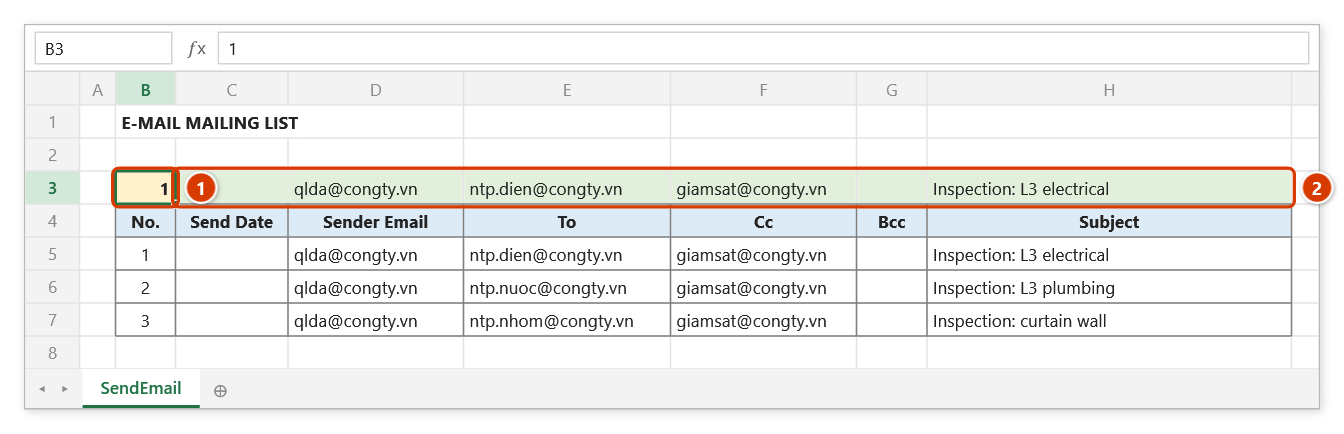
Step 1. Prepare a data sheet with one row per e-mail (the Email Template gives you the layout). Cell B3 is the driver cell (1); row 3 uses VLOOKUP on B3 to return the sender, To, Cc, Bcc, subject… of the matching row (2) — the fields of the Send Email window point at this row.
Step 2. On the ribbon, open the DVD Addin tab → File and Print group → click Send Email.
Step 3. The Send Email tab opens. Each field To, Cc, Bcc, Subject, Recipient name, Company, Body, Attachments takes typed text or a cell in row 3 — type SendEmail!E3 or click the ⤴ beside it (1). For several e-mails choose Continuous 1 → 3 and Driver cell (n) = SendEmail!B3 (2). To attach a PDF of sheets per round, tick Export sheet(s) to PDF… (3). Click 💾 Save (4) to remember the setup, Preview to see the first e-mail in Outlook, then Send (5).
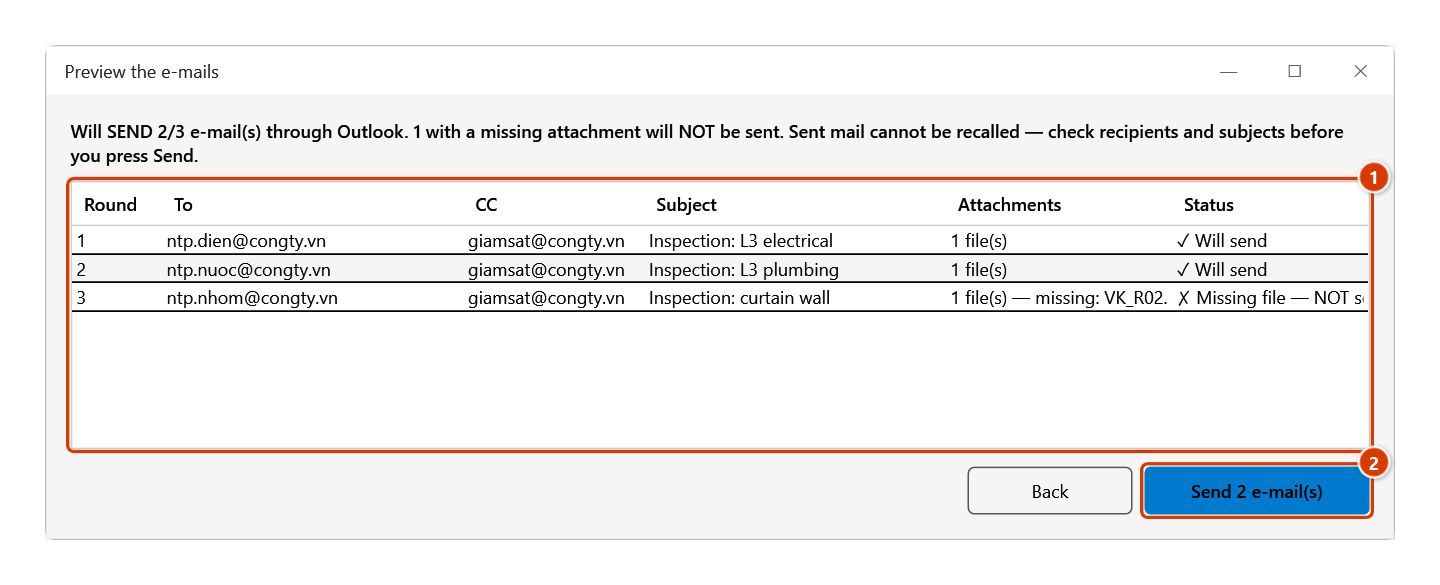
Step 4. Before anything is sent, the Preview the e-mails table dry-runs every round: recipient, CC, subject, attachments and status (1) — a round with a missing attachment is not sent. When it looks right click Send 2 e-mail(s) (2), or Back to edit.
Step 5. The add-in writes 1, 2, 3 into B3 in turn, reads the cells back and sends each e-mail through Outlook (Outlook must be installed with an account). Finally it reports Sent 2/3 e-mails. with the rounds not sent and why. The driver cell really changes — save the workbook before a large run.
Example
You have to issue inspection requests to 12 subcontractors, one work package each.
The Subcontractors sheet lists 12 rows of email, contact name, company and package title; cell B1 holds the subcontractor number and D1:D4 use INDEX against B1 to return the address, name, company and subject line. In the Send Email window you point To at D1, Recipient name at D2, Company at D3, Subject at D4, set the Driver cell to B1, choose Continuous 1 to 12, and enable PDF export of the RequestForm sheet with base name IR_Round2. Click Preview to check the first message, then Send: 12 emails go out, each with its own IR_Round2_1.pdf … IR_Round2_12.pdf.
Notes
- Pressing Send now opens a preview table of the whole batch — one row per round: recipients, CC, subject, attachments, status (✓ Will send / ✗ Missing file — NOT sent / ✗ No recipient — skipped). Mail goes out only when you press Send N e-mail(s) in the table; Back to edit. The table comes from a dry run (driver cell set per round, values re-read), after which the driver cell is restored.
- Number/date cells (subject, name…) use the displayed text of the cell — date cells used to come out as serial numbers (e.g. 46290).
- Microsoft Outlook must be installed and configured on the machine; the command sends through Outlook rather than talking to a mail server directly.
- Cell-linked fields are read at send time, so in batch mode each iteration produces different content.
- Preview opens only the first round's mail for review. Send asks for confirmation with the number of mails — sent mail cannot be recalled. Pressing Enter no longer triggers Send.
- A round with a missing attachment or a failed PDF export is not sent; the final message lists each such round with the reason.
- The driver cell is genuinely overwritten during the run, so save the workbook before a large batch.
- Attachment paths must exist on the machine; a single cell can carry several paths on separate lines (Alt+Enter), or point at a multi-cell range. To/Cc/Bcc pointing at a multi-cell range are joined with
;. - When several sheets are selected for PDF export, they are combined into one file per iteration.
- The ⤴ pick button opens a range picker that does not lock Excel: this window steps aside while you pick, and you can scroll, switch sheets or switch workbooks. Click OK or press Enter on the sheet to fill the box; Cancel or Esc leaves it unchanged. If the box already holds an address, the picker starts from it.
Related
- Email Template — a ready-made file with the standard column layout for batch mail.
- Import Email — the other direction: pull messages and attachments from Outlook into the sheet.
- Batch print — the same driver-cell mechanism, used for printing and PDF export.
- Merge to Word — merge the same data into Word documents instead of emails.