
Import Email
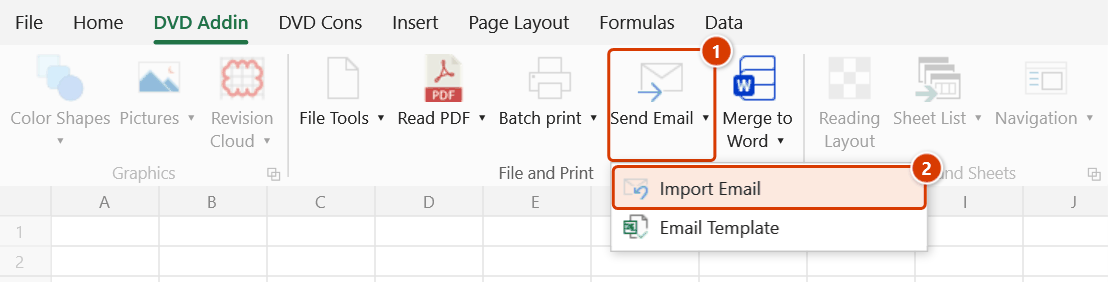
Location on ribbon: Tab DVD Addin → Group File and Print → the arrow next to Send Email
Command ID: btnImportEmails
License required
This command needs an active DVDAddin account (Standard or PRO). During the trial period it is fully available.
What it does
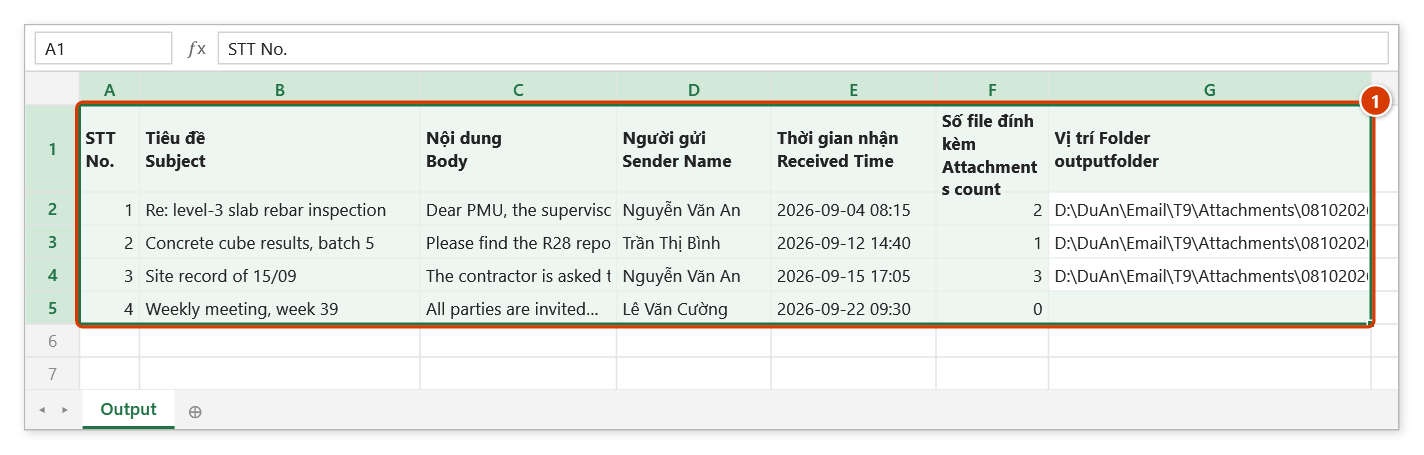
The command scans an Outlook folder and pours the mail data into your workbook: message contents are written to a sheet named Output, while attachments are saved to the sub-folder Attachments\<ddMMyyyy> (the run date) of a folder you pick, filtered to the file types you choose.
On a project, the mailbox is the record of everything that happened on site: instructions, shop drawings, test certificates, meeting minutes. This command turns a whole folder into a searchable Excel table with the attachments already downloaded — the raw material for a work diary or for tracking how quickly each party responds.
How to use
- Open the workbook that will receive the data.
- Go to tab DVD Addin → group File and Print → the arrow next to Send Email → click Import Email.
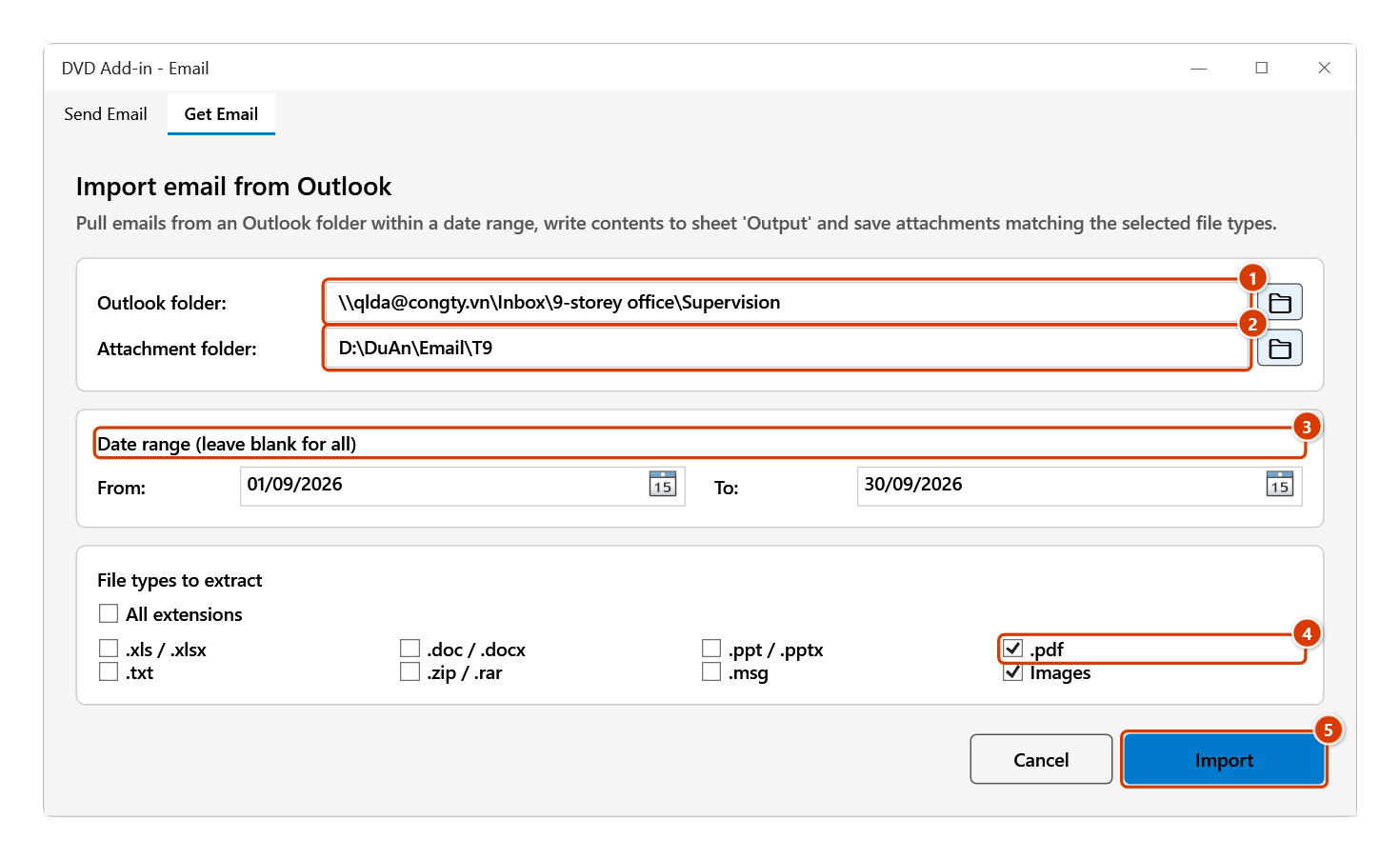
- On the Outlook folder row, click 📁 to open Outlook's folder tree and pick the mailbox or subfolder to scan.
- On the Attachment folder row, click 📁 to choose the local folder where attachments will be saved.
- Under Date range, set From and To. Leave both blank to take every message in the folder.
- Under File types to extract, tick All extensions or select individual groups:
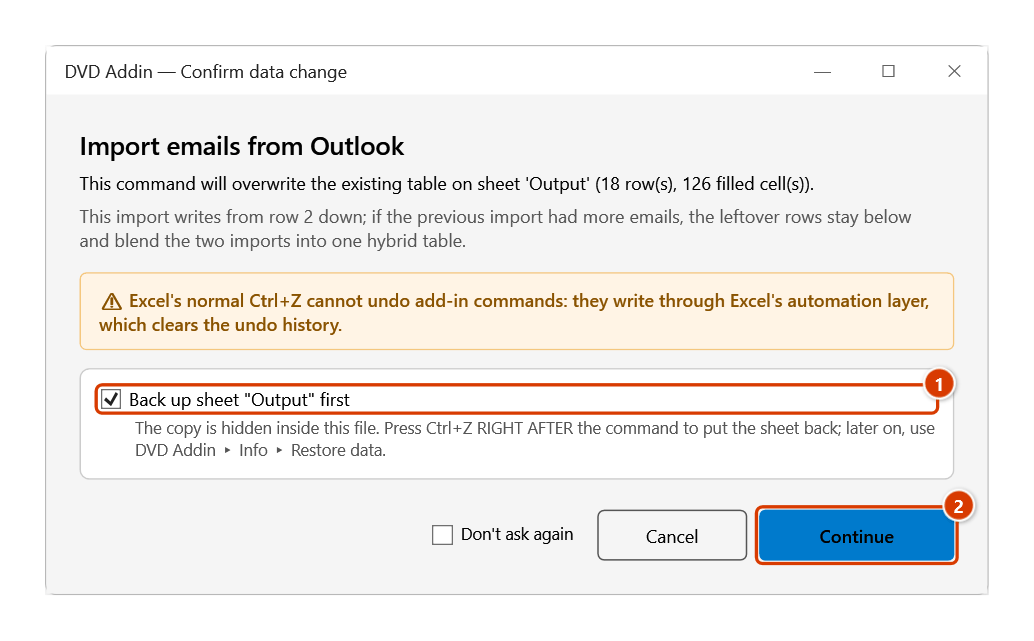
.xls/.xlsx,.doc/.docx,.ppt/.pptx,.pdf,.txt,.zip/.rar,.msg, and Images (.jpg,.jpeg,.png,.gif,.bmp). - Click Import. If sheet Output already holds data, the Confirm data change window asks before overwriting it (keep Back up sheet ticked, click Continue). When it finishes, the message data is on the Output sheet and the attachments are in
Attachments\<ddMMyyyy>inside the folder you picked; the final message gives the number of e-mails and files saved.
Video tutorial
Narrated in Vietnamese, with Vietnamese subtitles. Gửi và lấy Email Outlook · 7 min 44 s · 14 cases · Download the video · Practice workbook for the video
Commands in this video: Send Email · Email Template · Import Email
Chapters (19)
- Giới thiệu
- Mở lệnh
- Cửa sổ Gửi Email
- 1 · Ô driver và thư nháp
- 2 · Gửi cả loạt – bảng xem trước
- 3 · Nhiều người nhận
- 4 · Lời chào, tên và đơn vị
- 5 · Nội dung đổi theo từng thư
- 6 · Tệp đính kèm – tệp thiếu
- 7 · Gửi lại vài thư (Riêng lẻ)
- 8 · Kèm PDF của sheet
- 9 · Lưu cấu hình vào file
- 10 · Khi nhập thiếu, Outlook lỗi
- 11 · Mẫu Email
- 12 · Lọc bảng chọn người nhận
- 13 · Lấy Email về sheet
- 14 · Lấy lại – ghi đè, hoàn tác
- Mẹo
- Kết thúc
Illustrated walkthrough
Step 1. Open the workbook that will receive the data (preferably a separate file), then start the command from the ribbon.
Step 2. The Get Email tab opens. Click 📁 next to Outlook folder (1) to choose the mail folder to scan, and 📁 next to Attachment folder (2) for where attachments go. Set From – To (3) (leave blank for everything), tick the file types to keep, e.g. .pdf and Images (4), then click Import (5).
Step 3. If sheet Output already holds a table from an earlier import, the add-in asks before overwriting it. Keep Back up sheet "Output" first (1) so Ctrl+Z right after the command brings the old table back, then click Continue (2). With no data on the sheet there is no question.
Step 4. Sheet Output lists every e-mail: No., subject, body, sender, received time, attachment count and save folder (1). Attachments of the ticked types are saved in the sub-folder Attachments\<run date> of the chosen folder; the final message gives the number of e-mails and files saved.
Example
At month end you need a register of everything the site supervision consultant sent during August, plus all attached drawings and test certificates in one place.
Outlook already has a folder Project ABC / Supervision. Run Import Email, select that folder, set the save folder to D:\Project_ABC\Attachments\August, set From to 01/08 and To to 31/08, and tick .pdf plus Images. After the import, the Output sheet lists each message by date, sender and subject so you can filter and report on it, while August\Attachments\<run date> already holds every attached PDF and site photo.
Notes
- Microsoft Outlook must be installed and signed in; the add-in reads through the running Outlook instance.
- Data is written to a sheet named Output; if the workbook already has one, its contents are replaced — run the import in a separate workbook to be safe.
- Leaving both date boxes empty means every message in the folder; on a mailbox with thousands of items, set a range to avoid a long wait.
- Only attachments matching the ticked types are saved; messages with no attachment are still listed on the sheet.
- Attachments with identical names are not overwritten: later ones get a
_1,_2… suffix. Running again on the same day saves into the sameAttachments\<ddMMyyyy>folder, so duplicates pile up — split folders by month or work package as in the example. - When the Output sheet already holds data, the add-in asks and backs it up before writing: Ctrl+Z right after the command puts the sheet back as it was; see Restore data. A newly created Output sheet and attachments already saved to the folder are not removed by Ctrl+Z — delete them by hand if you don't need them.
Related
- Send Email — the other direction: compose and send batch mail from sheet data.
- Email Template — the standard data layout used by the email commands.
- File list — list the downloaded attachments as a table in Excel.
- Construction diary — turn the imported correspondence into a site diary.