
Restore data
Ribbon location: DVD Addin tab → About group → About menu
Command ID: btnRestoreBackup
What it does
Recovers a sheet from the backup the add-in takes automatically just before you run a command that can delete or overwrite data.
Why this command has to exist: DVDAddin commands write into the workbook through Excel's programming interface, and Excel clears its undo history after every write of that kind — Excel's normal Ctrl+Z cannot bring back the result of an add-in command (not a bug; it is how Excel behaves with every add-in). Since 2.8.4 the add-in snapshots the sheet before running a destructive command; from the next release, pressing Ctrl+Z right after the command puts the sheet back to that snapshot (see Ctrl+Z right after a command below). This command is where you get older snapshots back.
How to use it
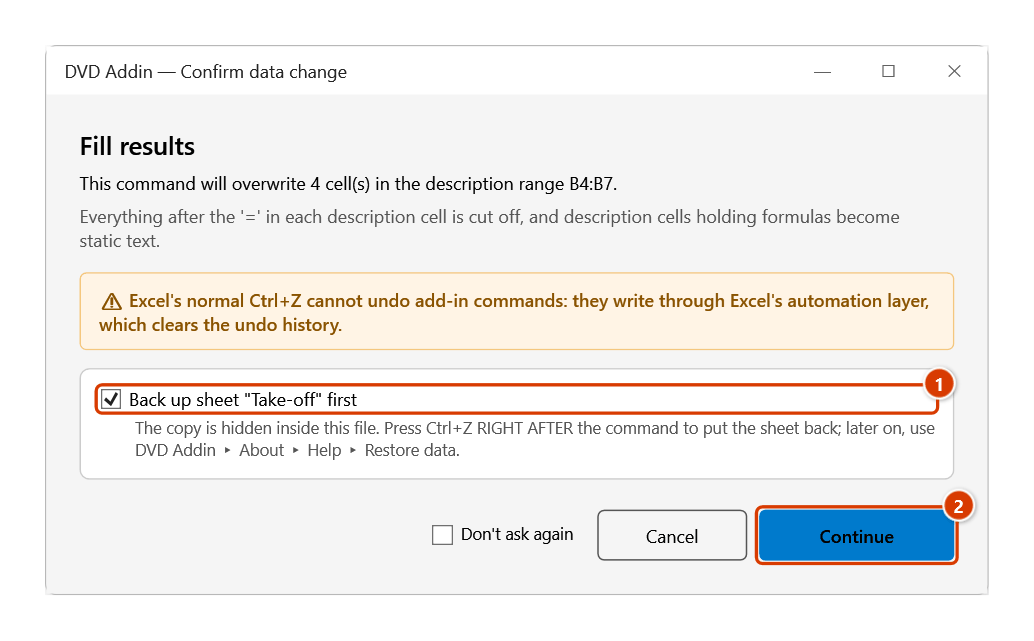
- Run a command that can delete or overwrite — say Delete blank rows. The confirmation dialog appears with Back up sheet "…" first already ticked; leave it and click Continue.
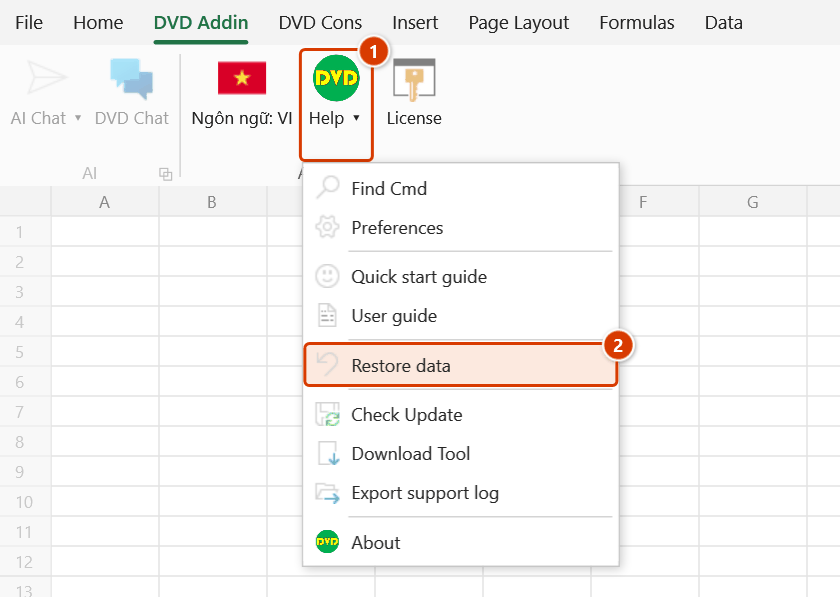
- The result is not what you wanted → go to the DVD Addin tab → About group → Help menu → Restore data.
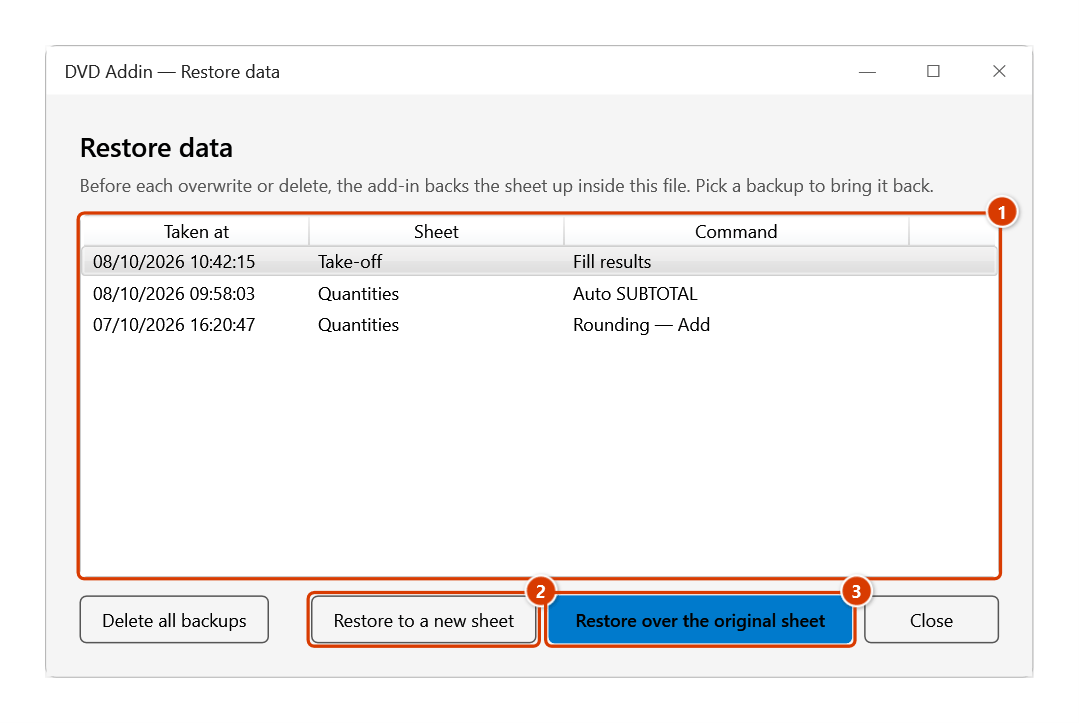
- The list shows every backup with its Time, the source Sheet, and the Command that ran — use the command name to spot the one taken "before I broke it".
- Select a row and click one of two buttons:
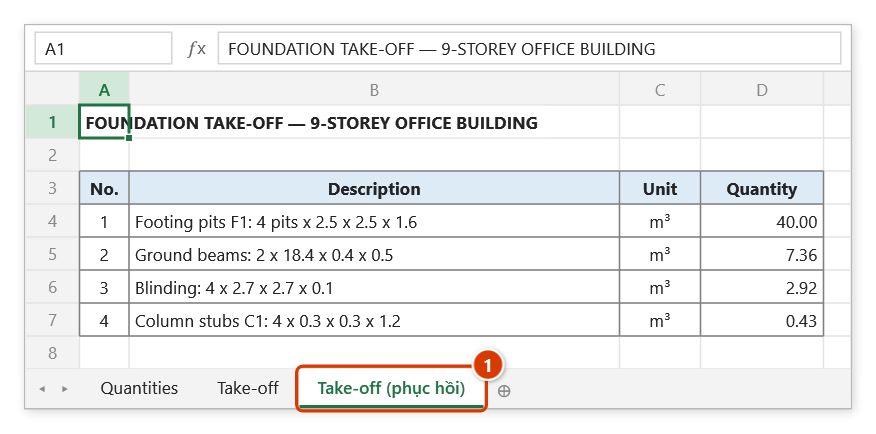
- Restore to a new sheet — adds a sheet named
<source sheet> (phục hồi)at the end of the workbook and leaves the current sheet alone. Use this to compare both before deciding. - Overwrite the original sheet — replaces the current sheet with the older copy. Before overwriting, the add-in snapshots the current state as well (recorded as "Trước khi khôi phục"), so even a mistaken overwrite has a way back.
- Restore to a new sheet — adds a sheet named
- Delete all backups clears every snapshot in the file, for when you have settled on the result and want the file smaller.
Video tutorial
Narrated in Vietnamese, with Vietnamese subtitles. Khôi phục dữ liệu và Ctrl+Z · 4 min 20 s · 13 cases · Download the video · Practice workbook for the video
Chapters (17)
- Giới thiệu
- Mở lệnh
- 1 · Hộp xác nhận trước lệnh
- 2 · Ctrl+Z ngay sau lệnh
- 3 · Khi Ctrl+Z hết tác dụng
- 4 · Chạy liền một lệnh nhiều lần
- 5 · Danh sách bản sao lưu
- 6 · Bung ra sheet mới
- 7 · Khôi phục đè lên sheet gốc
- 8 · Sheet đang được tham chiếu
- 9 · Lệnh động tới nhiều sheet
- 10 · Bỏ tích, Đừng hỏi lại
- 11 · Lệnh không sao lưu được
- 12 · Bản sao lưu nằm trong file
- 13 · Giới hạn và Xoá hết
- Mẹo
- Kết thúc
Illustrated walkthrough
Step 1. A backup is made when you run a command that overwrites or deletes data: the confirmation box shows Back up sheet … first already ticked (1) — leave it as is and click Continue (2).
Step 2. If the result is wrong and you have already done something else (so an immediate Ctrl+Z no longer works): on the ribbon, open the DVD Addin tab → About group → open Help → choose Restore data.
Step 3. The list (1) shows the backups stored in this file, newest first: time, original sheet and the command that ran. Pick the one from before things went wrong, then click Restore to a new sheet (2) to compare while keeping the current sheet, or Restore over the original sheet (3) to replace it.
Step 4. With Restore to a new sheet, the add-in adds sheet Take-off (phục hồi) at the end of the workbook (1) holding the content from before the command, and the original sheet is untouched. With Restore over, the add-in asks again and first takes a “Trước khi khôi phục” (before restore) backup, so you can still go back.
Ctrl+Z right after a command
When the command that just ran took a backup, the add-in hooks that backup to Excel's Undo button: press Ctrl+Z (or Undo) right after the command and the sheet goes back to how it was. The Undo button names the command and the backup time, for example Delete blank rows (DVD Addin — back to 09:42).
- It only works right after the command: type or edit anything else and Excel replaces the undo entry with your new action — then use Restore data as above.
- Ctrl+Z takes the same path as Overwrite the original sheet: the current state is snapshotted first ("Trước khi khôi phục"), and a sheet that other sheets reference is refused with guidance.
- For commands that touch several sheets (deleting sheets, the cutting optimizer writing its result sheet and stock register…) Ctrl+Z rebuilds all of them; a deleted sheet comes back under its old name, at the end of the workbook, in the order you selected them.
- Running the same command repeatedly within 2 minutes (merging cells block by block, say) keeps one backup from before the burst — Ctrl+Z then goes back to before the whole burst; the time on the Undo button tells you when.
- Commands that write their result late, after waiting on the network (translation, AI): the add-in re-attaches the undo entry after that write, so Ctrl+Z as soon as the result appears still puts the sheet back. If you ran another DVD Addin command while waiting, the undo entry belongs to that later command — use Restore data.
Where the backups live
Inside that same Excel file, as very-hidden sheets named _DVDBak1, _DVDBak2… plus an index sheet _DVDBakIdx. In practice:
- Save and close the file, reopen it tomorrow, and you can still restore — the backups travel with the file.
- Send the file to somebody else and the backups go along — the recipient can pull out old data you deleted or overwrote. So when you Save As (F12) a workbook that still holds backups, the add-in asks whether to delete them before saving (once per workbook per session; a plain Ctrl+S never asks). Click Delete all backups to clear them yourself.
- The file grows, because each backup is a full sheet. The add-in keeps only the 5 most recent and drops any older than 30 days (both configurable in Preferences). Pruning only runs when a new backup is taken — opening a file never deletes anything.
- Excel does not show these sheets on the sheet tab bar, and Unhide all sheets does not surface them either, so they stay out of your way.
Turning it on, off, and tuning it
Go to Preferences ▸ Data protection:
| Setting | Default | Meaning |
|---|---|---|
| Ask for confirmation before commands that can delete or overwrite data | On | Turn off and commands run straight through, without asking |
| Back the sheet up automatically before running those commands | On | Turn off and there is nothing left to restore |
| Number of backups to keep | 5 | Use 1 for a small file; raise it if you often step further back |
| Delete backups older than (days) | 30 | 0 = keep forever (the count limit above still applies) |
| Offer to delete backups on Save As | On | Turn off and Save As asks nothing |
If you ticked "Don't ask again"
The "Don't ask again" box in the confirmation dialog turns the whole prompt off. Turn it back on under Preferences ▸ Data protection. Note that with the prompt off, backups still run in the background if you left them enabled — so this window will still have something to restore.
Notes
- Only sheets inside the workbook can be backed up. Commands that write outside it — renaming files on disk, exporting PDFs, sending email — cannot be; for those the confirmation still appears but the backup box is greyed out.
- A backup captures the whole sheet, not just your selection, so an overwrite rolls the entire sheet back to that moment — including edits you typed by hand after the command ran.
- Overwriting deletes the old sheet and recreates it under the same name. Excel binds references to the sheet itself, not its name, so formulas or linked pictures on other sheets that point to it would become
#REF!for good. So when other sheets reference the sheet, the command refuses to overwrite and says how many references there are and on which sheets — restore to a new sheet instead and copy across what you need. - Linked pictures (camera pictures, such as the labels made by Linked Labels) are stored in the backup as static pictures — the image is kept, the link is dropped. Every linked picture, even on a hidden sheet, makes each Enter in every open workbook a few milliseconds slower; five backups of a footing plan once made typing a full second slower. The link formula is kept with the picture, so a restore relinks it as before. Backups made by an earlier version are converted at the next backup, or right away when you tick the matching box in the Linked Labels dialog.
- Protected sheets (Protect Sheet): the confirmation warns up front that locked cells cannot be written — the command could stop half-way and leave a half-done result. No warning when the selection lies entirely in unlocked cells (a form with input cells) or when the sheet is protected "user interface only" (macros can still write). With the prompt turned off, this warning still appears on its own.
- Backups are not a substitute for saving the file. They cover one command that just went wrong; an Excel crash or a corrupt file still needs a real saved copy.
See also
- Delete blank rows and Delete hidden rows — the two commands most often restored from.
- Data cleaning — bulk content fixes across a selection.
- Preferences — where the prompt and the backup count are configured.