
Email Template
Location on ribbon: Tab DVD Addin → Group File and Print → the arrow next to Send Email
Command ID: btnEmailTpl
What it does
The command opens SendEmail.xlsx, the template shipped with the add-in — a workbook already laid out with the standard column structure for batch email. Instead of inventing your own layout, you get the fields in the right order for address, recipient name, company, subject and body, ready to be referenced from the Send Email window.
How to use
- Go to tab DVD Addin → group File and Print → the arrow next to Send Email → click Email Template.
- The add-in looks for
SendEmail.xlsxin theTemplatefolder next to the add-in, and failing that in aTemplatefolder next to the open workbook. - The template opens in Excel. Fill the existing columns with your data.
- Save it under a project-specific name, then run Send Email to dispatch from that data.
Video tutorial
Narrated in Vietnamese, with Vietnamese subtitles. Gửi và lấy Email Outlook · 7 min 44 s · 14 cases · Download the video · Practice workbook for the video
Commands in this video: Send Email · Email Template · Import Email
Chapters (19)
- Giới thiệu
- Mở lệnh
- Cửa sổ Gửi Email
- 1 · Ô driver và thư nháp
- 2 · Gửi cả loạt – bảng xem trước
- 3 · Nhiều người nhận
- 4 · Lời chào, tên và đơn vị
- 5 · Nội dung đổi theo từng thư
- 6 · Tệp đính kèm – tệp thiếu
- 7 · Gửi lại vài thư (Riêng lẻ)
- 8 · Kèm PDF của sheet
- 9 · Lưu cấu hình vào file
- 10 · Khi nhập thiếu, Outlook lỗi
- 11 · Mẫu Email
- 12 · Lọc bảng chọn người nhận
- 13 · Lấy Email về sheet
- 14 · Lấy lại – ghi đè, hoàn tác
- Mẹo
- Kết thúc
Illustrated walkthrough
Practice
Download this command's sample workbook — the data matches the pictures below (sheet SendEmail), so you can follow each step right away.
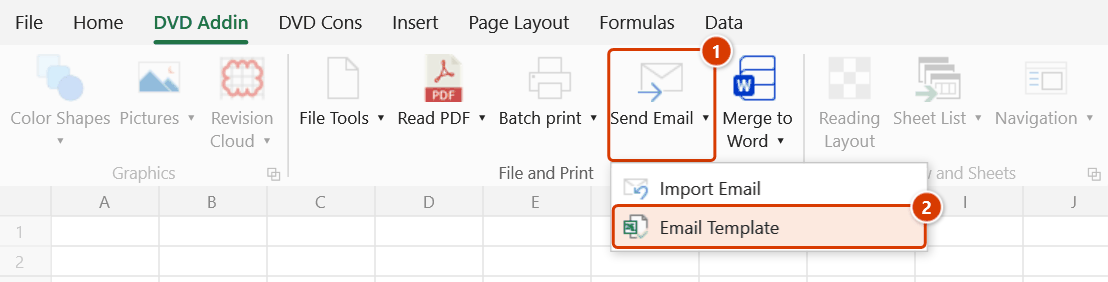
Step 1. On the ribbon, open the DVD Addin tab → File and Print group → open Send Email → choose Email Template.
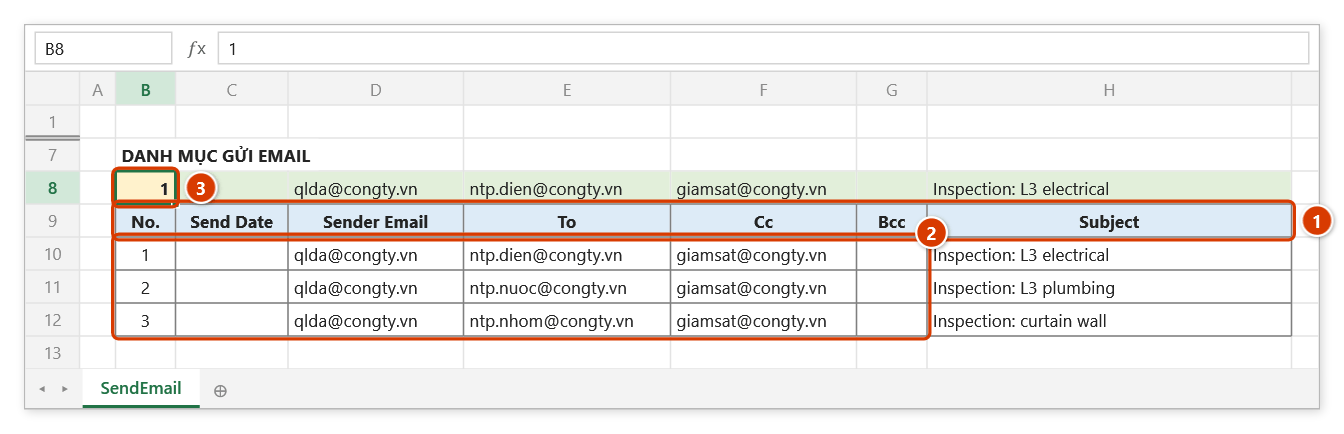
Step 2. The template SendEmail.xlsx (from the add-in's Template folder) opens. Row 9 is the fixed header row (1): No., Send Date, Sender Email, To, Cc, Bcc, Subject, Name, Company, Body, Link, Attachment, Note — one e-mail per row from row 10; replace the sample rows with your own data (2). Cell B8 is the driver; row 8 pulls the row whose No. equals B8 (3).
Step 3. The command only opens the template — it fills in nothing and sends nothing. Save it under your own project name (e.g. GuiThongBao_HuyDong.xlsx) to keep the original clean, then run Send Email: the template already stores a setup pointing the fields at row 8 (To → SendEmail!E8, Subject → SendEmail!H8, driver cell → SendEmail!B8…). If SendEmail.xlsx cannot be found, the add-in lists the folders it searched.
Example
Before notifying 8 subcontractors about a mobilisation date, you click Email Template to get the layout, enter 8 rows of address, contact name, company and work package, and save the file as Mobilisation_Notice.xlsx. You then open Send Email, point each field at the matching column, and send the whole set.
Notes
- The command only opens the template; it does not fill in data and does not send anything.
- If
SendEmail.xlsxis missing from both locations the add-in reports an error — check theTemplatefolder in the add-in installation directory. - Save the template under a new name before editing so a clean original stays available.
- Keep the template's header row intact; the email commands rely on that column structure.
- An attachment-path cell can hold several files as long as each path sits on its own line (use Alt+Enter for the line break).
Related
- Send Email — use the template's data to send batch mail.
- Import Email — pull messages and attachments from Outlook into Excel.
- Gantt Template — the programme template shipped with the add-in.
- Merge to Word — feed the same style of data table into Word documents.