
Gantt Tpl
Location on ribbon: Tab DVD Cons → Group Schedule → the arrow next to Setup
Command ID: btnGanttTpl
What it does
Opens the construction Gantt template (GanttChart.xlsx) that ships with the add-in, already laid out with the columns and formulas the schedule commands recognise.
It is the quickest way to start a new programme: you do not have to name the Activity ID / Duration / Start / Finish / Predecessors columns correctly yourself — the template already does, so you can go straight to entering activities.
How to use
- Go to the DVD Cons tab → Schedule group → click the arrow next to Setup.
- Click Gantt Tpl.
- The add-in looks for the template in the
Templatefolder next to the add-in (by defaultC:\DVDAddin\Template\GanttChart.xlsx), then in theTemplatefolder next to the open workbook, and opens the template file itself (no copy is made). - Before editing, press F12 (Save As) and give it your project name so the master template stays untouched.
- Fill in your activity list, durations and predecessor links in the existing columns.
- Click Gantt Chart to draw the bars.
Video tutorial
Narrated in Vietnamese, with Vietnamese subtitles. Cài đặt tiến độ, Mẫu, Ngôn ngữ tiêu đề · 6 min 52 s · 15 cases · Download the video · Practice workbook for the video
Commands in this video: Setup · Calendar Setup · Gantt Tpl · Header Language
Chapters (19)
- Giới thiệu
- Mở lệnh
- 1 · Đổi tiêu đề Anh → Việt
- 2 · Bảng lẫn hai thứ tiếng
- 3 · Bảng không phải tiến độ
- 4 · Cửa sổ Cài đặt – ba thẻ
- 5 · Hiển thị, màu, thang
- 6 · Đường găng
- 7 · Từ khoá tài nguyên
- 8 · Tuần làm việc 5 ngày
- 9 · Ngày lễ, ngày nghỉ riêng
- 10 · Lưu theo sổ hay theo máy
- 11 · Ẩn/Hiện cột
- 12 · Sắp xếp cột, Ctrl+Z
- 13 · Mẫu tiến độ → sổ mới
- 14 · Không tìm thấy mẫu
- 15 · Sheet đang khoá
- Mẹo
- Kết thúc
Illustrated walkthrough
Step 1. On the ribbon, open the DVD Cons tab → Schedule group → open Setup → choose Gantt Tpl.
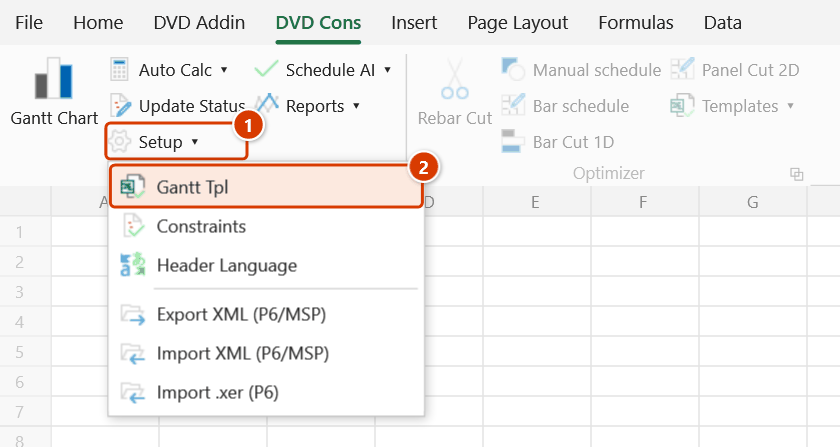
Step 2. The add-in looks for GanttChart.xlsx in the Template folder next to the add-in (by default C:\DVDAddin\Template\GanttChart.xlsx), then in a Template folder next to the active workbook, and opens the file it finds. If there is none, a warning lists the paths it searched.
Step 3. The command opens the template file itself, not a copy — before editing, press F12 (Save As) and give it a project name, e.g. D:\DuAn\NhaVanPhong9Tang\TD_NhaVanPhong.xlsx, so the original template stays untouched.
Step 4. On the sample schedule sheet, replace the example rows with your tasks in the standard columns Activity ID / Activity Name / Duration / Start / Finish / Predecessors / Level… (the HuongDan sheet explains every column and how to write FS/SS/FF/SF links). Turn on Auto Calc so the dates follow, then click Gantt Chart.
Example
You have just been handed the 600 m² materials warehouse package and need a programme by the end of the afternoon.
Click the arrow next to Setup → Gantt Tpl and the template opens with the full standard column set; Save As Programme_Warehouse_600m2.xlsx straight away. Enter 25 activities from Site levelling to Handover inspection, fill in Duration and Predecessors, turn on Auto Calc so the dates chain themselves, then click Gantt Chart and save — a complete schedule in the exact format the rest of the add-in expects.
Notes
- The command opens the template file itself in the install folder, not a copy: pressing Ctrl+S overwrites the master template. Always Save As (F12) under your project name before editing.
- If
GanttChart.xlsxcannot be found, the add-in lists the paths it searched — check theTemplatefolder alongside your installed add-in (or next to the open workbook). - Do not rename the standard columns by hand — use the Header Language command to switch between Vietnamese and English so the add-in keeps recognising them.
- The template is only a starting point; the working calendar and chart scale still come from your Setup configuration.
Related
- Gantt Chart — draw the chart as soon as the template is filled in.
- Setup — adjust the working calendar and visible columns for the new sheet.
- AI Gantt Builder — generate the activity list instead of typing it into the template.
- Import XML (P6/MSP) — if you already have the programme in MS Project or P6.