
Import XML (P6/MSP)
Location on ribbon: Tab DVD Cons → Group Schedule → the arrow next to Setup
Command ID: btnImportXml
What it does
Reads a Microsoft Project XML (MSPDI) or Primavera P6 XML file and builds a new schedule sheet in the open workbook: tasks, start/finish dates, durations, % complete, actual dates, constraints, WBS level, plus FS/SS/FF/SF relationships with lags mapped back into the add-in's own format. The project's work calendar (work week + holidays) is read as well.
Use it when the master programme lives in MS Project or Primavera P6 with the consultant or main contractor, but you want to track progress, update percentages and print from Excel. The generated sheet works immediately with Gantt Chart and Auto Calc.
How to use
- Open the Excel workbook that should receive the schedule (at least one workbook must be open).
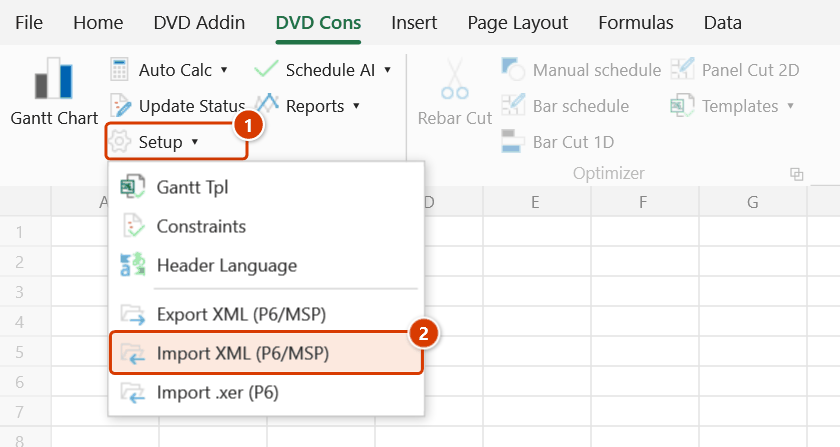
- Go to the DVD Cons tab → Schedule group → click the arrow next to Setup → Import XML (P6/MSP).
- The Import MS Project XML open dialog appears with the
MS Project XML (*.xml)filter (you can switch to All files). Pick a file and click Open. - The add-in parses the file. If the project calendar in the file differs from the workbook calendar, it asks whether to apply the file's calendar to the workbook (see Notes). It then creates a new sheet and reports:
✓ Imported N tasks, M links into sheet "<sheet name>"., plus a sentence stating which calendar is in use. - Switch to the new sheet, click Gantt Chart to draw the bars, and turn on Auto Calc if you want dates to update automatically.
Video tutorial
Narrated in Vietnamese, with Vietnamese subtitles. Xuất, Nhập MS Project và P6 · 6 min 24 s · 16 cases · Download the video · Practice workbook for the video
Commands in this video: Export XML (P6/MSP) · Import .xer (P6) · Import XML (P6/MSP)
Chapters (22)
- Giới thiệu
- Mở lệnh
- 1 · Xuất bảng tiến độ
- 2 · Cấp WBS và dòng tổng
- 3 · Quan hệ và lag
- 4 · Lịch làm việc, ngày lễ
- 5 · % hoàn thành, thực tế
- 6 · Ràng buộc
- 7 · Tên tệp, ký tự đặc biệt
- 8 · Khi không xuất được
- Nhập XML
- 9 · Nhập lại tệp XML
- 10 · Lịch tệp khác lịch sổ
- 11 · Tệp Primavera P6 XML
- 12 · Tệp XML sai, hỏng
- Nhập .xer
- 13 · Nhập .xer một dự án
- 14 · Tệp .xer nhiều dự án
- 15 · Lịch, giờ, mã hoá, tệp sai
- 16 · Vẽ tiến độ sau khi nhập
- Mẹo
- Kết thúc
Illustrated walkthrough
Step 1. Open the workbook that will receive the schedule (at least one workbook must be open).
Step 2. On the ribbon, open the DVD Cons tab → Schedule group → open Setup → choose Import XML (P6/MSP).
Step 3. The Import MS Project XML box opens with the MS Project XML (*.xml) filter (you can switch to All files). Pick the file from the consultant, e.g. D:\DuAn\NhaVanPhong9Tang\NhaVanPhong9T.xml, and click Open. Both MS Project (MSPDI) and Primavera P6 XML are accepted.
Step 4. If the file's calendar differs from the workbook calendar (e.g. the file has 11 holidays in 2026 and the workbook none), the add-in asks Apply the file's calendar to this workbook? — choose Yes so the sheet dates match the source; with No, Auto Calc recomputes the dates on the workbook calendar.
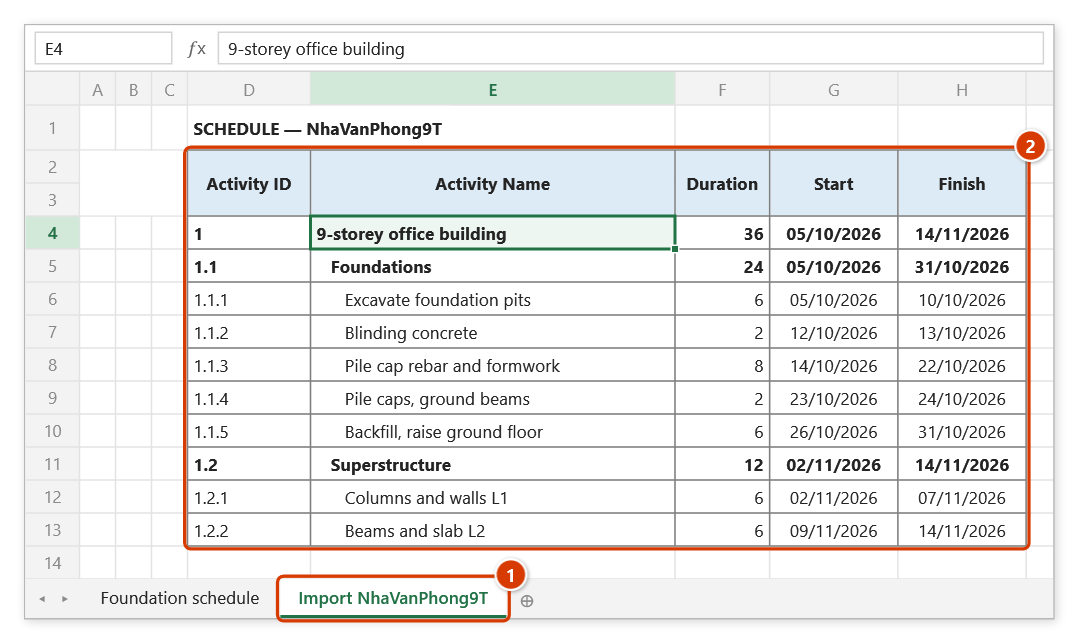
Step 5. The add-in creates a new sheet Import NhaVanPhong9T from the standard template (1): activity IDs come from the WBS, names are indented by level, summary rows are bold, with durations, dates, % complete, links and constraints (2). Message: ✓ Imported 10 tasks, 6 links into sheet "Import NhaVanPhong9T". plus a line about the calendar in use. Next, click Gantt Chart.
Example
The overseas consultant sends you MasterProgramme_Rev3.xml, exported from Primavera P6 for the Binh Duong timber processing plant.
Open your site-tracking workbook, click Import XML (P6/MSP) and choose the file. The message reads ✓ Imported 342 tasks, 511 links into sheet "Import MasterProgramme_Re" (the project inside the file is named MasterProgramme_Rev3). The new sheet has the full Activity ID / Duration / Start / Finish / Predecessors column set; click Gantt Chart for the bars, run Header Language to switch the headers to Vietnamese, then update % complete weekly right in Excel.
Notes
- A workbook must be open; otherwise the add-in reports "No workbook is open." and stops.
- The command always creates a new sheet — it never overwrites an existing schedule sheet. The sheet is named
Import+ the project name stored in the file, cut to 25 characters ((2),(3)… is added on a clash); the Import .xer (P6) command names itP6+ the project's short name. - The file must be MS Project XML (MSPDI — MS Project: Save As / Export → Microsoft Project XML) or Primavera P6 XML. A corrupt or wrong-format file produces a
⚠warning with the reason and no sheet. - MS Project XML: durations and lags are converted to days using the hours per day stored in the file (not a fixed 8 h); the project calendar is read together with its base calendar and exceptions;
ActualStart/ActualFinishgo to the Actual Start / Actual Finish columns. - P6 XML: durations are converted with the calendar's
HoursPerDay; the work week and holidays are read from the calendar;ActualStartDate/ActualFinishDatego to the Actual Start / Actual Finish columns. - Constraints in the file are imported with their dates into the Constraint Type / Constraint Date columns; if the template lacks them, the add-in creates them.
- Work calendar: every schedule sheet in a workbook shares one calendar, so if the file's calendar differs from the workbook's, the add-in asks whether to apply the file's calendar to the workbook. If you keep the workbook calendar, Auto Calc recomputes dates on it and they may differ from the source file. The final message tells you which calendar is in use.
- P6 exports usually carry English headers — run Header Language if you want the Vietnamese version.
- Creating the sheet cannot be undone with Ctrl+Z; delete the sheet manually if you want to discard it.
Related
- Export XML (P6/MSP) — the other direction: send the Excel schedule back to MS Project / P6.
- Gantt Chart — works on the imported sheet straight away.
- Header Language — switch the imported English headers to Vietnamese.
- Update Status — add PV/SV/SPI columns to track the imported programme.