
Import .xer (P6)
Ribbon location: DVD Cons tab → Schedule group → the arrow next to Setup
Command ID: btnImportXer
What it does
Reads a .xer file — Primavera P6's native exchange format — into the add-in's standard Gantt sheet.
Why this exists alongside Import XML: .xer is what people actually send each other. Contractors, consultants and clients exchange schedules as .xer; getting XML means opening P6 and exporting again — and the receiving party usually has no P6, which is exactly why they need the add-in.
How to use it
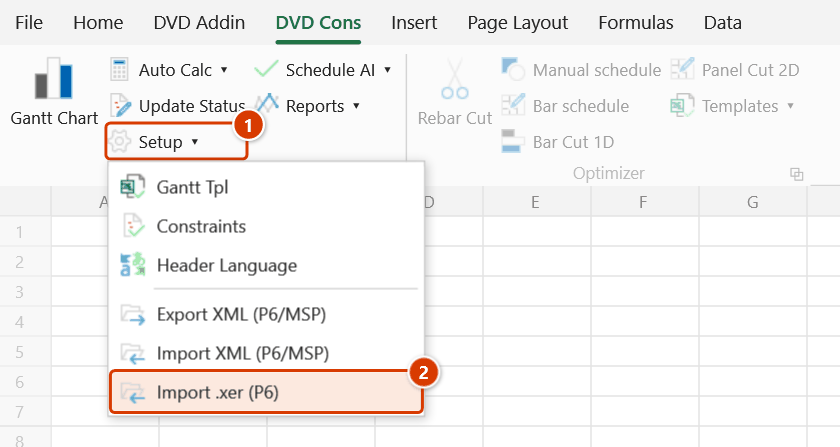
- Go to the DVD Cons tab → Schedule group → click the arrow next to Setup → Import .xer (P6).
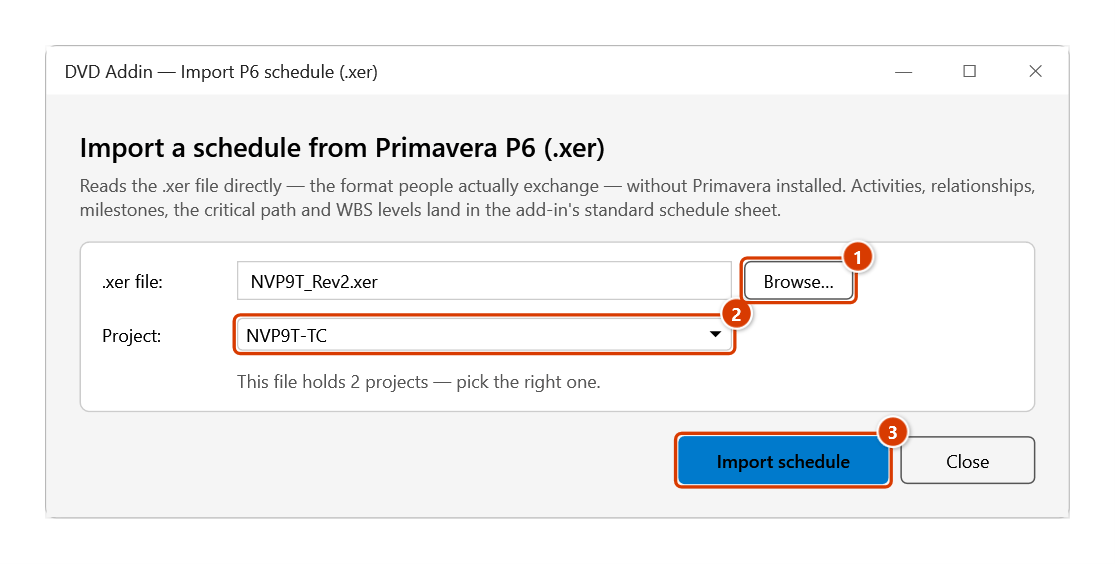
- Browse… to the
.xerfile you received. - Pick the project. A .xer often holds several projects; the add-in says how many it found.
- Click Import schedule. If the project calendar in the file differs from the workbook calendar, the add-in asks whether to apply the file's calendar to the workbook (see Notes).
- The result goes to a new schedule sheet named
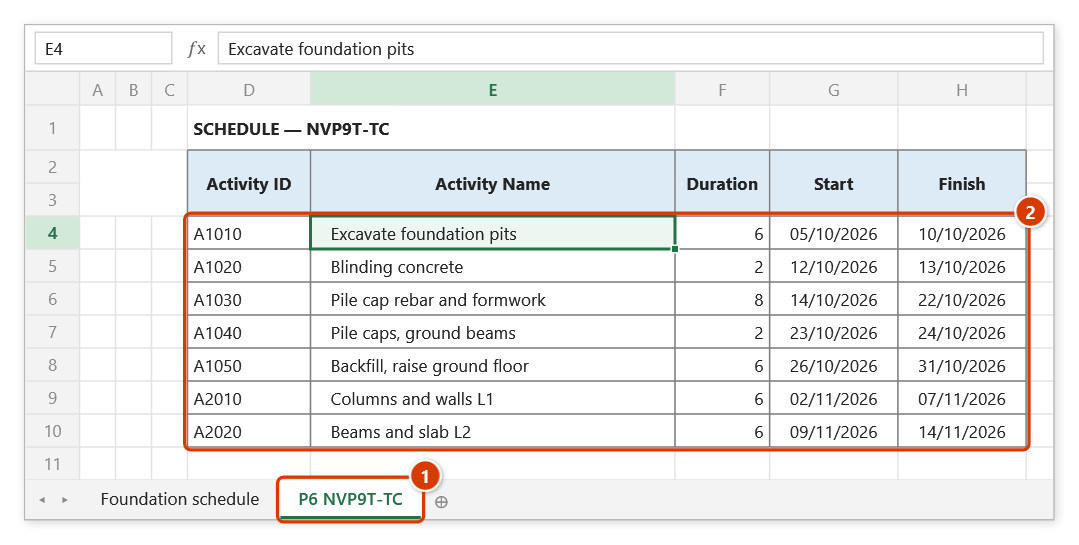
P6+ the project's short name (cut to 25 characters), ready for Draw Gantt, EVM and the other schedule commands. The final message states which calendar is in use.
Video tutorial
Narrated in Vietnamese, with Vietnamese subtitles. Xuất, Nhập MS Project và P6 · 6 min 24 s · 16 cases · Download the video · Practice workbook for the video
Commands in this video: Export XML (P6/MSP) · Import .xer (P6) · Import XML (P6/MSP)
Chapters (22)
- Giới thiệu
- Mở lệnh
- 1 · Xuất bảng tiến độ
- 2 · Cấp WBS và dòng tổng
- 3 · Quan hệ và lag
- 4 · Lịch làm việc, ngày lễ
- 5 · % hoàn thành, thực tế
- 6 · Ràng buộc
- 7 · Tên tệp, ký tự đặc biệt
- 8 · Khi không xuất được
- Nhập XML
- 9 · Nhập lại tệp XML
- 10 · Lịch tệp khác lịch sổ
- 11 · Tệp Primavera P6 XML
- 12 · Tệp XML sai, hỏng
- Nhập .xer
- 13 · Nhập .xer một dự án
- 14 · Tệp .xer nhiều dự án
- 15 · Lịch, giờ, mã hoá, tệp sai
- 16 · Vẽ tiến độ sau khi nhập
- Mẹo
- Kết thúc
Illustrated walkthrough
Step 1. On the ribbon, open the DVD Cons tab → Schedule group → open Setup → choose Import .xer (P6).
Step 2. In the Import from Primavera P6 (.xer) window, click Browse… (1) and pick the .xer you received. When the file holds several projects the add-in says how many — pick the right Project (2), then click Import (3).
Step 3. If the project calendar in the file differs from the workbook calendar, the add-in asks whether to apply the file's calendar (every schedule sheet in a workbook shares one calendar) — choose Yes so the dates match P6.
Step 4. The result goes to a new sheet P6 NVP9T-TC (1), with the same layout as an XML import: activity IDs (task_code), names indented by the WBS tree, durations converted with the calendar's hours/day, actual dates taking precedence (2). Message: Imported 7 activities and 6 relationships into sheet "P6 NVP9T-TC". plus a line about the calendar in use.
What is read
| Content | Source in the file |
|---|---|
| Activity code and name | task_code, task_name |
| Start / finish dates | actual dates preferred, falling back to planned |
| Actual dates | act_start_date / act_end_date → Actual Start / Actual Finish columns |
| Duration | target_drtn_hr_cnt ÷ the activity calendar's hours per day (day_hr_cnt) |
| Start / finish milestones | TT_Mile / TT_FinMile |
| Relationships | all four types FS, SS, FF, SF with lag, converted to days at the calendar's hours per day |
| Constraints | cstr_type with its date → MSO, MFO, SNET, SNLT, FNET, FNLT, ALAP, written to the Constraint Type / Constraint Date columns |
| Work calendar | the project calendar: work week + holidays |
| Critical path | total float ≤ 0 |
| Outline level | derived from the WBS tree |
| Percent complete | phys_complete_pct |
Notes
- Actual dates take priority over planned ones — that is the schedule as it is really running. Activities not yet started use their planned dates. Actual dates are also written to their own Actual Start / Actual Finish columns.
- Durations and lags are converted from hours to days using each calendar's hours per day in the file (
day_hr_cnt), not a fixed 8 h — a 10 h/day or 24 h/day calendar still yields the right number of days. - P6 constraints are imported with their dates. If the template has no Constraint Type / Constraint Date columns, the add-in creates them.
- Work calendar: the add-in reads the project calendar (work week + holidays). Every schedule sheet in a workbook shares one calendar, so if the file's calendar differs from the workbook's, the add-in asks whether to apply the file's calendar to the workbook. If you keep the workbook calendar, Auto Calc recomputes dates on it and they may differ from P6. The final message tells you which calendar is in use.
- Relationships pointing at another project in the same file are dropped, because that activity code is not on the sheet; keeping them would only create broken references.
- Dates in a .xer are always
yyyy-MM-dd HH:mmand are read with the invariant format — independent of the machine's regional settings. - A .xer is written in the exporting machine's code page; the add-in detects the BOM so Vietnamese activity names survive.
- The sheet layout is identical to an XML import, so every downstream schedule command works immediately.
See also
- Import XML — import from P6 XML or MS Project.
- Export XML — the other direction.
- Draw Gantt · EVM report