
Setup
Location on ribbon: Tab DVD Cons → Group Schedule
Command ID: btnGanttSetupGroup
What it does
Opens the Gantt Setup tool window, which gathers three tabs: Work Calendar (working weekdays, public holidays), Gantt Settings (how the Gantt chart is drawn) and Show/Hide Columns on the schedule sheet.
Reach for it when the chart does not come out the way you want: wrong default scale, Sundays counted as working days, or too many columns cluttering the printout.
How to use
- Open a workbook that contains a schedule sheet.
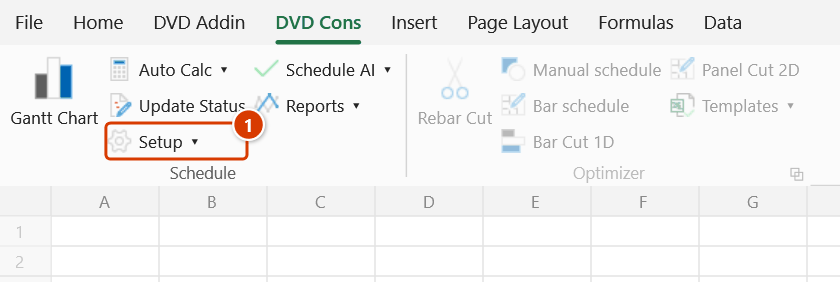
- Go to the DVD Cons tab → Schedule group → click Setup.
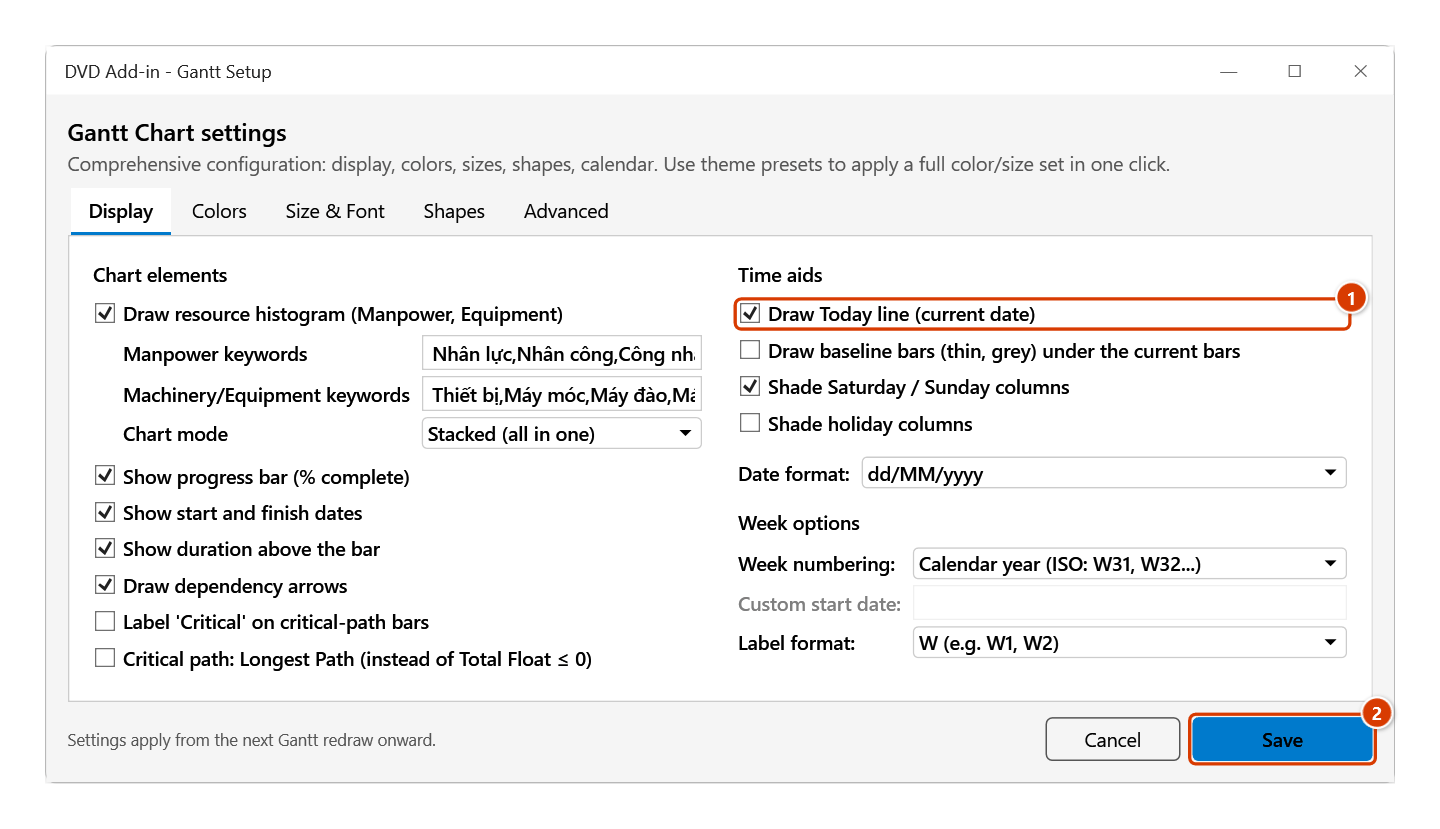
- The DVD Add-in - Gantt Setup window opens straight on the Gantt Settings tab.
- Pick the tab you need:
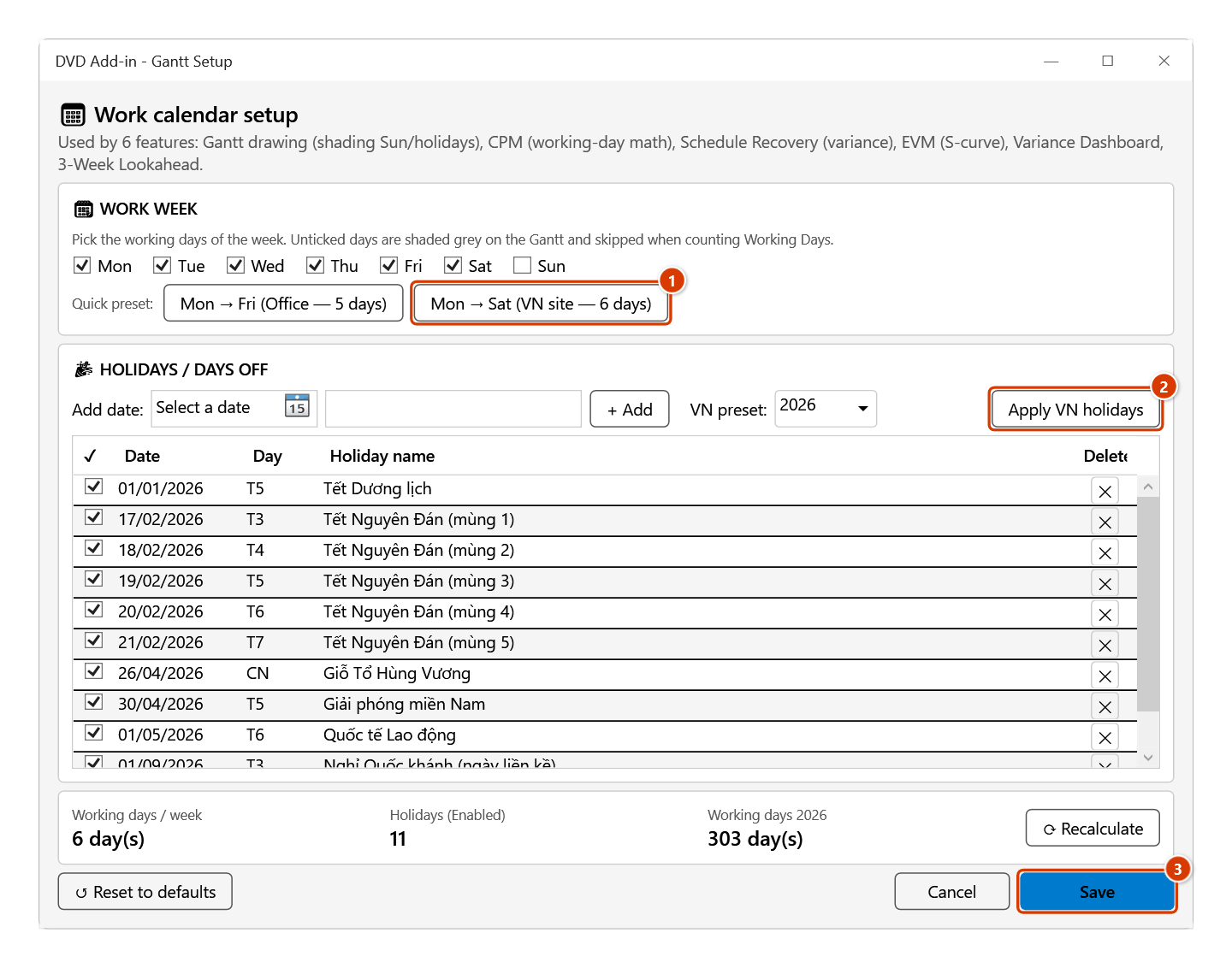
- Work Calendar — declare the working weekdays and the non-working days / holidays used when scheduling.
- Gantt Settings — the Gantt drawing parameters, split into Display / Colors / Size & Font / Shapes / Advanced.
- Show/Hide Columns — choose which columns show on the schedule sheet.
- Click Save on the tab you changed (Apply on the Show/Hide Columns tab), then click Gantt Chart so the chart picks up the new configuration.
Video tutorial
Narrated in Vietnamese, with Vietnamese subtitles. Cài đặt tiến độ, Mẫu, Ngôn ngữ tiêu đề · 6 min 52 s · 15 cases · Download the video · Practice workbook for the video
Commands in this video: Setup · Calendar Setup · Gantt Tpl · Header Language
Chapters (19)
- Giới thiệu
- Mở lệnh
- 1 · Đổi tiêu đề Anh → Việt
- 2 · Bảng lẫn hai thứ tiếng
- 3 · Bảng không phải tiến độ
- 4 · Cửa sổ Cài đặt – ba thẻ
- 5 · Hiển thị, màu, thang
- 6 · Đường găng
- 7 · Từ khoá tài nguyên
- 8 · Tuần làm việc 5 ngày
- 9 · Ngày lễ, ngày nghỉ riêng
- 10 · Lưu theo sổ hay theo máy
- 11 · Ẩn/Hiện cột
- 12 · Sắp xếp cột, Ctrl+Z
- 13 · Mẫu tiến độ → sổ mới
- 14 · Không tìm thấy mẫu
- 15 · Sheet đang khoá
- Mẹo
- Kết thúc
Illustrated walkthrough
Step 1. On the ribbon, open the DVD Cons tab → Schedule group → click Setup.
Step 2. The DVD Add-in - Gantt Setup window opens straight on the Gantt Settings tab (between the Work Calendar and Show/Hide Columns tabs). It is split into Display / Colors / Size & Font / Shapes / Advanced — e.g. tick Draw Today line (current date) (1) and click Save (2).
Step 3. Work Calendar tab: click Mon → Sat (VN site — 6 days) (1), pick the year and click Apply VN holidays (2) — the table is filled with the 11 statutory holidays of 2026 (New Year, five days of Tết, Hùng Kings, 30/4, 1/5, 1–2/9); add your own dates with + Add. Click Save (3). This calendar drives every scheduling command, including Auto Calc and Constraints.
Step 4. Show/Hide Columns tab: tick or untick the columns to show on the schedule sheet (hiding never deletes data). Re-ordering uses Excel's Cut–Insert and therefore the clipboard — if the clipboard holds something the add-in asks first, and the Confirm data change box offers to back up the sheet.
Step 5. The existing chart does not pick up the new settings by itself: run Gantt Chart again (or turn on Auto Draw and edit a cell) to apply them.
Example
Your site works Saturdays, rests on Sundays and observes the Vietnamese public holidays (Tết, 30 April, 1 May, 2 September). The default schedule counts Sundays as working days, so every finish date comes out earlier than reality.
Click Setup → open Work Calendar → remove Sunday from the working days and add the year's holidays. Save, go back and click Gantt Chart — every long activity's finish date stretches out to the true number of working days.
Notes
- Show/Hide columns tab — changing the column order uses Excel's Cut–Insert (the only way every formula keeps pointing at the right column), so it goes through the clipboard: if the clipboard holds something you copied, the add-in asks first (that content will be lost) — paste it, then reorder. Merely showing/hiding columns never touches the clipboard.
- Draw baseline bars (thin, grey) under the current bars (Gantt settings tab, time-aids group): dates come from the sheet's current baseline (Baseline), matched by Activity ID. Off by default.
- The working calendar affects every scheduling command, including Auto Calc and Constraints — recalculate the sheet after changing it.
- Changing settings does not repaint an existing chart on its own; click Gantt Chart (or turn on Auto Draw and edit a cell) to see the effect.
- If the window cannot open, the add-in shows an error dialog with the exact message — usually because no workbook is open or the Excel session is busy.
- Hiding a column only changes what is displayed; the data in that column is untouched.
Related
- Gantt Chart — apply the settings you just changed to the chart.
- Auto Calc — uses the very working calendar defined here.
- Header Language — switch column headers between Vietnamese and English after choosing which are visible.
- Gantt Tpl — a ready-made template if you would rather start from the standard layout.