
Auto Calc
Location on ribbon: Tab DVD Cons → Group Schedule
Command ID: ToggleAutoCalc
What it does
Turns automatic schedule recalculation (CPM) on or off. While it is on, every edit to Duration, Start, Finish or Predecessors triggers an immediate recalculation of the whole schedule — no extra click needed.
It is the master switch for the Schedule group: Auto Draw, the date constraints (MSO/SNET/FNLT/Deadline) and the status columns all depend on this recalculation cycle. Turn it off during bulk data entry to avoid lag, then turn it back on.
How to use
- Open a schedule sheet the add-in recognises.
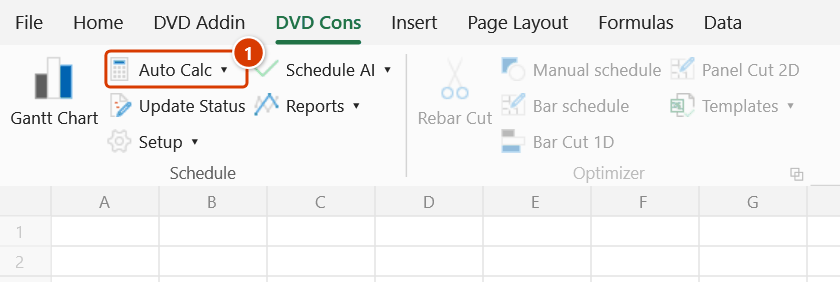
- Go to the DVD Cons tab → Schedule group → click Auto Calc.
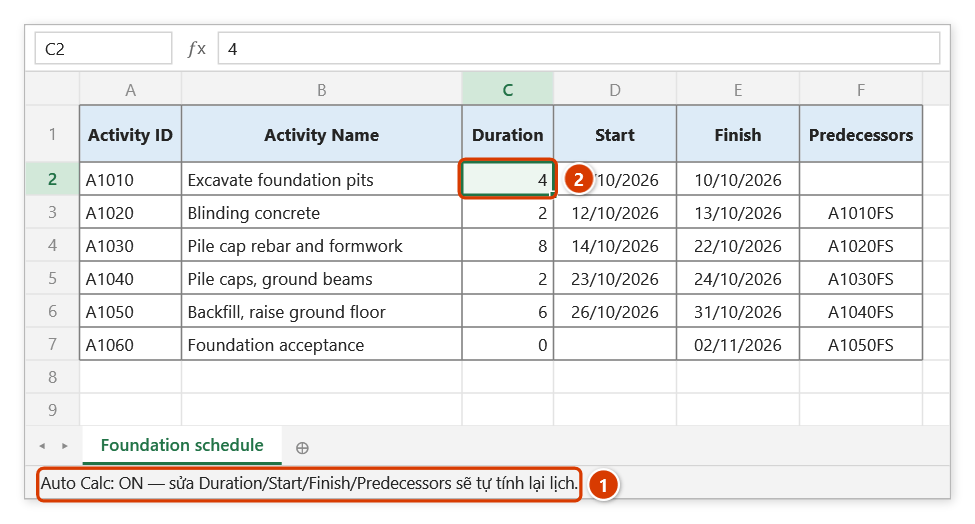
- The button stays highlighted (pressed state) while it is ON, and the Excel status bar confirms it:
Auto Calc: ON — sửa Duration/Start/Finish/Predecessors sẽ tự tính lại lịch.The message clears itself after about 6 seconds. - Click again to turn it OFF. The status bar then reads
Auto Calc: OFF — chỉnh ngày thủ công không bị addin can thiệp. - From then on, typing into the schedule columns updates the dates across the task network automatically.
Video tutorial
Narrated in Vietnamese, with Vietnamese subtitles. Vẽ tiến độ, Tự động tính, Tự động vẽ · 7 min 42 s · 18 cases · Download the video · Practice workbook for the video
Commands in this video: Gantt Chart · Auto Calc · Auto Draw
Chapters (23)
- Giới thiệu
- Mở lệnh
- Cửa sổ Vẽ tiến độ
- 1 · Bảng tiến độ cơ bản
- 2 · Sửa mốc cuối bảng, vẽ lại
- 3 · Bố trí bảng đúng
- 4 · Quan hệ FS, SS, FF, SF
- 5 · Mốc và thang Ngày
- 6 · Công tác nhóm theo cấp
- 7 · % hoàn thành, nhân lực
- 8 · Đường găng
- 9 · Thang Tháng
- 10 · Cột bắt đầu vẽ
- 11 · Bảng lớn, dừng bằng ESC
- 12 · Tự động tính
- 13 · Tắt tự động tính / vẽ
- 14 · Công tác trước theo dòng
- 15 · Ngày trống, ngày sai
- 16 · Vòng lặp quan hệ
- 17 · Sheet đang bảo vệ
- 18 · Hoàn tác Ctrl+Z
- Mẹo
- Kết thúc
Illustrated walkthrough
Practice
Download this command's sample workbook — the data matches the pictures below (sheet Foundation schedule), so you can follow each step right away.
Step 1. On the ribbon, open the DVD Cons tab → Schedule group → click Auto Calc.
Step 2. The button lights up while it is ON; Excel's status bar confirms it for about 6 seconds (1). Now try an edit: type a new duration for Excavate foundation pits — from 6 down to 4 days (2) — and press Enter.
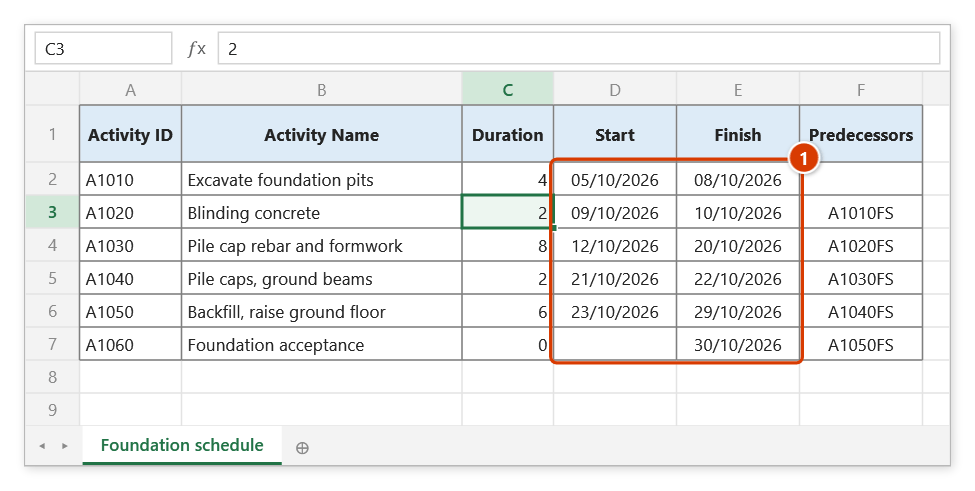
Step 3. As soon as you leave the cell the add-in recalculates the whole schedule: Start / Finish of every following task move 2 working days earlier (1), with no other command. If Auto Draw is also on, the Gantt chart redraws about 0.7 s later. Click the button again to turn it OFF — the status bar then reads Auto Calc: OFF — chỉnh ngày thủ công không bị addin can thiệp. (manual date edits are left alone).
Example
You are running the substructure schedule. Excavation to pit is currently 10 days, and Blinding concrete and Pile-cap rebar follow it with finish-to-start links.
Turn Auto Calc on, then change the duration of Excavation to pit from 10 to 7. The moment you leave the cell, the start and finish dates of the whole downstream chain shift three days earlier — nothing else to click. If Auto Draw is on as well, the Gantt chart redraws about 0.7 seconds later.
Notes
- The on/off state is written to the user registry, so it survives an Excel restart — if dates start changing unexpectedly, check this button first.
- For heavy data entry (pasting a few hundred rows), switching it off and back on afterwards is far faster.
- Recalculated dates are written straight into the cells and cannot be undone with Ctrl+Z.
- Turning Auto Calc off also disables Auto Draw: the Gantt only redraws itself while Auto Calc is running.
- If no status-bar message appears, you most likely missed the button — click again and watch for the confirmation text.
Related
- Auto Draw — only takes effect while this toggle is on.
- Gantt Chart — how to refresh the chart manually when auto mode is off.
- Constraints — date constraints are re-evaluated live while this is on.
- Update Status — refresh the PV/SV/SPI columns after the schedule has recalculated.