
Constraints
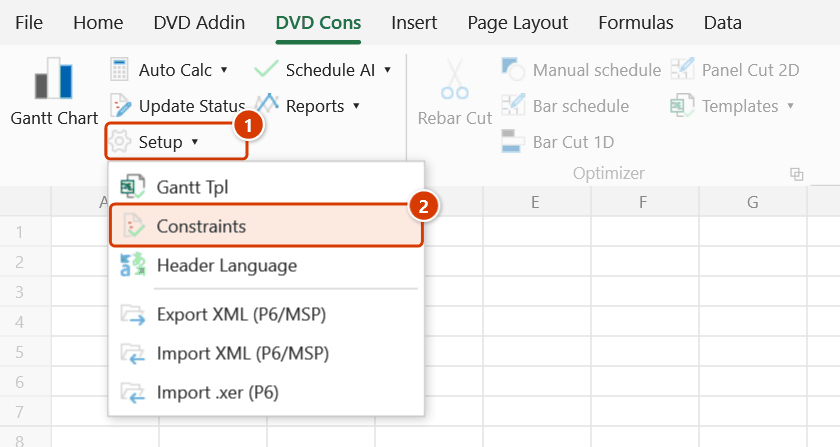
Location on ribbon: Tab DVD Cons → Group Schedule → the arrow next to Setup
Command ID: btnConstraints
PRO feature
This command is part of the PRO package. STANDARD accounts activated before 1 July 2026 keep access until their licence expires; other Standard accounts will see an upgrade dialog.
What it does
Applies Primavera P6 / MS Project style date constraints to the task rows you select — 9 types: ASAP (As Soon As Possible, the default), ALAP (As Late As Possible), MSO / MFO (Must Start / Must Finish On), SNET / SNLT (Start No Earlier / No Later Than), FNET / FNLT (Finish No Earlier / No Later Than) and Deadline (a soft deadline).
Use it whenever the schedule cannot float freely with the network: contractual milestones, site-handover dates, the day the tower crane arrives, phase-completion deadlines. The add-in writes the constraint into two sheet columns and recalculates so dates and violation flags update immediately.
How to use
- Open the schedule sheet and select at least one task row inside the data area. If nothing is selected, the add-in tells you: "Select at least one task row (in the data area) before setting a constraint."
- Go to the DVD Cons tab → Schedule group → click the arrow next to Setup → Constraints.
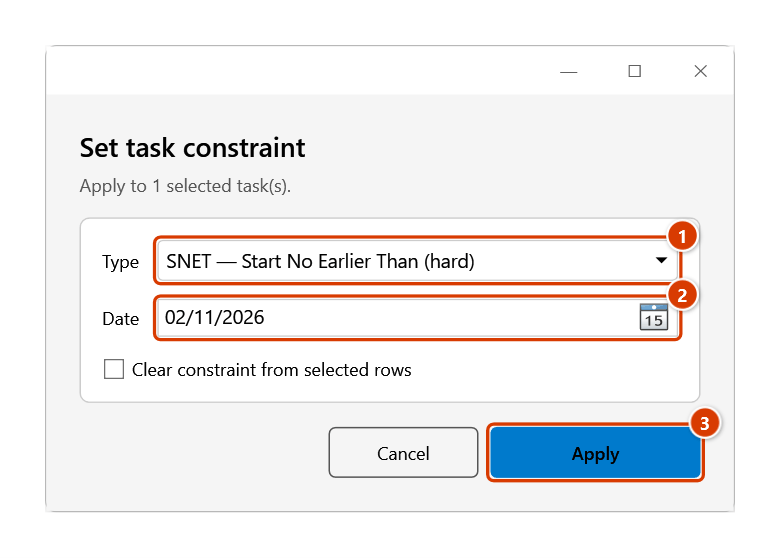
- The Set task constraint window opens with:
- Type — choose ASAP / ALAP / MSO / MFO / SNET / SNLT / FNET / FNLT / Deadline.
- Date — the constraint date.
- A Clear constraint from selected rows checkbox — use it to remove constraints instead of setting them.
- Click Apply (or Cancel). Missing type or date is flagged inline in the window.
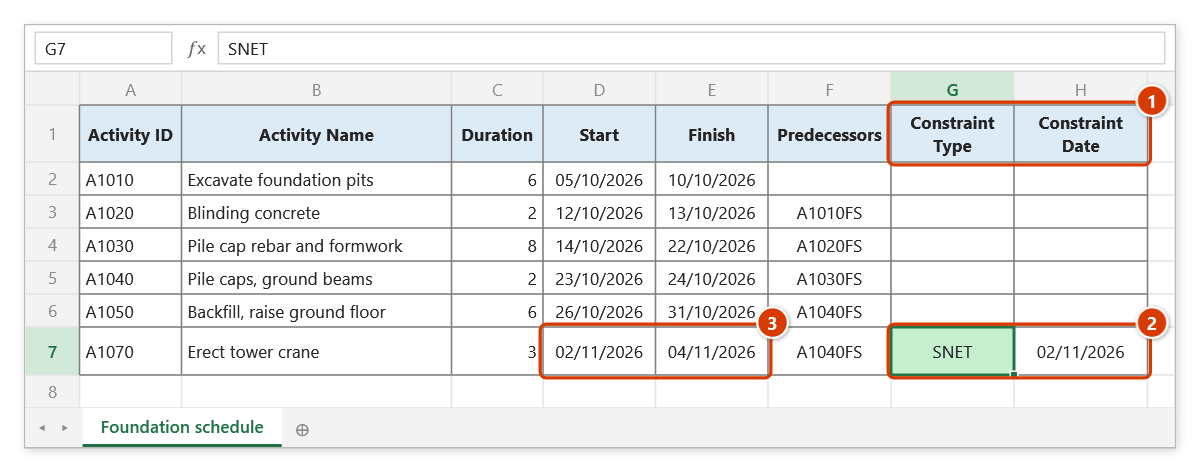
- The add-in creates the Constraint Type and Constraint Date columns if the sheet lacks them, writes the values into the selected rows, then recalculates. A message reports how many tasks were updated.
- Read the constraint cell colour: green = met, red = conflict / late (hover for details).
Video tutorial
Narrated in Vietnamese, with Vietnamese subtitles. Ràng buộc tiến độ · 6 min 08 s · 15 cases · Download the video · Practice workbook for the video
Chapters (20)
- Giới thiệu
- Mở lệnh
- 1 · SNET – chờ bàn giao mặt bằng
- Các loại ràng buộc
- 1 · SNET – chờ bàn giao mặt bằng
- 2 · MSO – ghim ngày bắt đầu
- 3 · MSO mâu thuẫn với quan hệ
- 4 · FNET – xong không sớm hơn
- 5 · MFO – xong đúng ngày
- 6 · FNLT, Deadline – hạn chót
- 7 · SNLT – bắt đầu không muộn hơn
- 8 · Nhiều dòng một lần
- 9 · Dòng tóm tắt và mốc
- 10 · Ngày ràng buộc là Chủ nhật
- 11 · Xoá ràng buộc
- 12 · Gõ tay, Tự động tính
- 13 · Xuất sang MS Project
- 14 · Thông báo và lưu ý
- Mẹo
- Kết thúc
Illustrated walkthrough
Practice
Download this command's sample workbook — the data matches the pictures below (sheet Foundation schedule), so you can follow each step right away.
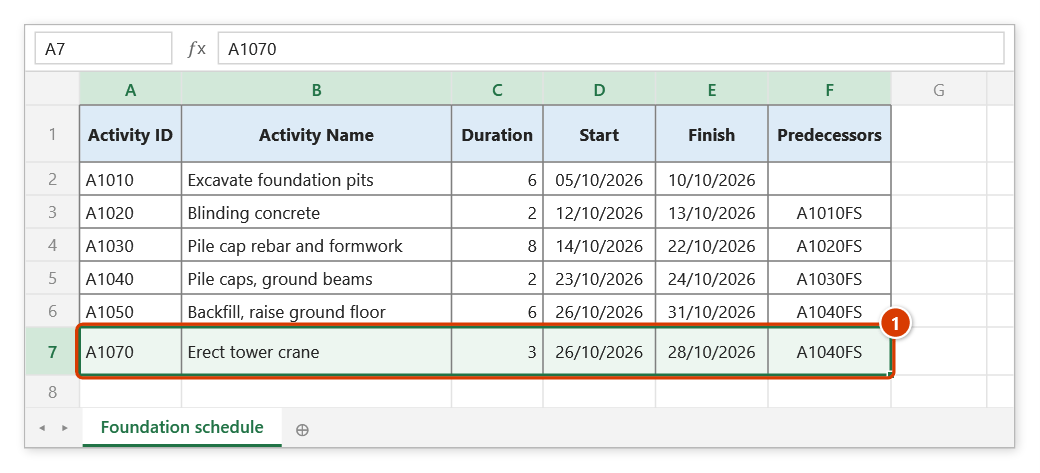
Step 1. Open the schedule sheet and select the task row(s) to constrain (1) — here Erect tower crane, because the crane pad is only handed over on 02/11/2026. With no row of the data area selected, the command just reminds you and stops.
Step 2. On the ribbon, open the DVD Cons tab → Schedule group → open Setup → choose Constraints.
Step 3. The Set task constraint window shows how many rows are selected. Pick the Type (1) — MSO, SNET, FNET are hard constraints (they move dates); ALAP, MFO, SNLT, FNLT, Deadline only flag — pick the Date (2) and click Apply (3). To remove constraints, tick Clear constraint from selected rows.
Step 4. If the sheet lacks them, the add-in inserts Constraint Type / Constraint Date right after the Predecessors column (1) (Type has a drop-down list), writes the constraint on the selected row and recalculates. The constraint cell turns green = met, red = conflict / late — hover it to read the note (2). SNET pushes Erect tower crane to 02/11–04/11 (3); the message reads ✓ Set SNET constraint on 1 task(s).
Example
The contract requires Level 1 fit-out for the opening to finish by 30 November, while Tower crane erection cannot start before 5 September because the site is not handed over until then.
Select the Tower crane erection row → Constraints → Type SNET, Date 05/09 → Apply: the start date is pushed to 5 September and the downstream chain shifts with it. Now select Level 1 fit-out → Type FNLT, Date 30/11 → Apply: the cell turns red because the current schedule finishes on 8 December, telling you that you need to compress by eight days.
Notes
- You must select rows first — with no task row selected inside the data area the command just shows a message and stops.
- The active sheet must be a valid schedule worksheet; otherwise the add-in warns and changes nothing.
- You can also type straight into the Constraint Type / Constraint Date columns (a dropdown is provided); with Auto Calc on, the schedule refreshes live.
- MSO, SNET and FNET are hard constraints — they actually move dates; ALAP, MFO, SNLT, FNLT and Deadline are flagging constraints — they colour the cell red but do not compress the task for you.
- Writing the columns and recalculating cannot be undone with Ctrl+Z; to remove a constraint, rerun the command with the Clear constraint checkbox ticked.
Related
- Auto Calc — turn on so hand-typed constraints take effect immediately.
- Gantt Chart — redraw the chart after the constraints have moved the dates.
- Update Status — check Δ Finish against the milestones you just pinned.
- Schedule Recovery — when an FNLT turns red, build a recovery plan.