
AI Gantt Builder
Location on ribbon: Tab DVD Cons → Group Schedule → Menu Schedule AI
Command ID: btnGanttBuilder
PRO feature
This command is part of the PRO package. STANDARD accounts activated before 1 July 2026 keep access until their licence expires; other Standard accounts will see an upgrade dialog.
What it does
Opens the AI Gantt Builder window, where AI drafts a construction programme instead of you typing every activity by hand. It groups the work into phases, estimates durations and suggests predecessor links.
There are two ways in: From BoQ (recommended) — reads the bill of quantities straight off the sheet and uses the BoQ code as the Activity ID, so the programme lines up with the cost plan; and From description — you type a free-form description of the project and AI produces a generic phase outline. The result is written to a new sheet in the add-in's standard Gantt layout, ready to chart.
How to use
- If you are working from a BoQ, open the sheet holding it first.
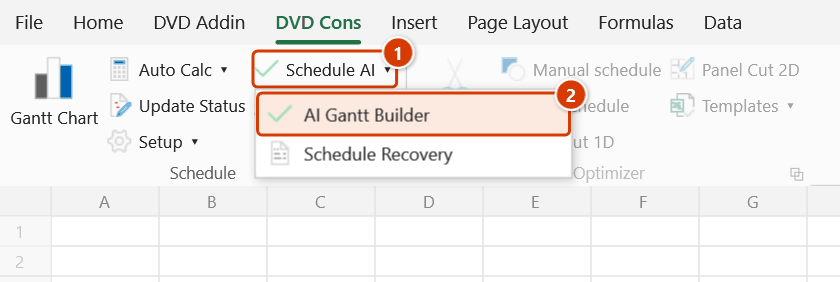
- Go to the DVD Cons tab → Schedule group → Schedule AI menu → click AI Gantt Builder.
- Choose a tab:
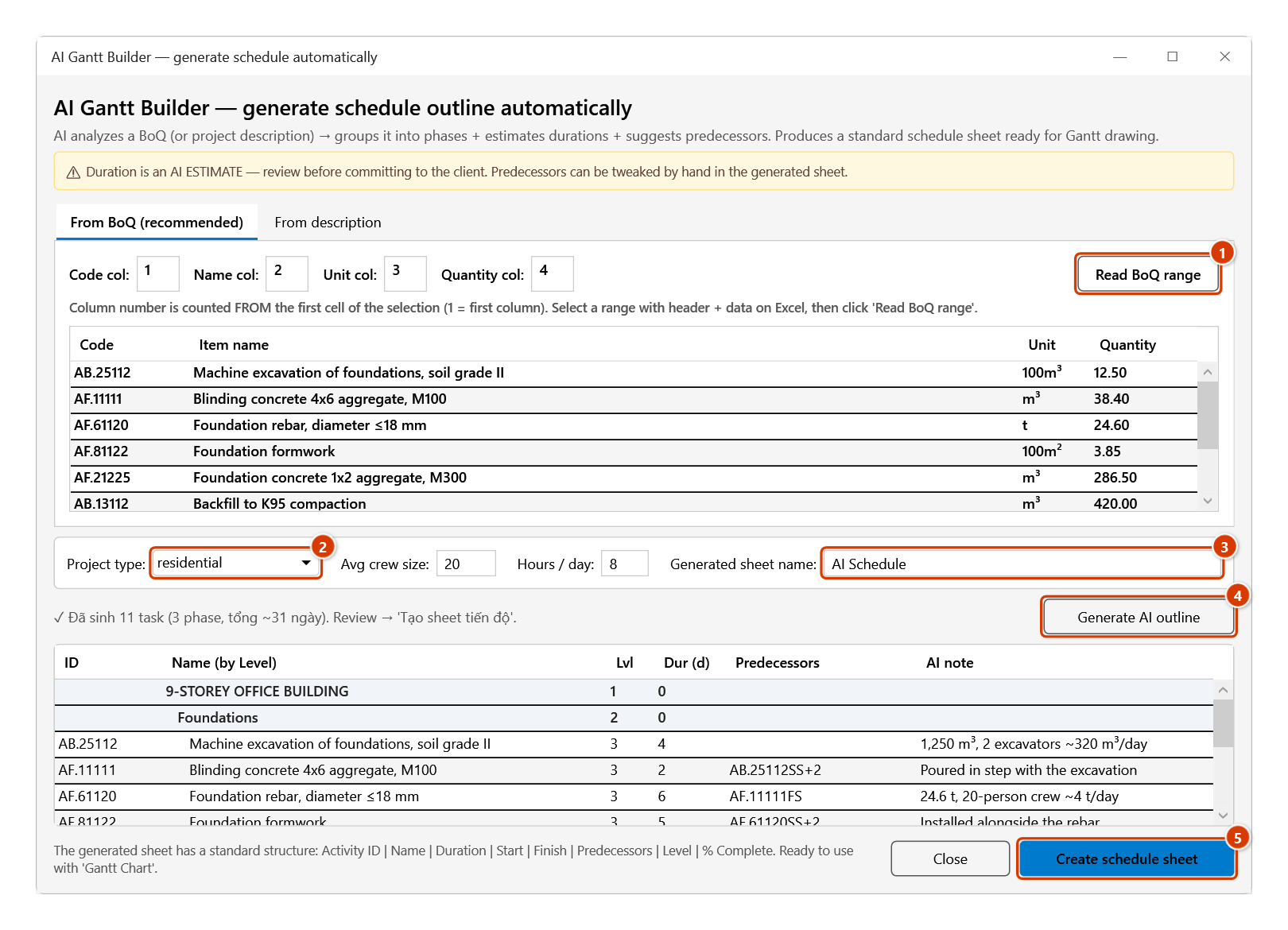
- From BoQ (recommended) — set the column numbers for Code / Name / Unit / Qty (defaults 1/2/3/4), select the BoQ range on the sheet, then click Read BoQ range. What was read appears in the preview grid.
- From description — type a description of the project into the text box (an example is prefilled).
- Fill in the shared parameters at the bottom: Project type (residential / industrial / infrastructure / interior), Avg crew size, Hours / day, and Generated sheet name (defaults to AI Schedule).
- Click Generate AI outline. The results grid lists Activity ID, Name (indented by level), Level, Duration, Predecessors and an AI note.
- Review the rows, then click Create schedule sheet to write them out (the button only enables once results exist). Click Close to discard.
- Switch to the new sheet and click Gantt Chart to draw the bars.
Video tutorial
Narrated in Vietnamese, with Vietnamese subtitles. AI Lập tiến độ và Đề xuất tiến độ · 5 min 44 s · 16 cases · Download the video · Practice workbook for the video
Commands in this video: AI Gantt Builder · Schedule Recovery
Chapters (21)
- Giới thiệu
- Mở lệnh
- 1 · Đọc vùng BoQ
- 2 · AI nhóm, ước thời lượng
- 3 · Tạo sheet, vẽ tiến độ
- 4 · Cột STT, tiêu đề, dòng nhóm
- 5 · Khối lượng lưu dạng chữ
- 6 · Tab Từ mô tả
- 7 · BoQ lớn – chia lô
- 8 · Khi AI không trả lời
- Đề xuất tiến độ
- 9 · Phân tích tại Status Date
- 10 · Giữ deadline
- 11 · Ghi vào Excel, hoàn tác
- 12 · Đẩy deadline
- 13 · Ngày thực tế và dự trữ
- 14 · AI re-plan
- 15 · Overlay và báo cáo
- 16 · Khi không phân tích được
- Mẹo
- Kết thúc
Illustrated walkthrough
Practice
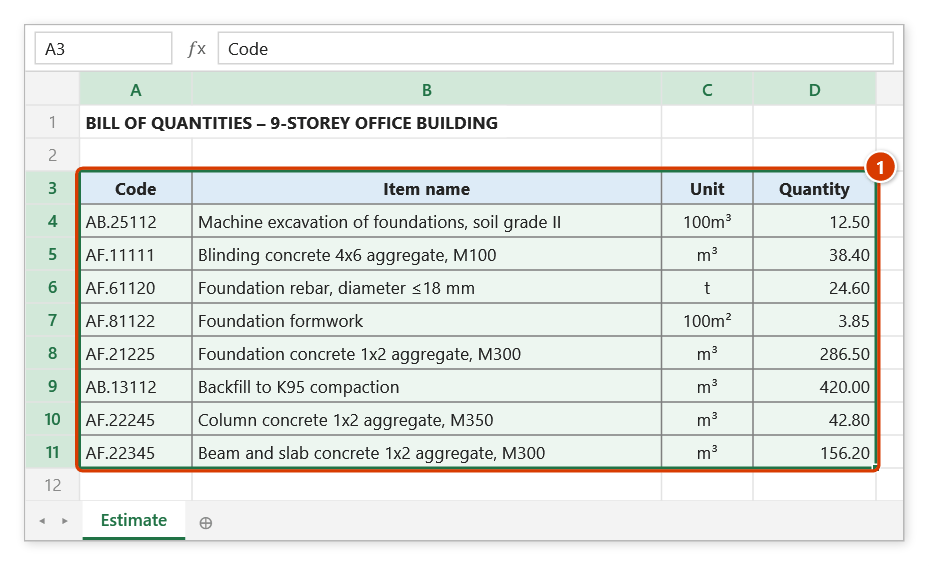
Download this command's sample workbook — the data matches the pictures below (sheet Estimate), so you can follow each step right away.
Step 1. Open the bill-of-quantities sheet and select the BoQ range including its header row (1) — column 1 code, column 2 item name, column 3 unit, column 4 quantity.
Step 2. On the ribbon, open the DVD Cons tab → Schedule group → open Schedule AI → choose AI Gantt Builder.
Step 3. On the From BoQ (recommended) tab keep the column numbers 1/2/3/4 and click Read BoQ range (1) — the preview lists the 8 items. Pick the Project type (2), crew size, hours/day and the Output sheet name (3), then click Generate AI outline (4): the AI groups the items into phases, estimates durations and proposes links, keeping the BoQ codes as activity IDs. Review the table and click Create schedule sheet (5) (enabled only once there is a result).
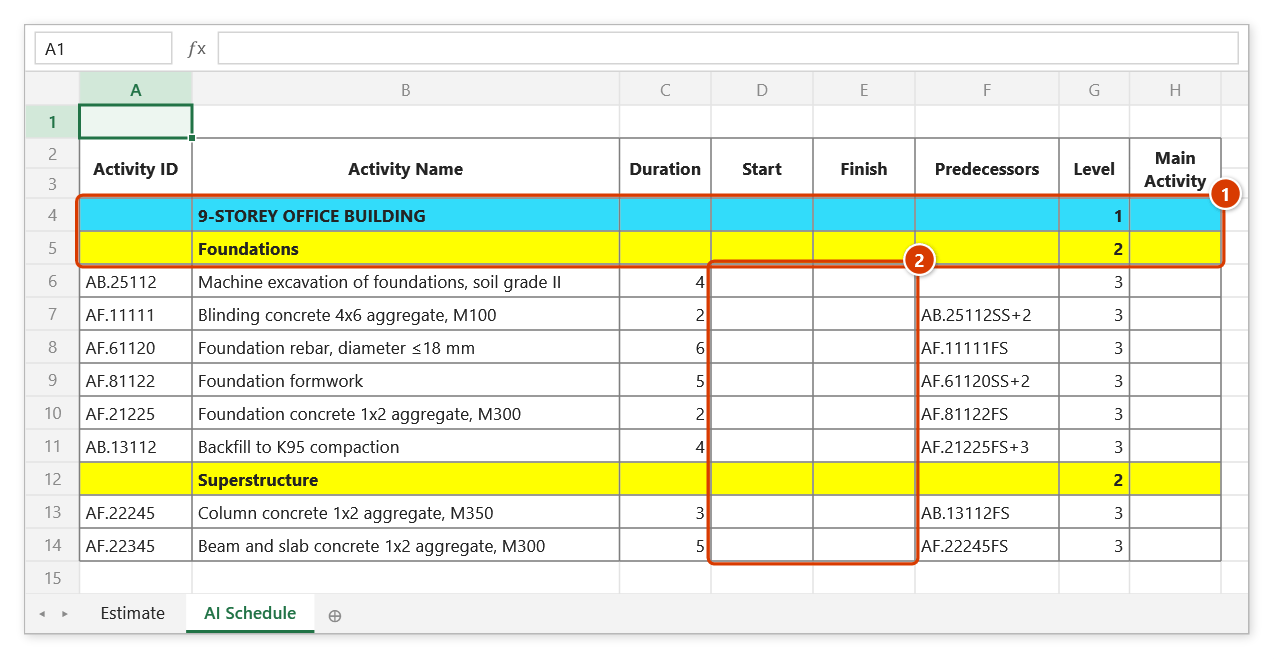
Step 4. The add-in creates a new sheet AI Schedule with the standard 20-column layout (Activity ID … Free Float): summary rows are bold, coloured by level and carry no ID (1); Start / Finish are left blank (2) for Auto Calc / Gantt Chart to compute from the links. Durations are AI estimates — check them against norms and crew capacity before committing.
Example
You have the BoQ for a 3-storey site office on a sheet: column 1 the item code (AA.11121, AF.12345…), column 2 the description, column 3 the unit, column 4 the quantity — 84 rows in total.
Open AI Gantt Builder → From BoQ tab → leave the columns at 1/2/3/4 → select the 84 BoQ rows → Read BoQ range. Set Project type = residential, Avg crew size = 20, Hours / day = 8, sheet name Programme_SiteOffice. Click Generate AI outline — the AI groups the work into Substructure, Superstructure, Finishes and MEP phases with estimated durations and predecessors. Click Create schedule sheet, then override the Slab concrete duration from experience right on the new sheet (the result table in the window is read-only).
Notes
- Durations are AI estimates — review and adjust them against real norms and crew productivity before committing to the client.
- An AI provider and API key must be configured in Preferences; without a key the outline cannot be generated.
- The From BoQ tab needs the correct range selected before you click Read BoQ range; wrong column numbers read the wrong content.
- Create schedule sheet stays disabled until there are results — you cannot create an empty sheet.
- The output is a new sheet; the name is cut to 25 characters, and if it clashes with an existing sheet the add-in appends
(2),(3)… - Creating the sheet cannot be undone with Ctrl+Z.
Related
- Gantt Chart — chart the AI-generated sheet straight away.
- Schedule Recovery — the other AI tool in the Schedule AI menu, for when work is under way and slipping.
- Gantt Tpl — the manual route if you would rather not use AI.
- Constraints — pin contractual milestones onto the AI-generated programme.