
Visio → PDF
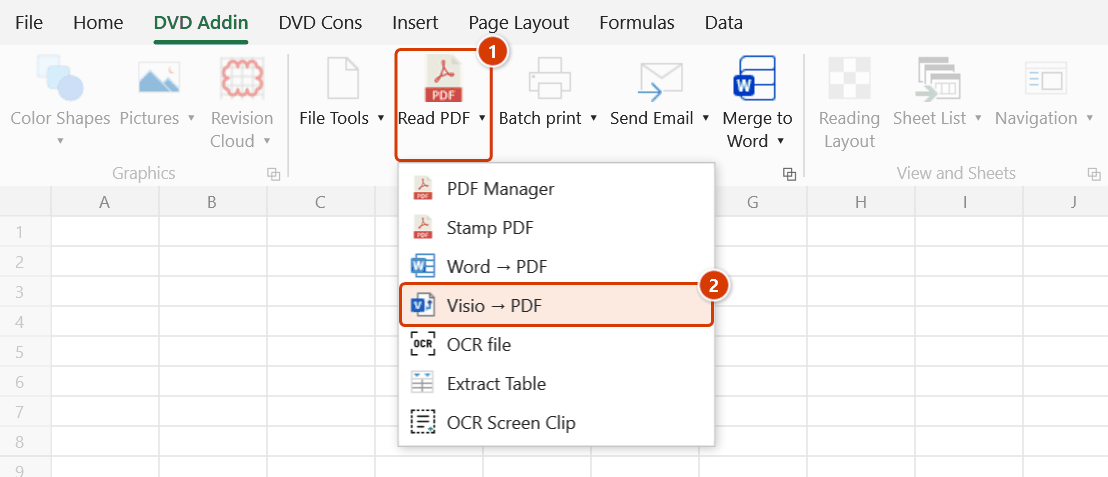
Location on ribbon: Tab DVD Addin → Group File and Print → the arrow next to Read PDF
Command ID: btnVisiotoPDF
What it does
Converts Visio files (.vsd, .vsdx) to PDF from inside Excel, one Visio page per PDF page. The add-in starts Visio invisibly and prints the document through the Microsoft Print to PDF virtual printer, so the output matches what you would get by printing it by hand.
Construction engineers draw site organisation charts, construction network diagrams, laydown-area layouts and QA/QC process flows in Visio — and any of those attached to a submission or sent to the client has to be a PDF.
How to use
- Go to tab DVD Addin → group File and Print → the arrow next to Read PDF → click Visio → PDF.
- A file picker opens, filtered to
*.vsd; *.vsdx(its title is shown in Vietnamese only: Chọn file Visio cần chuyển sang PDF). - Select one or several files (Ctrl / Shift for multiple) → Open.
- The add-in opens Visio hidden, loads each file read-only and prints all its pages to a PDF with the same name, in the same folder as the Visio file.
- When finished, the hidden Visio session is shut down and a message (in Vietnamese only) reports "Đã chuyển thành công N/M file." ("N/M files converted") — if some files fail, "Hoàn tất N/M file." lists each file name with the reason.
Video tutorial
Narrated in Vietnamese, with Vietnamese subtitles. Chuyển Word, Visio sang PDF và xử lý ảnh · 5 min 52 s · 13 cases · Download the video · Practice workbook for the video
Commands in this video: Word → PDF · Export Images · Resize Images · Visio → PDF
Chapters (18)
- Giới thiệu
- Mở lệnh
- 1 · Word → PDF cả lô
- 2 · PDF đã có, file lỗi
- 3 · Hai file trùng tên
- 4 · Thiếu Word, Esc
- 5 · Visio → PDF
- 6 · Visio báo lỗi
- Lệnh xử lý ảnh
- 7 · Thu nhỏ ảnh
- 8 · Ảnh dọc, ảnh đã nhỏ
- 9 · HEIC, PNG, thư mục con
- 10 · Chạy lại, nhập sai
- 11 · Xuất ảnh
- 12 · Ảnh nào ra
- 13 · Xuất ảnh báo lỗi
- Mẹo
- Kết thúc
Illustrated walkthrough
Step 1. On the ribbon, open the DVD Addin tab → File and Print group → open Read PDF → choose Visio → PDF.
Step 2. In the file picker (its title reads Chọn file Visio cần chuyển sang PDF, filtered to *.vsd; *.vsdx), select one or several diagrams — Ctrl / Shift for multiple — then click Open.
Step 3. The add-in starts Visio hidden, opens each file read-only and prints all pages through the Microsoft Print to PDF virtual printer to a PDF with the same name, in the same folder: D:\DuAn\NhaVanPhong9Tang\BienPhap\SoDoToChucCongTruong.vsdx → SoDoToChucCongTruong.pdf. Paper size, orientation and scale follow the Page Setup inside the Visio file.
Step 4. When it finishes, the hidden Visio process is shut down and the message Đã chuyển thành công 3/3 file. ("3/3 files converted") appears; if some files fail, the message Hoàn tất N/M file. lists each file name with the reason — the other files are still converted.
Example
A method-statement submission needs three diagrams attached: SiteOrganisationChart.vsdx, ConstructionNetwork.vsdx, LaydownAreaLayout.vsd.
Run the command, select all three → a PDF of the same name appears beside each Visio file. Then use PDF Manager to slot the three PDFs into the right places in the method statement.
Notes
- Microsoft Visio must be installed; otherwise the add-in warns (in Vietnamese) that this export needs Visio and stops.
- The machine also needs the Microsoft Print to PDF virtual printer (standard on Windows 10/11); if it was removed in Windows Features, the conversion cannot write the file.
- PDFs are written next to the source Visio file with the same name; an existing PDF of that name may be overwritten.
- The output follows the page setup inside the Visio file (paper size, orientation, scale) — fix the Page Setup in Visio first if the drawing comes out cropped.
- Failed files are collected into the error list in the final message; the rest of the batch still runs.
- The add-in shuts the Visio process down itself — do not kill it manually mid-run.
Related
- Word → PDF — the same idea for Word documents.
- PDF Manager — merge the resulting PDFs into the dossier.
- Selected Sheets to PDF — export PDFs from Excel sheets.
- Batch Print — print or export PDFs in bulk from a list in Excel.