
Sheets → PDF
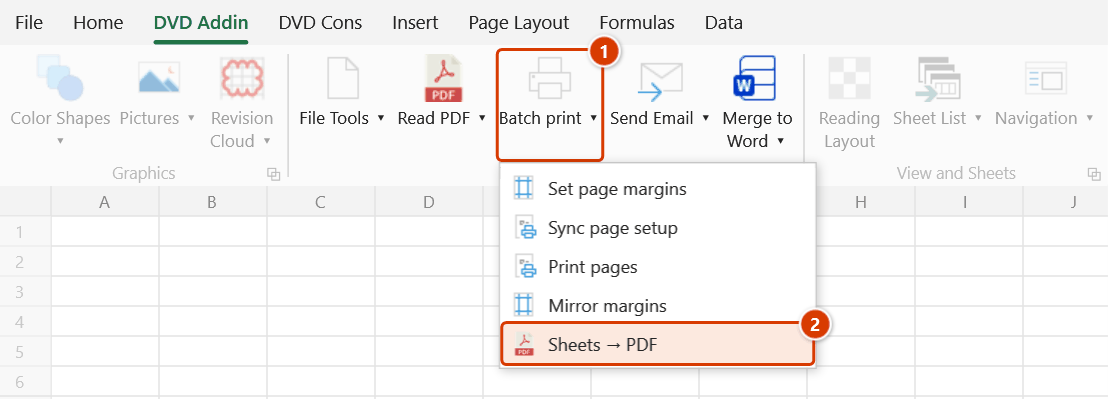
Location on ribbon: Tab DVD Addin → Group File and Print → the arrow next to Batch print
Command ID: btnSelectedSheetsToPDF
What it does
The command exports the currently selected sheets to PDF in one click, writing one PDF per sheet into the folder that holds the workbook. Each file is named <workbook name>_<sheet name>.pdf, so the results group together and it is obvious which submittal they belong to. To merge everything into one file <workbook name>.pdf, choose Merge all sheets into ONE PDF file under Preferences ▸ File and Print.
It is handy whenever different parties need different forms: the quantity sheet for the consultant, the inspection record for the client, the programme for a subcontractor — with no Save As dialog and no typing a file name for each sheet.
How to use
- Save the workbook first, because the PDFs are written into the workbook's own folder.
- Select the sheets to export: click the first tab, then hold Ctrl for individual tabs or Shift for a contiguous run.
- Go to tab DVD Addin → group File and Print → the arrow next to Batch print → click Sheets → PDF (or press the F10 shortcut).
- The add-in activates and exports each sheet in turn, with screen updating suspended so the run is faster.
- When it finishes, a message reports how many sheets were exported, the folder the files went to, and lists each failed sheet with the reason.
Video tutorial
Narrated in Vietnamese, with Vietnamese subtitles. Trang in và xuất PDF · 7 min 13 s · 16 cases · Download the video · Practice workbook for the video
Commands in this video: Set page margins · Mirror margins · Print pages · Sheets → PDF · Sync page setup
Chapters (20)
- Giới thiệu
- Mở lệnh
- 1 · Đặt lề cho nhóm sheet
- 2 · Nhóm khác: A3 ngang
- 3 · Gõ lề: số lẻ, lỗi nhập
- 4 · Lưu mặc định
- 5 · Bẫy sheet biểu đồ
- 6 · Đồng bộ từ sheet mẫu
- 7 · Chọn phần cần chép
- 8 · In lại vài trang
- 9 · Trang lẻ, trang chẵn
- 10 · Xuất từng trang ra PDF
- 11 · Nhập sai và hủy
- 12 · PDF lề gương
- 13 · Bẫy lề gương
- 14 · Sheet → PDF từng tệp
- 15 · Gộp thành một tệp
- 16 · Khi xuất PDF lỗi
- Mẹo
- Kết thúc
Illustrated walkthrough
Practice
Download this command's sample workbook — the data matches the pictures below (sheet BangKhoiLuong), so you can follow each step right away.
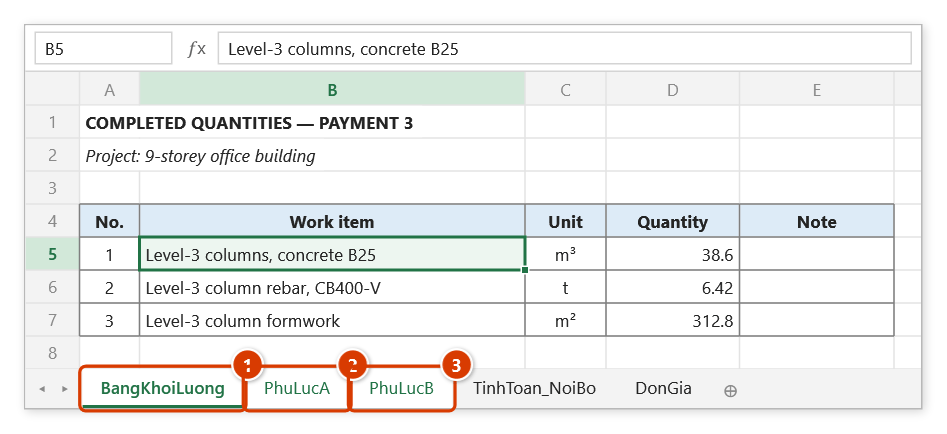
Step 1. Save the workbook first (the PDFs go into the workbook's folder). Select the sheets to export: click the first tab (1), then hold Ctrl and click (2), (3) (or Shift for a run of tabs) — leave the internal calculation sheets unselected.
Step 2. On the ribbon, open the DVD Addin tab → File and Print group → open Batch print → choose Sheets → PDF.
Step 3. The add-in exports the sheets one by one (the F10 shortcut does the same as the ribbon button). By default each sheet becomes its own file named <workbook>_<sheet>.pdf beside the workbook: HoSoThanhToan_Dot3_BangKhoiLuong.pdf, HoSoThanhToan_Dot3_PhuLucA.pdf, HoSoThanhToan_Dot3_PhuLucB.pdf; files of the same name are overwritten.
Step 4. The final message gives the number of sheets exported (PDF export complete (3 sheets, errors=0).), the folder, and every failed sheet with the reason — e.g. the target PDF is open in a PDF reader. To merge everything into one file <workbook>.pdf, choose Merge all sheets into ONE PDF file under Preferences ▸ File and Print.
Example
The workbook Payment_App_3.xlsx sits in the project folder and contains the sheets Quantities, AnnexA, AnnexB plus a few internal calculation sheets.
Hold Ctrl, select the three sheets you need to issue, and click Sheets → PDF. The project folder now contains Payment_App_3_Quantities.pdf, Payment_App_3_AnnexA.pdf and Payment_App_3_AnnexB.pdf, while the internal sheets stay private. Attach the three files to your email and you are done.
Notes
- By default the output is several PDFs, one per sheet; to get one booklet choose Merge all sheets into ONE PDF file under Preferences ▸ File and Print (one file
<workbook name>.pdf), use batch print with its combine option, or merge them with the PDF manager. - At least one sheet must be selected and a workbook must be open; otherwise the add-in reports the problem and stops.
- For workbooks synced through OneDrive/SharePoint, the add-in resolves the online path to the local folder before exporting, avoiding the "invalid directory name" export error.
- Hold ESC to stop mid-run; sheets already exported are kept and the message tells you how far it got.
- Sheet names containing characters Windows does not allow in file names are sanitised automatically.
- An existing PDF of the same name in the folder is overwritten without asking. A target PDF that is open in a PDF reader (Foxit, Acrobat…) cannot be overwritten, though — that sheet is reported as failed for this reason; close the file and run the export again for that sheet.
Related
- Batch print — loop-driven PDF export that can merge everything into one file.
- Set page margins — align paper size and margins across sheets before exporting.
- Print pages — when you only need a few pages, not whole sheets.
- Word to PDF — convert Word documents to PDF in bulk.