
OCR file
Location on ribbon: Tab DVD Addin → Group File and Print → the arrow next to Read PDF
Command ID: btnOCR
License required
This command needs an active DVDAddin account (Standard or PRO). During the trial period it is fully available.
What it does
The command sends an image or PDF file to a vision AI model (Gemini by default; change the service under OCR (PDF, image → text) in Preferences ▸ AI Assistant), reads every piece of text in it, and writes the result into the worksheet starting at the active cell — one text line per Excel row. It is the fastest way to get a scanned specification page, a photographed material certificate, or a PDF standard extract into Excel without retyping.
The prompt is written specifically for transcription: the model is told to keep the original language (Vietnamese stays Vietnamese, diacritics included), to rejoin lines that were broken only by column width, and explicitly not to summarise, interpret, or answer any question it finds in the document.
How to use
- Select the target cell. This is the top of the result block — text flows down the same column from there.
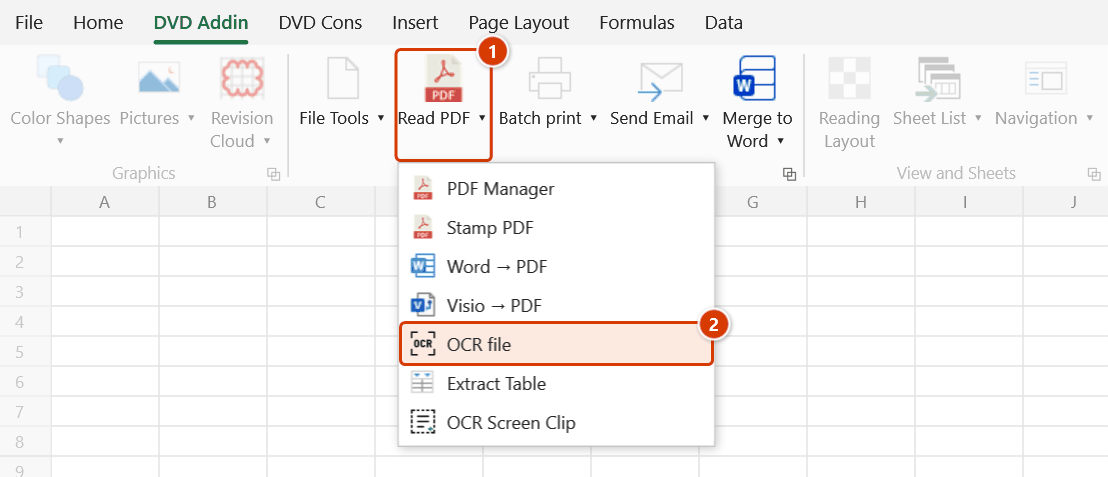
- Go to tab DVD Addin → group File and Print → the arrow next to Read PDF → click OCR file.
- If no API key is configured, the add-in prompts you and stops. Set the key, then run the command again.
- A file picker opens, filtered to
.png,.jpg,.jpeg,.webpand.pdf. - Pick the file and click Open. The Excel status bar shows that OCR is running.
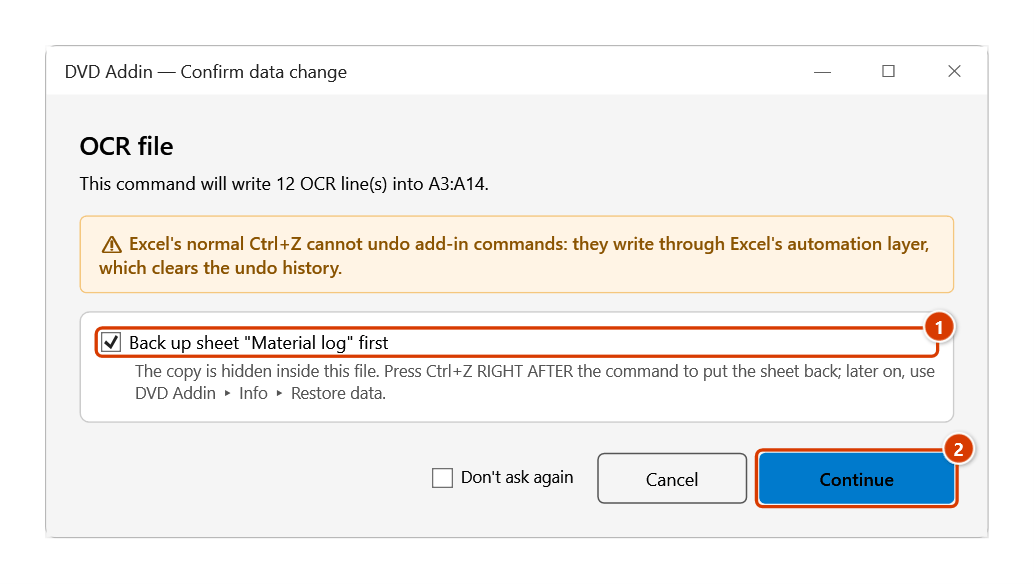
- The Confirm data change window states how many lines go into which range — keep Back up sheet ticked and click Continue.
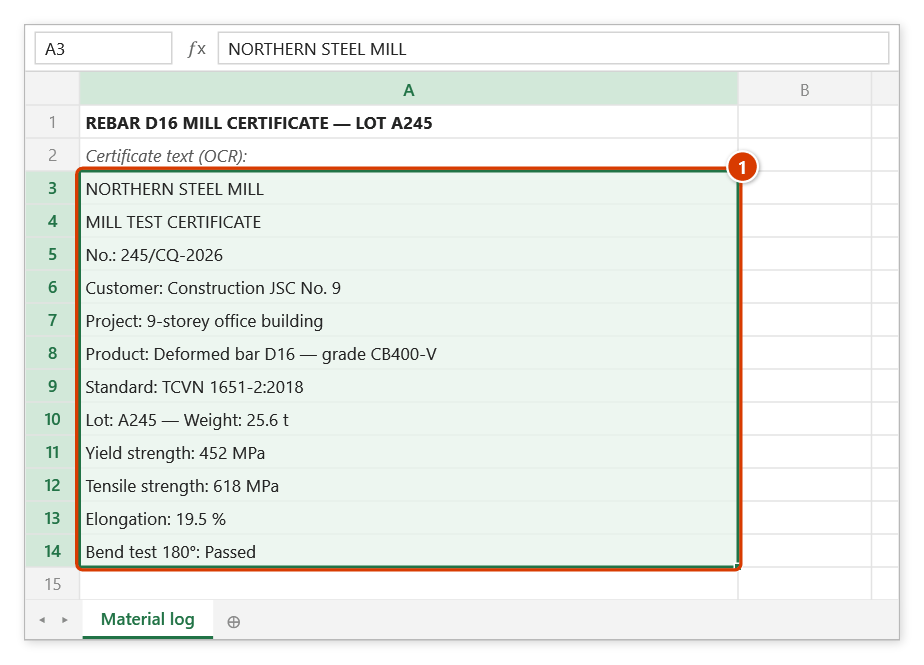
- The result is written in a single pass into the range starting at the active cell, and the full text is also placed on the clipboard so you can paste it into Word or anywhere else.
Video tutorial
Narrated in Vietnamese, with Vietnamese subtitles. OCR và Trích bảng bằng AI · 7 min 48 s · 14 cases · Download the video · Practice workbook for the video
Commands in this video: OCR file · Extract Table · OCR Screen Clip
Chapters (20)
- Giới thiệu
- Mở lệnh
- 1 · OCR chứng chỉ PDF
- 2 · Ảnh chụp, vùng đã có dữ liệu
- 3 · PDF nhiều trang, tệp lớn
- 4 · Chọn dịch vụ AI
- Lệnh Trích bảng
- 5 · Trích bảng có ô gộp
- 6 · Chọn trang trong PDF
- 7 · Tiêu đề hai tầng
- 8 · Nhiều bảng trên một trang
- 9 · Số và mã kiểu Việt
- Lệnh OCR Screen Clip
- 10 · Screen Clip vào ô trống
- 11 · Ô đã có chữ – hỏi trước
- 12 · Phím tắt, ESC, giới hạn
- 13 · Khi không chạy được
- 14 · Quyền riêng tư
- Mẹo
- Kết thúc
Illustrated walkthrough
Practice
Download this command's sample workbook — the data matches the pictures below (sheet Material log), so you can follow each step right away.
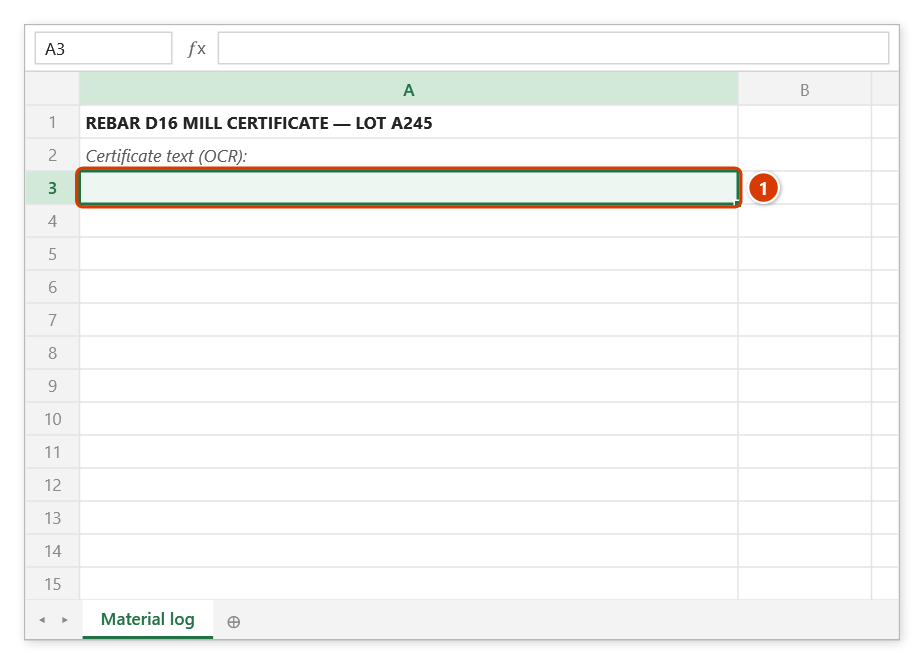
Step 1. Select the cell that will receive the first line of the result (1). The text runs down the cells below in the same column, so keep that area empty.
Step 2. On the ribbon, open the DVD Addin tab → File and Print group → open Read PDF → choose OCR file.
Step 3. A file picker opens (it accepts .png, .jpg, .jpeg, .webp, .pdf): choose CQ_Thep_D16_Lo_A245.pdf and click Open. The status bar shows that OCR is running while the AI reads the file. An AI API key must be configured; without one the add-in tells you and stops at once.
Step 4. Before writing, the add-in tells you how many lines go into which range. Keep Back up sheet "Material log" first (1) so that Ctrl+Z right after the command restores the sheet, then click Continue (2).
Step 5. Each line of the document lands in its own cell, in the original language (1); the whole text is also placed on the clipboard so you can paste it into Word. The command does not keep a row–column structure — for tables use Extract Table.
Example
A supplier sends a scanned mill certificate (CO/CQ) as a PDF and you need its figures in your material tracking sheet.
Select cell B4 on the MaterialLog sheet, run OCR file, and choose CQ_Rebar_D16_Heat_A245.pdf. A few seconds later B4 downwards holds one certificate line each: mill name, heat number, grade CB400-V, nominal diameter, yield strength, tensile strength, elongation, and so on. You only have to move the rows you need into the right columns instead of typing everything again.
Notes
- The result overwrites the cells below the active cell. Make sure that area is empty. Ctrl+Z right after the command puts the sheet back as it was (thanks to the backup); see Restore data.
- A valid API key and an internet connection are required. Without a key the command stops with a prompt rather than pasting an error string into a cell.
- If the model returns an error, the add-in shows it in a dialog and writes nothing to the sheet; if no text is recognised the active cell gets
(OCR returned no text). - This command extracts running text, not row/column structure. For tabular material use Extract Table instead.
- Accuracy depends on the source image: skewed, blurry, or heavily compressed scans produce spelling errors, so always double-check critical numbers.
Related
- Extract Table — same AI engine but preserves rows and columns, for tabular content.
- OCR Screen Clip — OCR whatever is on screen right now, with no file involved.
- Read PDF — open and work with PDF files directly inside Excel.
- Preferences — where the add-in's general options are configured.