
Stamp PDF
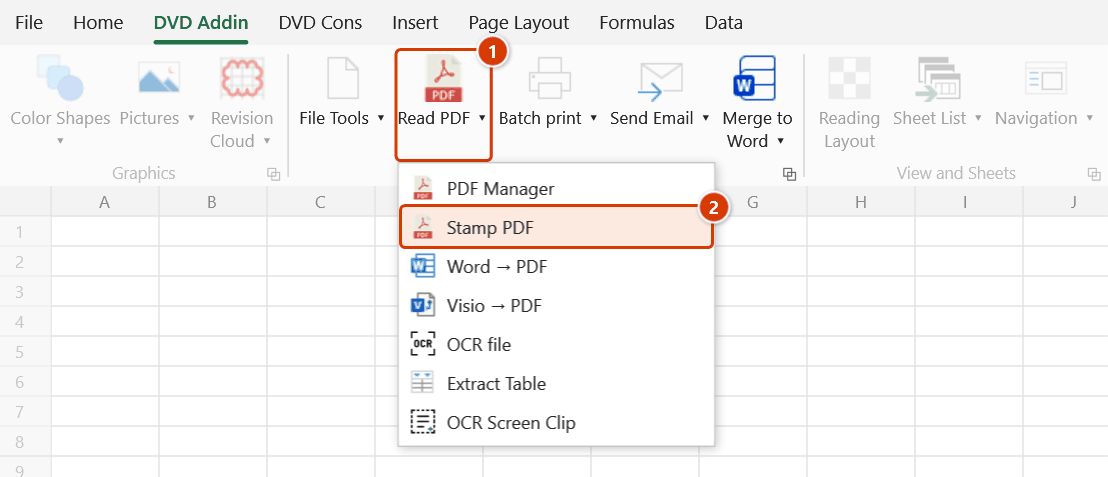
Ribbon location: DVD Addin tab → File and Print group → the arrow next to Read PDF
Command ID: btnPdfStamp
License required
This command needs an active DVDAddin account (Standard or PRO). During the Trial period it is fully available.
What it does
Numbers pages and applies stamps to many PDFs in a single run.
Submission sets need numbering that runs continuously across files and a "COPY" or company seal on every page. Doing that in an ordinary PDF tool means opening each file, re-placing everything, and adding up the page counts by hand — which is where the mistakes come from.
How to use it
- Click Stamp PDF in the DVD Addin tab → File and Print group → the arrow next to Read PDF.
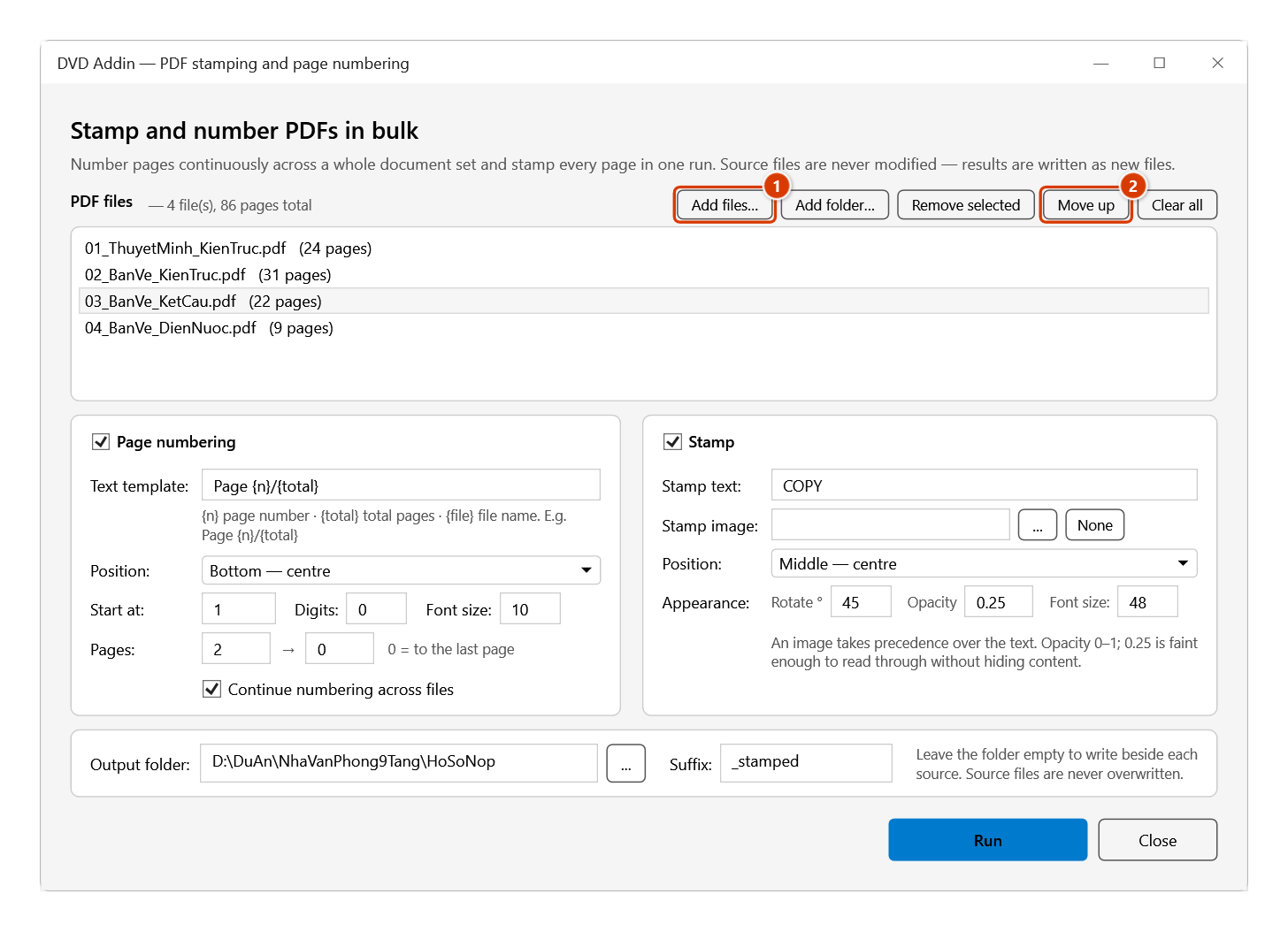
- Add files… or Add folder…. Each row shows its page count, and the header shows the total for the set.
- Use Move up to order them — the file order is the numbering order.
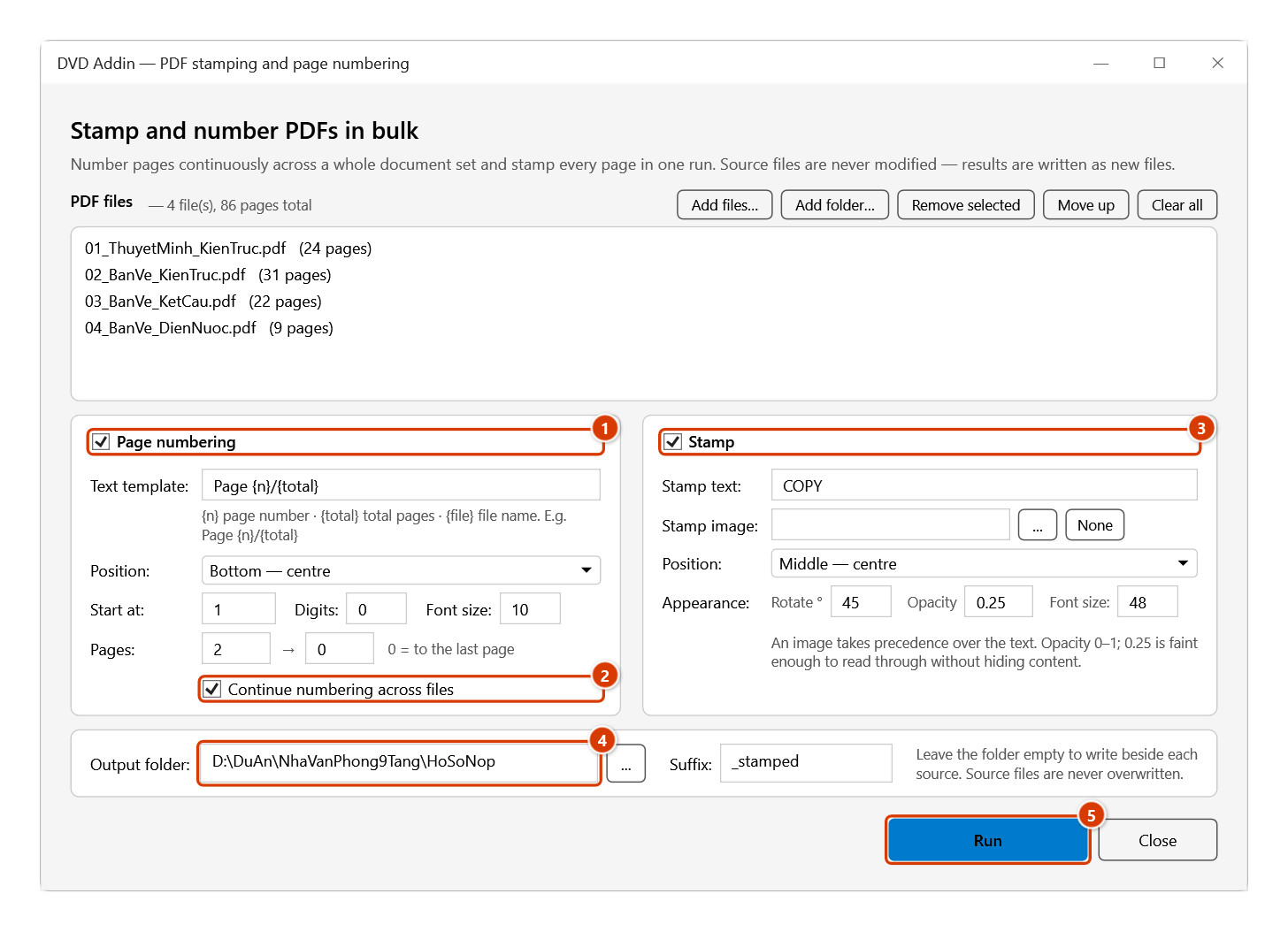
- Switch on Page numbering and/or Stamp, and set the options in each panel.
- Choose an output folder and suffix. Leave the folder empty to write beside each source.
- Click Run.
Video tutorial
Narrated in Vietnamese, with Vietnamese subtitles. Đọc PDF, PDF Manager, Đóng dấu PDF · 9 min 09 s · 28 cases · Download the video
Commands in this video: Read PDF · PDF Manager · Stamp PDF
Chapters (35)
- Giới thiệu
- Mở lệnh
- Phần 1 · Đọc PDF
- 1 · Mở bản vẽ để xem
- 2 · Lật trang, thu phóng
- 3 · Thanh công cụ ghi chú
- 4 · Đa đoạn, mây đa giác
- 5 · Văn bản, ghi chú, chú dẫn
- 6 · Sửa, xoá, hoàn tác
- 7 · Lưu ghi chú vào file
- 8 · In PDF
- 9 · Đóng cửa sổ, Quản lý trang
- Phần 2 · PDF Manager
- 10 · Nạp PDF và ảnh
- 11 · Sắp xếp, xoay, xoá trang
- 12 · Chép, trang trắng, xuất ảnh
- 13 · Tách ra file riêng
- 14 · Cắt khổ: giữ nửa trang
- 15 · Khổ lẫn lộn: về khổ A4
- 16 · Cắt lề trắng, chọn trang
- 17 · LƯU, LƯU THÀNH, bookmark
- 18 · File hỏng, có mật khẩu
- Phần 3 · Đóng dấu PDF
- 19 · Thêm file, thêm thư mục
- 20 · Đánh số nối tiếp cả tập
- 21 · Mỗi file đánh lại từ 1
- 22 · Mẫu chữ, đệm số 0
- 23 · Bỏ trang bìa – bẫy tổng
- 24 · Đóng dấu chữ
- 25 · Đóng dấu ảnh con dấu
- 26 · Bản vẽ xoay ngang
- 27 · Nơi ghi file kết quả
- 28 · Nhập sai, file lỗi, dừng
- Mẹo
- Kết thúc
Illustrated walkthrough
Step 1. On the ribbon, open the DVD Addin tab → File and Print group → open Read PDF → choose Stamp PDF.
Step 2. Click Add files… or Add folder… (1) to load the PDF set; each row shows its page count and the header shows the total for the set. Select a row and click Move up (2) to reorder — the file order is the numbering order.
Step 3. Turn on Page numbering (1): type the text template ({n} page number, {total} total pages), the position and the page range — from page 2 to skip the cover — and keep Continue numbering across files (2). Turn on Stamp (3), type the stamp text or pick a seal image, and set the rotation and opacity. Choose the Output folder and suffix (4), then click Run (5).
Step 4. The add-in writes new PDF files to the output folder (or beside each source when it is empty), named source name + suffix, e.g. 02_BanVe_KienTruc_stamped.pdf; sources are never modified and an existing name gets (2). When finished it reports Done: 4 file(s), 86 pages.; hold ESC to stop partway.
Page numbering
| Option | Meaning |
|---|---|
| Text template | {n} page number · {total} total pages · {file} file name. E.g. Page {n}/{total} |
| Position | Nine positions: three rows (top / middle / bottom) × three columns (left / centre / right) |
| Start at | The number given to the first numbered page, not to page 1 of the file |
| Digits | Zero padding — 4 produces 0007 |
| Pages | The range to number; 0 in the second box means "to the last page" |
| Continue across files | On: the whole set runs continuously and {total} is the set total. Off: each file restarts |
Skipping the cover
Set Pages from 2 and Start at 1 — the cover gets no number and page 2 shows 1.
Stamping
| Option | Meaning |
|---|---|
| Stamp text | e.g. BẢN SAO, APPROVED, NOT FOR CONSTRUCTION |
| Stamp image | A scanned seal (png/jpg). An image takes precedence over the text |
| Rotate | Degrees. 45 gives the familiar diagonal stamp, 0 is horizontal |
| Opacity | 0–1. 0.25 is faint enough to read through without hiding content |
Rotated pages
A1 and A0 drawings are usually stored with a 90° or 270° rotation flag. This command computes positions in the coordinates the reader actually sees, so "bottom — centre" lands at the visual bottom rather than off to one side.
This was verified by stamping test PDFs at all four rotations 0° / 90° / 180° / 270°, rendering them back to images and measuring where the text actually landed — all four came out at the bottom centre.
Notes
- Source files are never overwritten. Results are new files with the suffix; if that name exists the add-in appends
(2),(3). - Corrupt or password-protected files are detected as they are added to the list, not partway through the run, and the count is reported.
- With continuous numbering,
{total}is the whole set, so a 12-file submission no longer shows "page 5/5" twelve times. - Vietnamese diacritics render correctly because the add-in uses the Windows fonts.
- Hold ESC to stop on a large set; files already finished are kept.
See also
- PDF Manager — reorder and copy/paste pages between PDFs.
- Read PDF — annotate and mark up drawings.
- Batch print — print many Excel sheets from a list.