
Variation Register
Location on ribbon: Tab DVD Cons → Group QS
Command ID: btnVariationRegister
License required
This command needs an active DVDAddin account (Standard or PRO). During the Trial period it is fully available.
What it does
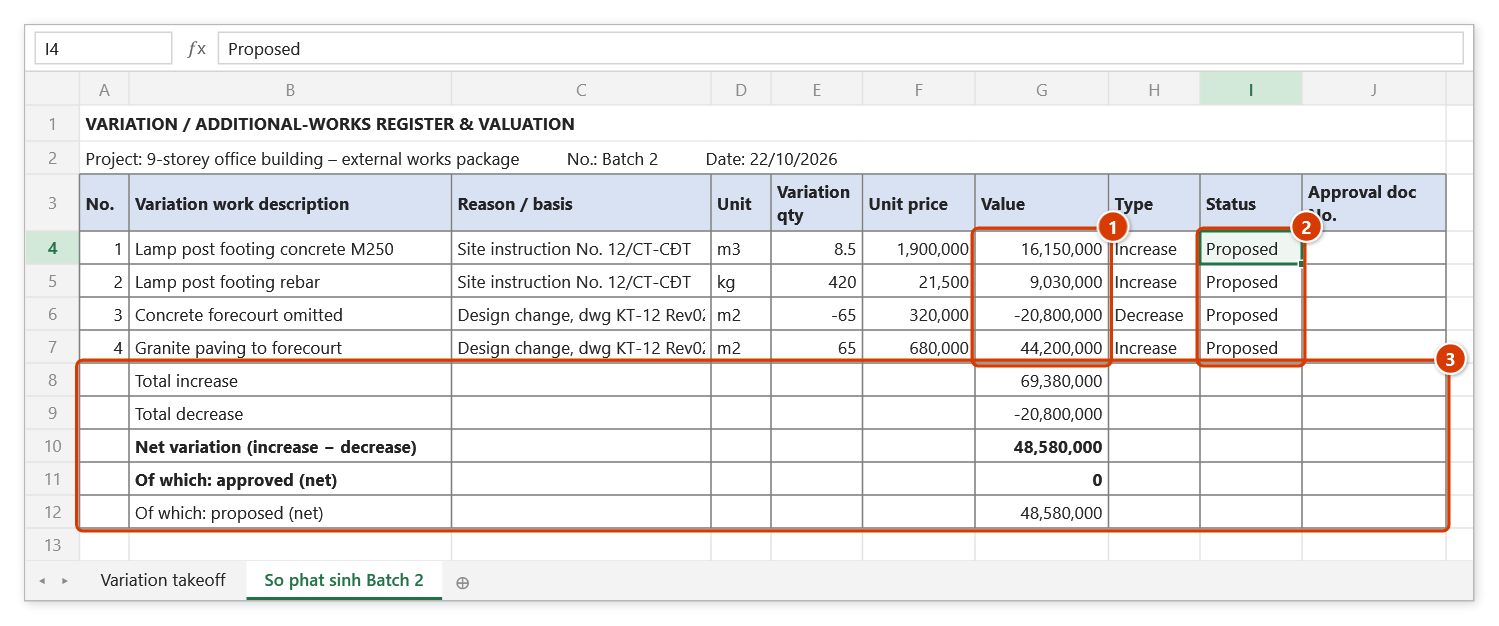
The command builds a priced variation register from a list of measured variation items: value = variation quantity × unit price, additions and omissions told apart in the Type column (by the sign of the quantity), closed off by the lines Total increase / Total decrease / Net variation, and bordered ready for printing.
On site, variations arrive piecemeal through client instructions and design changes. This command collects them into one register per batch, with the reason or basis alongside each item, so the sheet can serve as a contract addendum annex or a variation approval submission.
Each row has a Status (Proposed / Approved / Rejected, picked from a drop-down), an Approval doc No. and an Approval date. When a variation is approved, set its status to Approved and record the document number. Interim Payment only takes Approved rows into the payment table, with the document number in its Note column.
Value, Type (Increase/Decrease) and the five total lines are formulas:
- Total increase;
- Total decrease;
- Net variation;
- Of which approved;
- Of which proposed.
Edit a quantity or a status on the register and the totals follow.
How to use
- Select the measured variation items (Description / Unit / Qty / Unit price). Without a selection the add-in prompts you and stops.
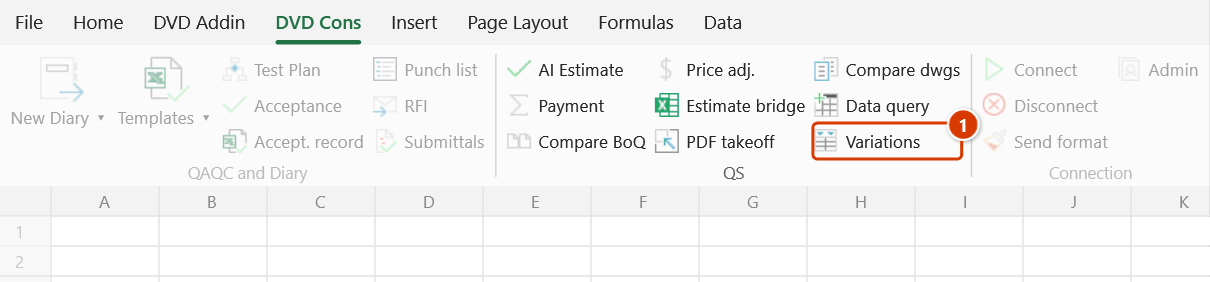
- Click DVD Cons → QS → Variations.
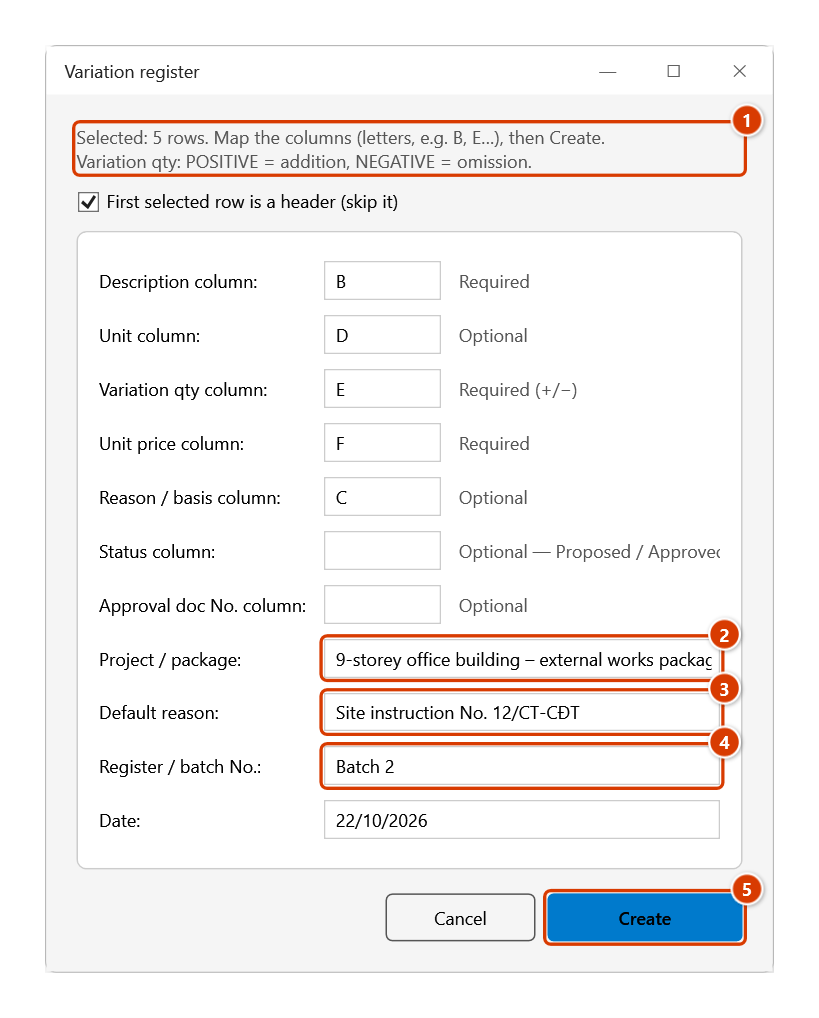
- The Variation register window opens and reports how many rows are selected. Map the columns by letter (B, E…):
- Description column (required) — default
B - Unit column (optional) — default
D - Variation qty column (required, accepts +/−) — default
E - Unit price column (required) — default
F - Reason / basis column (optional)
- Status column (optional; reads "Approved", "Rejected", anything else counts as Proposed) and Approval doc No. column (optional). Leave them empty and every row starts as Proposed.
- Description column (required) — default
- Tick First selected row is a header (skip it) if needed.
- Enter Project / package, Default reason (applied to rows with no reason of their own), Register / batch No. (default "Batch 1") and Date.
- Click Create. If a required column is missing, a red message appears and the window stays open.
- The add-in creates a new register sheet with values, the Type column (Increase/Decrease), a Status column with a drop-down, and the total lines.
- When the client approves, pick Approved in the Status column and record the document No./date. The status cell turns green when Approved and red when Rejected.
To build a register straight from the difference between two BoQ versions, use Compare BoQ and tick Also create a Variation register from the changed rows.
Video tutorial
Narrated in Vietnamese, with Vietnamese subtitles. Sổ phát sinh, Bù giá và Thanh toán theo kỳ · 6 min 21 s · 16 cases · Download the video · Practice workbook for the video
Commands in this video: Interim Payment · Price adjustment · Variation Register
Chapters (21)
- Giới thiệu
- Mở lệnh
- Chuỗi hồ sơ
- 1 · Kỳ 1 từ bảng BoQ
- 2 · Bốn kiểu cột tiến độ
- 3 · Vượt khối lượng hợp đồng
- 4 · Lập Sổ phát sinh
- 5 · Duyệt, từ chối phát sinh
- 6 · Bù giá trực tiếp
- 7 · Bù giá theo chỉ số giá
- 8 · Tỉ trọng sai, hai sheet Bù giá
- 9 · Kỳ 2 lấy lũy kế kỳ 1
- 10 · Tạm ứng, giữ lại, VAT
- 11 · Đổi tên sheet, hạng mục
- 12 · Lập lại, sửa kỳ cũ
- 13 · Dòng chương, số dạng chữ
- 14 · Sheet đang bảo vệ
- 15 · Hoàn tác Ctrl+Z
- 16 · Khi nhập sai
- Mẹo
- Kết thúc
Illustrated walkthrough
Practice
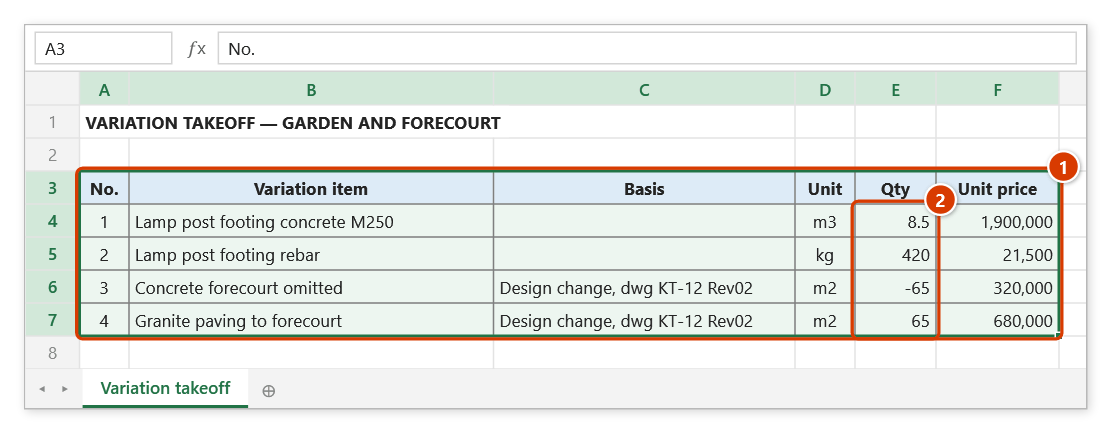
Download this command's sample workbook — the data matches the pictures below (sheet Variation takeoff), so you can follow each step right away.
Step 1. Select the takeoff of the variation items, including the header row (1). Quantities are positive for additions, negative for omissions (2).
Step 2. On the ribbon, open the DVD Cons tab → QS group → click Variations.
Step 3. The window shows how many rows are selected (1); map the Description / Unit / Qty / Unit price columns and the Reason / basis column (C here). Enter the Project / package (2), a Default reason for rows without their own basis (3), the Register / batch No. and Date (4), then click Create (5).
Step 4. The add-in creates the sheet So phat sinh Batch 2: Value = Qty × Unit price (1) and Type Increase/Decrease are formulas, the Status column has a Proposed / Approved / Rejected drop-down (2), and five total rows close the register (3).
Step 5. Once the owner approves, pick Approved in the Status column (the cell turns green; Rejected turns red) and record the document No./date — Interim payment only picks up Approved rows.
Example
A client instruction adds pad footings for lighting poles and omits part of a concrete apron. The take-off table (selection A6:F12) has B = description, D = unit, E = quantity, F = unit price.
| Before (take-off) | After (variation register) |
|---|---|
| Pole footing concrete — m3 — 8.5 — 1,900,000 | Value +16,150,000, Type Increase |
| Pole footing rebar — kg — 420 — 21,500 | Value +9,030,000, Type Increase |
| Concrete apron omitted — m2 — −65 — 320,000 | Value −20,800,000, Type Decrease |
| Total increase 25,180,000 / Total decrease −20,800,000 / Net variation 4,380,000 |
Enter Project = "Plant X – earthworks package", Default reason = "Site Instruction No. 12", Batch No. = "Batch 2", Date = 22/08/2026, then click Create.
Notes
- The sign convention matters: positive quantity = addition, negative = omission. Entering an omission as a positive number corrupts the net variation.
- Select the item range before clicking; the command does not auto-detect the table.
- The register is a drafting aid — reconcile it with the site instruction, the contract addendum and current regulations before submission.
- If the Reason / basis column is left empty, every row inherits the Default reason; quote the instruction or drawing number so the file survives audit.
- Output goes to a new sheet, the source data is untouched, and the result cannot be undone with Ctrl+Z (delete the sheet to discard it).
- Keep the register's column order: Interim Payment reads the register by column position. The hidden Key column at the end matches cumulative figures across periods and must not be deleted. Inserting rows inside the data area is fine.
Related
- Interim Payment — picks up Approved rows into group "B. Approved variations" of the period payment table.
- Compare BoQ — identify the quantity differences that feed the register.
- AI Construction Estimate — estimate rates for variation items with no contract price.
- Acceptance Plan — add the variation items to the inspection register.