
Price adjustment
Ribbon location: DVD Cons tab → QS group
Command ID: btnPriceAdjustment
License required
This command needs an active DVDAddin account (Standard or PRO). During the Trial period it is fully available.
What it does
Computes the adjustable part of a construction contract price, by either of the two methods in common use.
1. Direct compensation per material
For each material:
Adjustment = Quantity × (Price at adjustment date − Base price)Use it when the contract lists the materials eligible for adjustment (steel, cement, bitumen…).
2. Adjustment coefficient from price indices
P = P₀ × ( a + b₁ × I₁ᵗ/I₁⁰ + b₂ × I₂ᵗ/I₂⁰ + … )a is the fixed, non-adjustable portion, bᵢ are the weights of each cost component (materials, labour, plant), and I⁰ / Iᵗ are the price indices at the base and adjustment dates. a + Σbᵢ must equal 1.
How to use it — method 1
- Click Price adjustment and leave Direct compensation per material selected.
- The Material table box takes the current selection (including its header rows); click
⤴to pick again. State the number of header rows. - The four column pickers are guessed from the header names; check and correct them.
- Click Compute. With Write 2 result columns beside the table ticked (the default), the add-in asks for confirmation, then writes two columns, Unit price difference and Adjustment amount, beside the table. The totals appear at the bottom of the window.
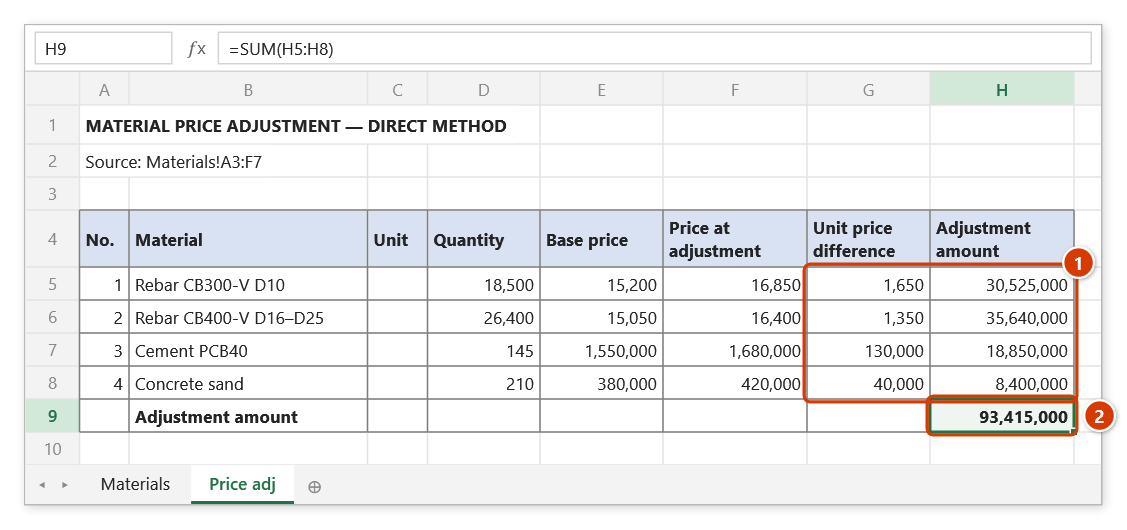
- Create a Price-adj sheet (picked up by Interim payment) is ticked by default. When ticked, the add-in also creates a "Price adj" sheet with the material table, the difference and amount as formulas, and an Adjustment amount total. Interim Payment picks this up into group "C. Price adjustment".
Video tutorial
Narrated in Vietnamese, with Vietnamese subtitles. Sổ phát sinh, Bù giá và Thanh toán theo kỳ · 6 min 21 s · 16 cases · Download the video · Practice workbook for the video
Commands in this video: Interim Payment · Price adjustment · Variation Register
Chapters (21)
- Giới thiệu
- Mở lệnh
- Chuỗi hồ sơ
- 1 · Kỳ 1 từ bảng BoQ
- 2 · Bốn kiểu cột tiến độ
- 3 · Vượt khối lượng hợp đồng
- 4 · Lập Sổ phát sinh
- 5 · Duyệt, từ chối phát sinh
- 6 · Bù giá trực tiếp
- 7 · Bù giá theo chỉ số giá
- 8 · Tỉ trọng sai, hai sheet Bù giá
- 9 · Kỳ 2 lấy lũy kế kỳ 1
- 10 · Tạm ứng, giữ lại, VAT
- 11 · Đổi tên sheet, hạng mục
- 12 · Lập lại, sửa kỳ cũ
- 13 · Dòng chương, số dạng chữ
- 14 · Sheet đang bảo vệ
- 15 · Hoàn tác Ctrl+Z
- 16 · Khi nhập sai
- Mẹo
- Kết thúc
Illustrated walkthrough
Practice
Download this command's sample workbook — the data matches the pictures below (sheet Materials), so you can follow each step right away.
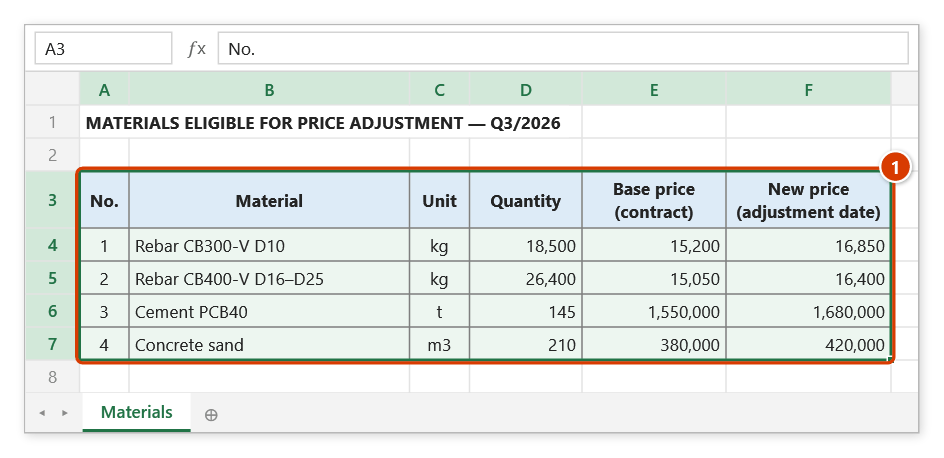
Step 1. Select the table of materials eligible for adjustment, including its header row (1): material name, quantity, base contract price and price at the adjustment date.
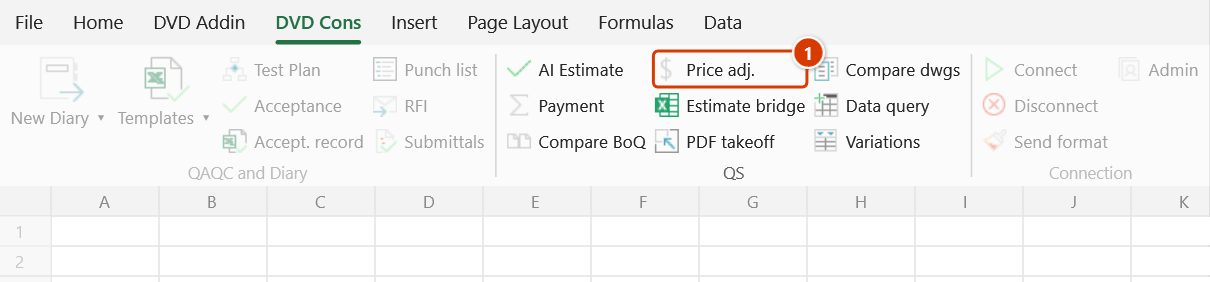
Step 2. On the ribbon, open the DVD Cons tab → QS group → click Price adj..
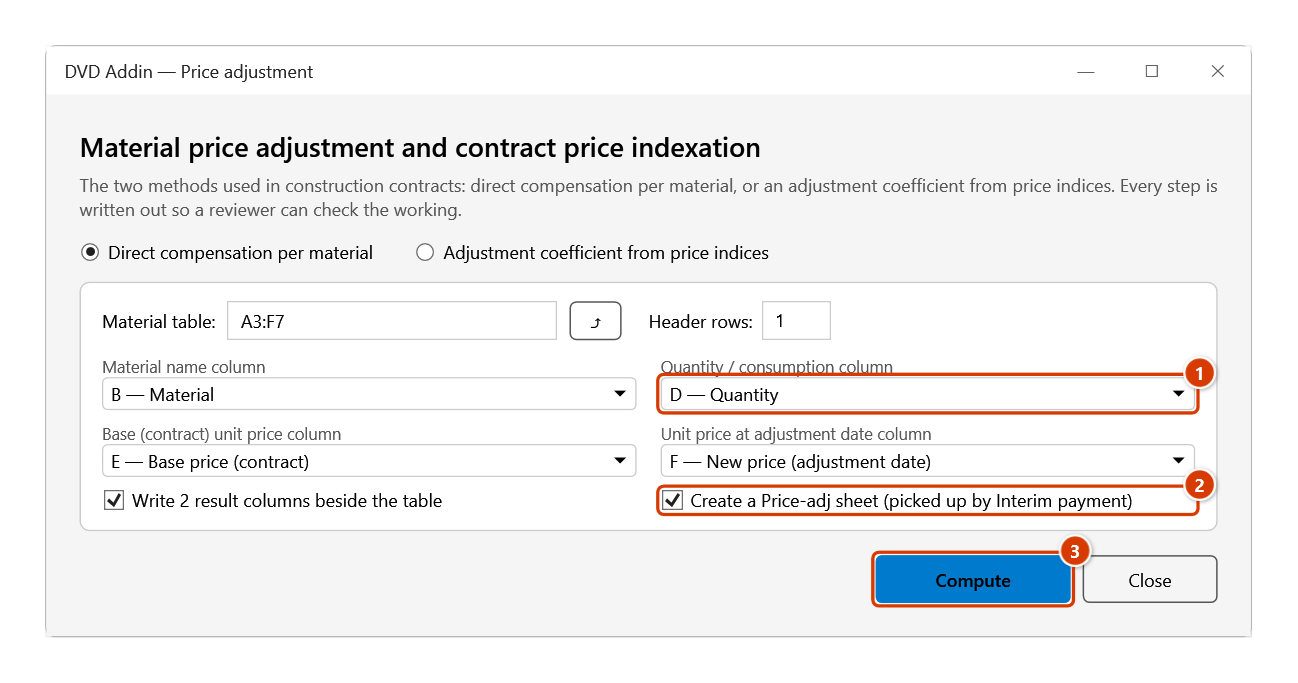
Step 3. Keep Direct compensation per material. The Material table box already holds the current selection (click ⤴ to pick again); the four column boxes are guessed from the header names — check them (1). Leave Create a Price-adj sheet ticked (2) and click Compute (3).
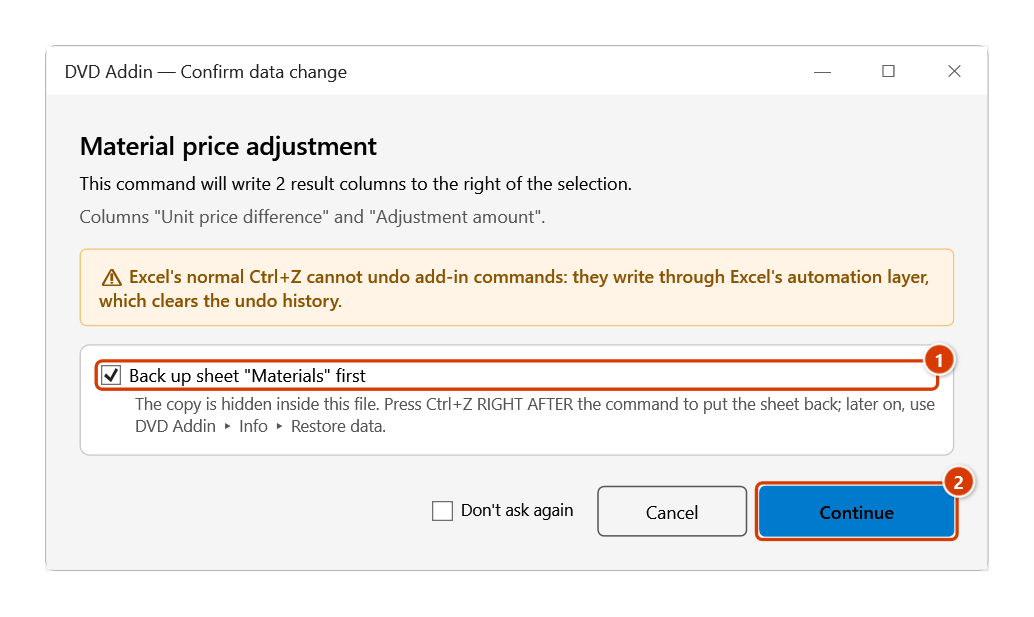
Step 4. Because the two result columns may overwrite data to the right of the table, the add-in asks first. Leave Back up sheet "Materials" first ticked (1) and click Continue (2).
Step 5. The add-in adds the Unit price difference / Adjustment amount columns to the right of the source table and creates the Price adj sheet: difference and amount are formulas (1), and the Adjustment amount total (2) is what Interim payment picks up in group C. The window footer reports Computed 4 rows. Total adjustment: 93,415,000.
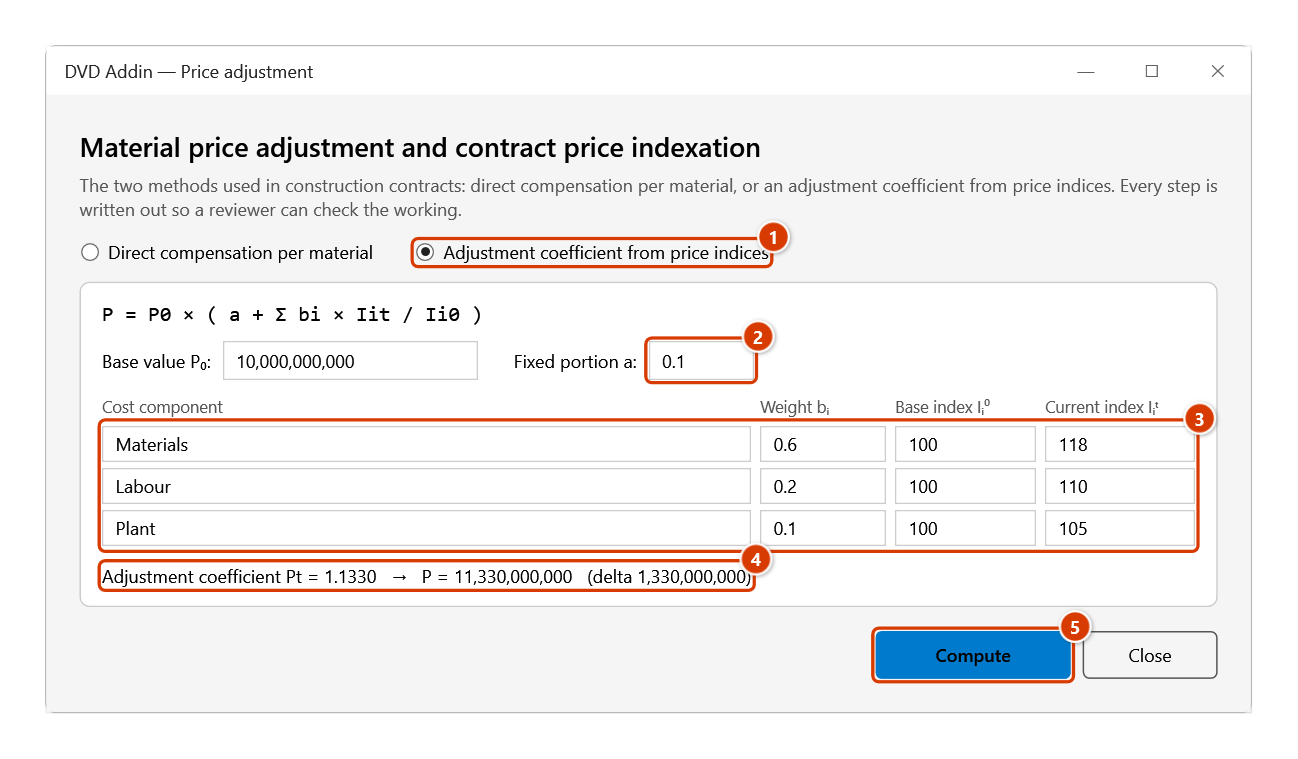
Step 6. For a contract adjusted by price indices, choose Adjustment coefficient from price indices (1), enter the Base value P₀ and the fixed portion a (2), and fill in the weight and indices of each cost component (3). The coefficient Pt and the adjustment are recalculated as you type (4); click Compute (5) to write the breakdown to a new sheet.
How to use it — method 2
- Choose Adjustment coefficient from price indices.
- Enter the base value P₀ and the fixed portion a.
- Fill in the components: name, weight
bᵢ, base index, current index. The three default rows are Materials / Labour / Plant. - The coefficient
Ptand the money update as you type, right under the table. - Click Compute to write the breakdown to a new sheet. Its Adjustment amount cell is also picked up by Interim Payment into group "C. Price adjustment" of the next payment period.
Example
A 10 billion contract, a = 0.1; materials 0.6 (index 100 → 118); labour 0.2 (100 → 110); plant 0.1 (100 → 105).
Pt = 0.1 + 0.6×1.18 + 0.2×1.10 + 0.1×1.05
   = 0.1 + 0.708 + 0.220 + 0.105 = 1.1330

P  = 10,000,000,000 × 1.1330 = 11,330,000,000
Adjustment                   =  1,330,000,000
The breakdown sheet shows all six columns above, ready to attach to a contract appendix.
Notes
- The weights must sum to 1. If they do not, the command reports the error and stops instead of normalising silently — silent normalisation would produce a plausible-looking number that does not match the contract formula.
- Rows missing a quantity or a price are not computed and are counted and reported. Their result cells are left blank rather than
0, because a0would join the total unnoticed. - Writing the two result columns can overwrite data sitting to the right of the table — the add-in confirms and backs the sheet up first: press
Ctrl+Zright after the command to undo, or recover it later from Restore data. - Numbers may be typed as
1150000,1.150.000or1,150,000. - Price indices come from the provincial construction department's periodic publication; the add-in does not download them.
- Each Price-adj sheet is one lump sum. Interim payment pays it once, in the first period that includes it; later periods do not count it again. For a new period's adjustment, create a new sheet.
- This window does not block Excel: you can keep working on the sheet while it is open. The ⤴ button opens a range picker that does not lock Excel — the window steps aside, and while picking you can scroll, switch sheets or workbooks; click OK or press Enter on the sheet to take the range, Cancel or Esc to keep the old one.
See also
- Payment valuation — interim payment applications.
- BoQ compare — reconcile two bills of quantities.
- Estimate bridge — import a BoQ from other estimating software.