
AI Construction Estimate
Location on ribbon: Tab DVD Cons → Group QS
Command ID: btnAIEstimate
PRO feature
This command is part of the PRO plan. STANDARD accounts activated before 01/07/2026 keep access until their licence expires; other Standard accounts get an upgrade dialog when they click it.
What it does
The command opens the AI Construction Estimate window: it reads the item list from your current selection and asks AI (Gemini) to estimate Vietnamese market unit prices in VND per unit, together with a short breakdown note (material / labour / plant).
You can load the provincial Department of Construction material price bulletin as the priority source. Items that match a bulletin row exactly take the published price, with no AI call. The remaining items are AI-estimated, with the relevant bulletin rows given to the AI as material input prices. Every row is labelled with its price source:
- Published price Da Nang Q3/2026;
- AI based on published price…;
- AI estimate (province, quarter);
- Manual (you edited the price).
The AI is instructed to follow the current norms, Circular 38/2026/TT-BXD (from 01/07/2026). The TT10/2019 and 1776 norm sets bundled with the add-in are outdated: codes found there are only used to identify the work item, and are labelled "(old set)".
It is meant for early pricing: you have a bill of quantities but no time to look up cost norms yet, or you need a quick reference price to sanity-check a subcontractor quotation. Results are previewed in a grid and only written back to Excel when you apply them.
How to use
- Select a range containing at least an item name column and a unit column (a quantity column helps too).
- Click DVD Cons → QS → AI Estimate. The window is modeless, so Excel stays usable.
- Set the column positions, counted from the first column of the selection: Item name column, Unit column, Quantity column (0 = none).
- Choose the Province (the 34 provinces and cities after the 2025 reorganisation; you can also type one) and the Quarter / year of the price level. The province is remembered for next time.
- (Recommended) Open the Department of Construction price bulletin, select the table including its header row and click Load published prices from selection.
- The add-in detects the Name / Unit / Price columns from the header. If the bulletin has both "excl. VAT" and "incl. VAT" prices, the excl. VAT column is used.
- Group rows without a price are skipped.
- A status line reports how many price rows were read and which columns were used.
- Click Read selection — the items load into a grid with the columns ✓ / Item name / Unit / Qty / Unit price (VND) / AI note.
- Click Ask AI for prices. Rows matching the bulletin get their price at once; the AI estimates the others. The Price source column tells you which figures were looked up and which are estimates.
- Review the rows and untick ✓ for anything you do not want written back. Editing a price by hand changes that row's source to "Manual".
- Set Price column, Note column (0 = skip) and Source column.
- With the source column at 0, the source is written at the start of the note as "[Published price …] …".
- Then click Apply to Excel to write the prices into the sheet. Click Close when finished.
Video tutorial
Narrated in Vietnamese, with Vietnamese subtitles. AI Báo giá, So sánh BoQ và Cầu nối dự toán · 6 min 26 s · 13 cases · Download the video · Practice workbook for the video
Commands in this video: AI Construction Estimate · Compare BoQ · Estimate bridge
Chapters (19)
- Giới thiệu
- Mở lệnh
- 1 · Đủ tên, đơn vị, khối lượng
- 2 · Không có khối lượng
- 3 · Công bố giá Sở XD
- 4 · Sửa tay, hạng mục lạ
- 5 · Khi không hỏi được AI
- So sánh BoQ
- 6 · Hai sheet cùng một tệp
- 7 · Hai tệp trùng tên
- 8 · Nhiều sheet, Sổ phát sinh
- 9 · Bẫy: mã lệch, số dạng chữ
- Cầu nối dự toán
- 10 · Bản xuất chuẩn
- 11 · Mất dấu, tiêu đề 2 dòng
- 12 · Đoán nhầm cột
- 13 · Font cũ TCVN3
- Mẹo
- Kết thúc
Illustrated walkthrough
Practice
Download this command's sample workbook — the data matches the pictures below (sheet Foundation BoQ), so you can follow each step right away.
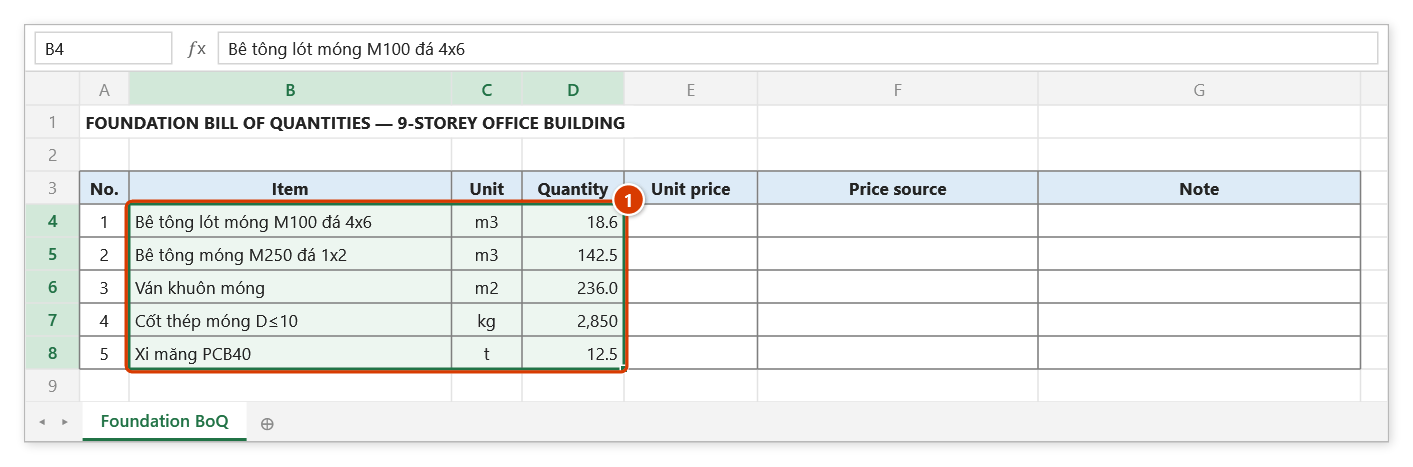
Step 1. Select the items to price, covering the item name, unit and (if available) quantity columns (1). Leave the price, source and note columns on the right empty.
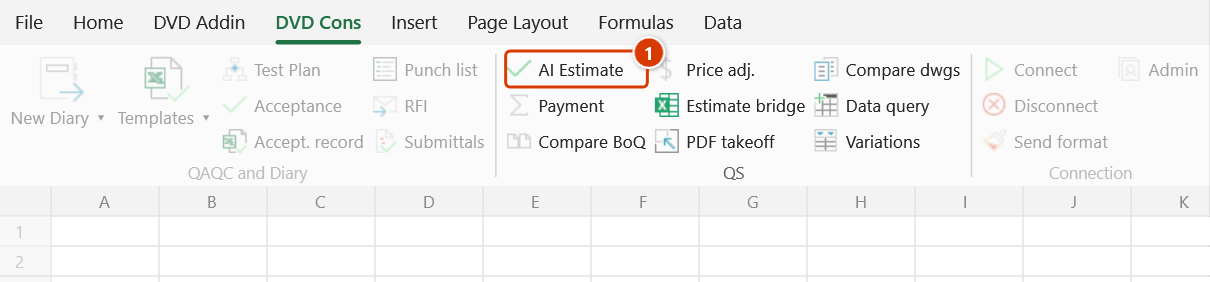
Step 2. On the ribbon, open the DVD Cons tab → QS group → click AI Estimate.
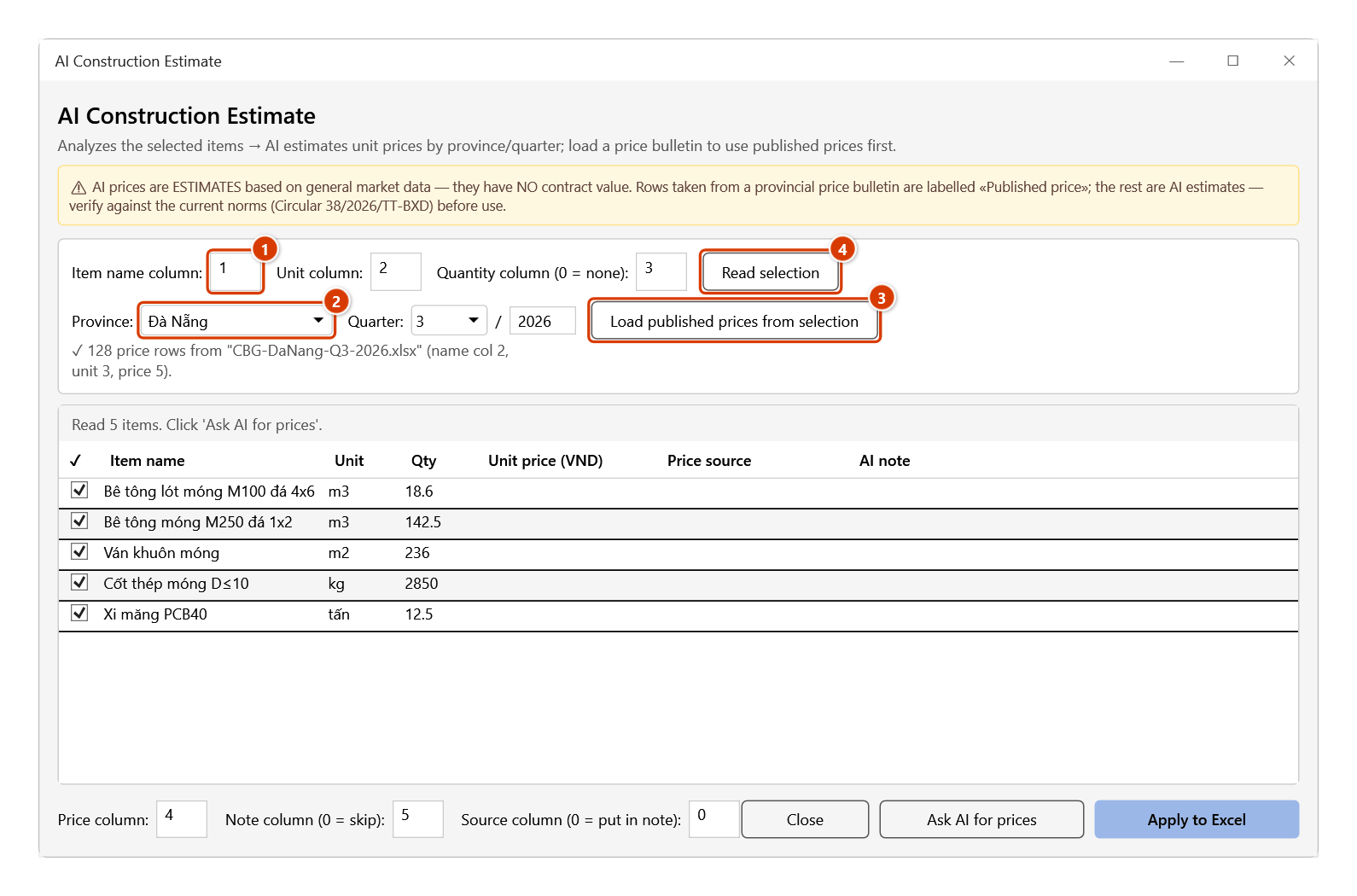
Step 3. Enter the column numbers counted from the first column of the selection (1), then pick the Province and the Quarter / year of the price level (2). Ideally open the provincial Department of Construction price bulletin, select its table (with the header row) and click Load published prices from selection (3). Back on the BoQ sheet, reselect the items and click Read selection (4).
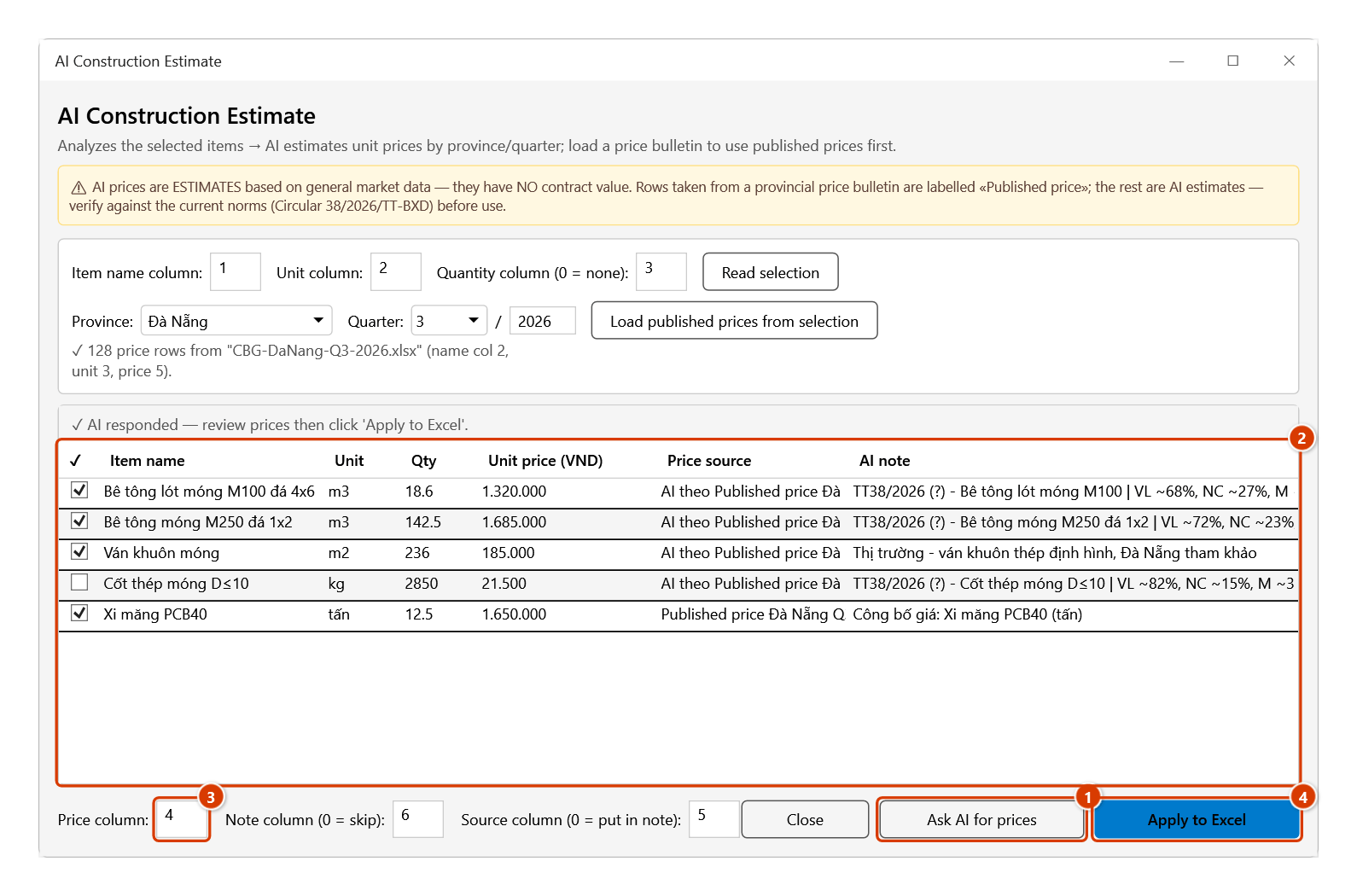
Step 4. Click Ask AI for prices (1). Items that match the bulletin exactly take the published price, the others are estimated by AI; the Price source column tells which is which (2). Untick ✓ the rows you do not want written (here the rebar, which already has a contract price). Set Price column = 4, Note column = 6, Source column = 5 (3), then click Apply to Excel (4).
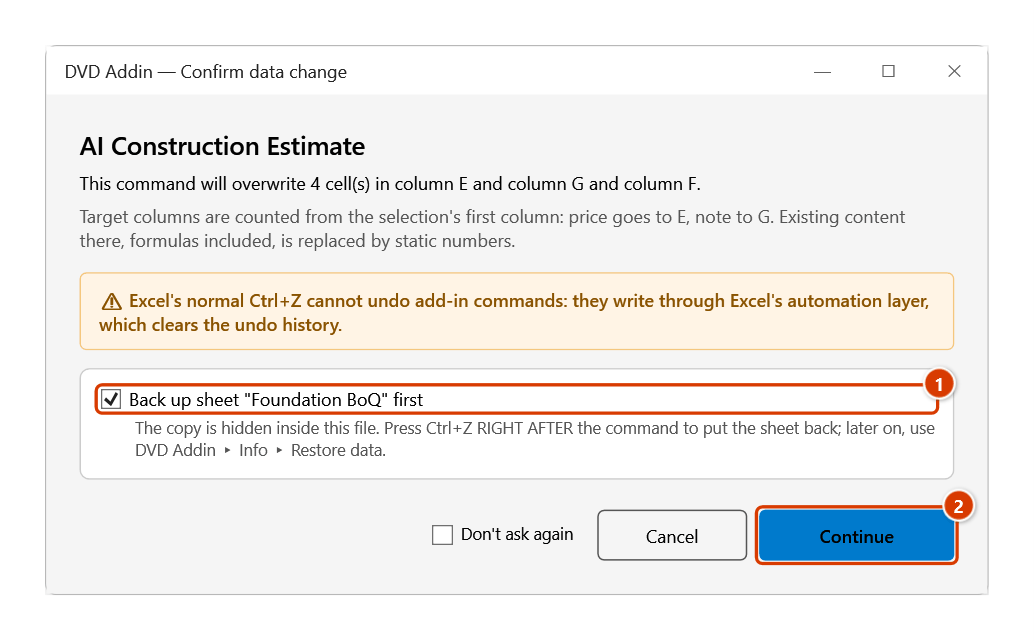
Step 5. The add-in asks before overwriting and names the target columns. Leave Back up sheet "Foundation BoQ" first ticked (1) (Ctrl+Z right after the command puts the sheet back) and click Continue (2).
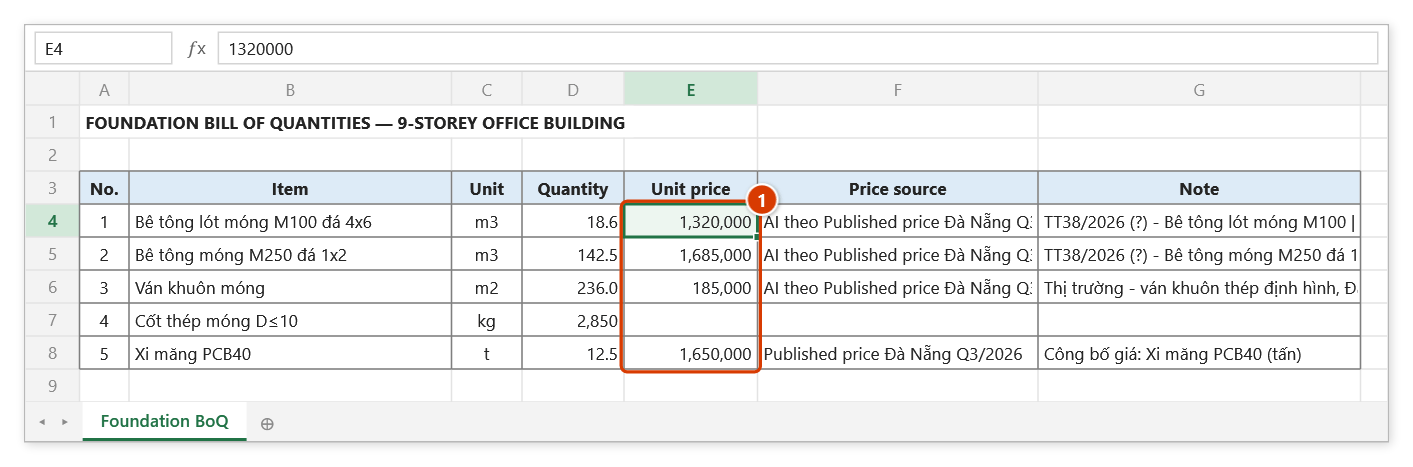
Step 6. Unit prices are written to column E (1), the price source to column F and the AI note to column G. The unticked rebar row is left untouched. AI prices are only estimates — check them against the norms, published prices and supplier quotes before use.
Example
A structural BoQ lists Foundation concrete M250, 1x2 aggregate (m3), Foundation formwork (m2) and Foundation rebar D≤10 (kg).
Select B5:D7, set Item name column = 1, Unit column = 3, Quantity column = 0, click Read selection then Ask AI for prices. The grid returns VND/m3, VND/m2 and VND/kg figures with material/labour/plant notes. You untick the rebar row (its price is already fixed by contract), set Price column = 4 and Note column = 5, then click Apply to Excel — the two remaining rows get their prices in column E and notes in column F.
Notes
- Bulletin matching is STRICT: every specification number must agree (D10 ≠ D12, PCB40 ≠ PCB30), the unit must agree (m3 = m³), and the names must be close enough.
- Composite work items such as "Concrete M250" never match a material; the AI estimates that row using the published cement, sand and aggregate prices as input.
- A missed match is labelled as an AI price; a wrong price is never taken.
- Published prices are material prices at the delivery or sale point stated in each bulletin. Read the bulletin's notes (location, transport) before using them in detailed unit rates.
- AI prices are ESTIMATES based on general market data and carry NO contractual value — always verify against cost norms, local price schedules and supplier quotations.
- The command needs an internet connection and an AI API key configured in Preferences; without a key, "Ask AI for prices" returns an error.
- Column numbers are counted from the first column of the selection, not from the sheet's A/B/C letters.
- Applying prices overwrites the target cells directly (formulas included) — the add-in confirms and backs the sheet up first: press
Ctrl+Zright after the command to put the sheet back, or recover it later from Restore data. - Long lists take tens of seconds and consume API quota; batch a few dozen items at a time.
Related
- Interim Payment — turn agreed unit prices into a value-of-work-done table.
- Variation Register — price variation items that have no contract rate yet.
- Compare BoQ — check quantities and values between two BoQ versions.
- AI Chat — ask follow-up questions about norms and take-off inside Excel.