
Submittals
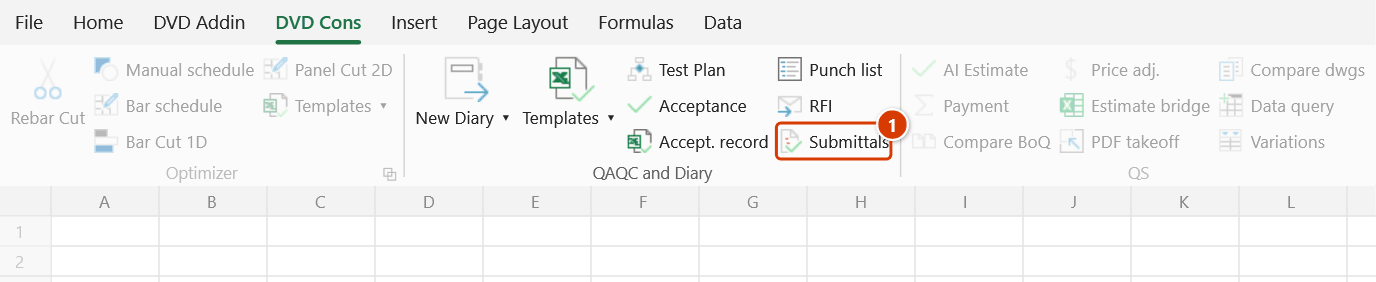
Ribbon location: DVD Cons tab → QAQC and Diary group
Command ID: btnSubmittalRegister
What it does
A register of submittals — materials, shop drawings, method statements, samples, certificates: everything that must be approved before it comes on site.
Three things make it more than a hand-kept spreadsheet:
1. The submit-by date, counted back
The material is needed on site on date X. Ordering, manufacture and delivery take a lead time. Review takes a while longer. So what is the latest you can submit?
Submit by = Required on site − Lead time − Review timeMiss that date and the programme has already slipped before anyone notices — by the time the material fails to arrive it is far too late. The add-in counts the date back, shows it live in the dialog as you type along with the arithmetic, and marks anything already past it in red.
On the sheet it is written as a formula, not a dead value: change the required-on-site date or the lead time and it moves with them, and the calculation is there to be seen.
2. The resubmission chain
A returned submittal comes back as Rev 1, Rev 2… Only the latest revision counts towards status; counting the old ones inflates the report several times over. The register works out the latest revision from the ref and rev, and greys out the ones that have been superseded.
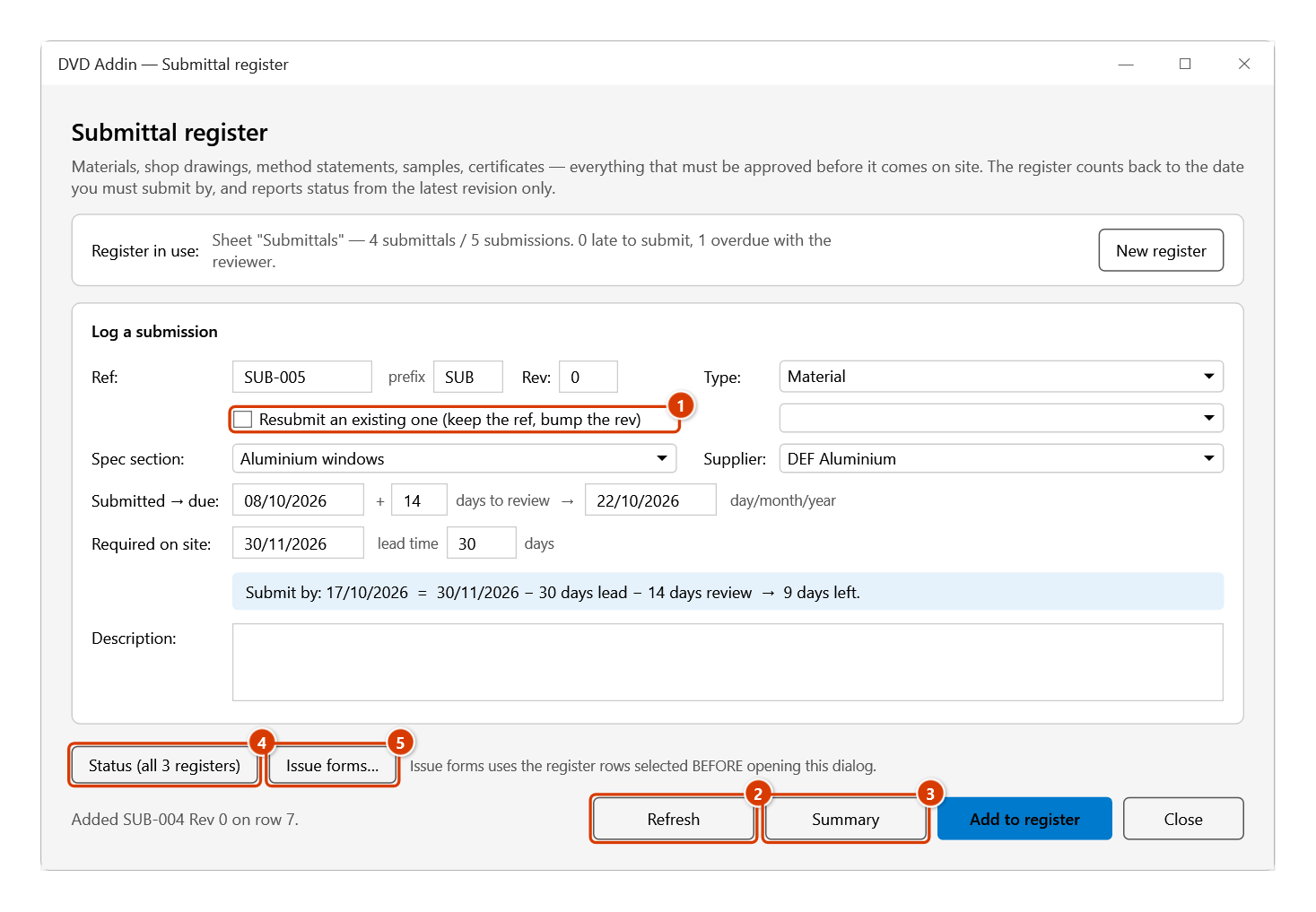
Tick Resubmit an existing one and the add-in keeps the ref and bumps the rev, copying across the description, spec section and supplier from the previous attempt — the reviewer files by reference, and a fresh number loses the whole chain.
3. Ball in court
You, because it is unsubmitted or came back for revision, or the reviewer, because they are sitting on it past the deadline.
How to use it
- Click Submittals in the DVD Cons tab → QAQC and Diary group.
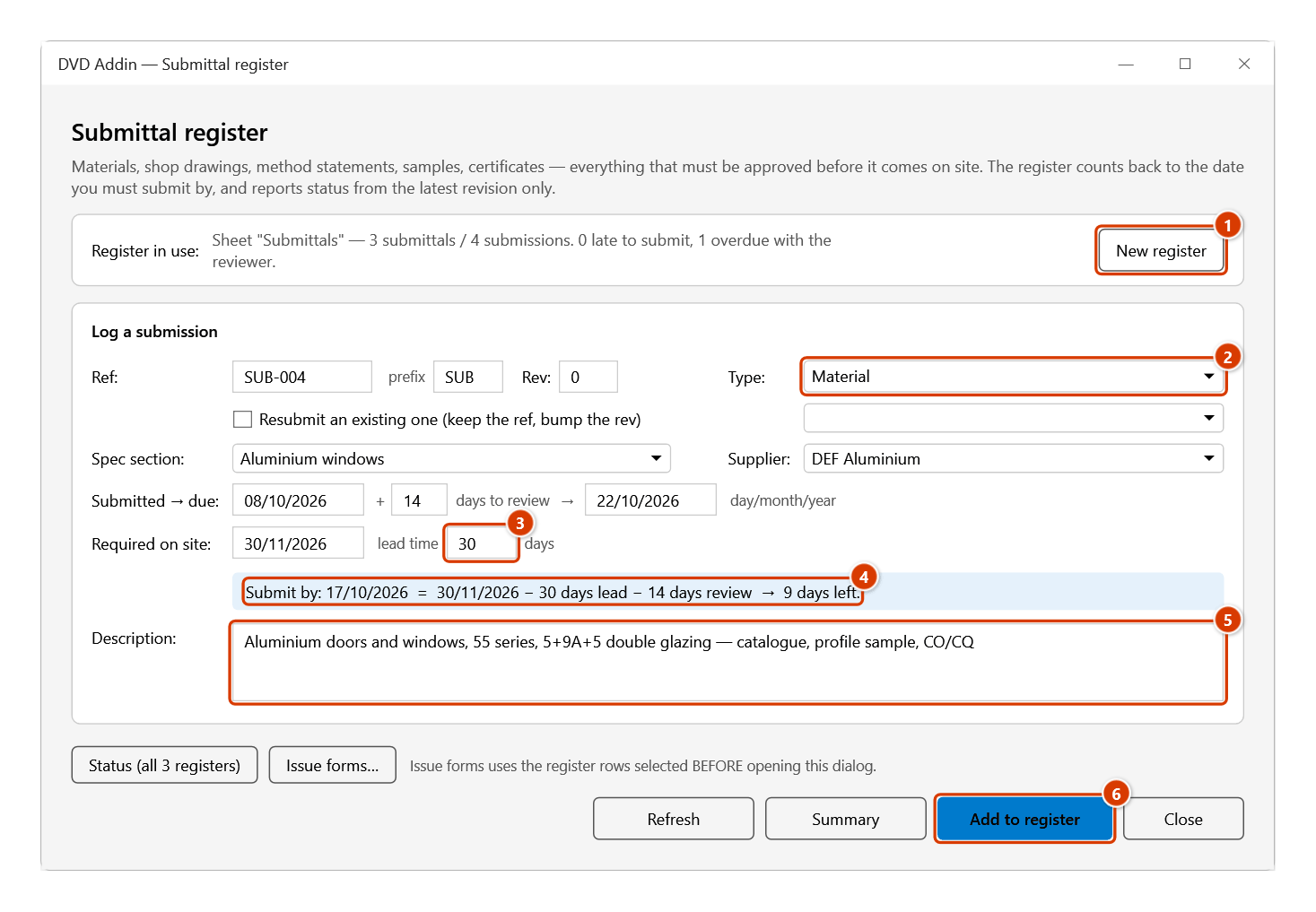
- The first time, click New register — a sheet is created with 17 standard columns, a frozen header, filtering switched on and drop-downs for Outcome and Type.
- Fill in the form. Type Required on site and the lead time and the submit-by date appears immediately, with the arithmetic and the days remaining.
- Click Add to register.
- When the review comes back, fill in Outcome and Decided on the sheet.
- Refresh recolours, writes the Position column and reports data contradictions.
- Summary writes a sheet that opens with NEEDS ACTION, plus a list of everything late to submit and everything overdue with the reviewer.
Video tutorial
Narrated in Vietnamese, with Vietnamese subtitles. Tồn tại, RFI và Trình duyệt · 6 min 25 s · 16 cases · Download the video · Practice workbook for the video
Commands in this video: Punch list · RFI · Submittals
Chapters (21)
- Giới thiệu
- Mở lệnh
- 1 · Tạo sổ lần đầu
- 2 · Sổ đã có – không tạo trùng
- 3 · Thêm tồn tại kèm ảnh
- 4 · Mã không trùng, tiền tố
- 5 · Cập nhật màu – quá hạn
- 6 · Đóng mục – mâu thuẫn
- 7 · Bảng tổng hợp, lọc
- 8 · Thông báo kèm ảnh
- 9 · RFI: số hiệu, hạn trả lời
- 10 · RFI: chờ, trả lời, quá hạn
- Sổ Trình duyệt
- 11 · Tính ngược hạn phải trình
- 12 · Trình lại – Rev
- 13 · Mã A/B/C/D, Tình trạng
- 14 · Giao ban cả 3 sổ
- 15 · Sheet bảo vệ, Ctrl+Z
- 16 · Khi nhập sai
- Mẹo
- Kết thúc
Illustrated walkthrough
Step 1. On the ribbon, open the DVD Cons tab → QAQC and Diary group → click Submittals.
Step 2. The first time in a workbook, click New register (1): the add-in adds a Submittals sheet with 17 standard columns. Fill in the form: pick the Type (2), spec section, supplier, submitted date + review days (the review deadline is calculated). Type Required on site and the lead time in days (3) — the line below (4) immediately counts back to the submit-by date, with the sum and the days left. Enter the Description (5) and click Add to register (6).
Step 3. When a submittal comes back (code C or D), tick Resubmit an existing one (1) and pick its ref: the add-in keeps the ref, bumps the Rev and copies the description, spec section and supplier of the previous one into any empty fields. When the decision arrives, fill in Outcome (just A/B/C/D works) and Decided on the sheet. Refresh (2) recolours rows and writes the Position column; Summary (3) opens with NEEDS ACTION; Status (all 3 registers) (4) and Issue forms… (5) are shared by the three registers.
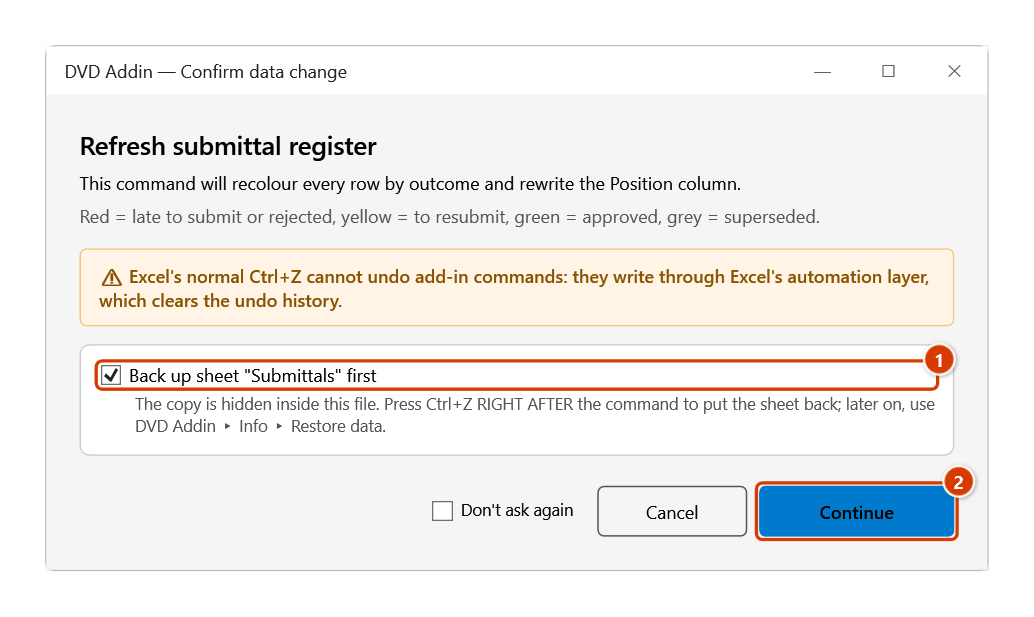
Step 4. Click Refresh: the Confirm data change window appears because the command repaints the rows and rewrites the Position column. Keep the sheet backup ticked (1) and click Continue (2).
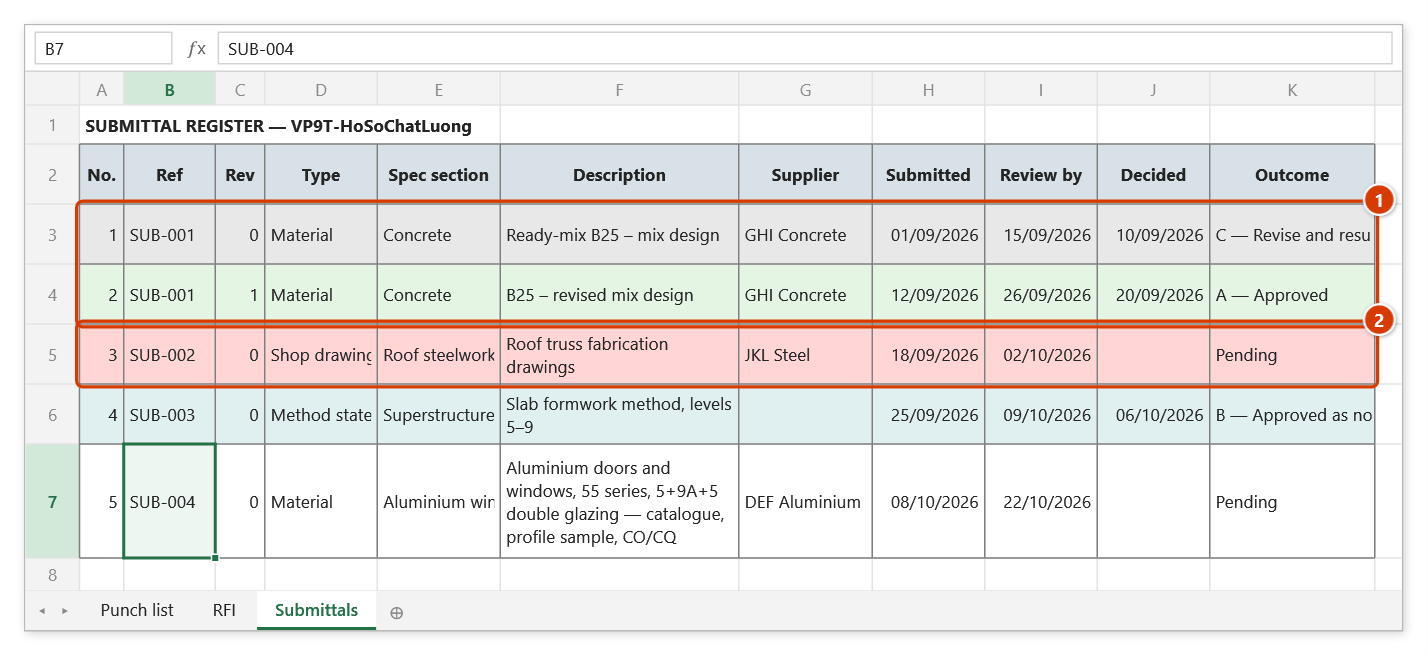
Step 5. The Submittals sheet after Refresh: the SUB-001 resubmission chain (1) — Rev 0 came back (C) and is greyed because Rev 1 exists; only Rev 1 (A, green) counts; the pale red row (2) is a submittal the reviewer has kept past its deadline. To the right (outside the picture) are Reviewer, Required on site, Lead time, Submit by written as the formula =IF(OR(M7="",N7=""),"",M7-N7-14), Position (for example Review 6 days overdue) and Note.
Outcome codes
The four A/B/C/D codes are the common standard, including on foreign-funded projects — the letters are kept so the register reconciles against the consultant's own review sheet.
| Code | Meaning | Can you build? |
|---|---|---|
| A | Approved | Yes |
| B | Approved as noted | Yes, but amend the document |
| C | Revise and resubmit | No — a further rev is required |
| D | Rejected | No |
| (blank) | Pending | No |
Typing just A B C D works too.
The register columns
| Column | Note |
|---|---|
| No. · Ref · Rev | Generated as SUB-001; the rev increments on resubmission |
| Type | Material / Shop drawing / Method statement / Sample / Certificate |
| Spec section · Description · Supplier | |
| Submitted · Review by · Decided | Review by = submitted + the review period |
| Outcome · Reviewer | |
| Required on site · Lead time (days) | The two inputs to the count-back |
| Submit by | A formula — override it for a submittal with its own deadline |
| Position | Worked out by Refresh — do not type here |
| Note |
Position is the column worth filtering on: it states the action rather than repeating the outcome — LATE TO SUBMIT by n days, Submit within n days, Review n days overdue, Awaiting review, To resubmit, Superseded…
Colours
| Colour | Meaning |
|---|---|
| Strong red | Already late to submit — the material will not arrive in time |
| Pale red | Rejected, or the reviewer is past the deadline |
| Pale yellow | To resubmit (C) |
| Pale cyan | Approved as noted (B) |
| Pale green | Approved (A) |
| Grey | Superseded by a later rev |
What the summary gives you
- NEEDS ACTION ahead of every statistic: late to submit, submit within 14 days, returned for resubmission, reviewer overdue.
- Ball in court; by outcome (latest rev only); by type; by supplier.
- Submission quality: the first-time approval rate, how many submittals needed a resubmission, how many superseded revisions there are, how many went in after their submit-by date, and the average review time.
- Two action lists: late to submit and reviewer overdue — to chase.
Status and issuing forms
The button row at the top of the dialog (the same in all three registers: Punch list, RFI, Submittals):
- Status (all 3 registers) — writes a
Status yyyy-MM-ddsheet across the three registers in the workbook:- per register, how many items are open, overdue, due soon (7 days), and held by the reviewer or the contractor;
- a chase list sorted by days overdue — click a reference to jump to its row in the register;
- a table by responsible party / addressee. Only the latest rev of each number counts. Overdue covers both the reviewer late with an outcome and the contractor past the submit-by date.
- Issue forms… — for the rows selected in the register before you opened the dialog, creates submittal forms — one per row: document details, rev, A/B/C/D outcome boxes, comments, signatures on new A4 sheets ready to print. The dialog asks:
- project, issuing organisation, prepared by, place of issue — remembered for next time;
- whether to export PDFs to a
Phieufolder next to the workbook; - whether to draft an Outlook e-mail with the PDFs. It opens a draft only: you add recipients and press Send; the add-in never sends.
The documents are in Vietnamese.
Notes
- The register is recognised by its column headers, not by the sheet name.
- Dates are read as day/month/year regardless of the machine's language; an unreadable date is rejected.
- A submit-by date of today is not yet late.
- Once submitted an item stops counting as late to submit, but the register still records how many days after the submit-by date it went in.
- Refresh only writes the Submit-by formula into cells that are empty — anything already there is left alone, so you can set your own deadline for a particular submittal.
- Refresh reports data contradictions (an outcome with no decision date, a decision before the submission, a required-on-site date with no lead time, returned 14 days ago with no resubmission logged…) but does not fix them.
- Recolouring overwrites existing fill; the add-in confirms and backs the sheet up first — press
Ctrl+Zright after Refresh to undo, or recover it later from Restore data. - Press ESC to stop part way through a long register.
See also
- RFI — the RFI register, the other half of the pair.
- Punch list · Test plan · Acceptance plan