
Level resources
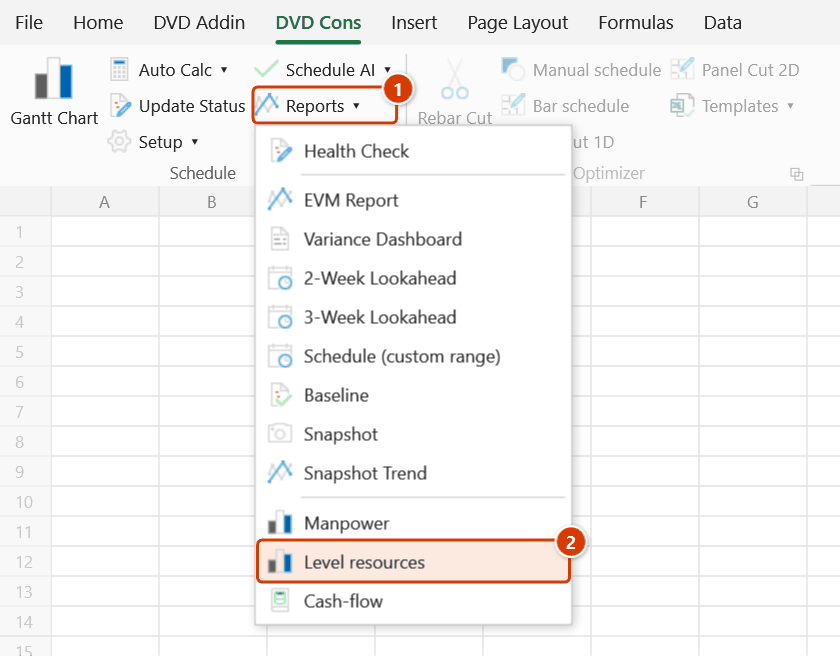
Ribbon location: DVD Cons tab → Schedule group → Reports menu
Command ID: btnResourceLevelling
PRO feature
This command is part of the PRO plan. STANDARD accounts activated before 01/07/2026 keep access until their licence expires; other Standard accounts get an upgrade prompt when they click it.
What it does
A schedule's first-pass manpower profile is usually spiky: 80 people one week, 20 the next. Moving crew on and off site like that is expensive and awkward, and often exceeds what you actually have.
This command moves activities that still have float so the profile flattens, or so no day exceeds your crew limit. The Manpower histogram shows you the problem; this proposes what to do about it.
Two modes
| Mode | What it does | Trade-off |
|---|---|---|
| No delay | Uses only the float already in the schedule | The finish date is unchanged, but some days may still exceed the limit |
| Respect the limit | Forces everything under the cap | The project may run longer — the add-in says by how many days |
Neither mode hides an extension. If the finish date slips, that number appears in the trial result, in the report, and in the confirmation box before anything is written.
How to use it
- Open the schedule sheet, go to the DVD Cons tab → Schedule group → Reports menu → click Level resources.
- Enter the manpower limit (the most people you can have on site) and pick a mode.
- Fill in Lock before to freeze work already under way — nobody re-plans a task that is half done.
- Click Trial run. Nothing is written to the schedule.
- Click Write report to see the detail, then Apply to schedule if you agree — the Confirm data change box appears; keep the sheet backup ticked and click Continue. Besides the new dates, the command writes an SNET constraint (Start No Earlier Than = the new start) so the next Auto Calc keeps the levelled dates.
Video tutorial
Narrated in Vietnamese, with Vietnamese subtitles. Nhân lực và Cân bằng nhân lực · 6 min 08 s · 14 cases · Download the video · Practice workbook for the video
Commands in this video: Manpower · Level resources
Chapters (18)
- Giới thiệu
- Mở lệnh
- 1 · Cột Nhân lực
- 2 · Cộng theo ngày làm việc
- 3 · Tên cột được nhận
- 4 · Dòng tổng không cộng trùng
- 5 · Ô trống, ô ghi chữ
- 6 · Phân bổ không đều
- 7 · Cân bằng: không kéo dài
- 8 · Báo cáo, áp, hoàn tác
- 9 · Kiểm lại bằng Nhân lực
- 10 · Trần quá thấp
- 11 · Ép theo giới hạn
- 12 · Khoá việc đã làm
- 13 · Giữ quan hệ công tác
- 14 · Khi nhập sai
- Mẹo
- Kết thúc
Illustrated walkthrough
Practice
Download this command's sample workbook — the data matches the pictures below (sheet Schedule), so you can follow each step right away.
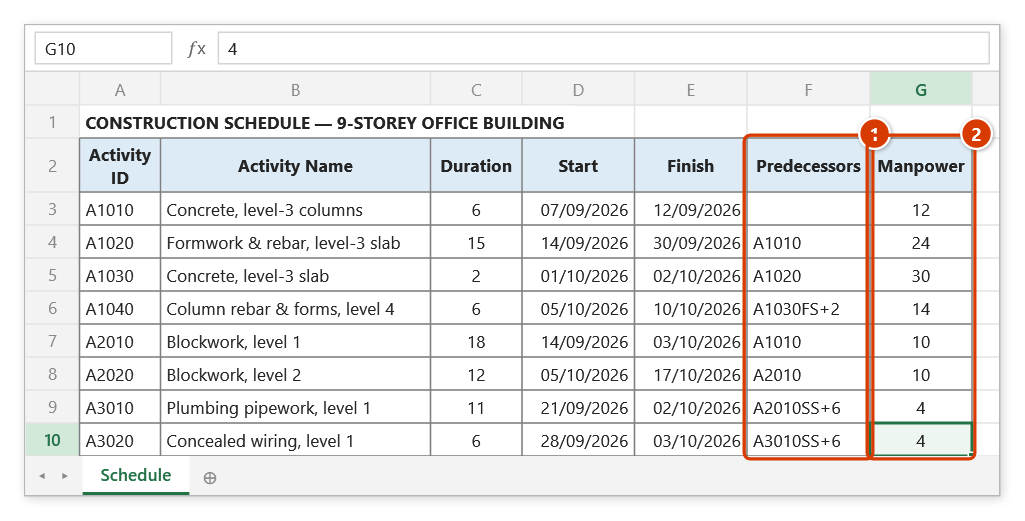
Step 1. Open the schedule sheet with a Predecessors column (1) (so the build sequence is kept) and a Manpower column (2).
Step 2. On the ribbon, open the DVD Cons tab → Schedule group → open Reports → choose Level resources.
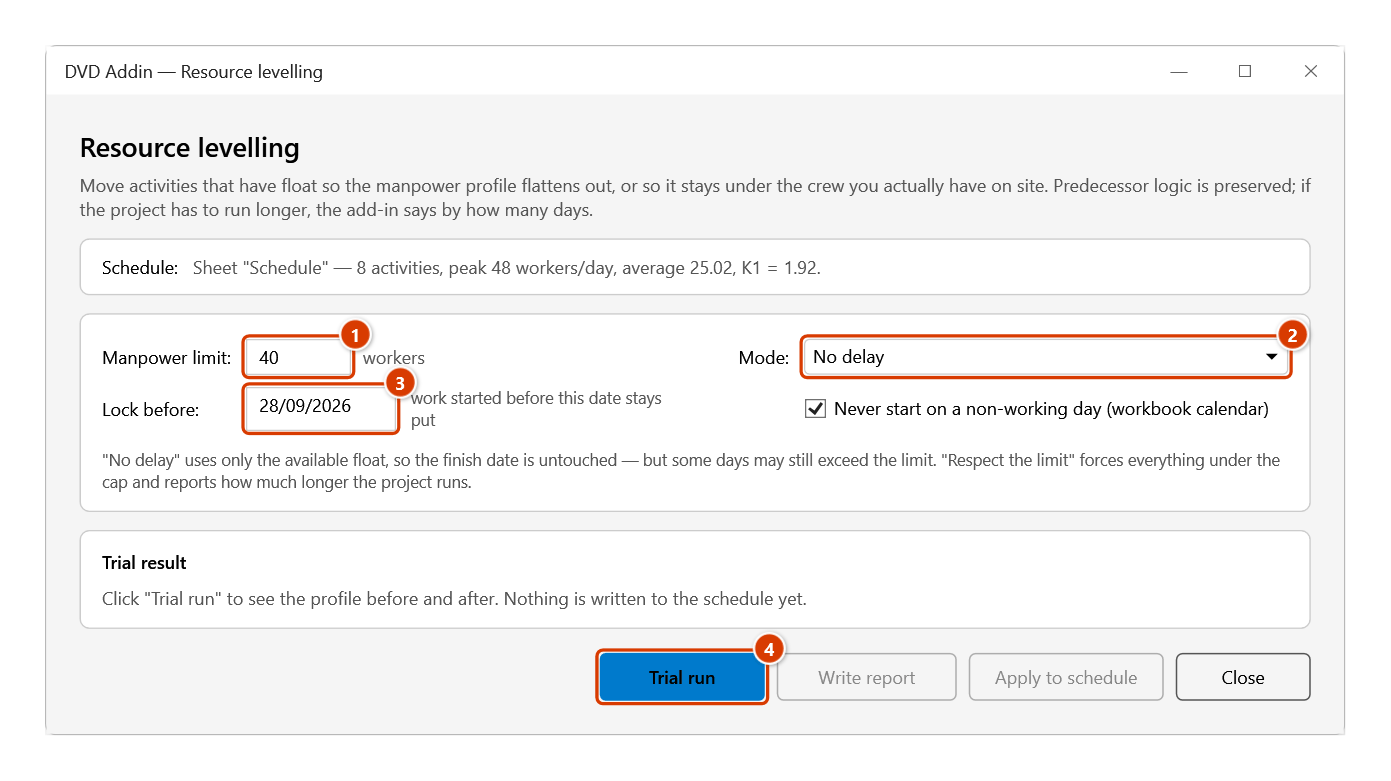
Step 3. Enter a Manpower limit of 40 (1), pick the No delay Mode (2), set Lock before to 28/09/2026 (3) so work already started stays put, then click Trial run (4) — nothing is written to the schedule yet.
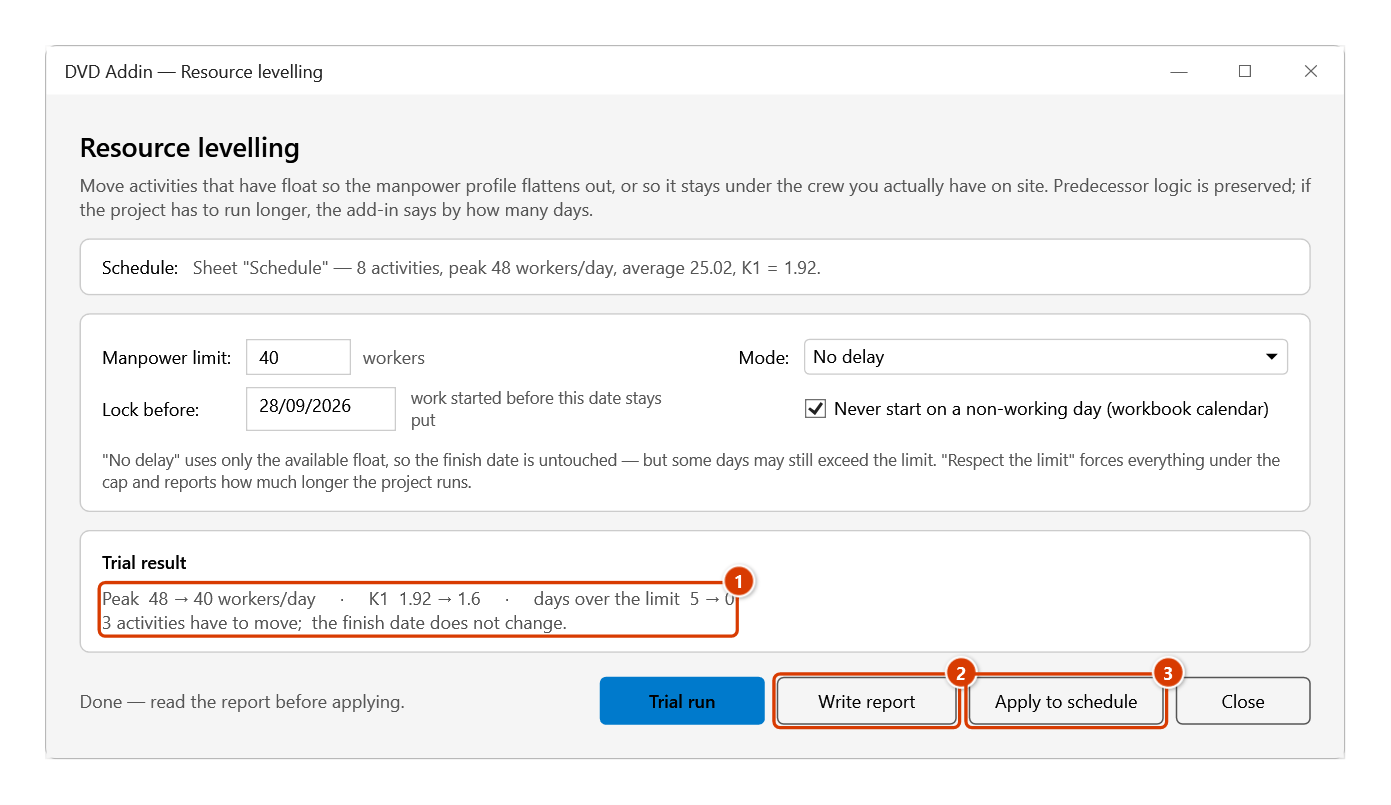
Step 4. Trial result (1): peak 48 → 40 workers/day, K1 1.92 → 1.6, 3 activities move, the finish date does not change. Click Write report (2) for the Levelling sheet (before/after table, activities to move, daily profile), then Apply to schedule (3) if you agree.
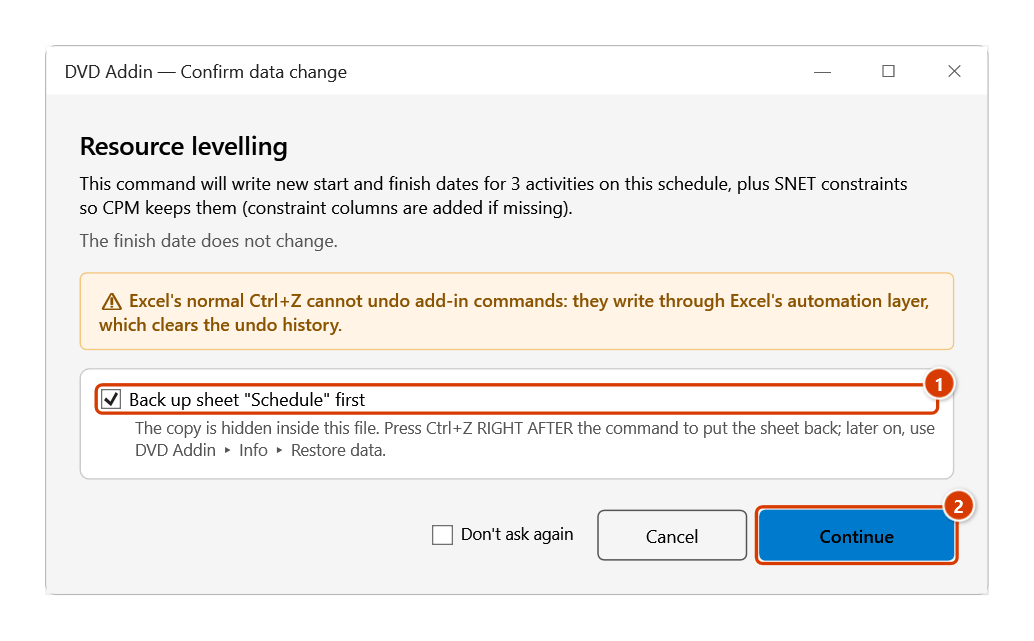
Step 5. The DVD Addin — Confirm data change window appears: keep Back up sheet "Schedule" first ticked (1) and click Continue (2). The add-in moves A3020 by 7 days and A1030 / A1040 by 2 days and writes SNET constraints into the Constraint Type / Constraint Date columns; redraw the Gantt to see the change.
What the schedule sheet needs
| Column | Required | Note |
|---|---|---|
| Start · Finish | Yes | Without them the command stops |
| Manpower | Yes | "Manpower", "Crew", "Nhân lực", "Số CN"… |
| Predecessors | Recommended | Without it every activity is treated as independent — the add-in warns, because the result can break the build sequence |
| Activity ID | Recommended | So the Predecessors column can be resolved |
| Distribution | No | Allows a non-flat resource curve (front- or back-loaded) |
FS / SS / FF / SF links with lag are preserved: 5FS+2d, 3;7SS-1, 12+3w. A reference that cannot be resolved is skipped and reported, never guessed at.
The unevenness coefficient K1
K1 = peak manpower / average manpowerThe average is taken over the construction duration, not over just the days that have work. Construction planning usually targets K1 ≤ 1.3–1.6; the closer to 1, the flatter the profile and the less crew movement.
The report gives K1 before and after, shaded green when it improves and red when it gets worse.
What the report contains
- Before / after comparison: peak, average, K1, days over the limit, man-days over, duration.
- Activities to move: row, id, name, old → new start, shift in days, manpower.
- Worth knowing: what the add-in could not handle, and why.
- Daily profile: demand before, after, and the limit line — ready to chart in Excel.
Notes
- An activity that exceeds the cap on its own (needing 40 people when you have 30) cannot be fixed by moving it — the add-in names it so you can split the crew or raise the cap.
- If the network contains a cycle, the add-in stops and points at it rather than producing a plausible-looking but wrong schedule.
- Activities are never pulled earlier than where they started: this is levelling, not a re-plan from scratch.
- Switch on Never start on a non-working day (workbook calendar) to keep activities from starting on rest days. It uses the workbook's work calendar (work week + holidays), not just Sundays.
- New finish dates are computed in working days of that calendar, so an activity keeps its number of working days when it is shifted across rest days.
- Apply to schedule overwrites dates on the sheet you are using — the add-in confirms and backs the sheet up first:
Ctrl+Zright after the command puts the sheet back; later on, recover it from Restore data. - The SNET constraint goes into the Constraint Type / Constraint Date columns; if the sheet lacks them, the add-in creates them, just like the Constraints command. Activities that already have another hard constraint (MSO, FNET…) keep it and are counted separately in the message — CPM may move those away from the levelled dates.
- After applying, redraw the Gantt to see the change.
- Press ESC to stop on a long schedule.
See also
- Manpower histogram — see the problem before levelling it.
- Draw Gantt · Constraints · Schedule health check
- Restore data