
File Tree
Location on ribbon: Tab DVD Addin → Group File and Print → Menu File Tools
Command ID: btnFileTree
License required
This command needs a valid DVDAddin account (Standard or PRO). It is fully available during the Trial period.
What it does
The command scans a root folder and writes its whole structure — every subfolder and every file — into the active sheet as an indented tree: each level shifts one column to the right, and folder names are bold and coloured dark blue so they stand out from files.
Use it to build a handover document index: capture the as-built folder structure exactly as it stands, spot which work package is still missing files, or print it as an annex to the electronic data handover record.
How to use
- Open (or create) an empty sheet to receive the output.
- Go to tab DVD Addin → group File and Print → File Tools → File Tree.
- The Pick parent folder dialog opens — choose the root folder and press OK.
- The Confirm data change window warns that the command will clear the whole active sheet and then write the folder tree — keep Back up sheet ticked and press Continue.
- The command walks the tree recursively. The root path sits in
A1in bold, and each level indents further to the right. - A toast reports how many items were written to the sheet.
Video tutorial
Narrated in Vietnamese, with Vietnamese subtitles. Danh sách file và cây thư mục · 7 min 32 s · 11 cases · Download the video · Practice workbook for the video
Commands in this video: File List · File Tree · Folder Tree
Chapters (17)
- Giới thiệu
- Mở lệnh
- Cửa sổ Liệt kê file
- 1 · Bảng kê bản vẽ PDF
- 2 · Đường dẫn đầy đủ
- 3 · Ghi nối vào bảng có sẵn
- 4 · Gộp tên file vào một ô
- 5 · Thư mục rất nhiều tệp
- 6 · Khi thao tác sai
- Hai lệnh cây thư mục
- 7 · Cây thư mục file
- 8 · Cây thư mục folder
- 9 · Tệp ẩn, thư mục bị khoá
- 10 · Tắt hyperlink cho cây
- 11 · Chạy nhầm sheet – Ctrl+Z
- Mẹo
- Kết thúc
Illustrated walkthrough
Step 1. Open (or add) an empty sheet for the result — the command clears the active sheet before writing.
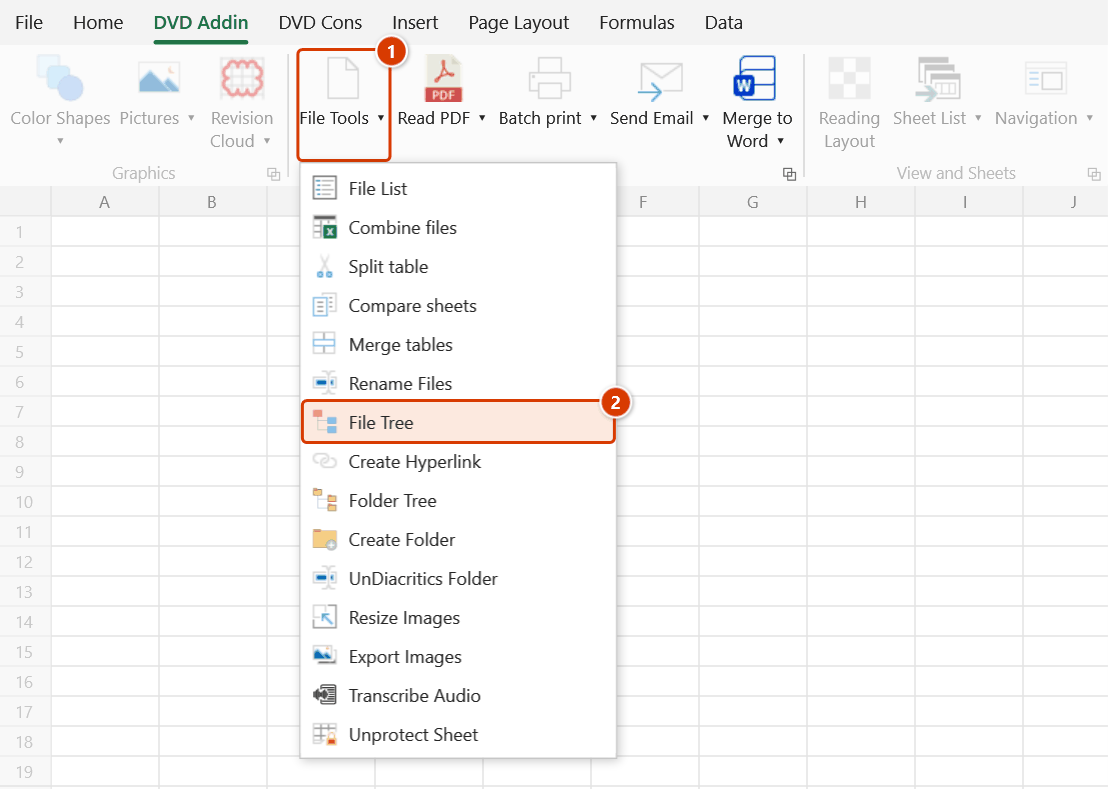
Step 2. On the ribbon, open the DVD Addin tab → File and Print group → open File Tools → choose File Tree.
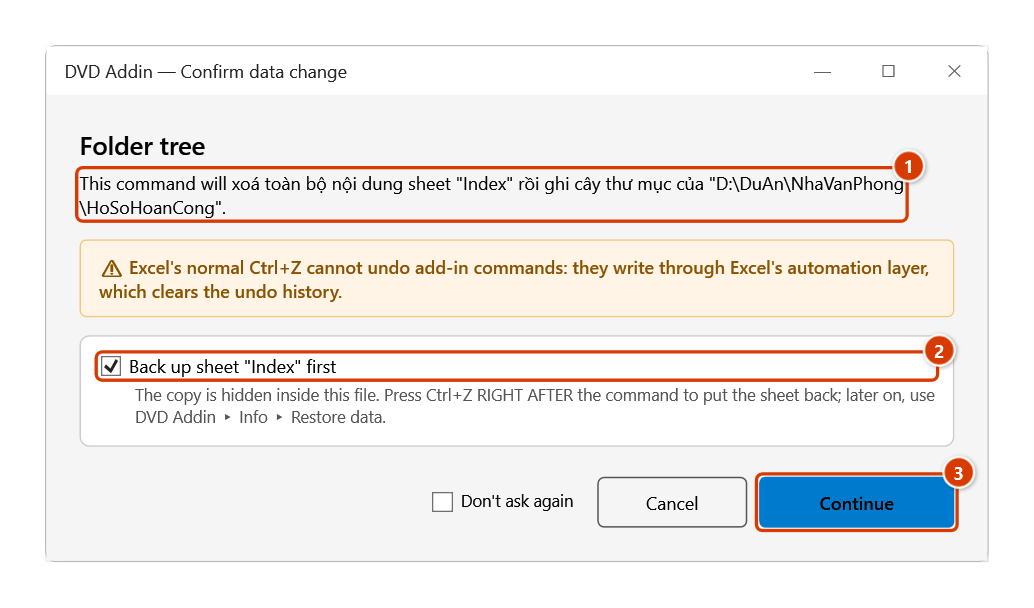
Step 3. In the Pick parent folder box choose the root folder (for example D:\DuAn\NhaVanPhong\HoSoHoanCong) and click OK. The add-in asks again because the whole sheet will be cleared (1): keep Back up sheet (2) so Ctrl+Z right after the command can restore the sheet, then click Continue (3).
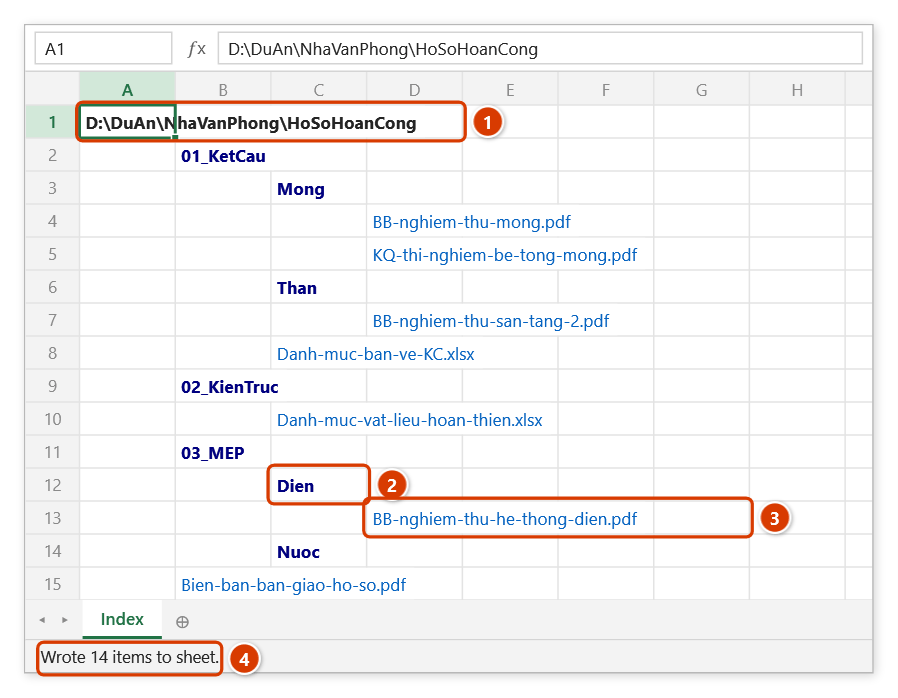
Step 4. The root path sits in A1 (bold) (1); each deeper level moves one column right, folder names are bold dark blue (2) and files are listed under their folder (3). File and folder names are hyperlinks to the path. The status bar reports how many items were written (4).
Example
The as-built folder E:\AsBuilt\Block-A needs an index to attach to the handover record.
Run the command on a blank sheet and pick that folder; the result looks like this:
| A | B | C | D |
|---|---|---|---|
| E:\AsBuilt\Block-A | |||
| 01_Structure | |||
| Foundation | |||
| Foundation-inspection.pdf | |||
| Concrete-test-report.pdf | |||
| Superstructure | |||
| Slab-L2-inspection.pdf | |||
| 02_Architecture | |||
| Material-schedule.xlsx |
Column C shows at a glance that Superstructure holds only one file against two in Foundation — the superstructure records are clearly incomplete.
Notes
- Everything on the active sheet is wiped before the tree is written — always run it on a blank sheet, and read the confirmation carefully before pressing Continue.
- If Back up sheet stays ticked in the confirmation, Ctrl+Z right after the command puts the sheet back; later on, use Restore data. Untick the backup and it cannot be undone.
- The output indents one column per folder level, so a deeply nested tree runs off the printable page — pick a root folder at the level you actually need.
- File and folder names get hyperlinks that open the path directly; turn them off by clearing the FileTreeHyperlinks option in Preferences ▸ File and Print.
- Hold ESC to stop when the folder turns out to be huge — whatever has already been written stays on the sheet.
- Folders you have no permission to read are skipped silently, so a branch may be missing compared with Windows Explorer.
Related
- Folder Tree — same mechanism but folders only, for a more compact index.
- File List — a flat list with size and modified date instead of an indented tree.
- Create Folders — the reverse job: build the folder tree on disk from a list on the sheet.
- Rename Files — standardise file names after reviewing the tree.