
Delete unused formats
Location on ribbon: Tab DVD Addin → Group Cells and Rows → the ▾ arrow of Delete blanks
Command ID: btnDeleteUnusedFormats
What it does
Clears the formatting from everything outside the real data area of the active sheet, then forces Excel to recompute its used range. This is the classic cure for a bloated workbook: a quantity sheet with a few hundred rows that weighs tens of megabytes, where Ctrl+End jumps to row 60000, the scrollbar is a sliver, the file opens slowly and printing produces dozens of blank pages. The usual cause is someone shading, bordering or format-painting whole rows and columns.
How to use
- Open the sheet you want to clean (the command works on the active sheet only and needs no selection).
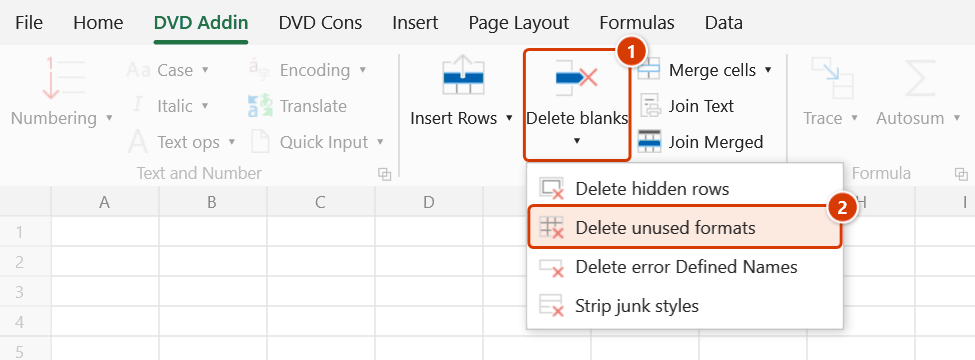
- Go to tab DVD Addin → group Cells and Rows → the ▾ arrow of Delete blanks → click Delete unused formats.
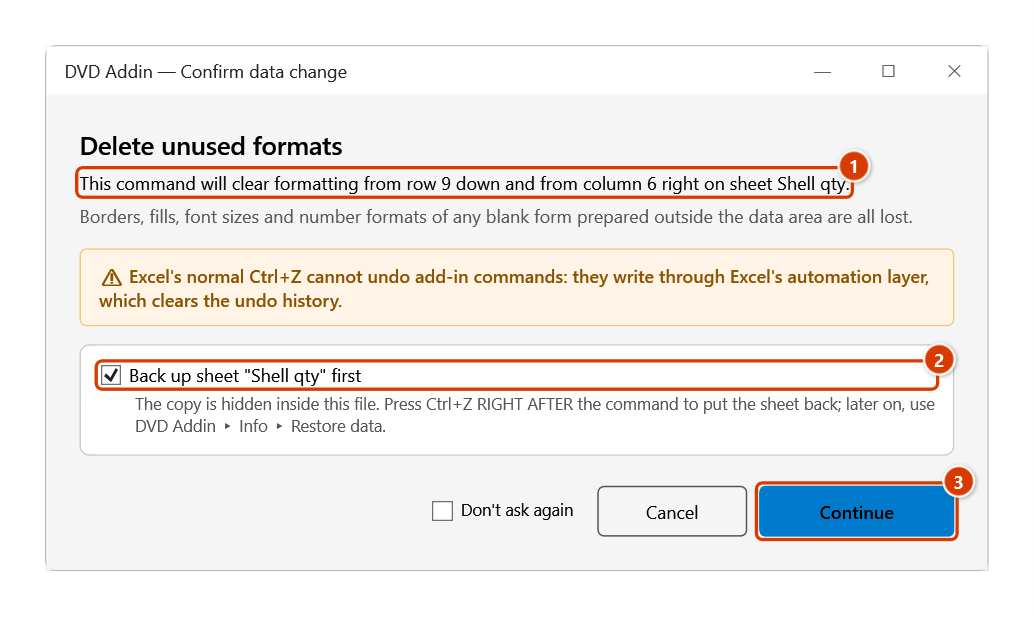
- The add-in finds the last cell that really holds data and compares it with Excel's Ctrl+End last cell. If there is surplus, the Confirm data change window states from which row down and which column right the formatting will be cleared; keep the backup ticked and click Continue.
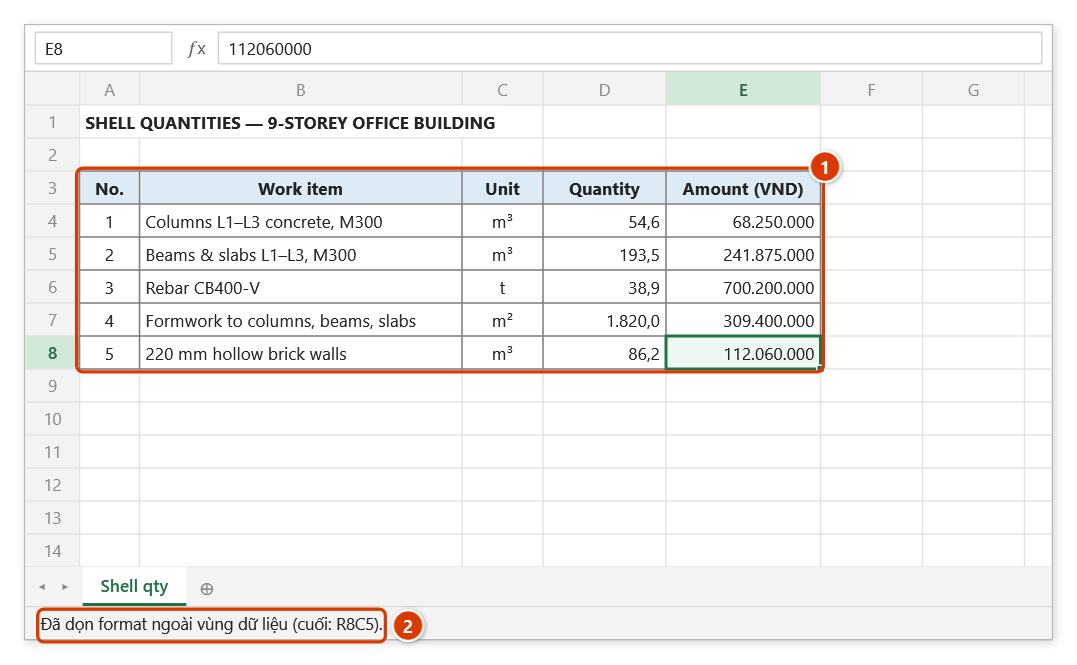
- Every row below the last data row and every column right of the last data column has its formats cleared and its fill removed.
- Excel is asked to recompute the used range, and the status bar reports something like
Đã dọn format ngoài vùng dữ liệu (cuối: R320C11).(this message is shown in Vietnamese only). - Save and reopen the file to see the size drop and Ctrl+End land on the correct cell.
Video tutorial
Narrated in Vietnamese, with Vietnamese subtitles. Xoá dòng trống, dòng ẩn, format, Name lỗi, Cell Style · 6 min 22 s · 14 cases · Download the video · Practice workbook for the video
Commands in this video: Delete blanks · Strip junk styles · Delete error Defined Names · Delete hidden rows · Delete unused formats
Chapters (18)
- Giới thiệu
- Mở lệnh
- 1 · Bảng xuất từ dự toán
- 2 · Cột công thức kéo dài
- 3 · Ghi chú ngoài vùng chọn
- 4 · Dòng trống đang ẩn
- 5 · Ô gộp nhiều dòng
- 6 · Chọn cả cột
- 7 · Xoá dòng ẩn: bảng đã lọc
- 8 · Xoá dòng ẩn: nhóm thu gọn
- 9 · Xoá format không dùng
- 10 · Ô lạc làm dọn hụt
- 11 · Xoá Defined Names lỗi
- 12 · Xoá Cell Style ngoại lai
- 13 · Ghi đè và hoàn tác
- 14 · Sheet khoá, lệnh không chạy
- Mẹo
- Kết thúc
Illustrated walkthrough
Practice
Download this command's sample workbook — the data matches the pictures below (sheet Shell qty), so you can follow each step right away.
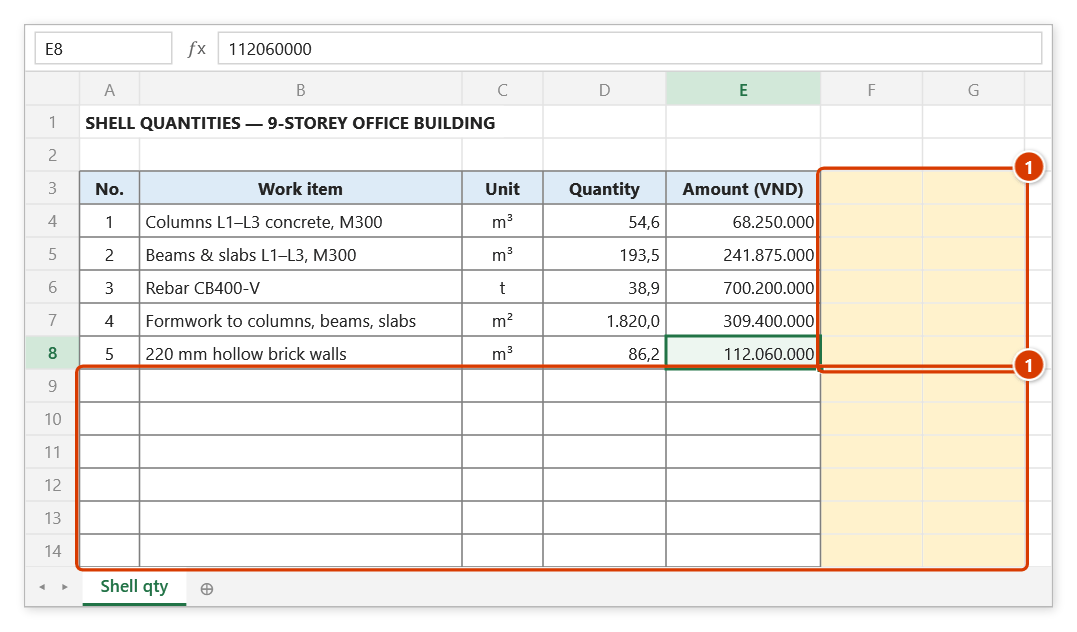
Step 1. Open the sheet to clean — the command works on the active sheet only, no selection needed. Here the real data ends at E8, but borders and fills run on beyond it (1), so Ctrl+End jumps far away, the file is heavy and prints blank pages.
Step 2. On the ribbon, open the DVD Addin tab → Cells and Rows group → open Delete blanks → choose Delete unused formats.
Step 3. The confirmation box states exactly what loses its formatting: every row below the last data row and every column right of the last data column (1). Keep the backup ticked (2) and click Continue (3).
Step 4. Formatting outside the data area is wiped while the table itself is untouched (1); the status bar shows the last data cell (R8C5 = cell E8) (2). Save, close and reopen the file to see the size drop and Ctrl+End stop at E8.
Example
Sheet TONGHOP_KL has real data up to K320, but Ctrl+End jumps to BX65000 because someone shaded entire columns yellow and bordered them to the bottom of the sheet. The file is 42 MB, scrolling stutters, and printing adds 28 blank pages.
Click Delete unused formats → the status bar reports (cuối: R320C11) → save and reopen: Ctrl+End stops at K320, the file is down to roughly 3 MB, and the printout is exactly the pages that have content.
Notes
- It runs on the active sheet only; repeat it per sheet in a multi-sheet workbook.
- Formatting you deliberately prepared (borders, fills) for rows not yet filled in will be lost. Ctrl+Z right after the command puts the sheet back as it was (thanks to the backup); see Restore data.
- File size usually shrinks only after saving and reopening; checking immediately may show no difference.
- Only formatting is removed — data and formulas inside the data area are untouched.
- If a stray cell far down holds an empty string or a formula returning
"", Excel still counts it as data, so less gets cleaned than expected — delete those cells first and run again.
Related
- Strip junk styles — purge the junk Cell Styles that pile up in copied workbooks.
- Delete error Defined Names — remove broken or hidden defined names, another cause of file bloat.
- Delete blanks — compact the table before cleaning the formatting.