
Delete error Defined Names
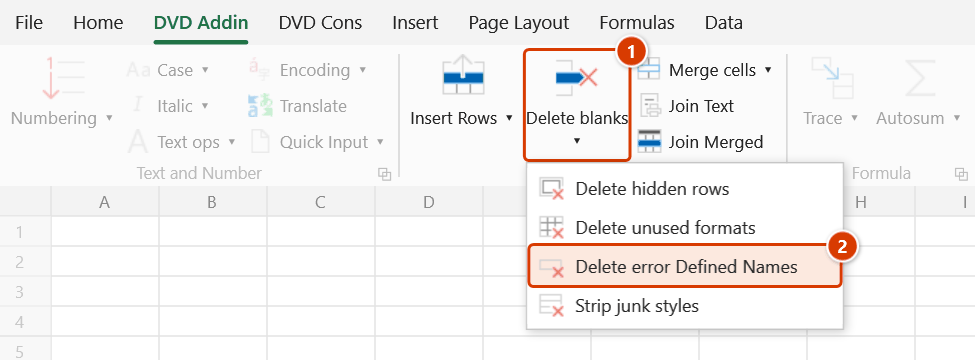
Location on ribbon: Tab DVD Addin → Group Cells and Rows → the ▾ arrow of Delete blanks
Command ID: btnDeleteErrorName
What it does
The command scans every Defined Name in the active workbook and deletes the broken ones: names holding an error value (#REF!, #N/A…) or a \ (pointing at an external file that no longer exists), plus hidden names left behind by old templates. Strings containing # (such as "Lot #2") and table references like Table1[#All] are not treated as errors. These names are the usual reason Excel keeps asking "name already exists" when copying sheets, and why BoQ files received from others are bloated and slow to open.
Run it right after receiving a file from a subcontractor or consultant, or after splitting sheets out of a large workbook.
How to use
- Open the workbook you want to clean and make it the active workbook (the command works on ActiveWorkbook).
- Click DVD Addin → Cells and Rows → the ▾ arrow of Delete blanks → Delete error Defined Names. No selection is required.
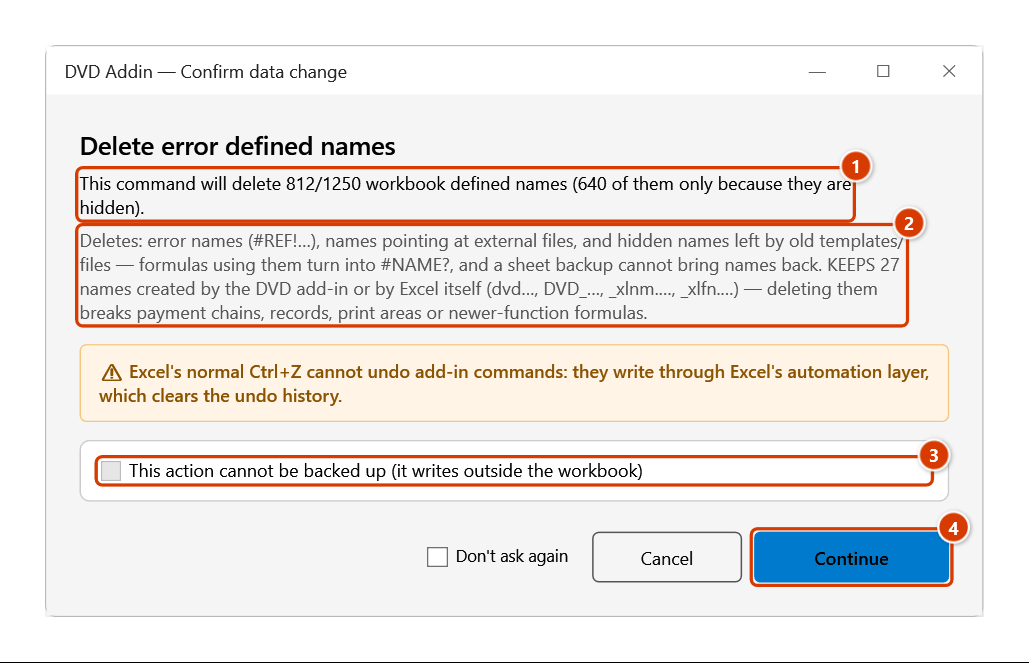
- The Confirm data change window shows how many names will be deleted (and how many of them only because they are hidden) and how many add-in / Excel names are kept. Names belong to the whole workbook, so there is no sheet-backup option; click Continue to delete.
- While scanning, the Excel status bar shows progress such as
Scanning name 300/1250. - When finished, the status bar reports the result:
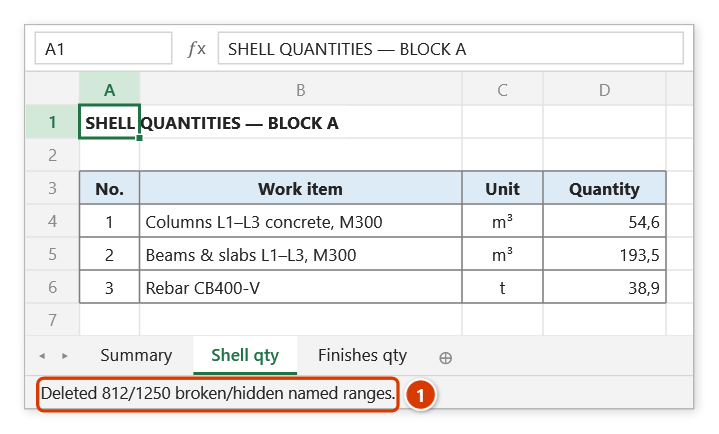
Deleted 812/1250 broken/hidden named ranges. Hold ESC to stop early. - Save the workbook (Ctrl+S) to keep the result.
Video tutorial
Narrated in Vietnamese, with Vietnamese subtitles. Xoá dòng trống, dòng ẩn, format, Name lỗi, Cell Style · 6 min 22 s · 14 cases · Download the video · Practice workbook for the video
Commands in this video: Delete blanks · Strip junk styles · Delete error Defined Names · Delete hidden rows · Delete unused formats
Chapters (18)
- Giới thiệu
- Mở lệnh
- 1 · Bảng xuất từ dự toán
- 2 · Cột công thức kéo dài
- 3 · Ghi chú ngoài vùng chọn
- 4 · Dòng trống đang ẩn
- 5 · Ô gộp nhiều dòng
- 6 · Chọn cả cột
- 7 · Xoá dòng ẩn: bảng đã lọc
- 8 · Xoá dòng ẩn: nhóm thu gọn
- 9 · Xoá format không dùng
- 10 · Ô lạc làm dọn hụt
- 11 · Xoá Defined Names lỗi
- 12 · Xoá Cell Style ngoại lai
- 13 · Ghi đè và hoàn tác
- 14 · Sheet khoá, lệnh không chạy
- Mẹo
- Kết thúc
Illustrated walkthrough
Step 1. Open the workbook to clean and keep it active — the command scans every Defined Name of the workbook, no selection needed. On the ribbon, open the DVD Addin tab → Cells and Rows group → open Delete blanks → choose Delete error Defined Names.
Step 2. The command counts first, then asks: how many names will be deleted, how many of them only because they are hidden (1), and how many add-in / Excel names are kept (2). Names belong to the whole workbook, so no sheet backup is possible (3). Click Continue (4) to delete.
Step 3. When it finishes, the status bar reports how many names were deleted (1). Save the file (Ctrl+S) to keep the result — copying sheets to another file no longer triggers the endless duplicate-name prompts.
Example
You receive Subcontractor BoQ - Block A.xlsx. Every time you copy the "Structure quantities" sheet into your master file, Excel raises a duplicate-name prompt hundreds of times. Open the file, click Delete error Defined Names — the status bar reports 812 broken or hidden names removed. Save, then copy the sheet again: no more prompts, and the file size drops noticeably.
Notes
- Ctrl+Z cannot undo this — keep a copy of the file before running it on important records.
- The command also deletes hidden names (Visible = False) left behind by old templates and files. It never deletes names created by the DVD add-in (
dvd…,DVD_…, theLichLamViec/DSNgayLecalendar names) or by Excel itself (_xlnm.…such as print areas,_xlfn.…for newer functions like XLOOKUP) — deleting those would break payment-period chains, acceptance records, print areas, or turn formulas into#NAME?. - Locked or protected names are skipped silently and do not abort the run.
- With no workbook open, the status bar shows "No workbook is open" and nothing happens.
- Hold ESC to stop early; names already deleted before the stop stay deleted.
Related
- Strip junk styles — clears the junk Cell Styles that also bloat and slow the file.
- Delete unused formats — shrinks the used range after names are cleaned.
- Delete blank rows — the other clean-up step usually done on incoming files.