
To Unicode
Location on ribbon: Tab DVD Addin → Group Text and Number → arrow on Encoding
Command ID: btnConvertUNI
What it does
Converts Vietnamese text in the current selection to precomposed Unicode and sets the font of every converted cell to Times New Roman. This is the rescue command for legacy files — cost estimates, bills of quantities, acceptance records typed in TCVN3 (.VnTime) or VNI-Times — that open as garbled text such as C«ng t¸c bª t«ng. Once converted, the text is searchable, VLOOKUP matches it, and copying into Word or PDF no longer breaks the characters.
How to use
- Select the cells that hold the text to convert (Ctrl-click works for several separate areas).
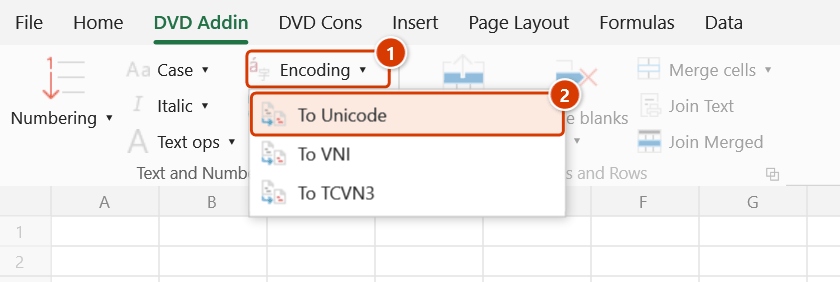
- Go to tab DVD Addin → group Text and Number → arrow on Encoding → choose To Unicode.
- The add-in reads each cell and detects the source encoding from the text content first, then from the cell's font (a font starting with
.Vnsuggests TCVN3, one starting withVNIsuggests VNI, anything else is Unicode) — see the Notes. - The text is rewritten in precomposed Unicode (NFC) and the cell font is switched to Times New Roman.
- The Excel status bar reports something like
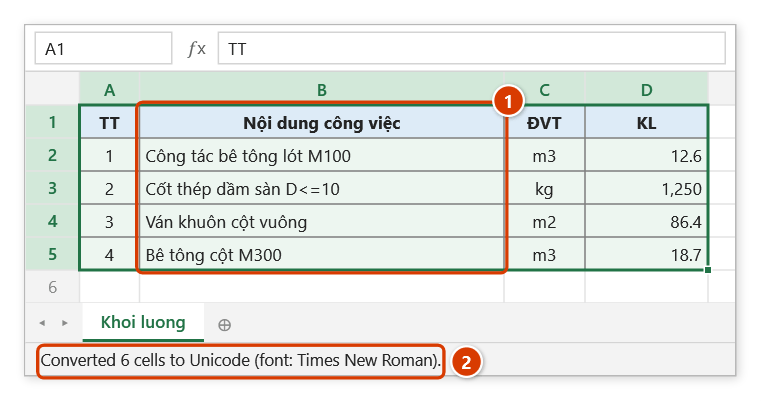
Converted 128 cells to Unicode (font: Times New Roman)and clears itself after about 8 seconds. The count includes only cells that actually changed.
Video tutorial
Narrated in Vietnamese, with Vietnamese subtitles. Chuyển mã · 6 min 05 s · 12 cases · Download the video · Practice workbook for the video
Commands in this video: Encoding · To TCVN3 · To Unicode · To VNI
Chapters (18)
- Giới thiệu
- Mở lệnh
- Cửa sổ Chuyển mã
- 1 · Bảng VNI-Times → Unicode
- 2 · Nút nhanh: TCVN3 → Unicode
- 3 · Sang VNI để nộp mẫu cũ
- 4 · Chữ HOA có dấu
- Tự nhận bảng mã
- 5 · Chữ đã là Unicode
- 6 · Ô ngắn mơ hồ
- 7 · Phông gốc bị đổi mất
- 8 · Ô công thức
- 9 · Cả sheet, cả tệp
- 10 · Dòng ẩn, danh sách lọc
- 11 · Ghi đè và hoàn tác
- 12 · Khi không có gì để chuyển
- Mẹo
- Kết thúc
Illustrated walkthrough
Practice
Download this command's sample workbook — the data matches the pictures below (sheet Khoi luong), so you can follow each step right away.
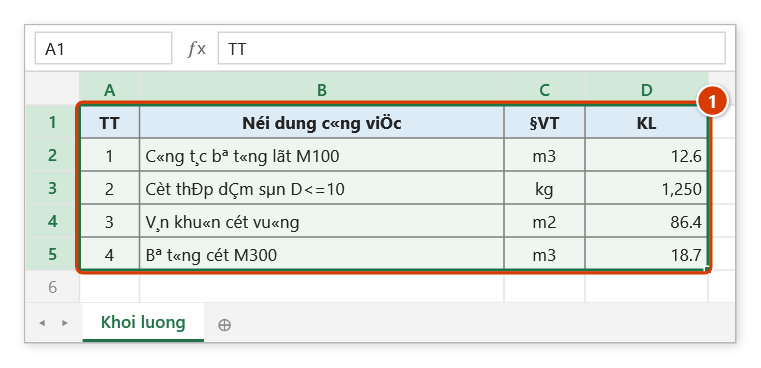
Step 1. Select the cells with garbled text (1). This table was typed in the .VnTime font (TCVN3); opened on a machine without that font it shows characters like C«ng t¸c.
Step 2. On the ribbon, open the DVD Addin tab → Text and Number group → open Encoding → choose To Unicode.
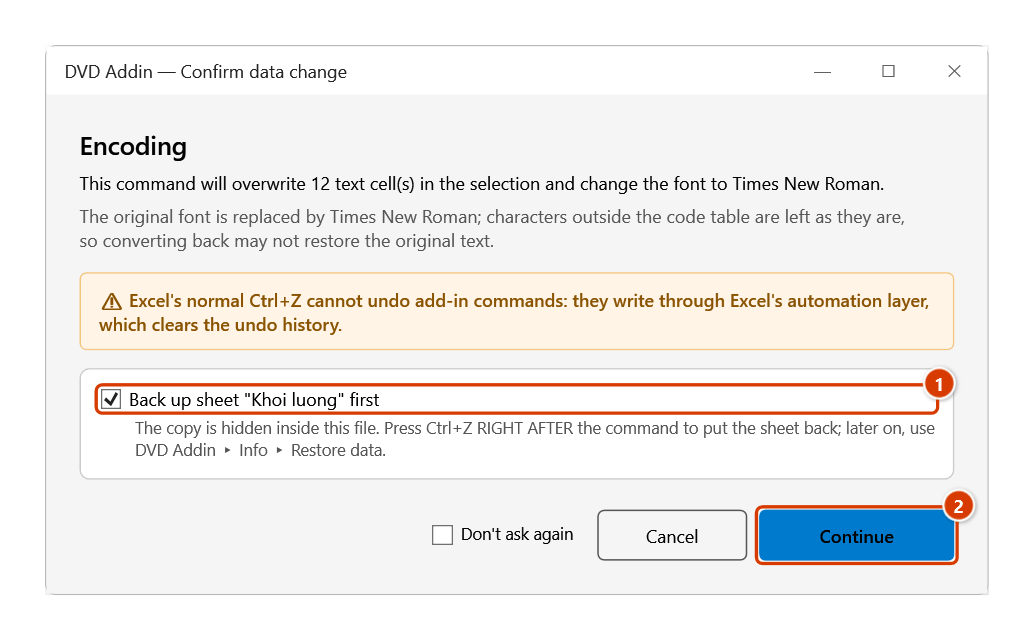
Step 3. There is no options window; the command only stops once to confirm the overwrite: keep the sheet backup ticked (1) and click Continue (2).
Step 4. The text is precomposed Unicode Vietnamese again and the font is Times New Roman (1); TT, KL, m3 and number cells are unchanged. The status bar reports how many cells actually changed (2).
Example
A bill of quantities received from a design consultant, with the "Work description" column typed in TCVN3 using the .VnTime font. Select the column and click To Unicode:
| Before (.VnTime font) | After (Unicode, Times New Roman) |
|---|---|
C«ng t¸c bª t«ng lãt M100 | Công tác bê tông lót M100 |
Cèt thÐp dÇm sµn D<=10 | Cốt thép dầm sàn D<=10 |
X©y têng g¹ch èng dµy 200 | Xây tường gạch ống dày 200 |
Only after this step can you filter, group by work item, or look the description up against a unit-price table.
Notes
- Formula cells are always skipped — only text values are converted, so your summary formulas stay intact.
- The result overwrites the cells. Ctrl+Z right after the command puts the sheet back as it was (thanks to the backup); see Restore data.
- If nothing is selected as a range (for example a shape or chart is selected), the add-in shows "Please select a data range." and stops.
- The source encoding is decided from the cell's content first, and only then from its font:
- Text that is already Unicode but still carries a
.Vn…font is not converted again —Bê tông móng, for example, stays correct instead of turning into gibberish. - Conversely, a TCVN3 cell whose characters all happen to be valid Unicode Vietnamese letters (usually a very short cell such as
Cét, which is "Cột" typed in TCVN3) is also taken for Unicode and is not converted; fix such cells by hand. - TCVN3 text whose font was changed to a Unicode font (for example a whole table forced to Arial) is still recognized by its typical TCVN3 symbols such as
ª,«,©. - VNI text under a Unicode font is recognized when it contains typical VNI mark characters such as
ø,û,ï,ö,ñ. VNI text carrying only acute-type marks cannot be told apart reliably, so those cells are left unchanged — set their font back toVNI-Timesand run the command again.
- Text that is already Unicode but still carries a
- Converted cells are forced to Times New Roman; if your document standard requires a different font, re-apply it afterwards.
Related
- To VNI — the reverse direction, for partners still working in VNI-Times.
- To TCVN3 — convert back to .VnTime for legacy archives.
- Convert encoding — dialog version with scope (selection / sheet / whole workbook) and a skip-formula option.
- Remove accents — strip diacritics once the text is Unicode, useful for file names and codes.