
Remove accents
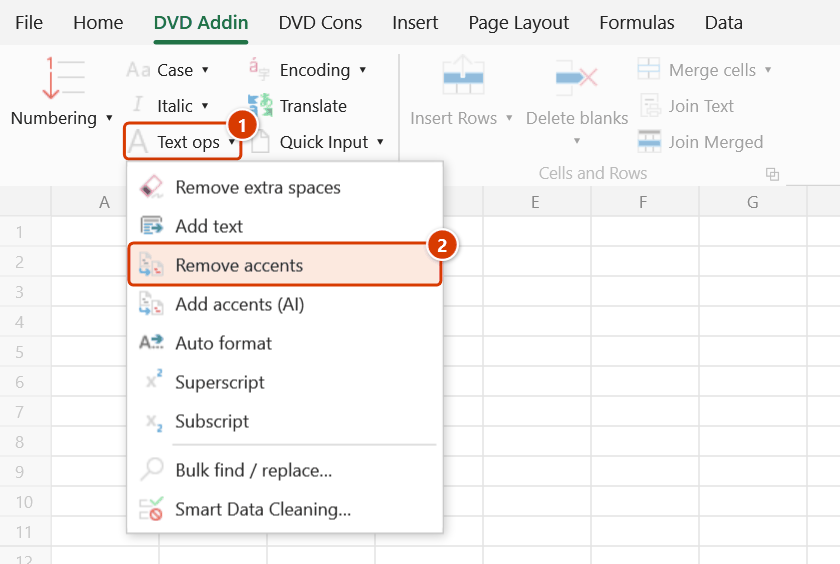
Location on ribbon: Tab DVD Addin → Group Text and Number → Menu Text ops
Command ID: btnRemoveAccents
What it does
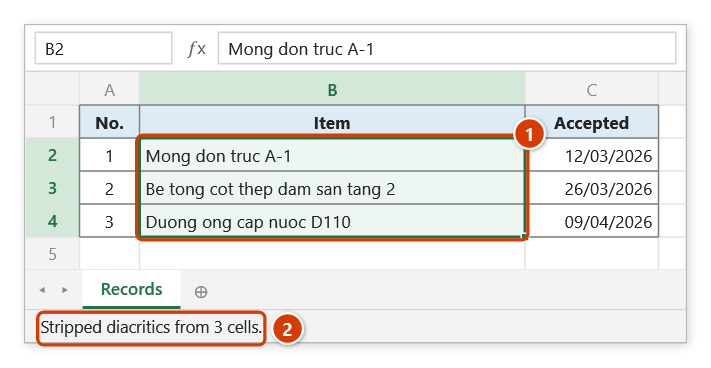
The command strips every Vietnamese diacritic from the selected cells: Đường becomes Duong, Bê tông cốt thép becomes Be tong cot thep. The letters đ and Đ are converted to d and D as well.
You need this when exporting to legacy management software that cannot handle Unicode, when naming document folders after work packages, or when building an accent-free lookup key so matching stays reliable.
How to use
- Select the cells containing accented text.
- Go to tab DVD Addin → group Text and Number → menu Text ops → Remove accents.
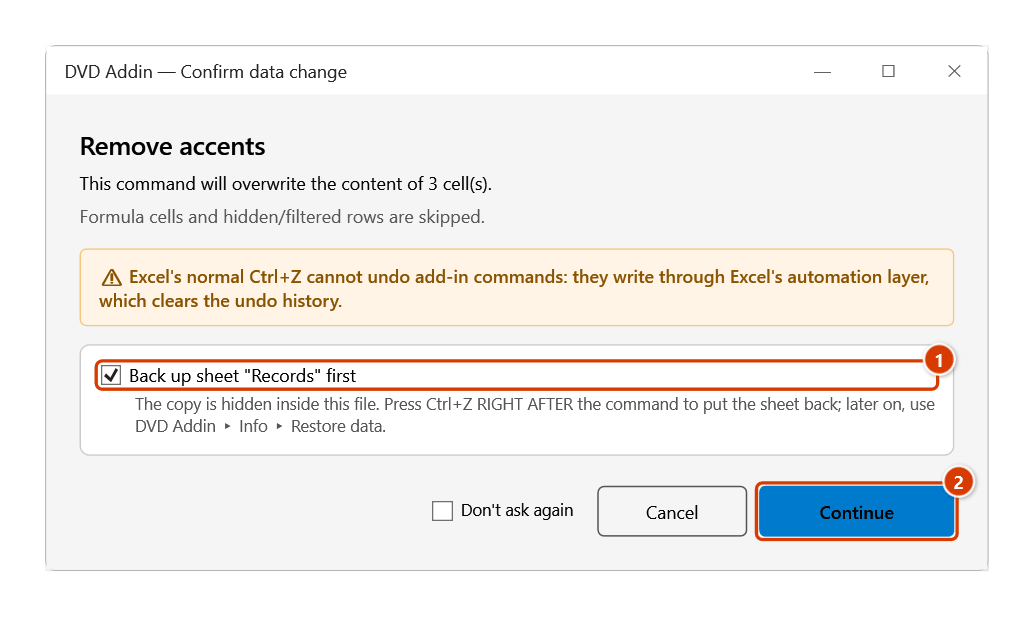
- The command asks for confirmation and shows how many cells will be stripped — this count excludes formula cells. Confirm to run; the status bar then reports how many cells were stripped.
- If nothing is selected, the command shows "Please select a data range" and stops. If only formula cells contain accents, it says so and changes nothing.
Video tutorial
Narrated in Vietnamese, with Vietnamese subtitles. Xoá dấu và thêm dấu tiếng Việt · 6 min 04 s · 12 cases · Download the video · Practice workbook for the video
Commands in this video: Remove accents · Add accents (AI)
Chapters (17)
- Giới thiệu
- Mở lệnh
- 1 · Tên hạng mục làm tên thư mục
- 2 · Chữ HOA, chữ Đ và ký hiệu
- 3 · Chọn cả bảng: số, ngày, ô gộp
- 4 · Ô công thức – làm email
- 5 · Dòng ẩn, danh sách lọc
- 6 · Chữ chép từ PDF
- 7 · Ghi đè và hoàn tác
- Lệnh Thêm dấu (AI)
- 8 · Thêm dấu (AI) cho nhật ký
- 9 · Ô đã có dấu được bỏ qua
- 10 · Khi AI làm quá tay
- 11 · Chạy nền, dừng, hoàn tác
- 12 · Khi không có gì để làm
- Mẹo
- Kết thúc
Illustrated walkthrough
Practice
Download this command's sample workbook — the data matches the pictures below (sheet Records), so you can follow each step right away.
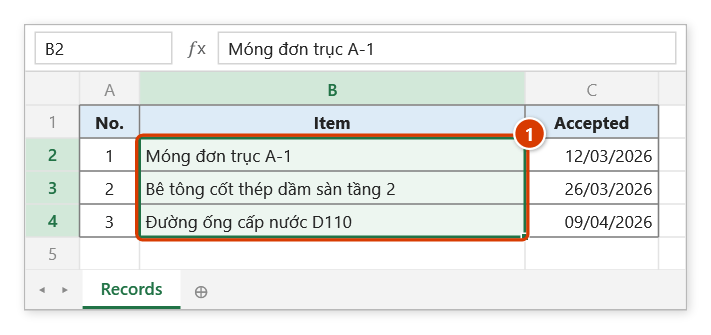
Step 1. Select the accented text cells, for example item names that will be used as folder names for the acceptance records (1).
Step 2. On the ribbon, open the DVD Addin tab → Text and Number group → open Text ops → choose Remove accents.
Step 3. The add-in first counts the accented cells (formula cells excluded) and asks again. Keep the sheet backup ticked (1), then click Continue (2).
Step 4. All Vietnamese accents are removed and đ/Đ become d/D; digits and symbols are kept (1). The status bar reports how many cells were stripped (2).
Example
A work-package list used to create the folder names for acceptance records on the shared server.
| Before | After |
|---|---|
| Móng đơn trục A-1 | Mong don truc A-1 |
| Bê tông cốt thép dầm sàn tầng 2 | Be tong cot thep dam san tang 2 |
| Đường ống cấp nước D110 | Duong ong cap nuoc D110 |
The result column can be used directly as folder names or exported PDF file names.
Notes
- Ctrl+Z right after the command puts the sheet back as it was (thanks to the backup); copy the accented text to a helper column first if you want to keep both versions.
- Only text cells are affected; numbers, dates and blanks stay as they are.
- Formula cells are skipped: formulas are kept and never replaced by a static, accent-free value.
- Hidden or filtered-out rows are skipped as well.
- Stripping accents is lossy:
Hòa,HoaandHọaall collapse toHoa, so do not use the stripped column as a unique key when collisions are likely. - To restore accents, use Add accents (AI), but bear in mind the result is an AI guess, not a guarantee.
Related
- Add accents (AI) — the reverse operation, restoring Vietnamese diacritics with AI.
- UnDiacritics Folder — strips accents from file names instead of cell values.
- UnDiacritics — strips accents from the sheet names in the workbook.
- Encoding — use this instead when the text displays wrongly due to a legacy Vietnamese font.