
Cloud Options…
Location on ribbon: Tab DVD Addin → Group Graphics → the arrow next to Revision Cloud
Command ID: btnCloudOptions
What it does
Opens Preferences ▸ Graphics scrolled straight to the Revision cloud section, which holds the defaults for the four cloud commands (Revision Cloud, Polygon Cloud, Cloud Around Selection, Convert to Cloud):
| Setting | Default | Meaning |
|---|---|---|
| Cloud line colour | Red | One of six quick colours (also keys 1–6 while drawing) |
| Line weight (pt) | 1.5 | 0.25 – 12 pt |
| Scallop size — radius (pt) | 8 | Same meaning as the Size box of the Read PDF cloud tools; 3 – 200 pt |
| Margin around the selection (pt) | 4 | Extra space around cells/shapes when clouding a selection or clicking a cell |
| Clouds and notes resize with cells | Off | When on, clouds, arrows, notes and callouts stretch as columns/rows are resized |
In the same place, the Arrows, notes and callouts part sets the defaults for Arrow, Text Note, Sticky Note and Callout (colour, line weight and the resize-with-cells choice are shared with clouds):
| Setting | Default | Meaning |
|---|---|---|
| Font | Arial | Pick from the list or type the name of another installed font |
| Text size (pt) | 11 | 6 – 72 pt (keys [ ] while a text tool is active) |
| Arrowhead size | Medium | Small / Medium / Large — Excel arrowheads grow with the line weight |
How to use
- Go to tab DVD Addin → group Graphics → the arrow under Revision Cloud → Cloud Options… (the small launcher arrow in the corner of the Graphics group opens the same page, but at the top).
- The dialog opens at the Revision cloud section (bottom of the Graphics page) — change what you need.
- Click Save. The next cloud you draw uses the new values.
Video tutorial
Narrated in Vietnamese, with Vietnamese subtitles. Khoanh mây · 6 min 08 s · 14 cases · Download the video · Practice workbook for the video
Commands in this video: Revision Cloud · Convert to Cloud · Cloud Options… · Polygon Cloud · Cloud Around Selection
Chapters (18)
- Giới thiệu
- Mở lệnh
- 1 · Mây quanh nhiều khối ô
- 2 · Chọn cả cột, khối ẩn
- 3 · Mây quanh ảnh, hình xoay
- 4 · Kéo chuột vẽ mây
- 5 · Bấm ô, giữ Shift bám ô
- 6 · Cuộn, thu phóng khi vẽ
- 7 · Phím trong lớp vẽ
- 8 · Mây đa giác hình chữ L
- 9 · Kết thúc mây đa giác
- 10 · Chuyển shape thành mây
- 11 · Giữ gì, bỏ qua gì
- 12 · Tên mây, Ctrl+Z, xoá
- 13 · Tùy chọn mây
- 14 · Khi lệnh từ chối
- Mẹo
- Kết thúc
Illustrated walkthrough
Step 1. On the ribbon, open the DVD Addin tab → Graphics group → open Revision Cloud → choose Cloud Options….
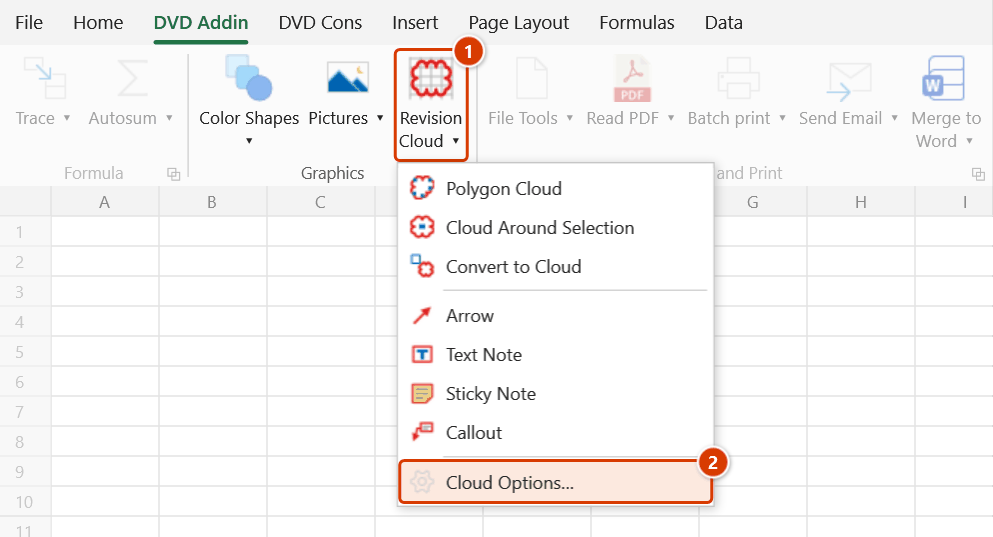
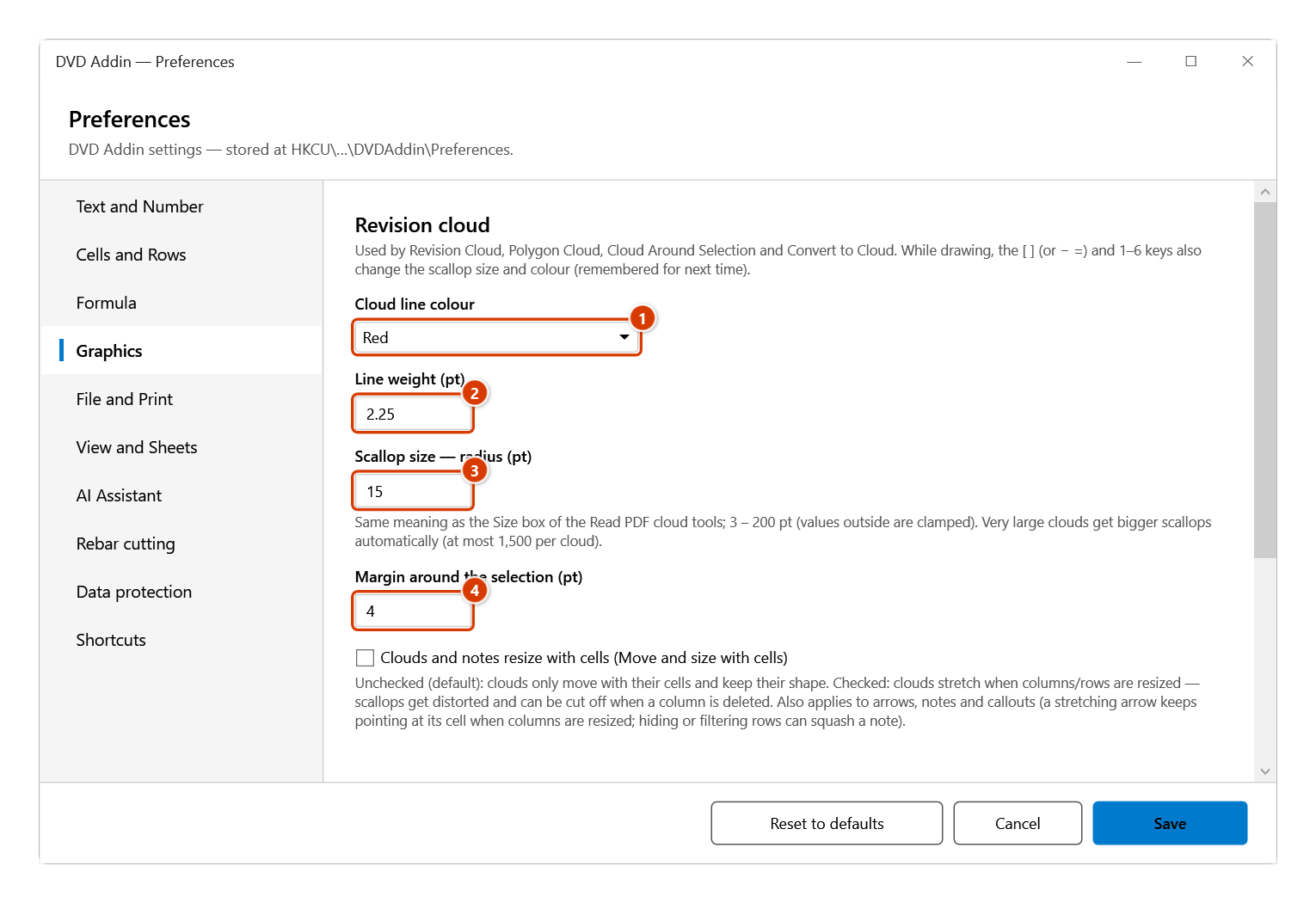
Step 2. The Preferences window opens on Graphics, already scrolled to the Revision cloud part. Pick the Cloud line colour (1), type the Line weight (pt) (2) and the Scallop size — radius (pt) (3) — for example 2.25 and 15 so clouds stay visible when an A1 drawing is printed reduced. Margin around the selection (pt) (4) is used by Cloud Around Selection.
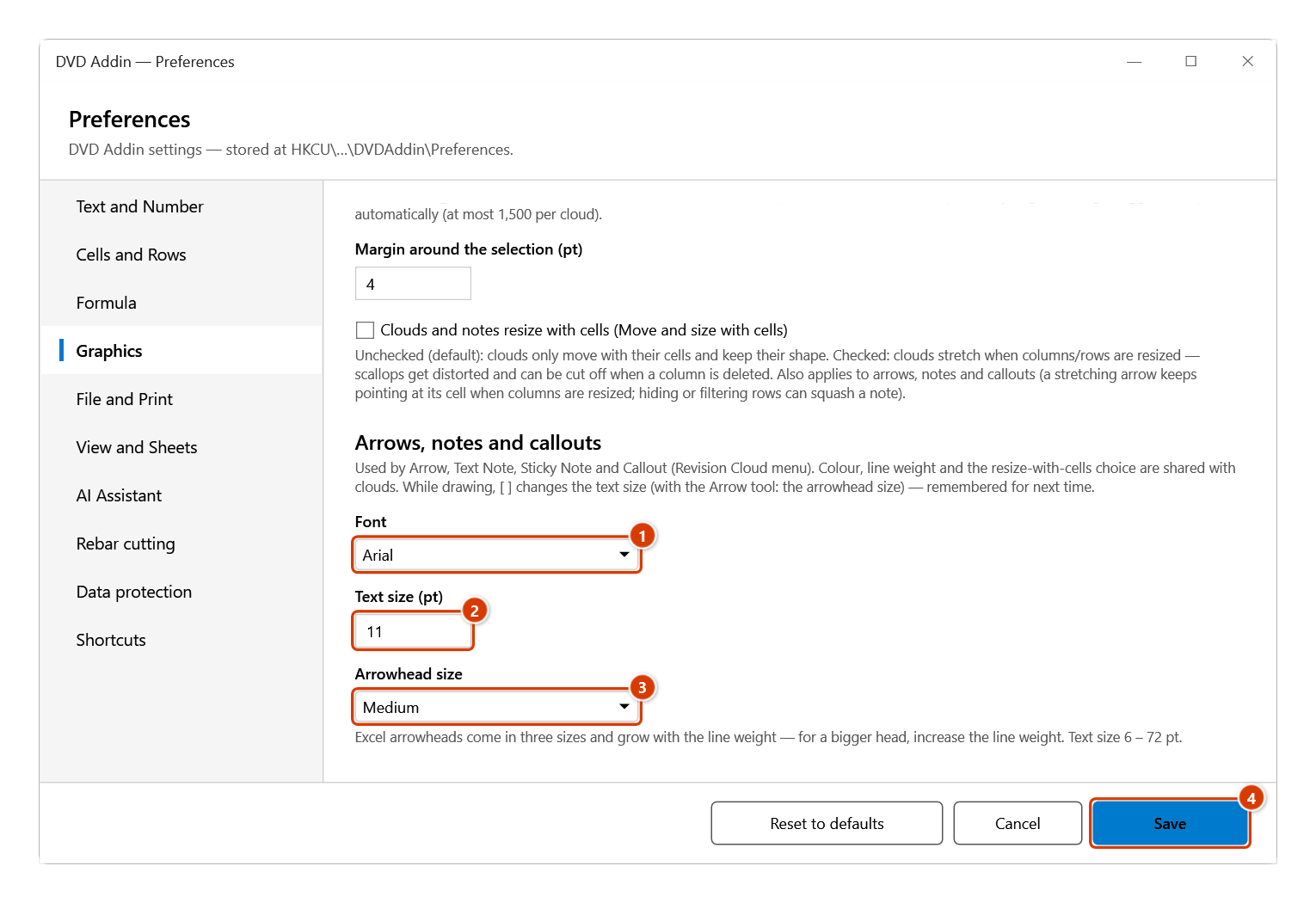
Step 3. The Arrows, notes and callouts part just below sets the Font (1), Text size (pt) (2) and Arrowhead size (3) for Arrow, Text Note, Sticky Note and Callout (colour and line weight are shared with clouds). Click Save (4) — the next drawing uses the new values.
Example
On an A1 print the default 8 pt scallops look small: set Scallop size to 15 and Line weight to 2.25 so the clouds stand out when the sheet is printed scaled down.
Notes
- Decimals can be typed with a comma or a point (
1,5or1.5). Out-of-range values are clamped to the nearest limit (a weight of 15 is saved as 12); text that is not a number keeps the previous setting. - Changing the scallop size (or the text size / arrowhead size) with
[](or−=) or the colour with1–6while drawing is saved for next time as well. - Legacy font names such as
.Vn…/VNI-…show Unicode text as garbage — use a Unicode font (Arial, Times New Roman, Tahoma…). - Resize with cells off (default): clouds only move with their top-left cell and keep their shape. On: widening a column turns scallops into ellipses, hiding rows squashes the cloud, and deleting a column can cut it off.
- Changing these settings does not alter clouds already drawn — select them and use Excel's Format Shape.
Related
- Revision Cloud — draw a rectangular cloud with the mouse.
- Preferences — the full DVDAddin Preferences window.