
Cloud Around Selection
Location on ribbon: Tab DVD Addin → Group Graphics → the arrow next to Revision Cloud
Command ID: btnCloudSelection
What it does
Draws revision clouds around whatever is selected, with no freehand drawing:
- Cells selected: one cloud per block of cells, with a small margin around it. Select several separate blocks with Ctrl to get several clouds. Merged cells and hidden rows/columns are measured exactly as Excel displays them.
- Shapes or pictures selected: one cloud around the visible frame of each shape (rotation included). The shapes themselves are left unchanged.
Handy for marking the rows that changed in a bill of quantities, or clouding a few footings you have already selected on a plan.
How to use
- Select a range (hold Ctrl for several blocks), or select one or more shapes.
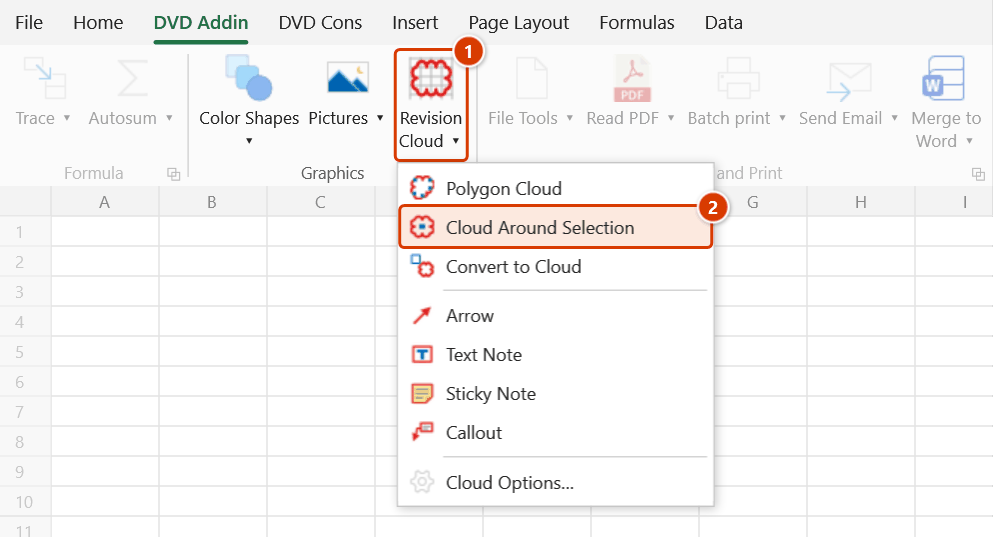
- Go to tab DVD Addin → group Graphics → the arrow under Revision Cloud → Cloud Around Selection.
- The clouds are created and left selected; the status bar shows how many were drawn.
Video tutorial
Narrated in Vietnamese, with Vietnamese subtitles. Khoanh mây · 6 min 08 s · 14 cases · Download the video · Practice workbook for the video
Commands in this video: Revision Cloud · Convert to Cloud · Cloud Options… · Polygon Cloud · Cloud Around Selection
Chapters (18)
- Giới thiệu
- Mở lệnh
- 1 · Mây quanh nhiều khối ô
- 2 · Chọn cả cột, khối ẩn
- 3 · Mây quanh ảnh, hình xoay
- 4 · Kéo chuột vẽ mây
- 5 · Bấm ô, giữ Shift bám ô
- 6 · Cuộn, thu phóng khi vẽ
- 7 · Phím trong lớp vẽ
- 8 · Mây đa giác hình chữ L
- 9 · Kết thúc mây đa giác
- 10 · Chuyển shape thành mây
- 11 · Giữ gì, bỏ qua gì
- 12 · Tên mây, Ctrl+Z, xoá
- 13 · Tùy chọn mây
- 14 · Khi lệnh từ chối
- Mẹo
- Kết thúc
Illustrated walkthrough
Practice
Download this command's sample workbook — the data matches the pictures below (sheet IPC 3 qty), so you can follow each step right away.
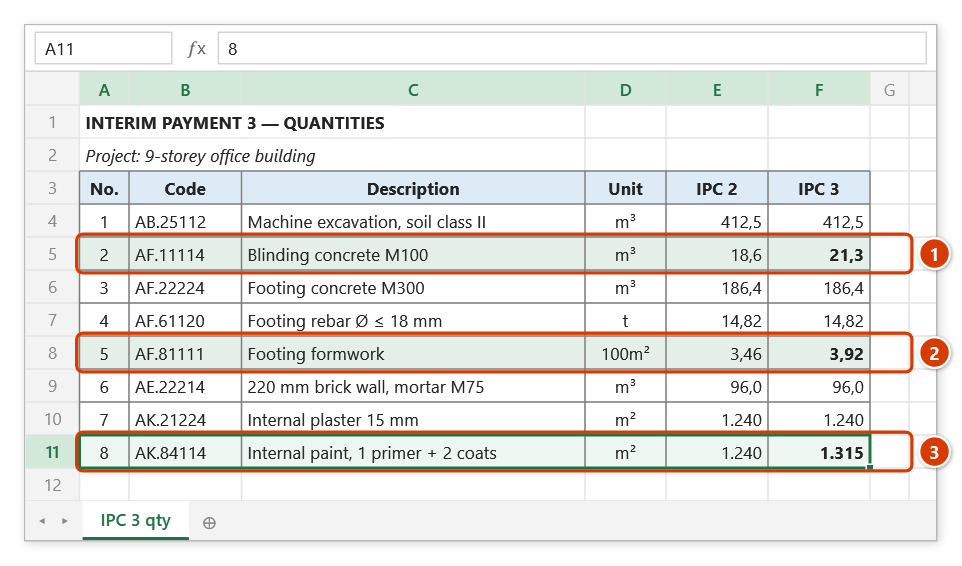
Step 1. Select row 5, then hold Ctrl and add rows 8 and 11 — the three blocks (1) (2) (3) are the quantity lines that changed since the last payment. (With shapes or pictures selected, each one gets a cloud around its visible frame and stays unchanged.)
Step 2. On the ribbon, open the DVD Addin tab → Graphics group → open Revision Cloud → choose Cloud Around Selection.
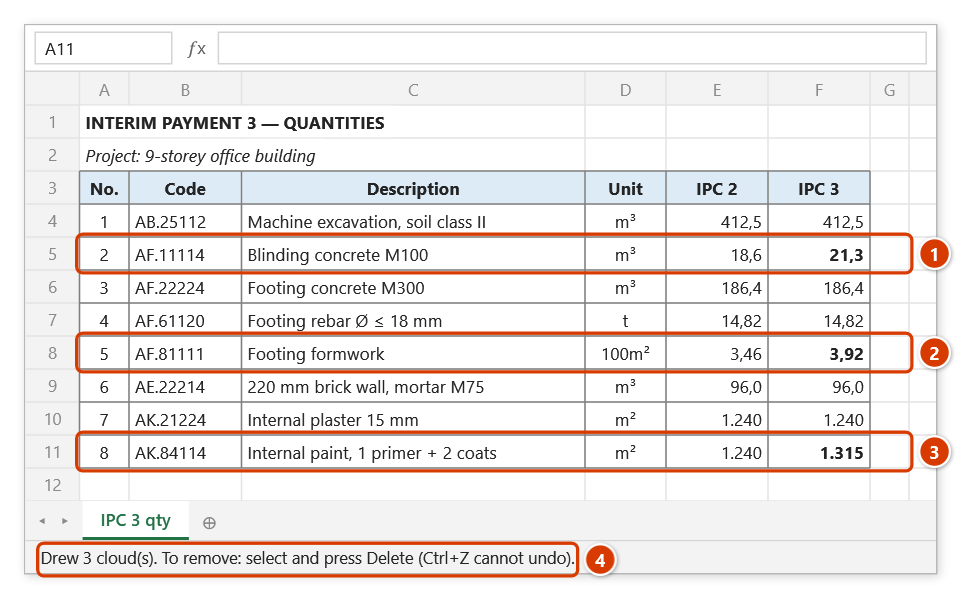
Step 3. Each block gets a red cloud with a small margin (4 pt by default) (1) (2) (3), left selected after drawing. The status bar reports the count (4). Printed with the payment file, the reviewer sees the changes at once.
Example
In the interim payment BoQ, rows 18, 25 and 31 changed since the last claim. Select A18:H18, Ctrl-select A25:H25 and A31:H31, then click Cloud Around Selection: three red clouds wrap the three rows, and the consultant spots the changes in the printed claim immediately.
Notes
- A block that is an entire column or row (or longer than 5,000 rows / 1,000 columns, as after Ctrl+Shift+↓ on an empty column) is limited to the part that holds data (the intersection with the sheet's used range) — each block is checked on its own, also in a Ctrl multi-selection.
- Blocks that are completely hidden (zero width or height) are skipped.
- Margin, colour, line weight and scallop size are set in Cloud Options….
- Very large clouds get bigger scallops automatically (at most 1,500 per cloud) so Excel stays fast.
- A block Excel refuses to draw (too large…) only fails on its own — the other blocks are still clouded and the failed one is named.
- Clouds cannot be undone with Ctrl+Z — select them and press Delete to remove them.
Related
- Revision Cloud — draw by dragging.
- Convert to Cloud — replace a shape with a cloud that follows its outline.
- Cloud Options… — margin, colour, line weight, scallop size.