
Callout
Ribbon location: Tab DVD Addin → Group Graphics → the arrow next to Revision Cloud
Command ID: btnNoteCallout
What it does
Creates a callout: a white text box with a coloured border and a leader whose arrowhead points exactly where you pressed — like the Callout tool of Read PDF. The two parts are grouped, so they move together.
How to use
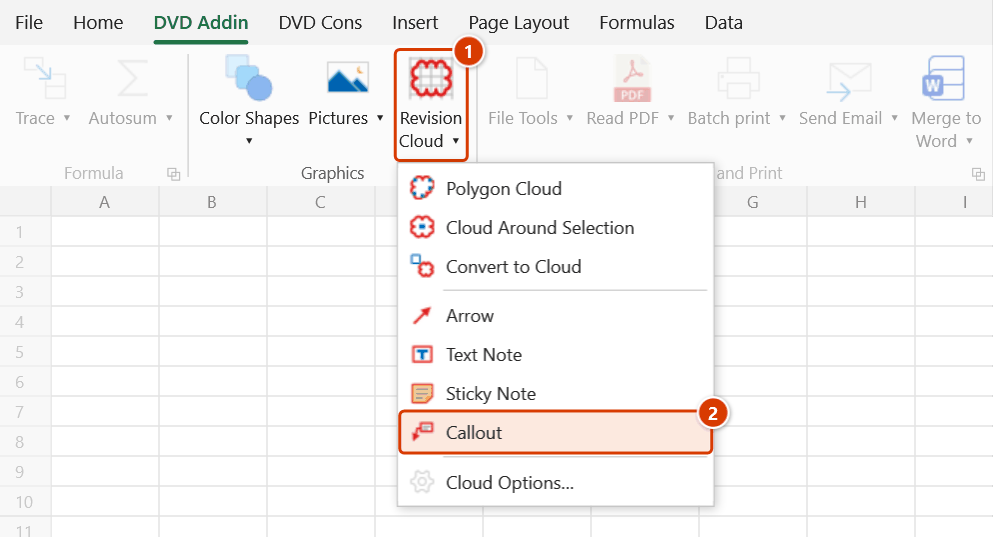
- Go to DVD Addin → Graphics → the arrow under Revision Cloud → Callout.
- Press exactly on the point to show (a cell, a detail on a picture…), drag to where the text should go and release. Release to the left of / above the point and the text box sits on that side.
- A plain click (no drag) places the box up and to the right of the point; near the right or top edge of the visible area it switches sides.
- Type — the leader follows the typing box. Enter finishes, Shift+Enter adds a line, Esc cancels.
- Add another callout, or press Esc to exit.
The leader runs from the point to the nearest edge of the text box, with a short horizontal segment before it reaches the box (as in Read PDF). If the point lies on the box there is no leader.
Video tutorial
Narrated in Vietnamese, with Vietnamese subtitles. Ghi chú trên sheet · 5 min 27 s · 13 cases · Download the video · Practice workbook for the video
Commands in this video: Arrow · Callout · Sticky Note · Text Note
Chapters (17)
- Giới thiệu
- Mở lệnh
- 1 · Mũi tên chỉ đúng chỗ
- 2 · Nhiều mũi tên, giữ Shift
- 3 · Ghi chú chữ: bấm rồi gõ
- 4 · Kéo khung định bề rộng
- 5 · Nhiều dòng, Enter, Esc
- 6 · Ghi chú nền vàng
- 7 · Chú thích: kéo tới chỗ đặt chữ
- 8 · Chú thích: chỉ bấm
- 9 · Phím trong lớp vẽ
- 10 · Tùy chọn mây
- 11 · Sửa, di chuyển, xoá
- 12 · Hoàn tác Ctrl+Z
- 13 · Khi lệnh từ chối
- Mẹo
- Kết thúc
Illustrated walkthrough
Step 1. On the ribbon, open the DVD Addin tab → Graphics group → open Revision Cloud → choose Callout.
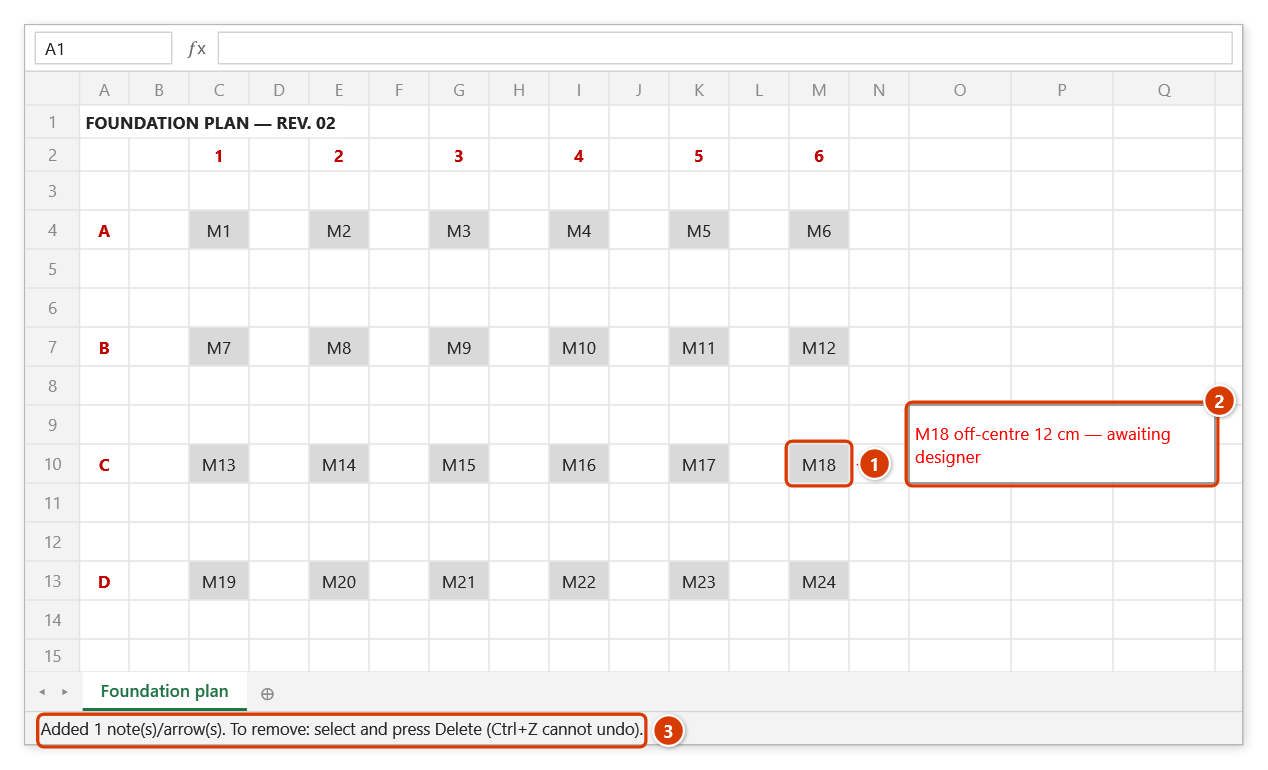
Step 2. Press exactly on the point to show — footing M18 — drag to the empty spot for the text and release (a plain click puts the box up and to the right). Type — the leader follows the typing box — then press Enter; Shift+Enter adds a line, Esc cancels.
Step 3. The leader with its arrowhead on the point you pressed (1) and the white text box with a red border (2) are grouped, so they move together. The status bar reports how many shapes were added (3). To edit the text later, click twice into the text box inside the group and type.
Keys in the drawing layer
| Key | Effect |
|---|---|
M / T / N / L | Switch to Arrow / Text Note / Sticky Note / Callout |
R / P, Tab | Back to rectangle / polygon cloud; Tab cycles through all tools |
[ ] (or − =) | Text size; with the Arrow tool: arrowhead size |
1–6 | Colour (red, blue, green, orange, purple, black) |
| Wheel / Ctrl+wheel | Scroll / zoom while drawing (only scroll while typing) |
| Ctrl+Z | Remove the last shape drawn in this session |
| Esc | Discard the shape in progress; Esc again (or Enter, right-click — when not typing) to exit |
While typing: Enter finishes, Shift+Enter adds a line, Esc cancels; clicking elsewhere also finishes (that click only ends the typing; it does not place a new note). The keys above only apply when you are not typing — Vietnamese input (Telex, VNI) works normally.
Example
On a footing plan with a background picture you need "Pile C7 off-centre by 12 cm — waiting for the designer" right at pile C7: choose Callout, press on the centre of C7, drag to an empty space on the right, type and press Enter. The text box and the arrow on the pile form one group; wherever you drag it, the leader follows.
Notes
- The leader's arrowhead size follows Cloud Options… (small / medium / large, growing with the line weight).
- To edit the text later, click twice into the text box inside the group and type. Do not type while the whole group is selected — Excel would write the text into every part of the group.
- Colour and line weight are shared with clouds; font, text size and arrowhead size are set in Cloud Options… (changes made with keys in the drawing layer are remembered).
- The result is a real Excel shape (text box, line, group), so it can be edited, moved, printed and exported to PDF like any shape; by default it moves with cells but does not resize (change this with Clouds and notes resize with cells in Cloud Options…).
- Shapes created by the command cannot be undone with Excel's Ctrl+Z — inside the drawing layer use the command's own Ctrl+Z; after exiting, select and press Delete.
- Page Layout view is not supported; on a sheet that protects drawing objects the command refuses.