
Make Labels Static
Location on ribbon: Tab DVD Addin → Group Graphics → the ▾ arrow of Color Shapes
Command ID: btnStaticLabels
What it does
Turns every label made by Linked Labels on the active sheet from a linked label (updates with its cell) into a static one (a picture of the cell as it is now). Each label keeps its look and position. The command runs as soon as you click it — no dialog, and no need to reselect the table: each label's source cell is read from the label itself.
Why: after every recalculation — that is, every Enter in any open workbook — Excel redraws every linked picture in every open workbook, hidden sheets included. One test machine measured about 6 ms per picture. A footing plan with many labels makes typing noticeably slow: after Enter you wait a beat before the value appears, in other workbooks too.
In the same pass the command also turns the linked pictures in the workbook's hidden backups (made by Restore data) into static pictures — restoring still relinks them.
How to use
- Open the drawing sheet with the labels.
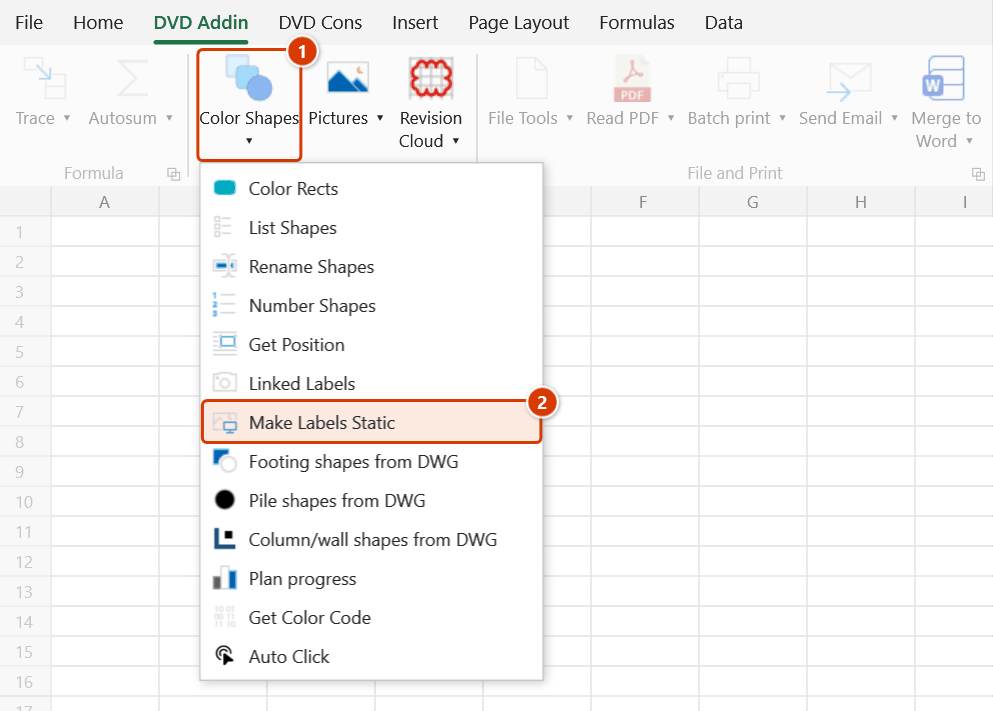
- Go to tab DVD Addin → group Graphics → the ▾ arrow of Color Shapes → Make Labels Static.
- Read the message: how many labels were converted, how many backup pictures, and which other linked pictures are still on the sheet.
- Press Ctrl+S to save.
When the dates in the table change, run Linked Labels again (label type Static) to refresh the labels; to have them update by themselves again, run it with type Linked.
Video tutorial
Narrated in Vietnamese, with Vietnamese subtitles. Gắn nhãn liên kết và Chuyển nhãn sang Tĩnh · 6 min 07 s · 14 cases · Download the video · Practice workbook for the video
Commands in this video: Linked Labels · Make Labels Static
Chapters (18)
- Giới thiệu
- Mở lệnh
- 1 · Bảng và bản vẽ cùng sheet
- 2 · Nhãn tự cập nhật
- 3 · Chạy lại để đổi vị trí
- 4 · Nhãn nằm giữa shape
- 5 · Ô nguồn còn trống
- 6 · Tên không khớp, tên trùng
- 7 · Bảng đang lọc
- 8 · Ô nguồn là ô gộp
- 9 · Shape xoay, sát mép sheet
- 10 · Shape nằm trong nhóm
- 11 · Bảng ở sheet khác
- 12 · Nhãn Tĩnh
- 13 · Chuyển nhãn sang Tĩnh
- 14 · Khi lệnh từ chối
- Mẹo
- Kết thúc
Illustrated walkthrough
Step 1. Open the drawing sheet whose labels were made by Linked Labels (for example the Foundation plan sheet). There is no need to select the table again — each label's source cell is read from the label itself.
Step 2. On the ribbon, open the DVD Addin tab → Graphics group → open Color Shapes → choose Make Labels Static.
Step 3. The command runs at once, with no dialog. The message reports how many labels were converted, for example Made 8/8 labels on sheet 'Foundation plan' STATIC — they keep their picture and no longer update, how many linked pictures in hidden backups were converted too, and the names of any other linked pictures left on the sheet (the command does not touch them).
Step 4. Press Ctrl+S to save. When the dates in the table change, run Linked Labels again with the Static type to refresh the labels — or with the Linked type to make them update automatically again.
Example
A footing plan with 57 date labels and 5 hidden backups. Before: each Enter took about 1.1 s. Click Make Labels Static: the 57 labels and 104 backup pictures become static in about a second; each Enter now takes about 0.1 s. What remains is 5 other linked pictures on the sheet (two stacked copies of a title block taken from the Work Info sheet, and 3 stray pictures) — the command lists their names so you can deal with them.
Notes
- Only labels named
DVDLBL_…(made by Linked Labels) are touched, including labels inside groups. Linked pictures you pasted yourself (title blocks, summaries…) are left alone and listed in the message, because they still slow every Enter. - Labels whose source cells are on another sheet (the table kept on its own sheet) stay linked: in testing, Excel sometimes stored the static picture of such a label as a blank box. For static labels, keep the table on the drawing sheet.
- Labels whose source cells were deleted (a table row or the table sheet removed — the formula shows
#REF!) are left alone and listed separately: delete them or place them again. - With several sheet tabs selected, the command first selects just the active sheet.
- Works in manual calculation mode: the command recalculates only the labels' source cells, not the whole workbook.
- Running it again on the same sheet finds nothing left to convert and says so.
- A sheet that protects drawing objects cannot have its labels changed — the command says so and stops.
Related
- Linked Labels — create labels, Linked or Static.
- Restore data — hidden backups and how to clear them.
- List Shapes — see the names of the shapes on the sheet.