
List Shapes
Location on ribbon: Tab DVD Addin → Group Graphics → the ▾ arrow of Color Shapes
Command ID: btnListShapes
What it does
This command walks every shape on the active sheet — including shapes inside groups — and writes each shape's name onto the worksheet, one per row, starting at the cell you have selected.
Getting the names out is the first step for any bulk shape work: building a mapping table to colour shapes by progress, preparing a rename table, or simply checking whether a layout pasted into Excel is missing a marker.
How to use
- Open the sheet holding the shapes (the command reads the active sheet only).
- Select an empty starting cell — the list runs downwards from there.
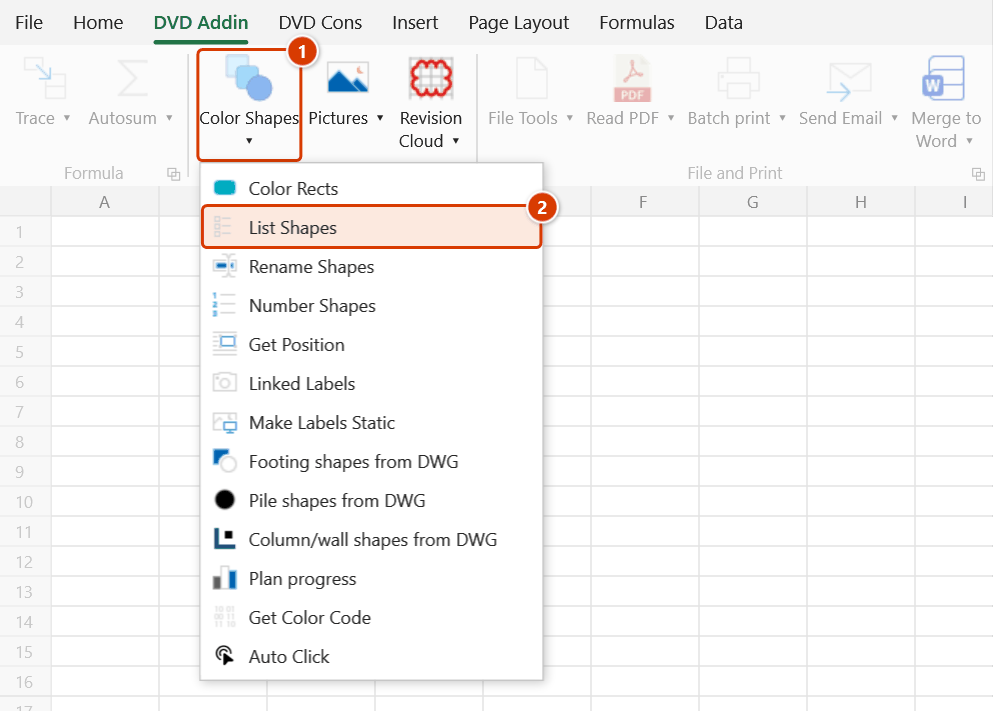
- Go to tab DVD Addin → group Graphics → the ▾ arrow of Color Shapes → click List Shapes.
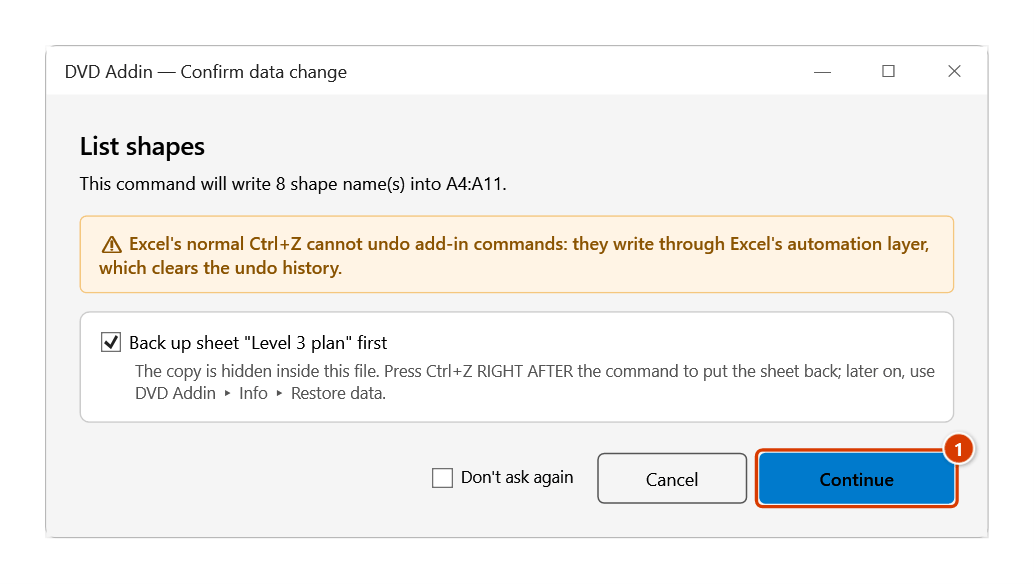
- Before writing, the Confirm data change window shows the range it will write to and how many cells in it already hold data. Click Continue to write; Cancel stops the command without writing anything.
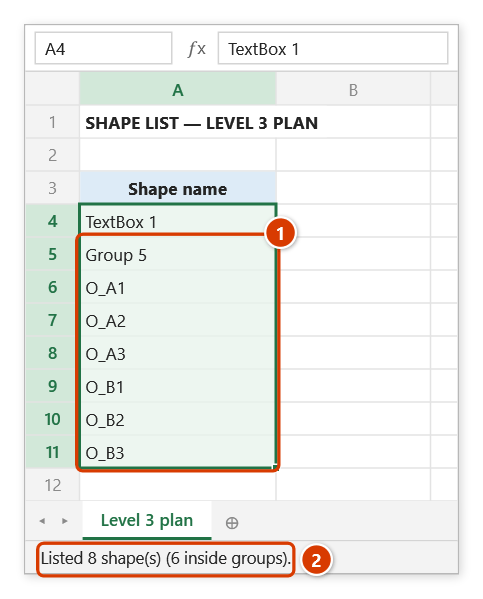
- The add-in writes the shape names into consecutive cells down the column, beginning at the selected cell. For a group, the group name comes first, followed by each child shape inside it.
- When it finishes, a message reports how many shapes were listed; if the sheet has duplicate names, the message warns you and lists them.
- If no cell is selected (for example a shape or chart is selected instead), the prompt "Please select a starting cell" appears.
Video tutorial
Narrated in Vietnamese, with Vietnamese subtitles. Danh sách, Đổi tên, Đánh số, Lấy vị trí Shape · 7 min 11 s · 18 cases · Download the video · Practice workbook for the video
Commands in this video: List Shapes · Number Shapes · Rename Shapes · Get Position
Chapters (22)
- Giới thiệu
- Mở lệnh
- 1 · Shape trong nhóm
- 2 · Tên dạng số, nhãn liên kết
- 3 · Ảnh, biểu đồ, nút, shape ẩn
- 4 · Tên trùng
- 5 · Đổi tên theo bảng
- 6 · Dòng bị bỏ qua, bị từ chối
- 7 · Thứ tự dòng: dời số, đổi chéo
- 8 · Cả nhóm, bỏ ảnh nền
- 9 · Hàng chéo, shape xoay
- 10 · Sai số cùng hàng
- 11 · Bắt đầu từ, tên đã có
- 12 · Nhiều nhóm, ảnh
- 13 · Lấy toạ độ Top;Left
- 14 · Tên sai, ô trống
- 15 · Dời lại bằng dvdMoveShape
- 16 · Ghi đè và hoàn tác
- 17 · Sheet đang bảo vệ
- 18 · Khi chọn sai
- Mẹo
- Kết thúc
Illustrated walkthrough
Practice
Download this command's sample workbook — the data matches the pictures below (sheet Level 3 plan), so you can follow each step right away.
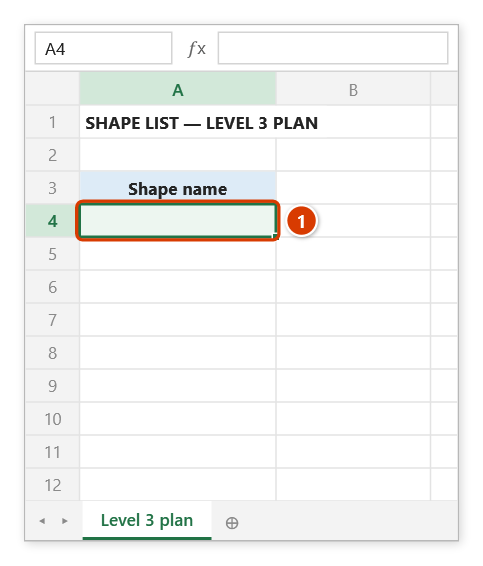
Step 1. Open the sheet that holds the shapes (here: the level 3 plan with a title box and a group of 6 slab bays) and select an empty starting cell (1) — the list runs down from this cell.
Step 2. On the ribbon, open the DVD Addin tab → Graphics group → open Color Shapes → choose List Shapes.
Step 3. Before writing, the add-in shows the range it will fill (A4:A11) and how many of those cells already hold data. Click Continue (1).
Step 4. Each shape name is written down the column, one per row; for a group, the group name comes first, followed by each shape inside it (1). The status bar reports how many shapes were listed (2) — if the sheet has duplicate names, a warning lists them so you can rename them.
Example
Sheet LAYOUT holds 24 blocks representing construction zones. Select the empty cell K5 and click List Shapes:
| K | |
|---|---|
| 5 | BAY_A1 |
| 6 | BAY_A2 |
| 7 | BAY_B1 |
| 8 | BAY_B2 |
| … | … |
If the 24 blocks sit together in a group Group 88, cell K5 holds Group 88 and the rows below it list each child block BAY_A1, BAY_A2…
From this column, add column L computing a colour code from progress and run Color Shapes to repaint the whole layout.
Notes
- The list contains shape names only; position and size are not written out — use the Get Position command when you need coordinates.
- The command asks before writing and tells you how many cells in the target range already hold data; if you confirm, their contents are overwritten — so pick an empty area.
- Ordinary shapes (buttons, inserted pictures, text boxes…) are all listed, including child shapes inside groups. The command skips linked labels (shapes named
DVDLBL_…), comment frames and the background picture of pile / footing shape sets created from DWG. - Names that look like numbers or dates (
1,57,3-1…) are written as text, so Excel does not turn them into numbers or dates. - Excel allows several shapes to share a name, but every command and function that looks shapes up by name only finds the first one. The command warns you and lists the duplicate names — rename them (for example with Rename Shapes) before colouring or labelling.
Ctrl+Zright after the command puts the sheet back as it was (thanks to the backup); see Restore data.
Related
- Rename Shapes — use this list as the "old name" column of a bulk rename table.
- Color Shapes — map shape names to colour codes for progress-driven recolouring.
- Get Position — read the coordinates of the shapes named in the list you just produced.