
Color Shapes
Location on ribbon: Tab DVD Addin → Group Graphics
Command ID: btnColorShapes
License required
This command needs an active DVDAddin account (Standard or PRO). It is fully available during the trial period.
What it does
This command recolours many shapes on the active sheet at once from a two-column mapping table: shape names in the first column, colour codes in the second (an Excel RGB number or a #RRGGBB string). Every shape whose name matches gets the corresponding fill at 50% transparency.
It turns a plain drawing into a live status diagram without clicking each object: a site layout drawn from shapes named after grid bays, a small Excel table beside it computing a colour from progress (green = concreted, yellow = in progress, grey = not started), and one click repaints the whole layout.
How to use
Open the sheet holding the shapes (the command works on the active sheet only).
Prepare a table: first column = shape name, second column = colour code — an Excel RGB number or a
#RRGGBBstring.Go to tab DVD Addin → group Graphics → click Color Shapes.
The range picker appears. Select in one of two ways, then click OK:
- drag over one block — its first column holds the names, its second the colours;
- or pick two separate columns (hold Ctrl for the second one): the column on the left is the name column, whichever you select first.
Whole-column selections (for example
G:H) are fine too — the command only reads down to the end of the used range.The add-in walks each row, finds the shape by name and applies the fill. When it finishes, a message reports how many shapes were coloured and lists the shape names not found, the rows without a valid colour (blank,
#N/A, text) and the shapes that cannot be coloured.
Video tutorial
Narrated in Vietnamese, with Vietnamese subtitles. Tô màu Shape, Vẽ hình chữ nhật màu, Lấy mã màu · 5 min 28 s · 14 cases · Download the video · Practice workbook for the video
Commands in this video: Color Shapes · Color Rects · Get Color Code
Chapters (20)
- Giới thiệu
- Mở lệnh
- Hộp chọn vùng
- Mã màu
- 1 · Mặt bằng theo tiến độ
- 2 · Mã HEX, mã dạng chữ
- 3 · Khớp theo tên shape
- 4 · Shape trong nhóm
- 5 · Mã màu ở cột xa
- 6 · Báo cáo cuối lệnh
- 7 · Lấy mã màu chuẩn
- 8 · Ô không tô, màu điều kiện
- 9 · Ô có chữ bị ghi đè
- 10 · Lưới tiến độ thành khối màu
- 11 · Ô chữ, ô trống, ô ngày
- 12 · Ô chỉ có màu nền
- 13 · Sheet đang bảo vệ
- 14 · Hoàn tác và chạy lại
- Mẹo
- Kết thúc
Illustrated walkthrough
Practice
Download this command's sample workbook — the data matches the pictures below (sheet Level 3 plan), so you can follow each step right away.
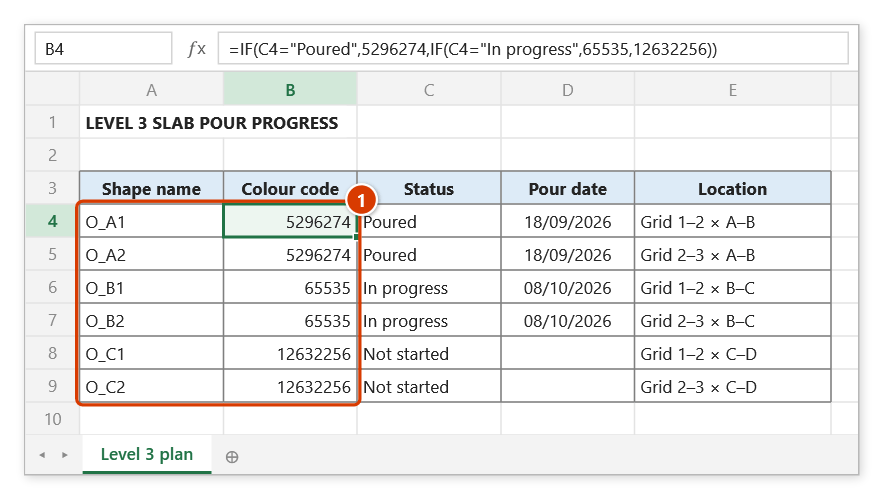
Step 1. On the sheet whose plan is drawn with named shapes (O_A1, O_A2…), build a mapping table: first column = shape name, second column = colour code (Excel RGB number or #RRGGBB) — here the code is computed by a formula from the status column (1).
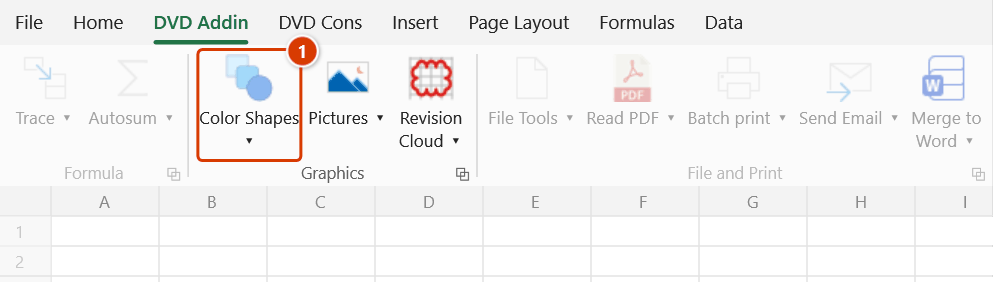
Step 2. On the ribbon, open the DVD Addin tab → Graphics group → click the upper half of the large Color Shapes button (1) — the ▾ arrow below it only opens the menu of the other shape commands.
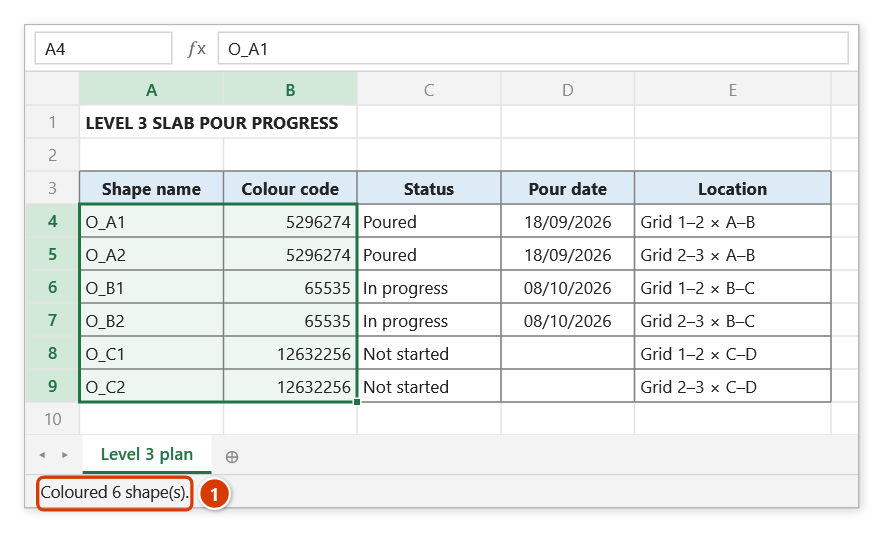
Step 3. The range picker appears (Select range: shape names left, RGB codes right): drag over A4:B9 and click OK. You can also hold Ctrl to pick two separate columns — the left one is the name column.
Step 4. Every shape on the active sheet whose name matches is filled with its colour at 50% transparency (green = poured, yellow = in progress, grey = not started). The status bar reports how many shapes were coloured (1); names that were not found or rows without a valid colour code are listed in a message box.
Example
A level 3 layout drawn from shapes named BAY_A1, BAY_A2, BAY_B1… with a tracking table beside it:
| G (Shape name) | H (RGB code) |
|---|---|
| BAY_A1 | 5296274 |
| BAY_A2 | 65535 |
| BAY_B1 | 12632256 |
Column H is computed from the status column, e.g. =IF(F5="Poured",5296274,IF(F5="In progress",65535,12632256)). Select G5:H40 when the picker asks and click OK — the entire layout repaints to that week's progress.
Notes
- The colour column accepts Excel RGB numbers (
Red + Green×256 + Blue×65536) or#RRGGBBhex strings. Rows whose colour cell is blank,#N/Aor text are skipped (the shape keeps its current fill) and listed in the final message. - Shape names must match exactly on the active sheet; names that cannot be found are listed in the final message so you can fix them.
- Every recoloured shape gets 50% transparency — a fixed behaviour of this command, with no option to change it. For a different transparency use the
dvdColorShapesfunction. - Hold
ESCto stop midway; shapes already recoloured keep their new fill. - The command edits shape properties directly and cannot be undone with
Ctrl+Z. - The range picker does not lock Excel: while it is open you can scroll, switch sheets or switch workbooks to pick the range there. Click OK or press Enter on the sheet when done; Cancel or Esc to stop.
Related
- List Shapes — dump shape names onto the sheet to build the left column of the mapping table.
- Get Color Code — read an existing cell fill colour to obtain the RGB value for the right column.
- Rename Shapes — normalise shape names before mapping colours to them.
- Color Rects — create new coloured rectangles instead of recolouring existing shapes.