
Get Position
Location on ribbon: Tab DVD Addin → Group Graphics → the ▾ arrow of Color Shapes
Command ID: btnShapePositions
What it does
This command reads the coordinates of shapes on the active sheet and writes them into worksheet cells as Top;Left (in points). You supply a range of shape names, and the command looks each name up in the sheet's Shapes collection and returns its position.
It is handy when you need to record the layout of a site plan, an organisation chart or a legend block so you can rebuild it later, or to check whether a set of blocks is aligned without opening the Format Shape pane on each one.
How to use
- Name the shapes you care about (use Rename Shapes if the default names are hard to follow).
- Type or paste the list of shape names into a column, then select the range holding those names.
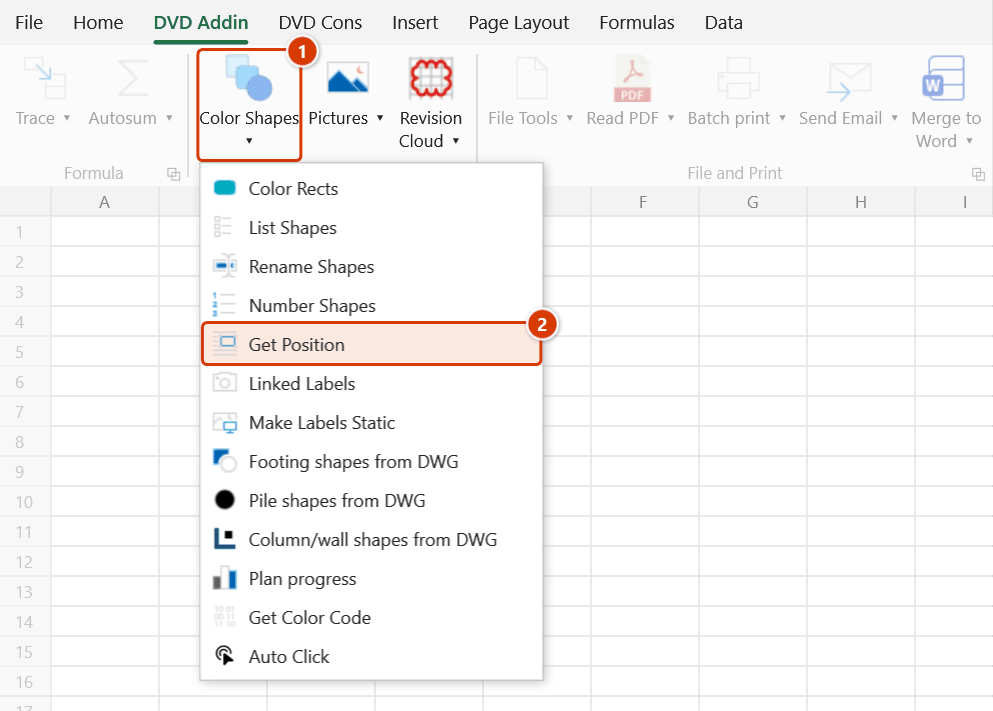
- Go to tab DVD Addin → group Graphics → the ▾ arrow of Color Shapes → Get Position.
- The command scans the selected cells one by one, skipping blanks and names it cannot match to a shape.
- A range picker appears — "Select range to paste positions". Click the destination cell or range and press OK. If the target already holds data, the Confirm data change window asks before overwriting it — click Continue.
- The positions are pasted in scan order, and a toast reports how many were written.
Video tutorial
Narrated in Vietnamese, with Vietnamese subtitles. Danh sách, Đổi tên, Đánh số, Lấy vị trí Shape · 7 min 11 s · 18 cases · Download the video · Practice workbook for the video
Commands in this video: List Shapes · Number Shapes · Rename Shapes · Get Position
Chapters (22)
- Giới thiệu
- Mở lệnh
- 1 · Shape trong nhóm
- 2 · Tên dạng số, nhãn liên kết
- 3 · Ảnh, biểu đồ, nút, shape ẩn
- 4 · Tên trùng
- 5 · Đổi tên theo bảng
- 6 · Dòng bị bỏ qua, bị từ chối
- 7 · Thứ tự dòng: dời số, đổi chéo
- 8 · Cả nhóm, bỏ ảnh nền
- 9 · Hàng chéo, shape xoay
- 10 · Sai số cùng hàng
- 11 · Bắt đầu từ, tên đã có
- 12 · Nhiều nhóm, ảnh
- 13 · Lấy toạ độ Top;Left
- 14 · Tên sai, ô trống
- 15 · Dời lại bằng dvdMoveShape
- 16 · Ghi đè và hoàn tác
- 17 · Sheet đang bảo vệ
- 18 · Khi chọn sai
- Mẹo
- Kết thúc
Illustrated walkthrough
Practice
Download this command's sample workbook — the data matches the pictures below (sheet Site layout), so you can follow each step right away.
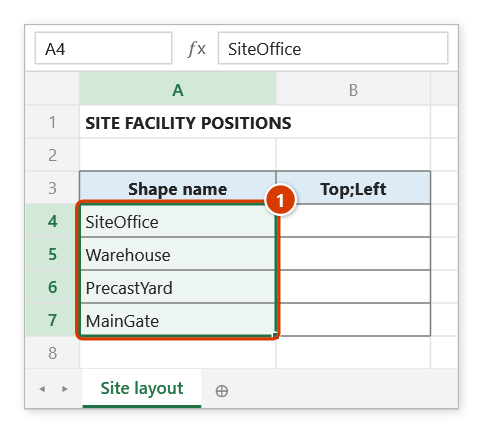
Step 1. Type or paste the names of the shapes into a column, then select the cells holding those names (1).
Step 2. On the ribbon, open the DVD Addin tab → Graphics group → open Color Shapes → choose Get Position.
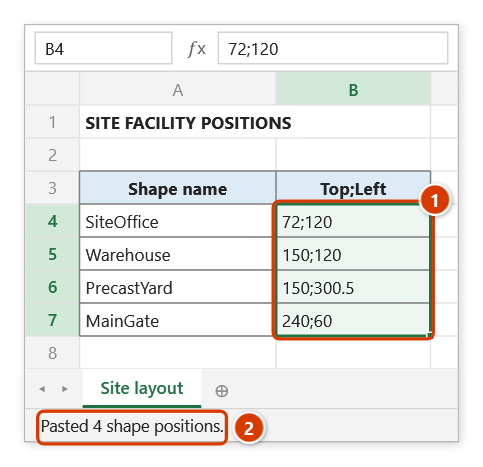
Step 3. The command looks up each name on the active sheet (blank cells and names without a shape are skipped), then shows the range picker Select range to paste positions: pick B4 (or B4:B7) and click OK. If the target already holds data, the add-in asks before overwriting it.
Step 4. Each cell receives a Top;Left string in points, in the order scanned (1) — using the machine's decimal separator. The status bar reports how many positions were pasted (2). Feeding this string to dvdMoveShape puts the shape back in place.
Example
A site-layout sheet has four named blocks. You select A2:A5 (the names) and then pick B2:B5 as the paste target.
| Row | Before (shape name) | After (column B — Top;Left) |
|---|---|---|
| 2 | SiteOffice | 72;120 |
| 3 | MaterialStore | 150;120 |
| 4 | PrecastYard | 150;300 |
| 5 | MainGate | 240;60 |
Column B immediately shows that MaterialStore and PrecastYard share Top = 150, so those two blocks are already aligned horizontally.
Notes
- A cell range must be selected first; if the selection is not a range the command reports "Please select range containing shape names" and stops.
- Only shapes on the active sheet are matched — names belonging to another sheet are silently skipped.
- Blank cells and unmatched names are skipped, so the result list can be shorter than the selection; values are pasted contiguously with no gaps.
- Hold ESC to abort. If you stop during the scan the command exits without opening the paste-target picker.
- The output is a text string
Top;Left, not two numbers — use Text to Columns with the;delimiter to split it. The decimal separator follows the machine's regional format (a Vietnamese-format machine writes587,81;653,415); values are rounded to 0.001 pt. - The coordinates are where Excel actually draws the shape, including shapes inside a group. In workbooks shared between machines a group's stored frame can drift from the frame given by its anchor cells; Excel then reports child shapes up to a few points away from where it draws them, worse towards the bottom of the group (7.5 pt measured on a 57-footing site plan). Earlier versions wrote those raw numbers; this version converts them to the drawn position.
- For a rotated shape,
Top;Leftis the top-left corner of the unrotated shape — the same Top/Left as in Format Shape and VBA — not of the bounding box around the rotated shape. - Feeding the result to
dvdMoveShapeputs each shape back exactly where it was: the function accepts either a comma or a dot as decimal separator, and moving a shape inside a group no longer shifts the group's other shapes. - The range picker does not lock Excel: while it is open you can scroll, switch sheets or switch workbooks to pick the range there. Click OK or press Enter on the sheet when done; Cancel or Esc to stop.
Related
- Rename Shapes — give shapes meaningful names before reading their coordinates.
- List Shapes — dump every shape on the sheet so you know the exact names.
- Move/Resize — snap a picture or shape back into a cell once you know its position.
- Color Shapes — another bulk operation over the same set of shapes.
- dvdMoveShape — the function that puts a shape back at a
Top;Leftcaptured here.