
Dependents
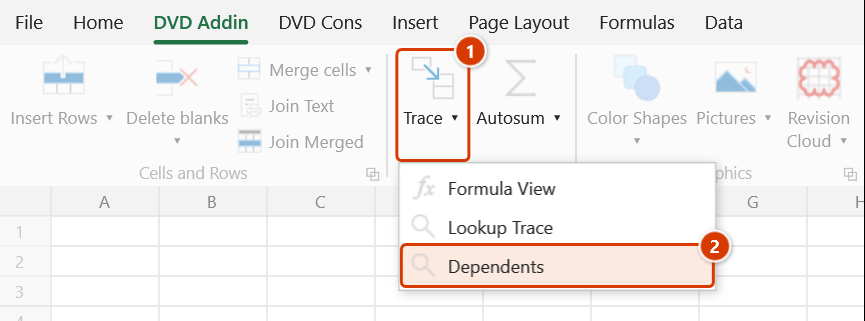
Location on ribbon: Tab DVD Addin → Group Formula → Menu Trace
Command ID: btnShowDependents
What it does
This command opens the Formula Trace window on its Dependents tab and immediately lists every formula cell that references the current cell. It is the downstream view of a workbook: change this one cell, and these are the cells that move with it.
Before editing a coefficient, a unit rate or a schedule milestone in a shared file, run this first to see how many formulas feed on that number — it stops a one-cell edit from quietly skewing the whole summary sheet.
How to use
- Select the cell you want to inspect (the tool always tracks the active cell, not a whole multi-cell selection).
- Go to tab DVD Addin → group Formula → menu Trace → click Dependents.
- The Formula Trace window opens with the Dependents tab already in front.
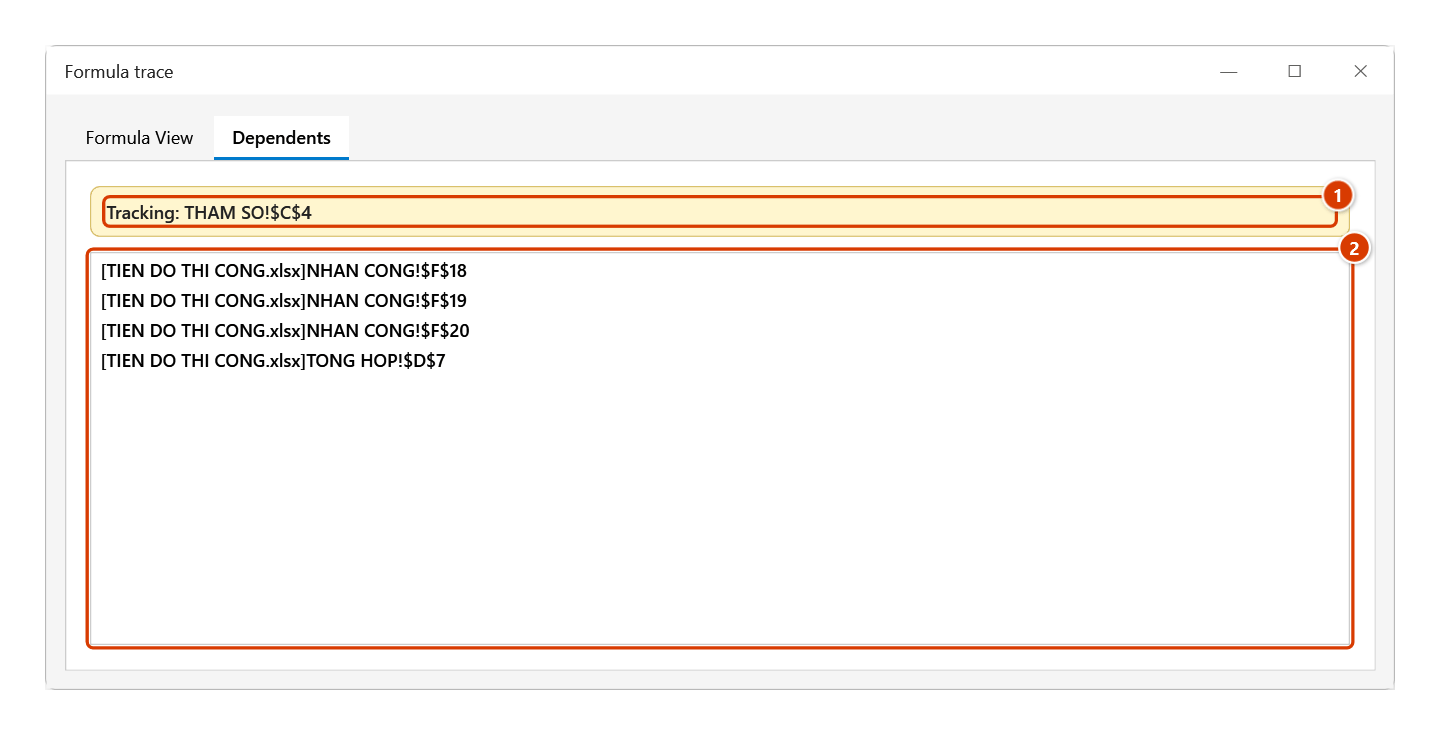
- The banner at the top reads "Tracking: Sheet!Address". Click the banner at any time to jump back to the cell being tracked.
- The list below shows the dependent cells. Click a row and Excel navigates to that cell.
- The window is modeless: keep selecting other cells on the sheet and the list refreshes for each new cell while the Dependents tab is visible.
Video tutorial
Narrated in Vietnamese, with Vietnamese subtitles. Truy vết Lookup và Ô phụ thuộc · 5 min 55 s · 12 cases · Download the video · Practice workbook for the video
Commands in this video: Lookup Trace · Dependents
Chapters (17)
- Giới thiệu
- Mở lệnh
- 1 · VLOOKUP – bảng ở sheet khác
- 2 · HLOOKUP – bảng tra đặt tên
- 3 · INDEX + MATCH hai chiều
- 4 · XLOOKUP – dò sang trái
- 5 · Không tìm thấy (#N/A)
- 6 · Tra gần đúng (TRUE)
- 7 · Nhiều hàm dò trong một ô
- 8 · Ô không có hàm dò
- Ô phụ thuộc
- 9 · Ai đang dùng ô này?
- 10 · Phụ thuộc ở nhiều sheet
- 11 · Không có ô phụ thuộc
- 12 · So với Trace Dependents
- Mẹo
- Kết thúc
Illustrated walkthrough
Practice
Download this command's sample workbook — the data matches the pictures below (sheet THAM SO), so you can follow each step right away.
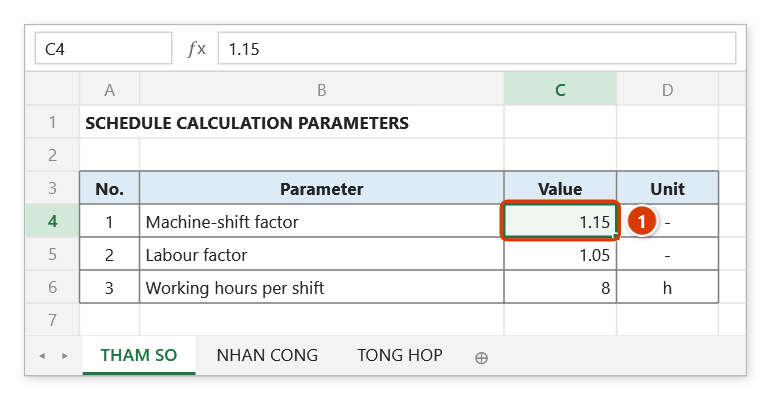
Step 1. Select the cell to check (1) — for example the machine-shift factor on the parameters sheet. The command always tracks the active cell, not the whole selection.
Step 2. On the ribbon, open the DVD Addin tab → Formula group → open Trace → choose Dependents.
Step 3. The Formula trace window opens on the Dependents tab. The yellow banner (1) shows the tracked cell — click it to jump back. The list (2) shows every cell whose formula refers to it; click a line to jump to that cell.
Step 4. Leave the window open and select other cells: the list follows the new active cell as long as the Dependents tab is showing. The command only reads and navigates; it never changes data.
Example
In CONSTRUCTION SCHEDULE.xlsx, cell C4 on sheet PARAMS holds the plant-shift factor 1.15. Select C4 and click Dependents: the list returns [workbook]sheet!address entries such as [CONSTRUCTION SCHEDULE.xlsx]LABOUR!$F$18, [CONSTRUCTION SCHEDULE.xlsx]LABOUR!$F$19 and [CONSTRUCTION SCHEDULE.xlsx]SUMMARY!$D$7. Click the SUMMARY!$D$7 line to see the roll-up row that would be affected, then decide whether the factor should change at all.
Notes
- Only one cell is tracked — if you highlight a range, just the active cell inside it is scanned.
- The list refreshes only while the window is open and the Dependents tab is the visible one; switching to the Formula View tab pauses scanning.
- Scanning temporarily suspends Excel screen updating and events, so on very large workbooks the screen may freeze for a moment before the list appears.
- Dependents living in a workbook that is currently closed do not appear in the list.
- The command only reads and navigates; nothing is written, so there is nothing to undo when you close the window.
Related
- Formula View — the other tab of the same window, splitting a formula into clickable tokens.
- Lookup Trace — the opposite direction: go to the source cell a lookup formula pulled from.
- Error Check — turn Excel's formula error flags on or off while auditing a sheet.