
Error Check
Location on ribbon: Tab DVD Addin → Group Formula → ▾ of Autosum
Command ID: btnFormulaErrorChecking
What it does
This command turns Excel's background formula error checking on or off — the little green triangles in the top-left corner of a cell and their warning markers. You choose whether the change applies to the current selection or to the whole Excel application.
In construction paperwork a great many of these warnings are false alarms: a formula that "omits adjacent cells", item codes stored as text, a package total whose formula differs from its neighbours. Silencing them on the right range keeps the sheet clean for printing and for screenshots sent to the client; switching them back on is one click when you need to audit again.
How to use
- If you intend to work on a range, select it first.
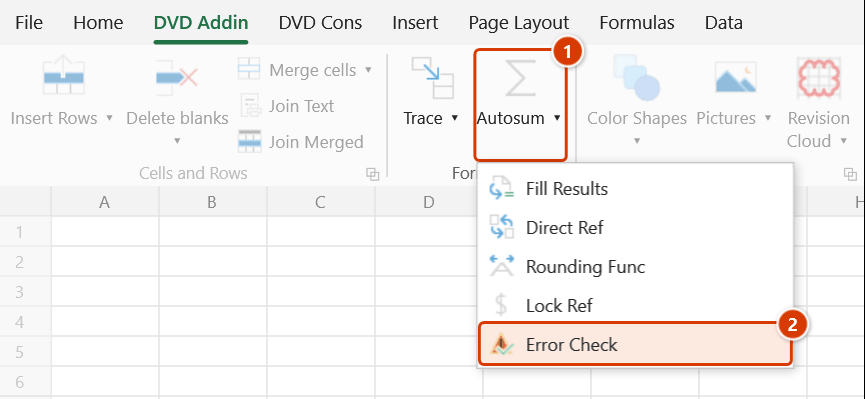
- Go to tab DVD Addin → group Formula → click the ▾ of Autosum → choose Error Check.
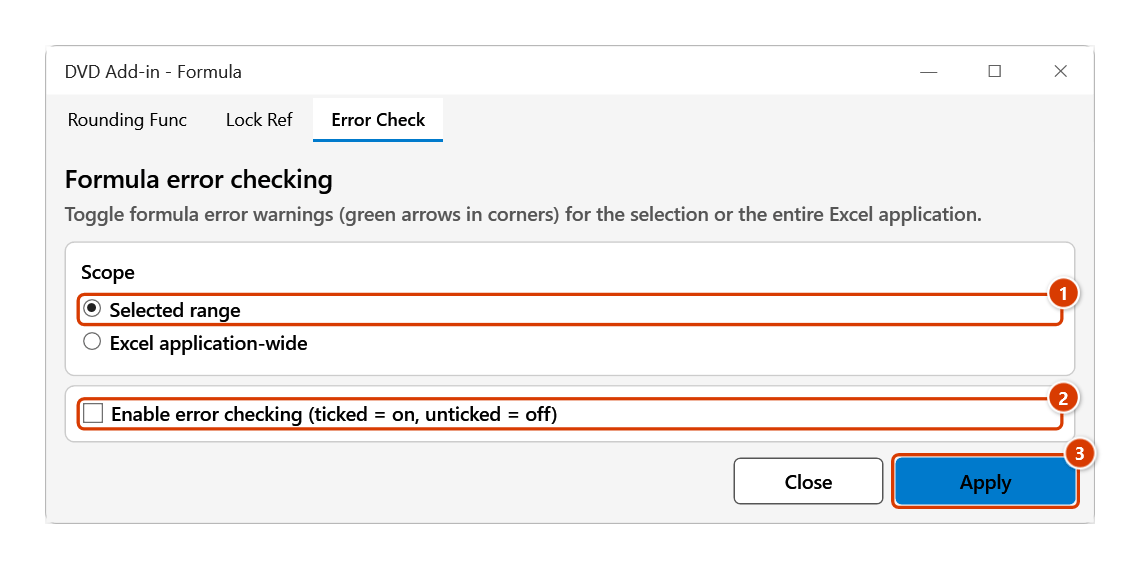
- The Error Check tab (heading Formula error checking) of the Formula tool window opens with two blocks:
- Scope: Selected range (default) or Excel application-wide.
- The checkbox Enable error checking (ticked = on, unticked = off).
- Pick the scope, then tick or untick the box according to what you want.
- Click Apply. With the Selected range scope, the change hits the formula cells in whatever is selected at the moment you click.
- The window stays open: select another range and Apply again, or click Close when finished.
Video tutorial
Narrated in Vietnamese, with Vietnamese subtitles. Kiểm tra lỗi · 4 min 27 s · 8 cases · Download the video · Practice workbook for the video
Chapters (13)
- Giới thiệu
- Mở lệnh
- Cửa sổ Kiểm tra lỗi
- 1 · Tắt cảnh báo cho vùng chọn
- 2 · Bật lại cảnh báo
- 3 · Ô ra lỗi
- 4 · Ô nhập tay: số lưu dạng chữ
- 5 · Cả cột, danh sách đang lọc
- 6 · Toàn ứng dụng Excel
- 7 · Khi mở lại Excel
- 8 · Không hỏi, không sao lưu
- Mẹo
- Kết thúc
Illustrated walkthrough
Practice
Download this command's sample workbook — the data matches the pictures below (sheet Summary), so you can follow each step right away.
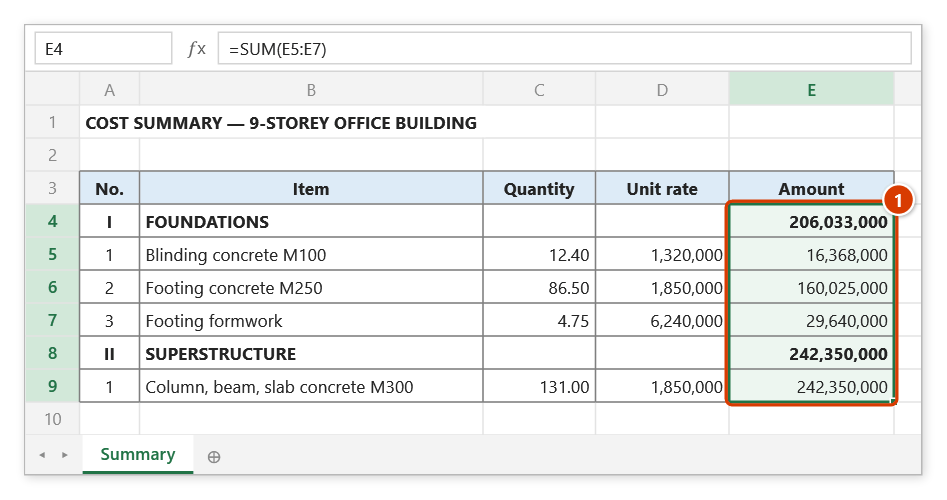
Step 1. Select the formula cells that show Excel's green warning triangles (1) — for example an amount column whose section subtotal rows use a different formula from the rows around them, so Excel flags an “inconsistent formula”.
Step 2. On the ribbon, open the DVD Addin tab → Formula group → open Autosum → choose Error Check.
Step 3. The Error Check tab of the Formula tool window opens. Keep the scope Selected range (1), untick Enable error checking (2) to turn the warnings off, then click Apply (3).
Step 4. The green triangles disappear from the formula cells of the selection; typed-in values (text, numbers) are not touched. The status bar reports how many cells were processed. The command only switches the warning flag; it does not edit formulas or hide real errors such as #REF!.
Step 5. Choose Excel application-wide instead of Selected range to switch Excel's background error checking for every workbook — this setting persists after the file is closed, so tick it again when you want it back.
Example
A quantity summary sheet has an amount column H whose package-total rows use a different formula from the detail rows around them, so they show the green "Inconsistent formula" triangle. Select H6:H180, open Error Check, leave the scope on Selected range, untick "Enable error checking" and click Apply — the warnings on the formula cells disappear and the printout is clean.
The "Number stored as text" warning on a typed item-code column (for example AF.11220) cannot be cleared with Selected range, because those cells hold no formula; that kind of warning only goes away with Excel application-wide.
When handing the file to a colleague for review, reopen the command, switch to Excel application-wide, tick the box and Apply to restore full checking.
Notes
- The command only toggles the warning flags; it does not edit formulas and it does not hide genuine errors such as
#REF!,#DIV/0!or#N/A. - The Excel application-wide scope is an Excel setting on your machine: it affects every workbook and survives closing the file — remember to switch it back if you only meant to silence things temporarily.
- The Selected range scope uses the selection at the moment you press Apply, not the one that existed when the window opened, and it only touches formula cells; typed values (text, numbers) keep their warnings.
- The window is modeless, so you can select a different range and click Apply again.
- The checkbox starts unticked (checking off) when the window opens and keeps whatever state you set between clicks, so glance at it before each Apply to avoid toggling the wrong way.
Related
- Dependents — check a cell's downstream impact before deciding which warnings are false alarms.
- Rounding Func — the same style of window for bulk-editing formulas in a selection.
- Lock Ref — fix
$reference styles on formulas flagged as "inconsistent with neighbours".