
Formula View
Location on ribbon: Tab DVD Addin → Group Formula → Menu Trace
Command ID: btnFormulaViewer
What it does
The command opens the Formula trace window and breaks the active cell's formula into clickable pieces: every reference and every argument becomes its own button. Click a piece and you immediately see which range it points at and what it evaluates to, instead of squinting at a long =SUMIFS('L5 quantities'!$H$5:$H$400,...) in the formula bar.
Use it when checking someone else's quantity or payment sheet, or when a total returns an odd number and you cannot tell which range it is really adding up.
How to use
- Select a cell that contains a formula.
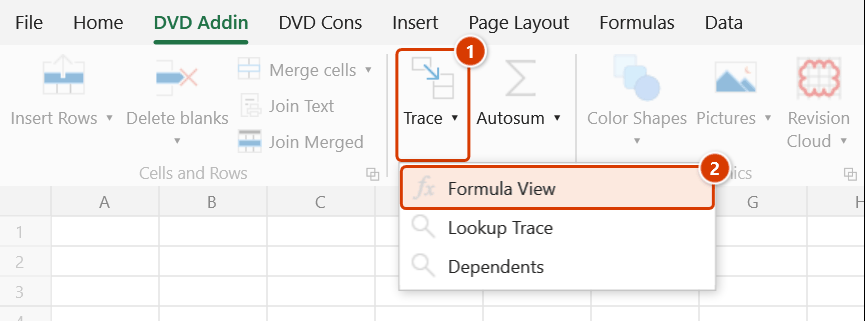
- Click DVD Addin → Formula → Trace → Formula View. The Formula trace window opens on the Formula View tab with that cell's formula loaded.
- Click any token in the upper panel — the box below shows its value and details, and the list underneath shows the related cells.
- Formula cell jumps the cursor back to the cell being analysed; Selected cell reloads the formula of whatever cell you just picked on the sheet.
- Dependent cells is ticked by default so the list shows the cells that depend on the range you click (untick it to skip the scan); tick History to open the list of cells you have inspected and click an entry to return to it.
- The window is modeless — leave it open, select another cell and press Selected cell to continue. Switch to the Dependents tab to track the active cell live.
Video tutorial
Narrated in Vietnamese, with Vietnamese subtitles. Xem công thức · 6 min 23 s · 9 cases · Download the video · Practice workbook for the video
Chapters (14)
- Giới thiệu
- Mở lệnh
- Cửa sổ
- 1 · Sai sheet trong SUMIFS
- 2 · Ô phụ thuộc của tham số
- 3 · VLOOKUP và bẫy dò gần đúng
- 4 · INDEX, MATCH và lỗi #N/A
- 5 · Công thức lồng nhiều tầng
- 6 · Tên vùng và tên hằng
- 7 · Hàm mảng FILTER, hàm LET
- 8 · Ô không có công thức
- 9 · Soát nhiều ô, Lịch sử
- Mẹo
- Kết thúc
Illustrated walkthrough
Practice
Download this command's sample workbook — the data matches the pictures below (sheet TONG HOP), so you can follow each step right away.
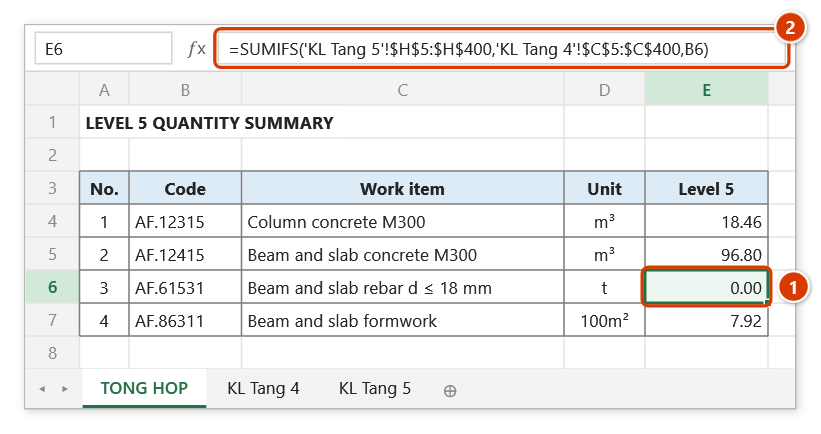
Step 1. Select the cell whose formula you want to check (1) — for example a summary quantity that returns 0 although the detail sheet has figures. The long formula in the formula bar (2) is hard to read by eye.
Step 2. On the ribbon, open the DVD Addin tab → Formula group → open Trace → choose Formula View.
Step 3. The Formula trace window opens on the Formula View tab and splits the cell's formula into clickable pieces: range references in green, lookup functions (VLOOKUP, XLOOKUP, INDEX, MATCH, HLOOKUP) in red, other functions in blue.
Step 4. Click a piece: for a reference, Excel selects that range and the info box reads “Selected range: …”, while the list below shows its dependent cells (when Dependent cells is ticked); for a function, the info box shows its evaluated result. Here, clicking 'KL Tang 4'!$C$5:$C$400 immediately reveals that the criteria range points at the level 4 sheet.
Step 5. Formula cell takes the cursor back to the cell being analysed; select another cell and press Selected cell to load its formula. Tick History to list the cells you have inspected. The window is for inspection only — edit formulas in Excel's formula bar.
Example
Cell H250 of a summary sheet returns 0 although the detail sheet clearly has quantities. Select H250 and click Formula View — the window splits the =SUMIFS(...) into tokens. Clicking the criteria-range token shows it points at 'L4 quantities'!$C$5:$C$400 while the work codes being matched belong to the level 5 sheet. The bug is right there, with no manual formula reading.
Notes
- If the active cell holds no formula, the info box reports "The selected cell does not contain a formula".
- The window is for inspection and tracing only — formulas cannot be edited here; edit them in Excel's formula bar.
- A single instance is reused: clicking the command again brings the open window to the front rather than opening a second one.
- The Dependents tab only refreshes while that tab is the visible one; on the Formula View tab the list stays on the token you clicked.
- For array formulas or references to a closed workbook, some tokens may not be able to show a value.
Related
- Dependents — opens the live dependent-tracking tab directly.
- Explain formula — have the AI describe the formula in plain language.
- Formula error checking — scan the whole sheet for broken formulas instead of one cell.
- Lock cell references — pin
$references once the formula checks out.