
Pic Comment
Location on ribbon: Tab DVD Addin → Group Graphics → the arrow next to Pictures
Command ID: btnPictureComment
What it does
The command sets a picture as the background of the active cell's comment. The image does not sit on the sheet surface — it appears when you hover over the cell. The comment box follows the picture's own aspect ratio — its long side is about four times the default comment width and the other side follows the picture's proportions — so the image is never distorted.
This keeps quantity tables, material trackers and element registers tidy: the evidence photo is one hover away, and the print layout stays intact.
How to use
- Click the cell that should carry the picture.
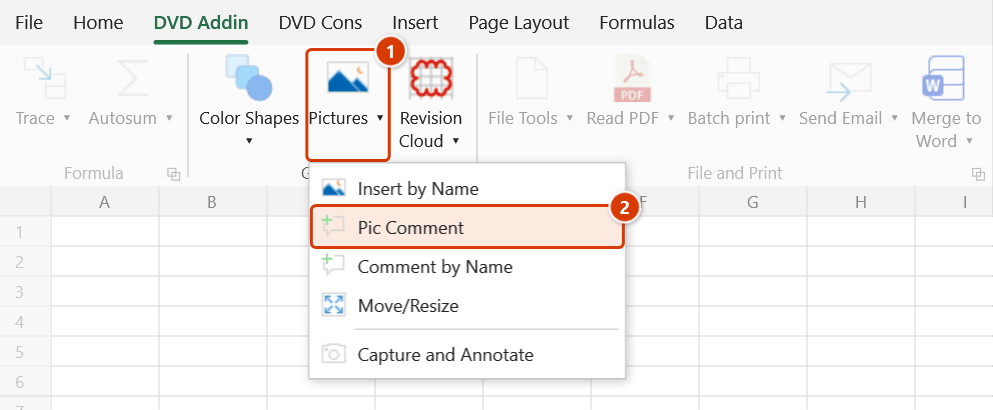
- Go to tab DVD Addin → group Graphics → the arrow next to Pictures → Pic Comment.
- The Select comment image dialog opens — choose one image file and press Open.
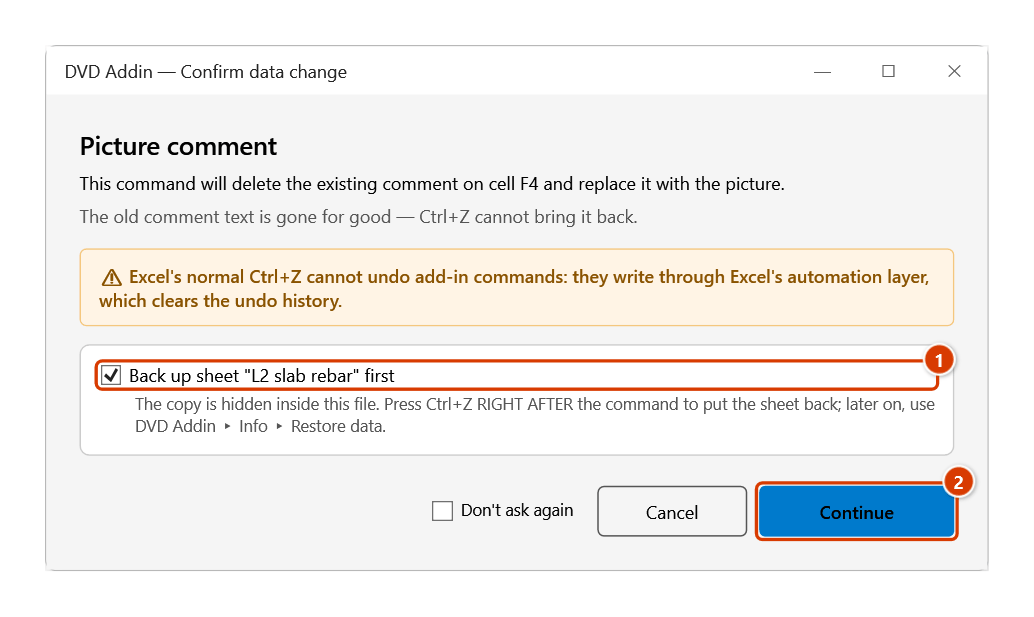
- If the cell already has a comment, the Confirm data change window asks first (keep Back up the sheet first ticked, click Continue). The command clears any existing comment on that cell, creates a new one with the picture as its fill, and leaves it hidden.
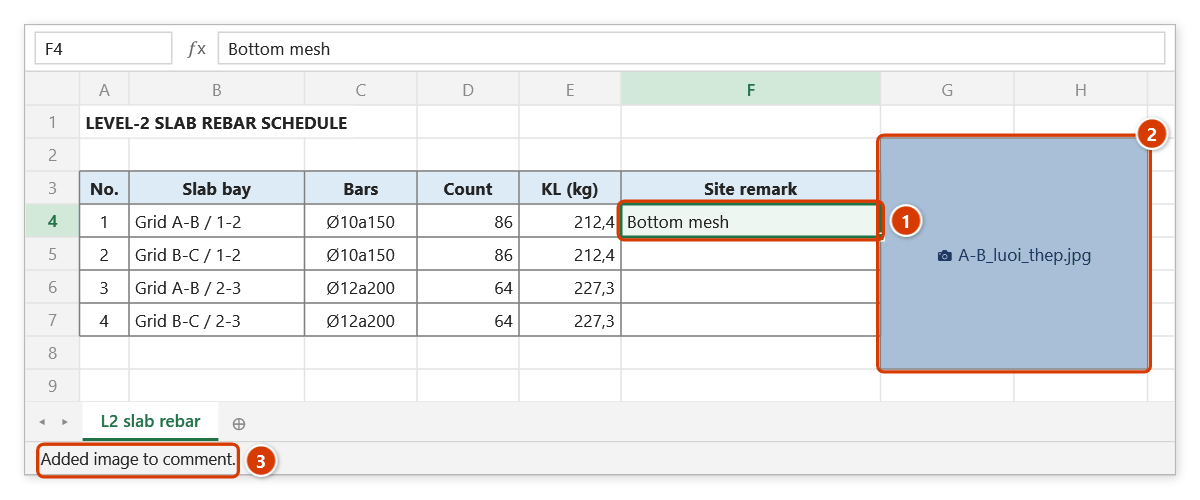
- Hover over the cell to see the image; the red marker in the top-right corner shows a comment is attached.
Video tutorial
Narrated in Vietnamese, with Vietnamese subtitles. Comment ảnh và Comment theo tên · 6 min 04 s · 12 cases · Download the video · Practice workbook for the video
Commands in this video: Pic Comment · Comment by Name
Chapters (17)
- Giới thiệu
- Mở lệnh
- Hai lệnh
- 1 · Gắn ảnh cho một ô
- 2 · Bôi đen cả vùng
- 3 · Ảnh dọc, ảnh ngang
- 4 · Ô đã có ghi chú
- 4 · Hoàn tác
- 5 · Theo tên cho cả cột
- 6 · Hoa thường, đuôi tệp
- 7 · Bẫy mã số 001
- 8 · Thay ghi chú cũ theo tên
- 9 · Danh sách đang lọc
- 10 · Không tìm thấy ảnh nào
- 11 · Sheet đang bảo vệ
- Mẹo
- Kết thúc
Illustrated walkthrough
Practice
Download this command's sample workbook — the data matches the pictures below (sheet L2 slab rebar), so you can follow each step right away.
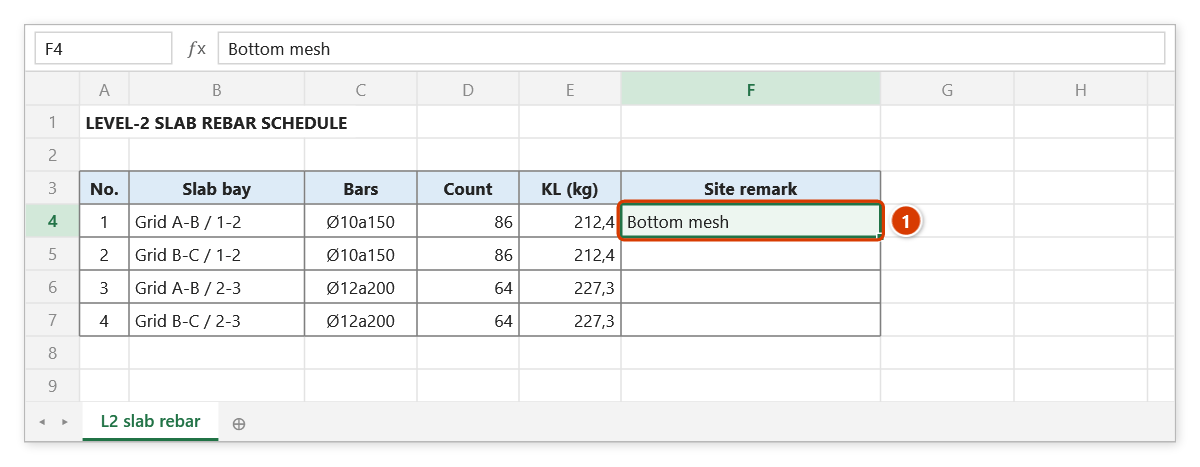
Step 1. Click the cell that should carry the picture, for example the remark cell F4 of slab bay A-B (1). The command uses only the active cell, even if a whole range is selected.
Step 2. On the ribbon, open the DVD Addin tab → Graphics group → open Pictures → choose Pic Comment.
Step 3. The Select comment image box opens: pick one picture, for example A-B_luoi_thep.jpg, and click Open. If the cell already has a comment, a confirmation box asks before deleting it (the old text is gone for good): keep Back up the sheet first (1) ticked and click Continue (2).
Step 4. The picture becomes the background of a hidden comment: hover over F4 (1) and it pops up, framed in the picture's own ratio (illustrated (2)). The table does not grow and the printout stays the same. The status bar confirms (3).
Example
A level-2 slab rebar schedule has a "site remarks" column. The supervising engineer wants to attach a photo of the mesh in grid bay A-B without making the table spill over when printed.
Click cell F12 (the A-B bay row), run Pic Comment, and choose A-B_mesh.jpg. From then on anyone opening the file just hovers over F12 to see the enlarged mesh photo, while the printout still fits on one page.
Notes
- The command works on the active cell only, even if a whole range is highlighted — use Comment by Name for bulk work.
- Any existing comment on the cell is deleted first, including text-only comments.
- A portrait photo gets a portrait box and a landscape photo a landscape box, with no squashing. Reset Notes only moves picture comments back next to their cell; it never resizes them.
- On a cell without a comment the command runs straight away and Ctrl+Z will not undo it; to remove it, right-click the cell and choose Delete Comment. On a cell that already had a comment, keep Back up the sheet first ticked in the confirmation and Ctrl+Z right after the command brings the old comment back.
- The image is embedded in the workbook, not linked — deleting the source file still leaves the picture visible, but the Excel file grows.
- Excel does not print comment pictures by default; if the photo must appear on paper, place it in the cell with the Pictures command instead.
Related
- Comment by Name — attach comment images in bulk by matching file names to cell values.
- Pictures — place photos directly on the sheet so they print.
- Reset Notes — clean up or normalise the comments on a sheet.
- Toggle View Image — turn click-to-enlarge on or off for pictures.