
View Image
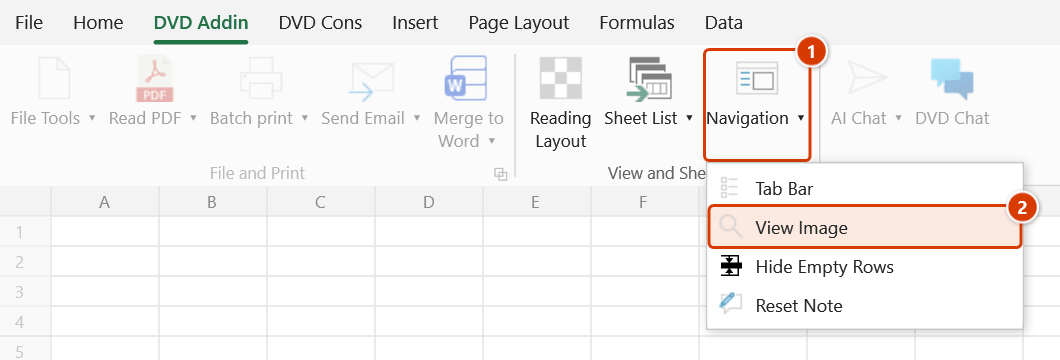
Location on ribbon: Tab DVD Addin → Group View and Sheets → the ▾ arrow of Navigation
Command ID: ToggleViewImage
What it does
Turns on click-to-enlarge for the pictures on your sheets: once enabled, clicking a picture blows up that very picture in place on the sheet and brings it to the front — no separate window opens; clicking it again snaps it back to its original size and position.
It suits photo records embedded in tables — site diaries, inspection records with photos, defect trackers — where the images must stay small enough to fit a cell but still need to be readable during review.
How to use
- Open the sheet holding the pictures.
- Go to tab DVD Addin → group View and Sheets → the ▾ arrow of Navigation → click the View Image toggle.
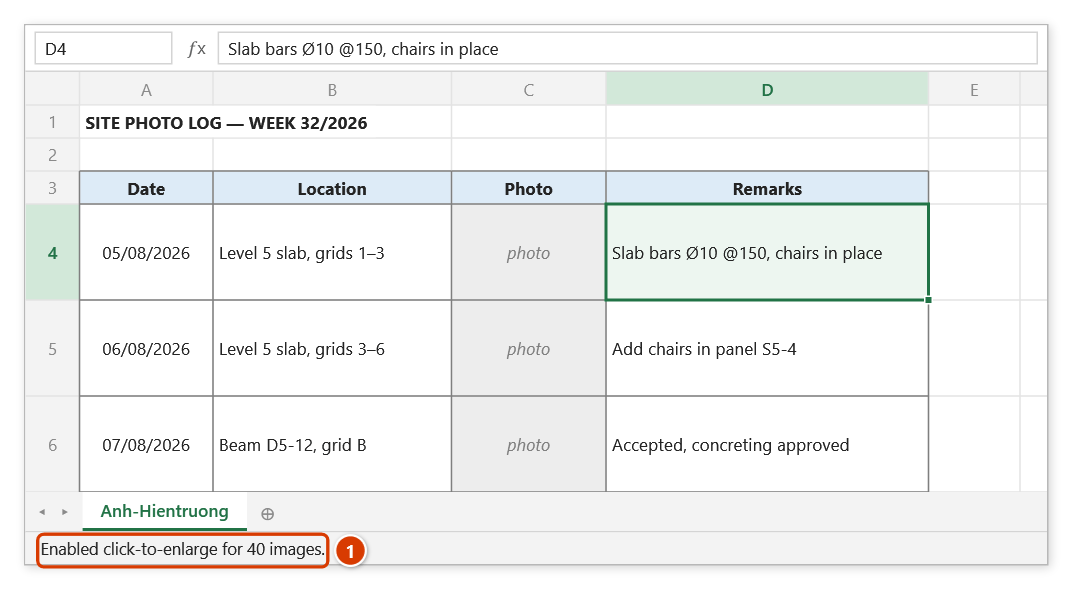
- The add-in arms the pictures on the sheet that have no macro of their own assigned and reports "Enabled click-to-enlarge for N images."
- Click a picture — it grows in place by the configured zoom ratio (2.5× by default) and is brought to the front.
- Click the same picture again to restore its original size and position.
- The mode is remembered: when you switch to another sheet or workbook, the add-in applies it to the pictures there automatically — no need to click the toggle again.
- Click the View Image toggle again to switch the mode off; you get "Disabled click-to-enlarge for N images."
Video tutorial
Narrated in Vietnamese, with Vietnamese subtitles. Xem ảnh · 5 min 24 s · 11 cases · Download the video · Practice workbook for the video
Chapters (16)
- Giới thiệu
- Mở lệnh
- Lệnh làm gì
- 1 · Bật và bấm phóng to
- 2 · Bấm lần nữa – thu về
- 3 · Nhiều ảnh cùng lúc
- 4 · Tắt chế độ
- 5 · Ảnh to – đổi tỷ lệ phóng
- 6 · Sang sheet khác, mở lại Excel
- 7 · Ảnh chèn sau khi bật
- 8 · Ảnh nào phóng được
- 9 · Chọn, dời ảnh khi đang bật
- 10 · Lưu file khi đang bật
- 11 · Bấm mà ảnh không phóng
- Mẹo
- Kết thúc
Illustrated walkthrough
Practice
Download this command's sample workbook — the data matches the pictures below (sheet Anh-Hientruong), so you can follow each step right away.
Step 1. Open the sheet with pictures placed in a table, for example a site photo log (thumbnails sized to the cells), then switch on the View Image toggle:
Step 2. The add-in arms every picture on the sheet that has no macro of its own and reports the count in the status bar (1) (in the picture, the grey cells stand for the photos). The mode is remembered: when you switch to another sheet or workbook, its pictures are armed automatically.
Step 3. Click a picture: it grows in place on the sheet (2.5× by default, set in Preferences) and comes to the front — no separate window opens. Click it again to restore its original size and position.
Step 4. Click View Image again to switch it off (the status bar shows Disabled click-to-enlarge for N images.). Shrink any enlarged picture first — switching off only removes the click behaviour, so an enlarged picture stays large.
Example
The week 32 site diary has an Anh-Hientruong sheet with 40 photos of slab reinforcement, each thumbnail sitting in one cell of a "Date — Location — Photo — Remark" table.
During the consultant's review you switch on View Image and click the photo on the 12 August row — it expands enough to show bar spacing and chairs — then click once more to bring the table back to its compact layout, with no need to open the original image files.
Notes
- The on/off state is remembered and applied automatically whenever you switch sheets or workbooks — there is no need to turn it on sheet by sheet.
- It applies to real inserted pictures, not to drawn shapes, text boxes or charts.
- Pictures that already have a macro assigned (Assign Macro) are not armed; your own macros are never overwritten or removed, even when you switch the mode off.
- The zoom ratio comes from the add-in settings (default 2.5); change it under Preferences if you want larger or smaller.
- Before the file is saved, the add-in removes the click macro from the pictures and puts it back right after saving — so recipients without the add-in get no "cannot run the macro" error when they click a picture.
- Click any enlarged picture back to normal before switching the mode off — turning it off only removes the click behaviour, so a picture left enlarged stays enlarged.
- Enlarging and restoring changes object size and position and cannot be undone with Ctrl+Z; saving while a picture is enlarged saves it that way.
Related
- Insert Pictures — bulk-insert site photos into a sheet.
- Resize Images — bring every picture to a common size.
- Move/Resize Picture — fit pictures neatly into table cells.
- Picture Comment — an alternative way to preview a large image on hover.