
Minus
Location on ribbon: Tab DVD Addin → Group Text and Number → arrow on Numbering → section Bullets
Command ID: btnMinusSign
What it does
Prepends a minus sign − plus a space to every line inside the selected cells. It is the lightest, most neutral marker in the menu, which makes it the natural second level under an item already carrying ● or a number — the components of a work item, or the small steps inside one activity.
Note that the character inserted is the mathematical minus − (U+2212), not the keyboard hyphen -. That is deliberate: it lets Remove bullets recognise exactly the symbols the add-in inserted without cutting hyphens out of your own text.
How to use
- Select the cells that need bullets.
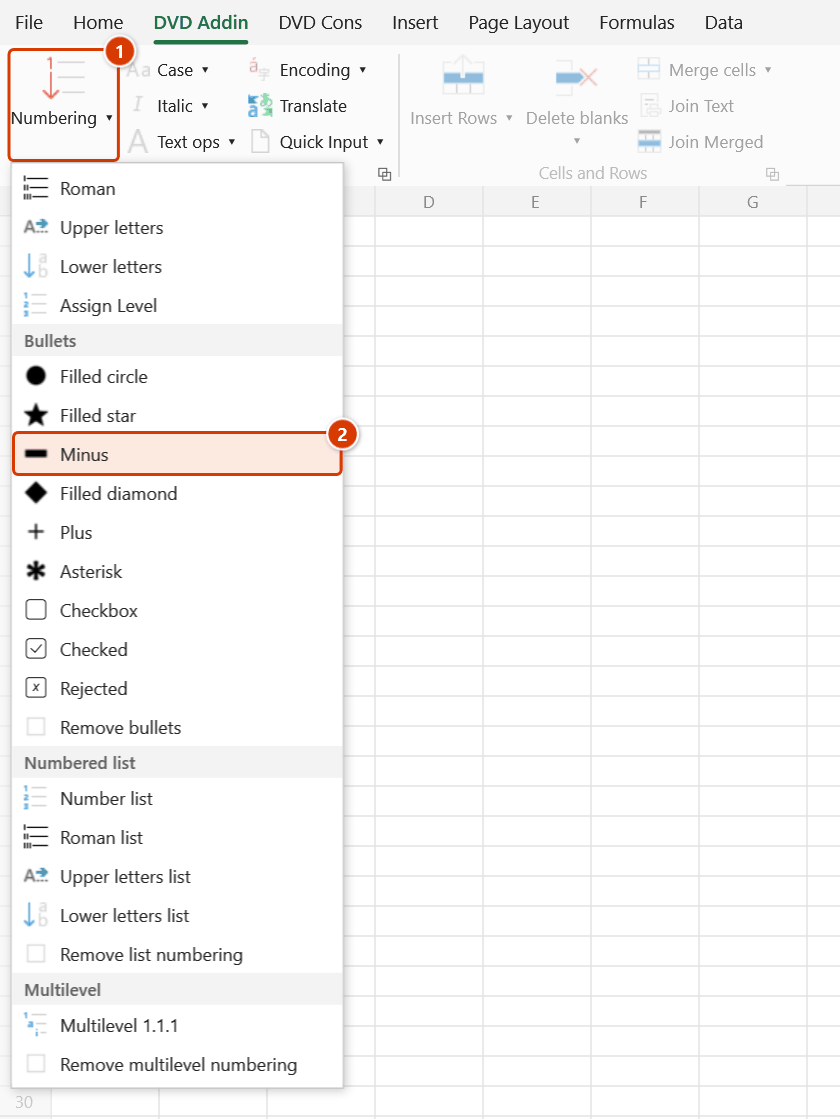
- Go to the DVD Addin tab → Text and Number group → arrow on Numbering → Bullets section → choose Minus.
- The add-in strips any existing bullet first, then handles each cell:
- Text cell —
−is added at the start of every line. - Empty cell — just
−is written. - Formula cell — wrapped as
=""&"− "&(original formula), so the marker shows while the formula stays live.
- Text cell —
- The status bar reports
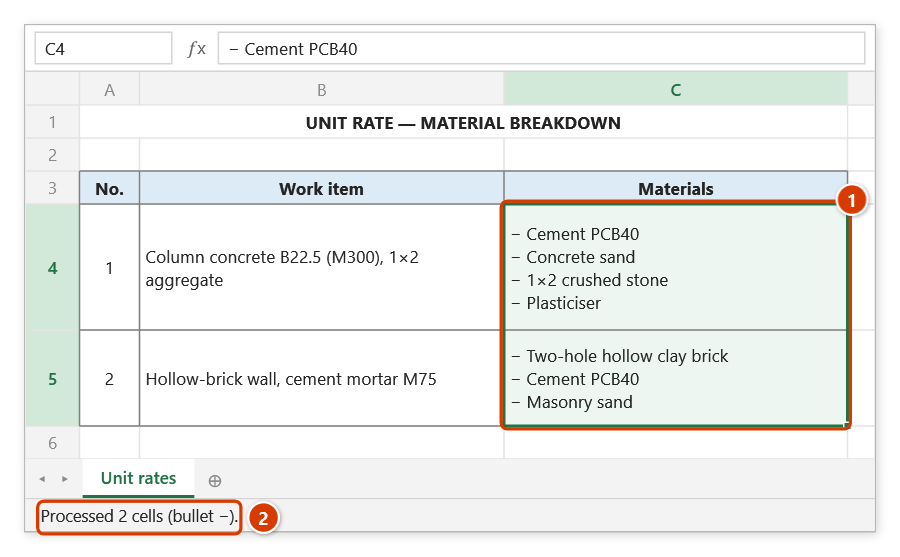
Processed N cells (bullet −).
Video tutorial
Narrated in Vietnamese, with Vietnamese subtitles. Dấu đầu dòng · 5 min 03 s · 9 cases · Download the video · Practice workbook for the video
Commands in this video: Filled circle · Asterisk · Filled diamond · Filled star · Checkbox · Minus · Remove bullets · Plus · Checked · Rejected
Chapters (14)
- Giới thiệu
- Mở lệnh
- Chín ký hiệu
- 1 · Ô nhiều dòng
- 2 · Đổi ký hiệu, chọn rời
- 3 · Danh mục kiểm tra đang lọc
- 4 · Ô trống – mẫu in sẵn
- 5 · Ô số, ngày tháng
- 6 · Ô công thức
- 7 · Ô gộp
- 8 · Bỏ ký hiệu đầu dòng
- 9 · Ghi đè và hoàn tác
- Mẹo
- Kết thúc
Illustrated walkthrough
Practice
Download this command's sample workbook — the data matches the pictures below (sheet Unit rates), so you can follow each step right away.
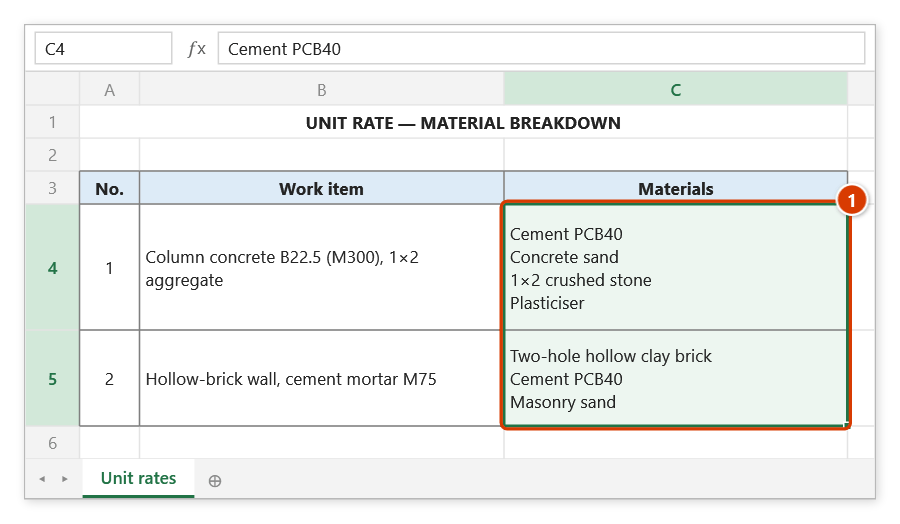
Step 1. Select the cells that need the bullet — here two cells listing materials, one per line (1).
Step 2. On the ribbon, open the DVD Addin tab → Text and Number group → open Numbering → choose Minus.
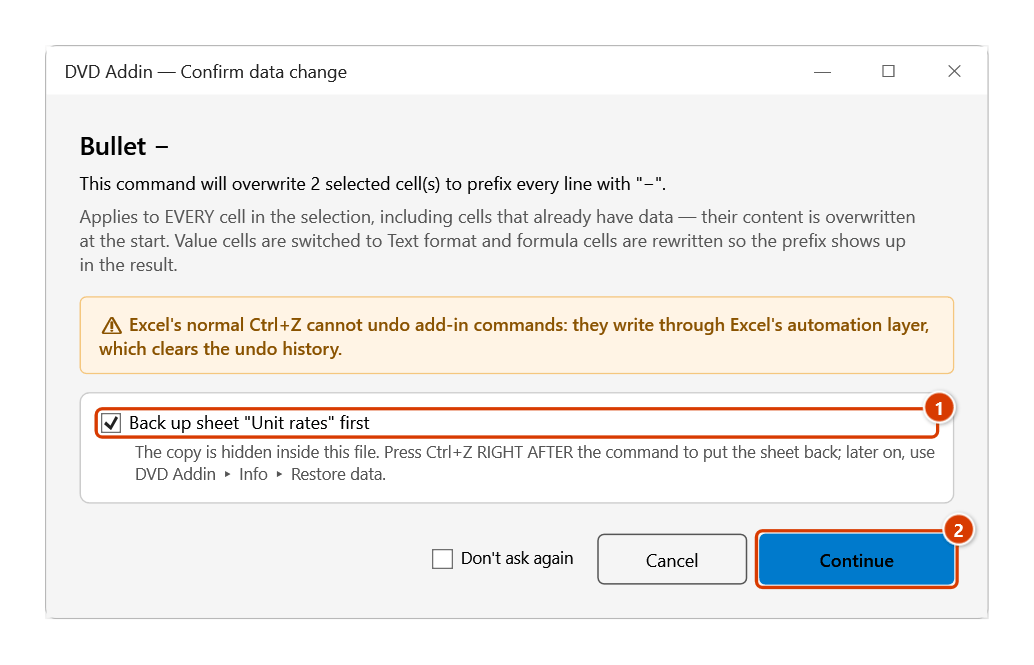
Step 3. The Confirm data change box tells you how many cells will be overwritten. Keep Back up sheet ticked (1) so that Ctrl+Z right after the command restores the sheet, then click Continue (2).
Step 4. Every line now starts with − (1) — this is the minus sign − (U+2212), not the keyboard hyphen -, so Remove bullets can strip it without touching hyphens in your text. The status bar reports how many cells were processed (2).
Example
The "Work components" column of a bid quantity schedule:
| Before | After |
|---|---|
| PCB40 cement Coarse sand Aggregate 1×2 Plasticiser admixture | − PCB40 cement − Coarse sand − Aggregate 1×2 − Plasticiser admixture |
Keeping ● on the parent item and − on its components gives the schedule a clear hierarchy without hand-made indentation.
Notes
- The inserted character is the minus
−(U+2212); a hyphen-you typed yourself is not recognised, so Remove bullets will not remove it. - Cells holding numbers, dates, or TRUE/FALSE are skipped entirely.
- Text cells are switched to Text format (
@) before writing; formula cells keep their existing format. Ctrl+Zright after the command puts the cells back (it backs the sheet up first).- Hidden rows and columns are skipped, and each merged area is processed once, at its top-left cell.
Related
- Filled circle — the first-level bullet that usually sits above these.
- Plus — the other plain ASCII marker in the menu, easy to retype by hand.
- Remove bullets — strip the markers and return to plain text.
- Multilevel numbering — when the list needs
1.1.1.numbers driven by indent level.