
Rejected
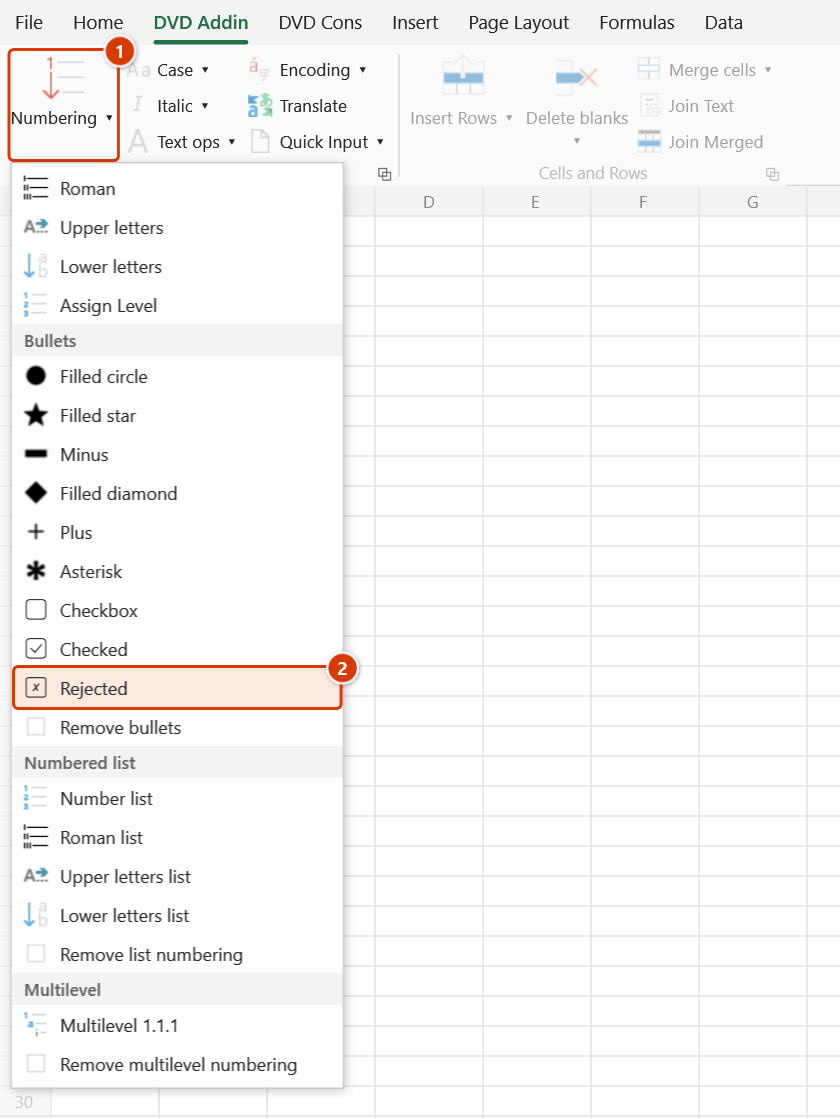
Location on ribbon: Tab DVD Addin → Group Text and Number → arrow on Numbering → section Bullets
Command ID: btnXCheckbox
What it does
Prepends a crossed checkbox ☒ plus a space to every line inside the selected cells. This is the third state of the checkbox set, for items that failed, were rejected, or do not apply: a check point that failed inspection, material turned away at goods-in, or an N/A line in an ITP.
The command strips any existing symbol before inserting, so moving a row from ☐ or ☑ to ☒ takes one click.
How to use
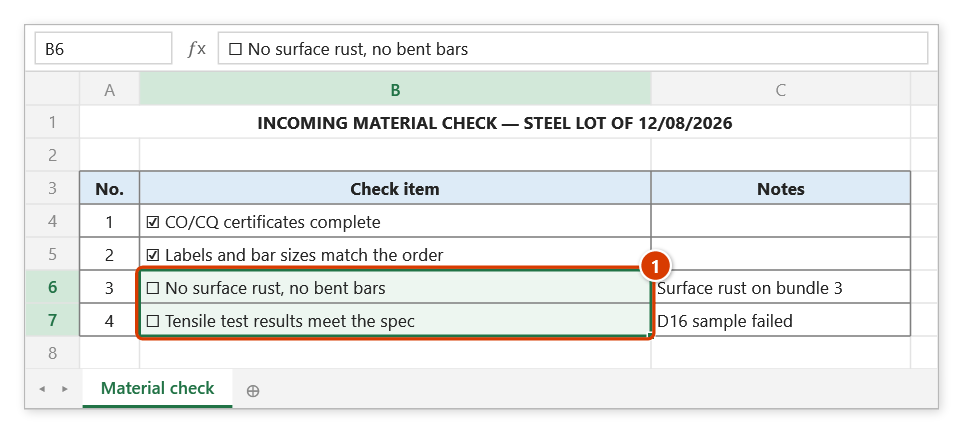
- Select the cells for the items that failed or are not applicable.
- Go to the DVD Addin tab → Text and Number group → arrow on Numbering → Bullets section → choose Rejected.
- The add-in strips the previous symbol, then handles each cell:
- Text cell — each line is trimmed, then
☒is added at the start. - Empty cell — just
☒is written. - Formula cell — wrapped as
=""&"☒ "&(original formula), so the symbol shows while the formula stays live.
- Text cell — each line is trimmed, then
- The status bar reports
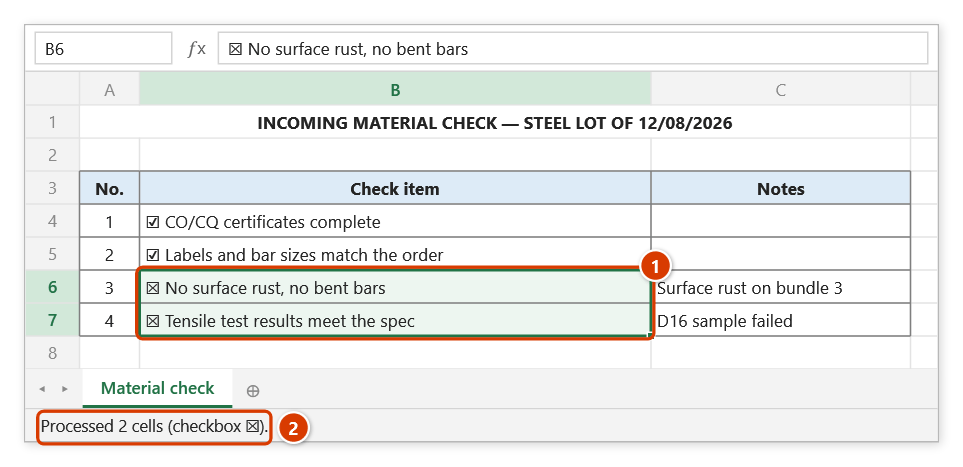
Processed N cells (checkbox ☒).
Video tutorial
Narrated in Vietnamese, with Vietnamese subtitles. Dấu đầu dòng · 5 min 03 s · 9 cases · Download the video · Practice workbook for the video
Commands in this video: Filled circle · Asterisk · Filled diamond · Filled star · Checkbox · Minus · Remove bullets · Plus · Checked · Rejected
Chapters (14)
- Giới thiệu
- Mở lệnh
- Chín ký hiệu
- 1 · Ô nhiều dòng
- 2 · Đổi ký hiệu, chọn rời
- 3 · Danh mục kiểm tra đang lọc
- 4 · Ô trống – mẫu in sẵn
- 5 · Ô số, ngày tháng
- 6 · Ô công thức
- 7 · Ô gộp
- 8 · Bỏ ký hiệu đầu dòng
- 9 · Ghi đè và hoàn tác
- Mẹo
- Kết thúc
Illustrated walkthrough
Practice
Download this command's sample workbook — the data matches the pictures below (sheet Material check), so you can follow each step right away.
Step 1. Select the items that failed (1).
Step 2. On the ribbon, open the DVD Addin tab → Text and Number group → open Numbering → choose Rejected.
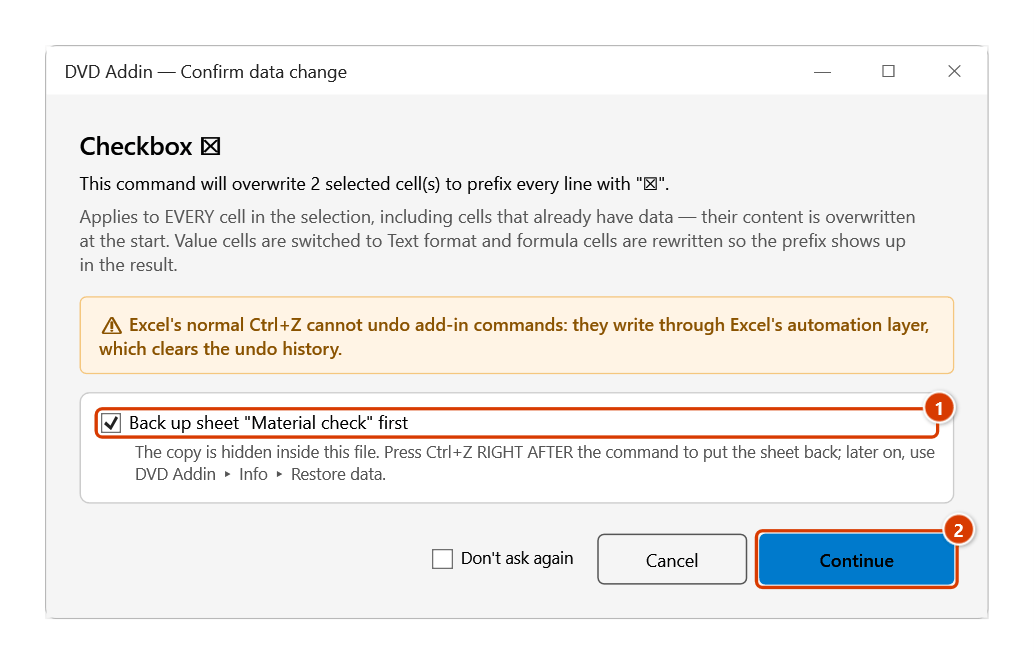
Step 3. The Confirm data change box tells you how many cells will be overwritten. Keep Back up sheet ticked (1) so that Ctrl+Z right after the command restores the sheet, then click Continue (2).
Step 4. Both items are now marked ☒ (1) — the basis for a corrective-action request to the supplier. The status bar reports how many cells were processed (2).
Example
The goods-in inspection record for a rebar delivery received on 12 August:
| Before | After (two failed items marked) |
|---|---|
| ☑ CO/CQ quality certificates complete | ☑ CO/CQ quality certificates complete |
| ☑ Marking and diameter match the order | ☑ Marking and diameter match the order |
| ☐ Surface free of rust and distortion | ☒ Surface free of rust and distortion |
| ☐ Tensile test results within tolerance | ☒ Tensile test results within tolerance |
The two ☒ lines are exactly what the corrective-action request to the supplier is built on.
Notes
- The command applies
☒to every cell in the selection, so select only the rows that actually failed. - The symbol is a character in the cell text, not a clickable control, and it is not linked to any TRUE/FALSE cell.
- Each line is trimmed of surrounding whitespace before the symbol is added.
- Cells holding numbers, dates, or TRUE/FALSE are skipped;
Ctrl+Zright after the command puts the cells back. - Hidden rows and columns are skipped, and each merged area is processed once, at its top-left cell.
Related
- Checkbox — the starting state, an empty box awaiting inspection.
- Checked — the pass state, for completed items.
- Remove bullets — strip every symbol from the selection.
- Filled star — highlight items that still need follow-up after the rejection.