
Lower letters
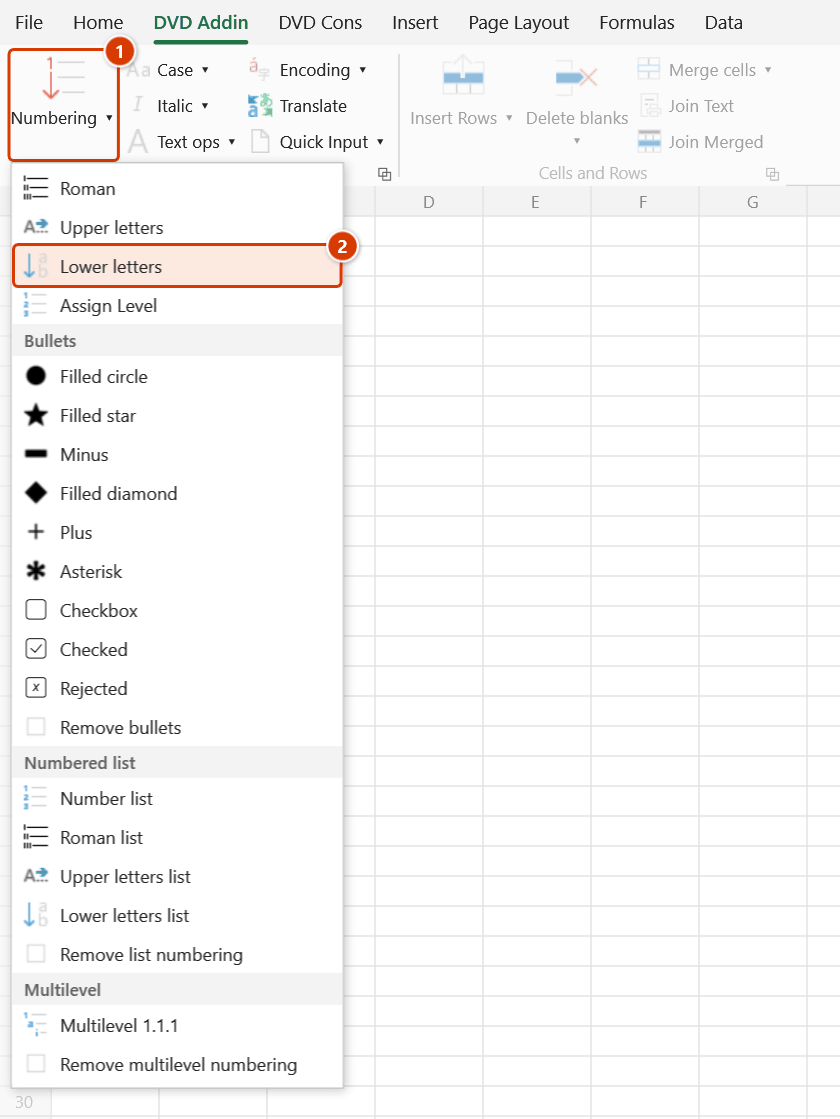
Location on ribbon: Tab DVD Addin → Group Text and Number → arrow on Numbering
Command ID: btnLowerLettersSerial
What it does
Fills the selected cells with a lowercase letter sequence a, b, c, … in the order the selection is walked. After z the sequence continues with aa, ab, ac, …, so it is not capped at 26 rows the way a manual drag often is.
In construction paperwork, lowercase letters are the usual third numbering level: below Roman headings (I, II, III) and numeric headings (1, 2, 3) sit the detail items a, b, c — pavement layers, component details under one work item, or sub-clauses in an acceptance record.
How to use
- Select the cells that need a sequence — a column, a row, or a multi-cell block.
- Go to the DVD Addin tab → Text and Number group → arrow on Numbering → choose Lower letters.
- The add-in walks the selection left to right then down, skips any cell in a hidden row or column, and counts each merged area once (writing into its top-left cell).
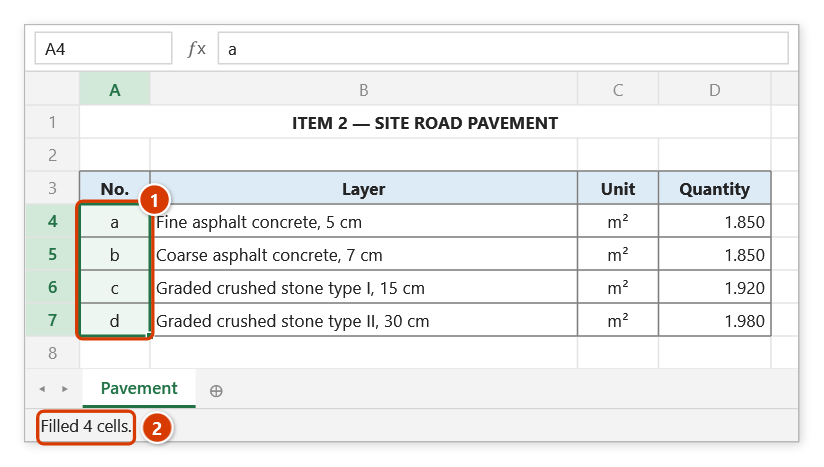
- After you click Continue in the Confirm data change box, values are written straight into the cells. Excel's status bar shows
Filled N cells.for about 8 seconds.
If every cell in the selection is hidden or a duplicate of an already-counted merge, the add-in reports No usable cells (all hidden or duplicate merges). and writes nothing.
Video tutorial
Narrated in Vietnamese, with Vietnamese subtitles. Số La Mã, Chữ HOA, Chữ thường · 4 min 41 s · 9 cases · Download the video · Practice workbook for the video
Commands in this video: Roman · Lower letters · Upper letters
Chapters (13)
- Giới thiệu
- Mở lệnh
- 1 · Số La Mã cho hạng mục lớn
- 2 · Chữ HOA và ô gộp
- 3 · Chữ thường cho mục chi tiết
- 4 · Nhiều vùng rời (Ctrl)
- 5 · Dòng đang ẩn
- 6 · Mỗi nhóm một dãy mới
- 7 · Nhiều cột, quá chữ Z
- 8 · Ghi đè và hoàn tác
- 9 · Khi lệnh không điền
- Mẹo
- Kết thúc
Illustrated walkthrough
Practice
Download this command's sample workbook — the data matches the pictures below (sheet Pavement), so you can follow each step right away.
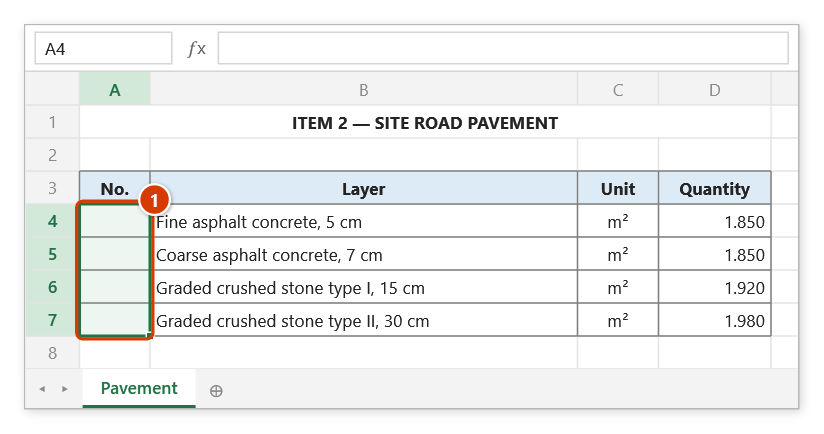
Step 1. Select the No. cells of the detail layers under item 2 (1).
Step 2. On the ribbon, open the DVD Addin tab → Text and Number group → open Numbering → choose Lower letters.
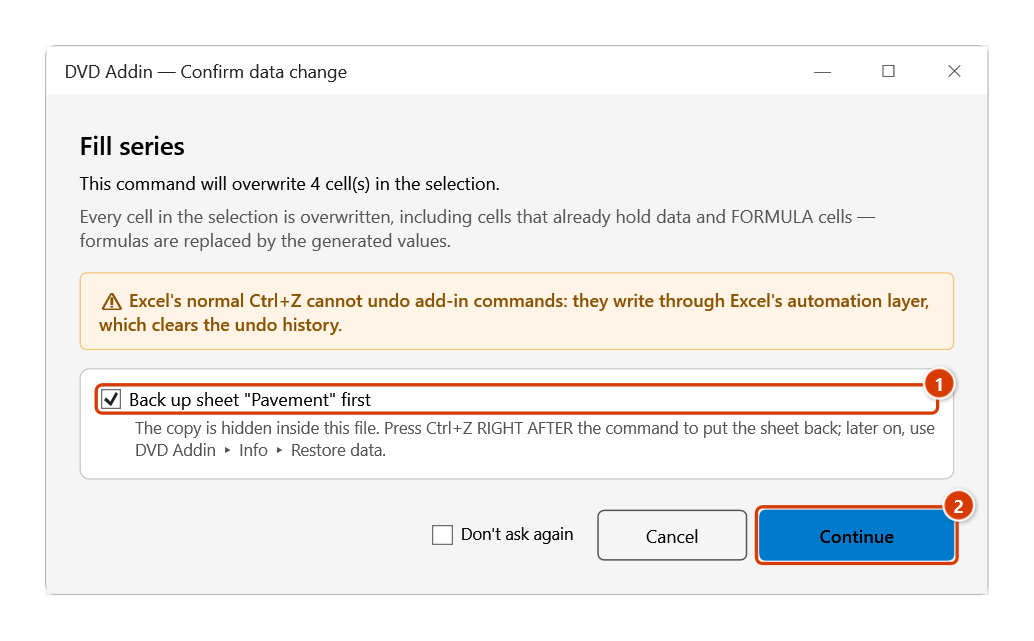
Step 3. The Confirm data change box warns that every selected cell is overwritten, formula cells included. Keep Back up sheet ticked (1) and click Continue (2).
Step 4. The series a, b, c, d is written (1) (after z come aa, ab…). The status bar reports how many cells were filled (2).
Example
A pavement structure quantity table, numbering the detail layers under the "Road pavement" work item:
| Before | After |
|---|---|
| (empty) — Fine-graded asphalt concrete, 5 cm | a — Fine-graded asphalt concrete, 5 cm |
| (empty) — Coarse-graded asphalt concrete, 7 cm | b — Coarse-graded asphalt concrete, 7 cm |
| (empty) — Graded crushed stone type I, 15 cm | c — Graded crushed stone type I, 15 cm |
| (empty) — Graded crushed stone type II, 30 cm | d — Graded crushed stone type II, 30 cm |
Select the four cells in the No. column, click Lower letters, and the column is filled — no typing, no fill handle.
Notes
- The command overwrites whatever is in each selected cell, formulas included, so make sure the numbering column is what you have selected.
Ctrl+Zright after the command puts the sheet back as it was (thanks to the backup); see Restore data.- Hidden rows and columns are skipped entirely; the letter sequence stays unbroken across the visible rows.
- Each merged area receives a single letter, placed in its top-left cell.
- With nothing selected, the status bar shows
Please select a data range.and the command stops.
Related
- Upper letters — same mechanism, filling A, B, C, … for a higher numbering level.
- Roman numerals — fills I, II, III, … for the major sections of a document.
- Numbering — fills a numeric series with a chosen start value and step.
- Lower letters list — prefixes existing text with
a.,b.,c.instead of overwriting it.