
Lower letters list
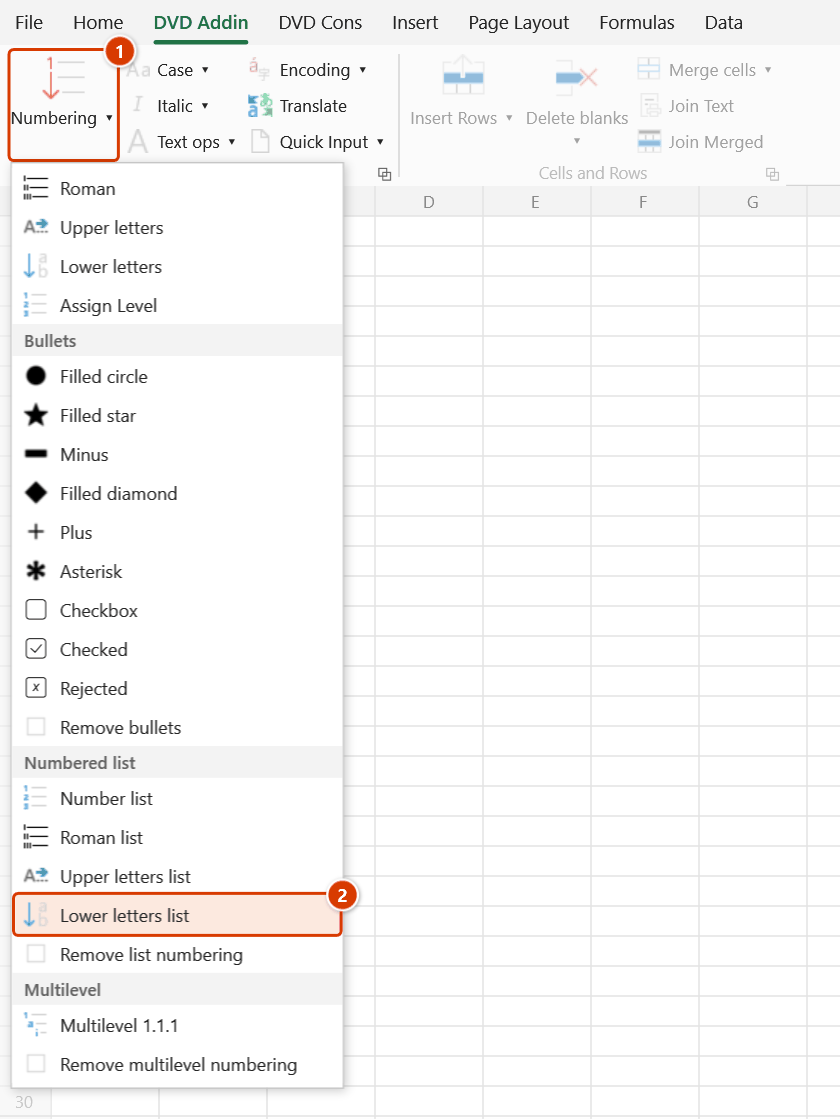
Location on ribbon: Tab DVD Addin → Group Text and Number → arrow on Numbering → section Numbered list
Command ID: btnLowerLettersList
What it does
Prefixes the selected cells with lowercase letters a., b., c., … A single counter runs across the whole selection in row-major order.
Lowercase letters are the bottom level of the I → A → 1 → a hierarchy used in Vietnamese technical documents: points a), b), c) inside a specification clause, or sub-activities in a detailed bill of quantities. Any earlier list prefix is stripped before writing.
How to use
- Select the cells you want lettered.
- Go to tab DVD Addin → group Text and Number → arrow on Numbering → Numbered list section → click Lower letters list.
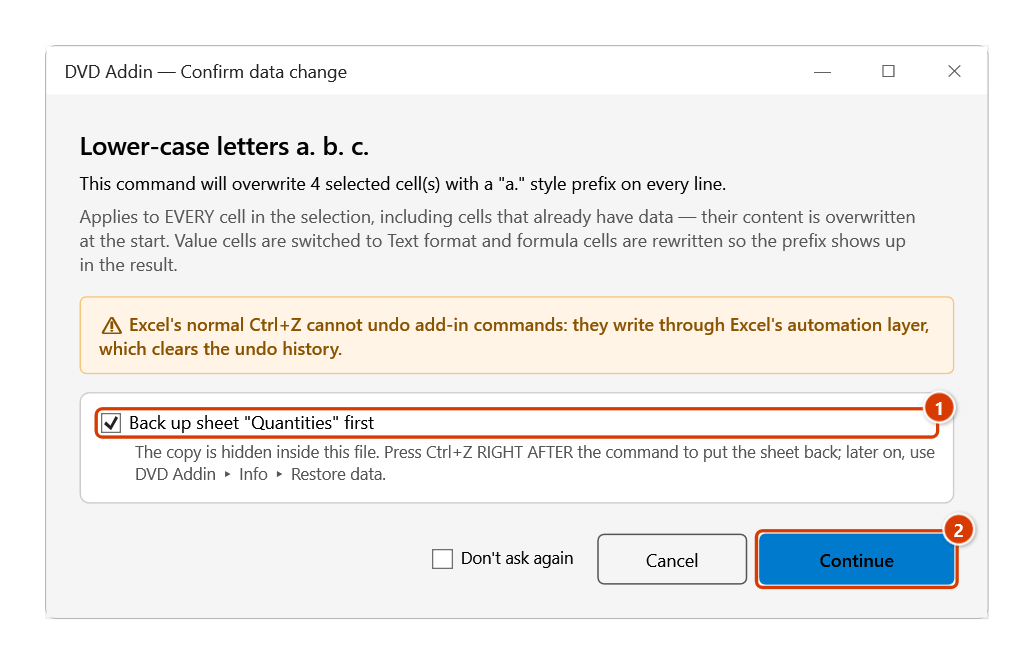
- The Confirm data change box tells you how many cells will be overwritten; keep Back up sheet ticked and click Continue.
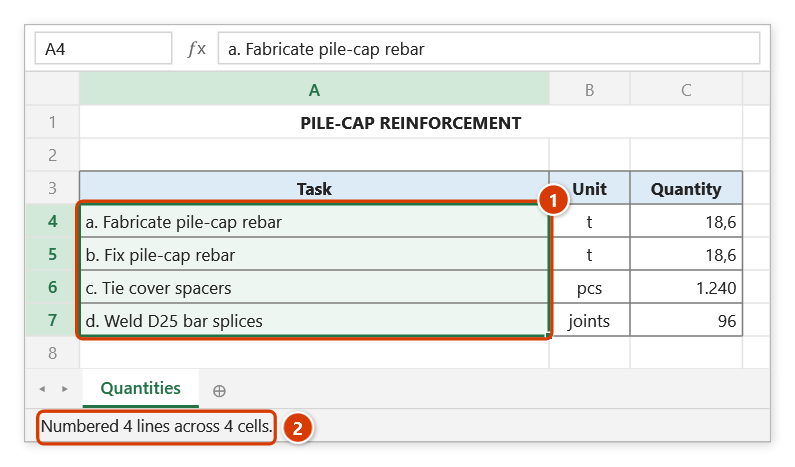
- The Excel status bar reports how many lines and cells were processed.
How each cell is handled:
- Text cell: every line inside the cell gets its own letter.
- Empty cell: only the prefix is written, e.g.
c.. - Formula cell: wrapped as
=""&"c. "&(original formula), keeping the formula live. - Numeric, date and TRUE/FALSE cells are skipped.
Video tutorial
Narrated in Vietnamese, with Vietnamese subtitles. Danh sách số và chữ · 4 min 50 s · 10 cases · Download the video · Practice workbook for the video
Commands in this video: Number list · Lower letters list · Remove list numbering · Roman list · Upper letters list
Chapters (14)
- Giới thiệu
- Mở lệnh
- 1 · Ô nhiều dòng
- 2 · Đánh số lại
- 3 · Hai cấp: La Mã và số
- 4 · Ô trống – chữ thường
- 5 · Ô công thức
- 6 · Ô gộp và dòng ẩn
- 7 · Lỡ chọn cả bảng
- 8 · Bỏ đánh số danh sách
- 9 · Ghi đè và hoàn tác
- 10 · Khi không có gì để làm
- Mẹo
- Kết thúc
Illustrated walkthrough
Practice
Download this command's sample workbook — the data matches the pictures below (sheet Quantities), so you can follow each step right away.
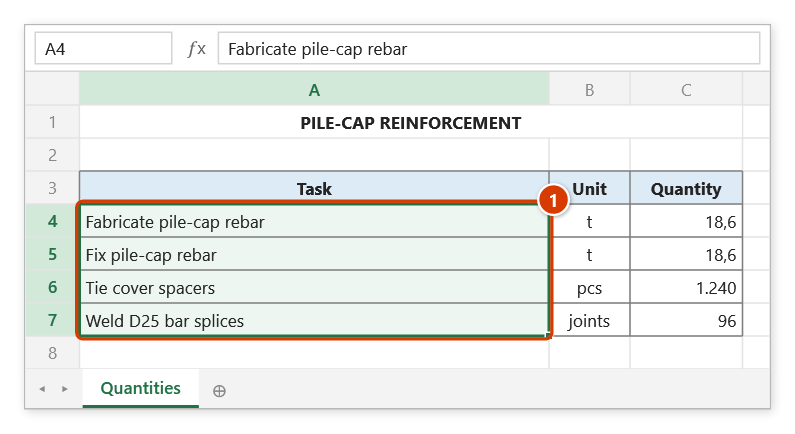
Step 1. Select the sub-task cells to letter (1).
Step 2. On the ribbon, open the DVD Addin tab → Text and Number group → open Numbering → choose Lower letters list.
Step 3. The Confirm data change box tells you how many cells will be overwritten. Keep Back up sheet ticked (1) so that Ctrl+Z right after the command restores the sheet, then click Continue (2).
Step 4. Each cell gets an a., b., c., d. prefix (1). The status bar reports the lines and cells numbered (2).
Example
Sub-activities of reinforcement work in a detailed bill of quantities:
| Before | After |
|---|---|
| Cut and bend pile cap reinforcement | a. Cut and bend pile cap reinforcement |
| Fix pile cap reinforcement | b. Fix pile cap reinforcement |
| Install cover spacers | c. Install cover spacers |
| Reinforcement inspection before pour | d. Reinforcement inspection before pour |
Notes
- After z the counter wraps back to a — it does not continue with aa, ab.
- Value cells are forced to Text format (
@) before writing. - Hidden rows and columns are skipped; a merged area counts once and the letter lands in its top-left cell.
- The counter only advances after a successful write, so a locked cell leaves no gap.
- Use Remove list numbering in the same menu once you have done other work; right after the command
Ctrl+Zis enough.
Related
- Upper letters list — the same engine with uppercase A., B., C.
- Number list — the 1., 2., 3. level that normally sits above lowercase letters.
- Multilevel 1.1.1 — an alternative when the hierarchy should follow indent levels.
- Lower letters — fills a lowercase sequence into its own column.