
Remove list numbering
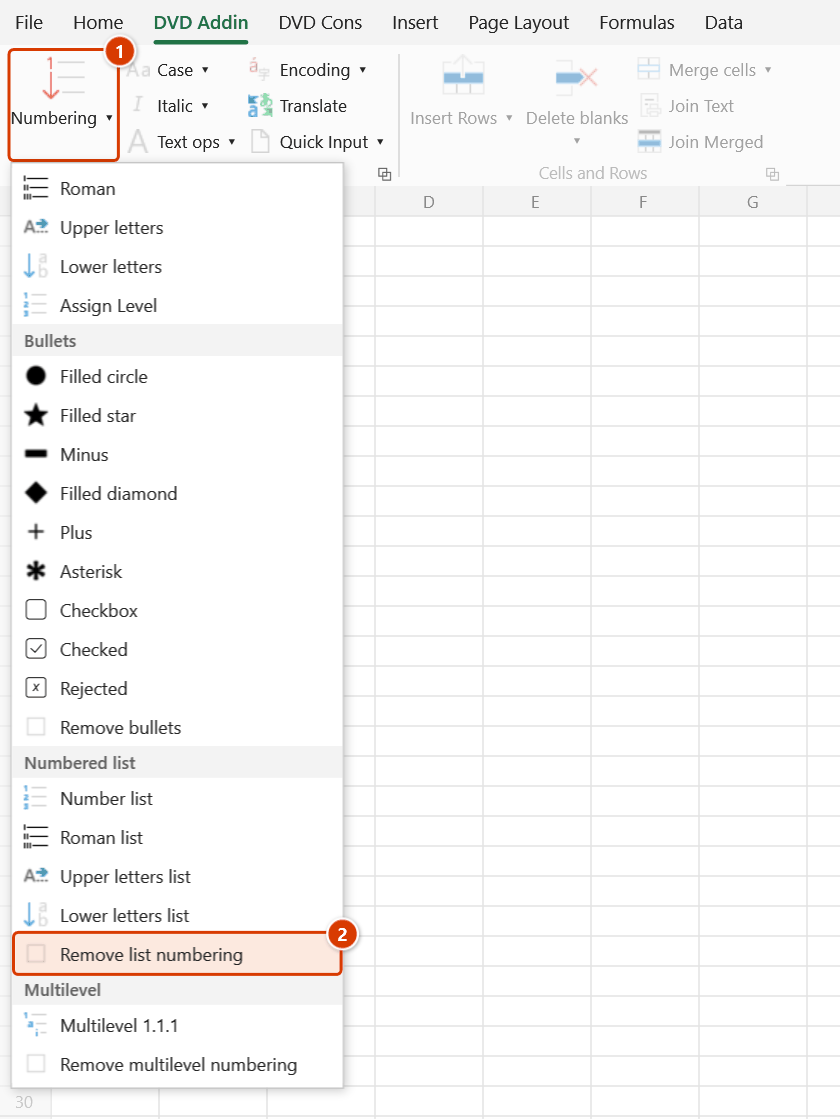
Location on ribbon: Tab DVD Addin → Group Text and Number → arrow on Numbering → section Numbered list
Command ID: btnNone_2
What it does
Strips the numbering prefix from the start of every line in the selected cells, leaving plain text. The command recognises the four prefix styles the Numbered list section produces — digits 1., Roman numerals I., uppercase letters A., and lowercase letters a. — together with the period and any spaces that follow.
Use it when rows were inserted or deleted mid-table and the numbering has to start over, when switching from digits to Roman numerals, or when the text must be handed to Word clean so Word's own automatic numbering can take over.
How to use
- Select the cells that currently carry numbering prefixes.
- Go to the DVD Addin tab → Text and Number group → arrow on Numbering → Numbered list section → choose Remove list numbering.
- For text cells: each line inside the cell is trimmed of surrounding whitespace, then its numbering prefix is removed if one is present.
- For formula cells: the add-in unwraps only the wrapper it added itself (the
=""&"1. "&(...)form) and restores the original formula, still live. - The status bar reports
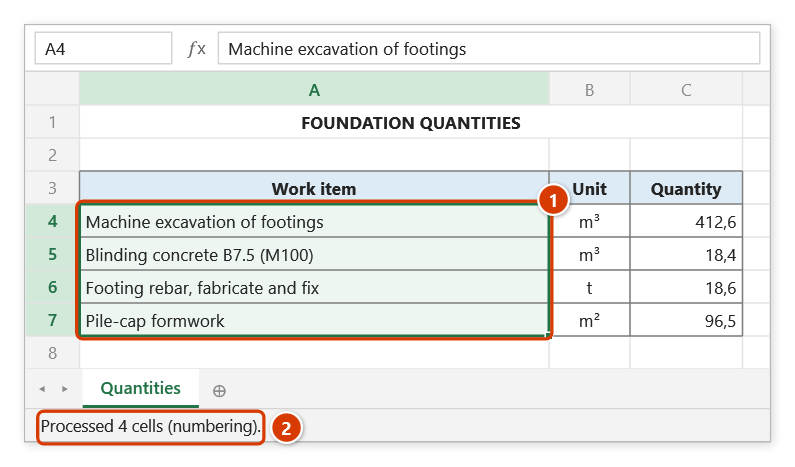
Processed N cells (numbering).
Note that the apply commands in this menu already run the strip step before renumbering, so Remove list numbering is only needed when you want the numbers gone entirely.
Video tutorial
Narrated in Vietnamese, with Vietnamese subtitles. Danh sách số và chữ · 4 min 50 s · 10 cases · Download the video · Practice workbook for the video
Commands in this video: Number list · Lower letters list · Remove list numbering · Roman list · Upper letters list
Chapters (14)
- Giới thiệu
- Mở lệnh
- 1 · Ô nhiều dòng
- 2 · Đánh số lại
- 3 · Hai cấp: La Mã và số
- 4 · Ô trống – chữ thường
- 5 · Ô công thức
- 6 · Ô gộp và dòng ẩn
- 7 · Lỡ chọn cả bảng
- 8 · Bỏ đánh số danh sách
- 9 · Ghi đè và hoàn tác
- 10 · Khi không có gì để làm
- Mẹo
- Kết thúc
Illustrated walkthrough
Practice
Download this command's sample workbook — the data matches the pictures below (sheet Quantities), so you can follow each step right away.
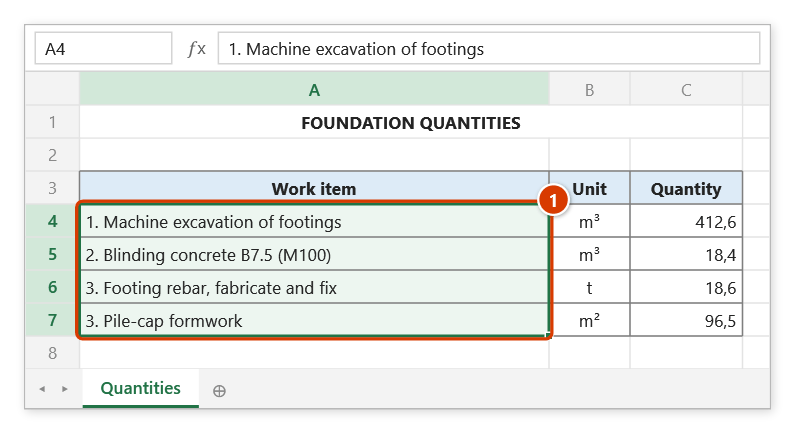
Step 1. Select the cells whose numbering prefix you want to remove — here the numbers went wrong after a row was inserted (two items numbered 3) (1).
Step 2. On the ribbon, open the DVD Addin tab → Text and Number group → open Numbering → choose Remove list numbering.
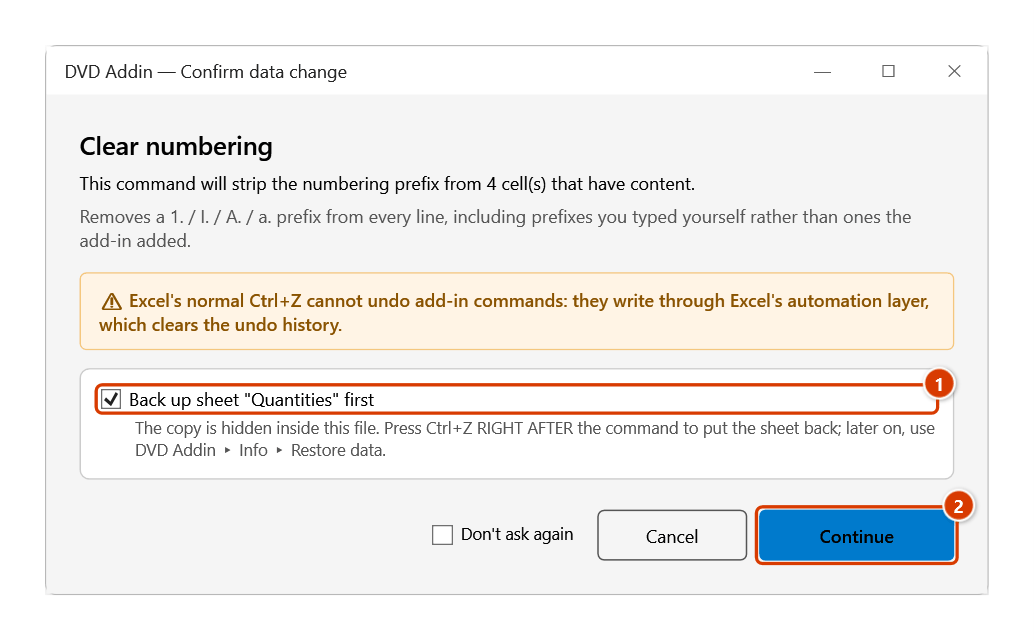
Step 3. The Confirm data change box tells you how many non-empty cells will be stripped. Keep Back up sheet ticked (1) and click Continue (2).
Step 4. The 1., 2., 3. prefixes are gone and the text is plain again (1) — ready to be renumbered with Number list. The status bar reports how many cells were processed (2).
Example
The "Description" column of a quantity schedule after two rows were inserted mid-table and the old numbering went out of step:
| Before | After |
|---|---|
| 1. Machine excavation of foundation pits | Machine excavation of foundation pits |
| 2. M100 blinding concrete to foundations | M100 blinding concrete to foundations |
| 3. Fabricate and fix foundation reinforcement | Fabricate and fix foundation reinforcement |
| 3. Erect pile cap formwork | Erect pile cap formwork |
With the column clean, click Numbered list to renumber 1. through 4. in one pass.
Notes
- This command does not switch cells to Text format, so ordinary text cells keep whatever format they already had.
- Each run removes one prefix per line, and only the period style is recognised — prefixes such as
1)ora)are left in place. - Watch out for genuine content that begins with a single letter or a run of Roman-numeral letters followed by a period:
D. Nguyen Van AorCM. 12+500is also read as a prefix and removed. - Cells holding numbers, dates, or TRUE/FALSE are untouched, and a formula you wrote yourself such as
="A. "&(B1)is not disturbed. Ctrl+Zright after the command puts the cells back (it backs the sheet up first); hidden rows and columns are skipped.
Related
- Numbered list — renumber
1.,2.,3.once the column is clean. - Roman list — switch to
I.,II.,III.for the major sections of a document. - Remove bullets — the matching command in the Bullets section.
- Multilevel numbering — for
1.1.1.numbering driven by each cell's indent level.