
Fix formula error
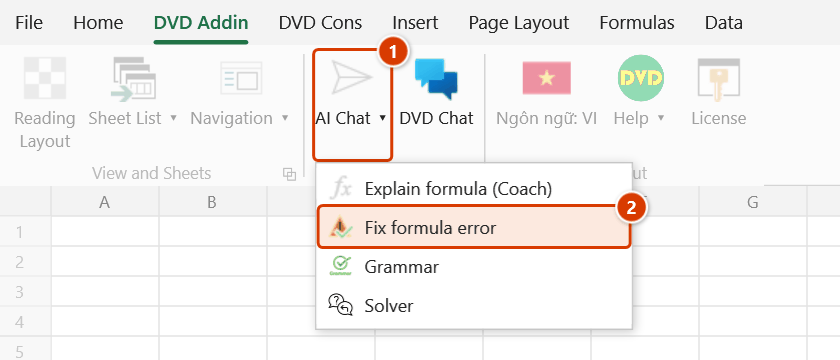
Location on ribbon: Tab DVD Addin → Group AI → click the ▾ of AI Chat
Command ID: btnFormulaFix
What it does
Opens the AI Formula Coach window in repair mode: it reads the formula in the selected cell, sends it to the AI to find the cause of the #N/A, #VALUE!, #REF! or #DIV/0! error, and returns both an explanation and a replacement formula. You review it, edit it if you like, then apply it with one click. Ideal when a VLOOKUP in a take-off sheet or a payment summary suddenly breaks and the cause is not obvious.
How to use
- Select exactly one cell that contains the failing formula.
- Go to tab DVD Addin → group AI → click the ▾ of AI Chat → Fix formula error.
- The Fix formula tab (headed "AI Formula Coach — Fix errors") opens in the AI Assistant tool window.
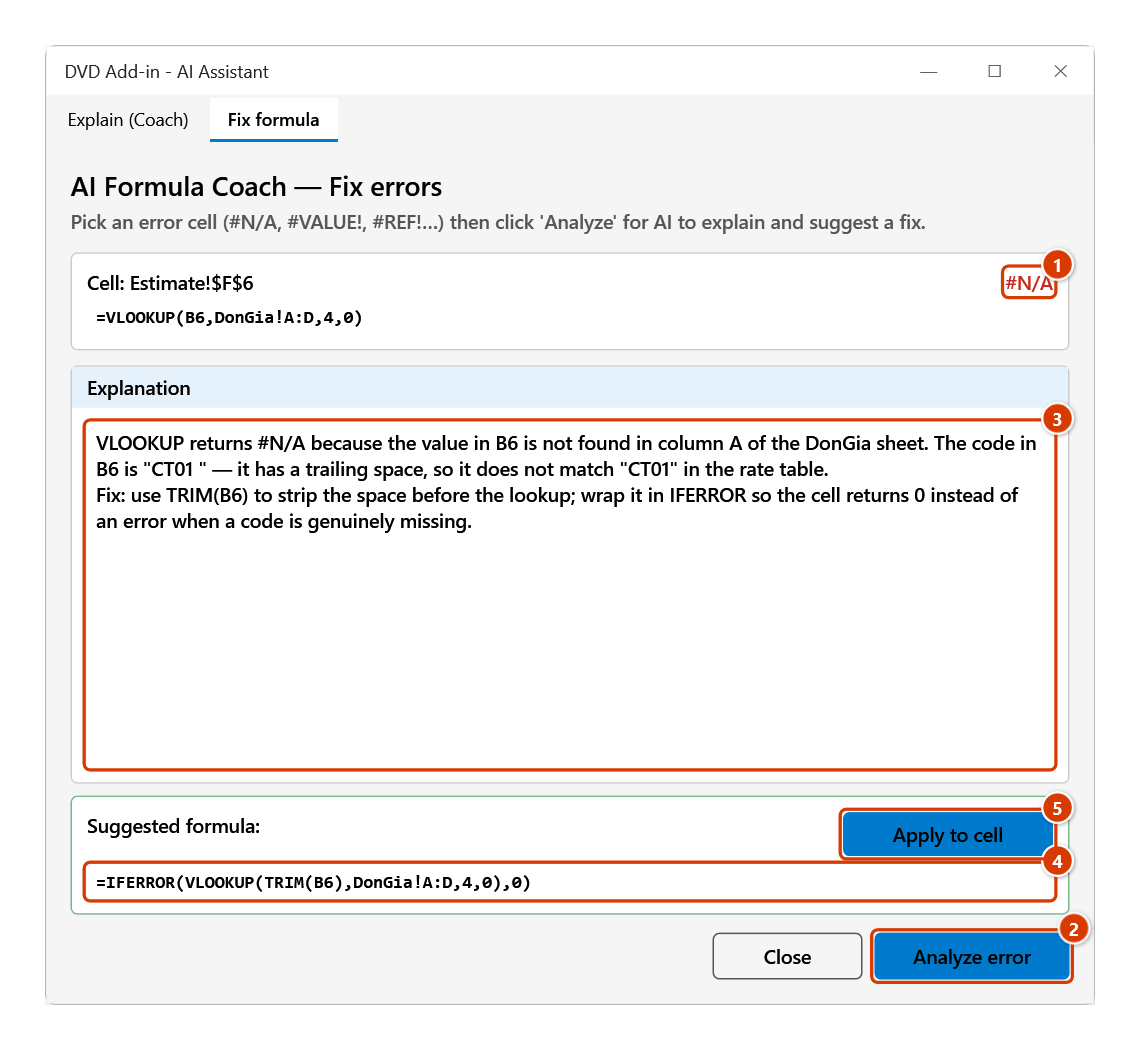
- Click Analyze error (bottom right) to send the request. The Cell: line shows the address with a red badge naming the error type, the original formula appears below it read-only, and the answer appears in the Explanation panel.
- If the AI can propose a replacement, a Suggested formula: block appears. You may edit the proposed formula text directly in that box.
- Click Apply to cell to write the suggestion over the original formula, or Close to discard it.
Video tutorial
Narrated in Vietnamese, with Vietnamese subtitles. Trợ lý AI cho công thức · 6 min 46 s · 12 cases · Download the video · Practice workbook for the video
Commands in this video: Explain formula (Coach) · AI Chat · Fix formula error
Chapters (18)
- Giới thiệu
- Mở lệnh
- 1 · Giải thích từng hàm
- 2 · Công thức lồng, chọn cả vùng
- 3 · Ô không có công thức
- Sửa lỗi công thức
- 4 · Sửa lỗi #N/A
- 5 · Áp dụng, xác nhận, Ctrl+Z
- 6 · Lỗi do dữ liệu #VALUE!
- 7 · #NAME? và sửa đề xuất
- 8 · Ô không báo lỗi
- 9 · Không đồng ý gửi số liệu
- Khung Trợ lý AI
- 10 · Hỏi khung Trợ lý AI
- 11 · Trợ lý ghi công thức vào ô
- 12 · Khoá, nhà cung cấp, bản quyền
- Mẹo
- Kết thúc
Illustrated walkthrough
Practice
Download this command's sample workbook — the data matches the pictures below (sheet Estimate), so you can follow each step right away.
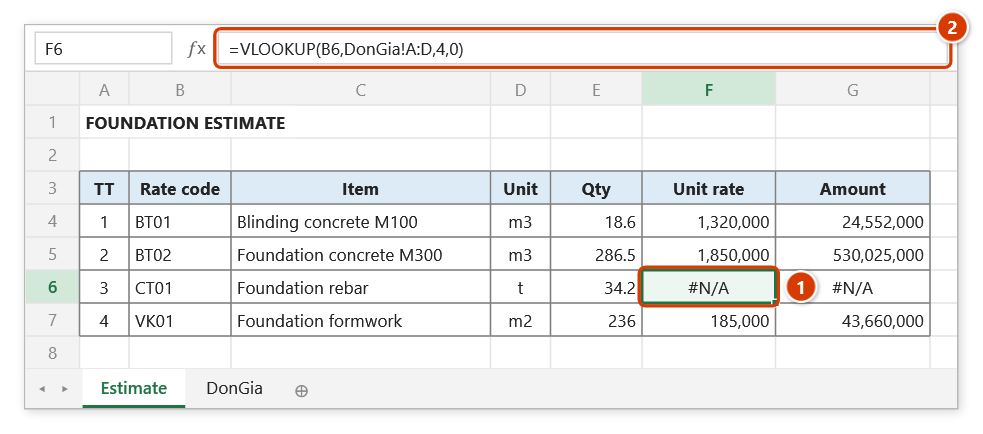
Step 1. Select one cell that shows an error (1) — here a VLOOKUP returning #N/A (2).
Step 2. On the ribbon, open the DVD Addin tab → AI group → open AI Chat → choose Fix formula error.
Step 3. The Fix formula tab shows the cell, a red badge with the error type (1) and the original formula. Click Analyze error (2): the Explanation box gives the cause (3) and the Suggested formula block proposes a replacement you can still edit (4). Click Apply to cell (5) to overwrite the old formula.
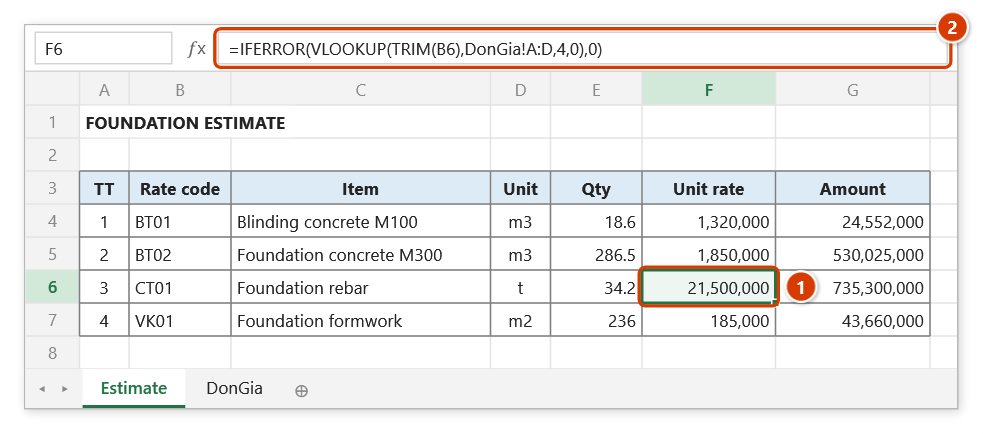
Step 4. The cell gets the new formula and returns the right rate (1), (2). Applying overwrites immediately with no confirmation — note the original formula first, and check that the , / ; separators suit your machine.
Example
In a quantity summary, cell H24 holds =VLOOKUP(B24,Rates!A:D,4,0) and returns #N/A. Select H24, run Fix formula error, then click Analyze error. The Explanation panel reports that the code in B24 carries a trailing space so it never matches column A of the Rates sheet. The Suggested formula block offers =IFERROR(VLOOKUP(TRIM(B24),Rates!A:D,4,0),0). Click Apply to cell and H24 returns the correct unit rate.
Notes
- The command works on one cell — with a multi-cell selection only the first cell of the range is analysed; an empty or formula-less cell reports "The selected cell has no formula".
- An Internet connection and an API key for the selected provider in Preferences ▸ AI Assistant are required; without a key the Explanation box reports "No API key for …". Besides the formula, the command sends a few sample values of the cells the formula references (the first time, the add-in asks whether you agree to send cell data).
- Apply to cell overwrites the original formula immediately, with no confirmation and no backup — Ctrl+Z cannot bring it back; note the old formula (still shown in the original-formula line of the tab) before applying.
- The Suggested formula block only appears when the AI actually produced a replacement; sometimes you get an explanation only.
- AI-generated formulas use whatever argument separator the model prefers — check
,versus;against your regional settings before applying.
Related
- Explain formula — describe a working formula in plain language without changing it.
- Formula error checking — scan a whole range for errors instead of one cell.
- Formula viewer — inspect the formulas behind a selected range at a glance.
- AI Chat — free-form help when you need to build a formula from scratch.