
Compare sheets
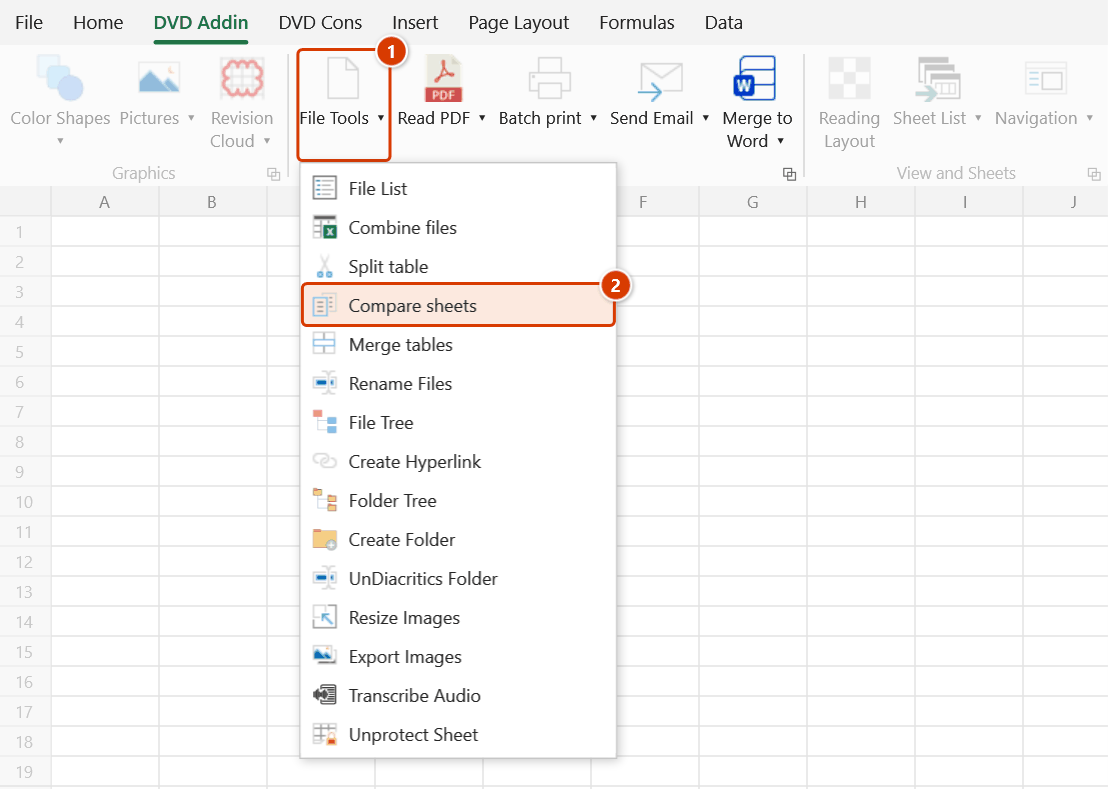
Ribbon location: DVD Addin tab → File and Print group → File Tools menu
Command ID: btnCompareSheets
What it does
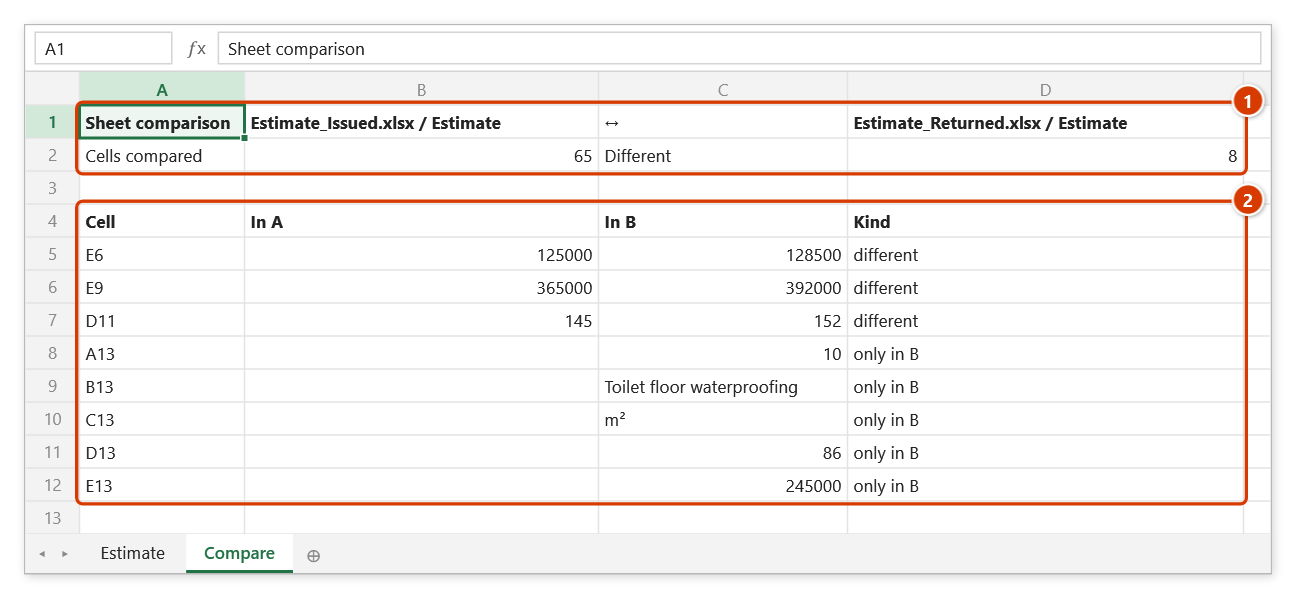
Walks every cell of two sheets to find what changed, then writes a table of cell address, both values and the kind of difference.
Use it when a file comes back and nobody wrote down what they edited: a contractor's revised quantities, a schedule returned by the consultant, a form that went through several hands. Spotting that by eye across thousands of rows is not realistic.
How to use it
- Go to the DVD Addin tab → File and Print group → File Tools menu → click Compare sheets.
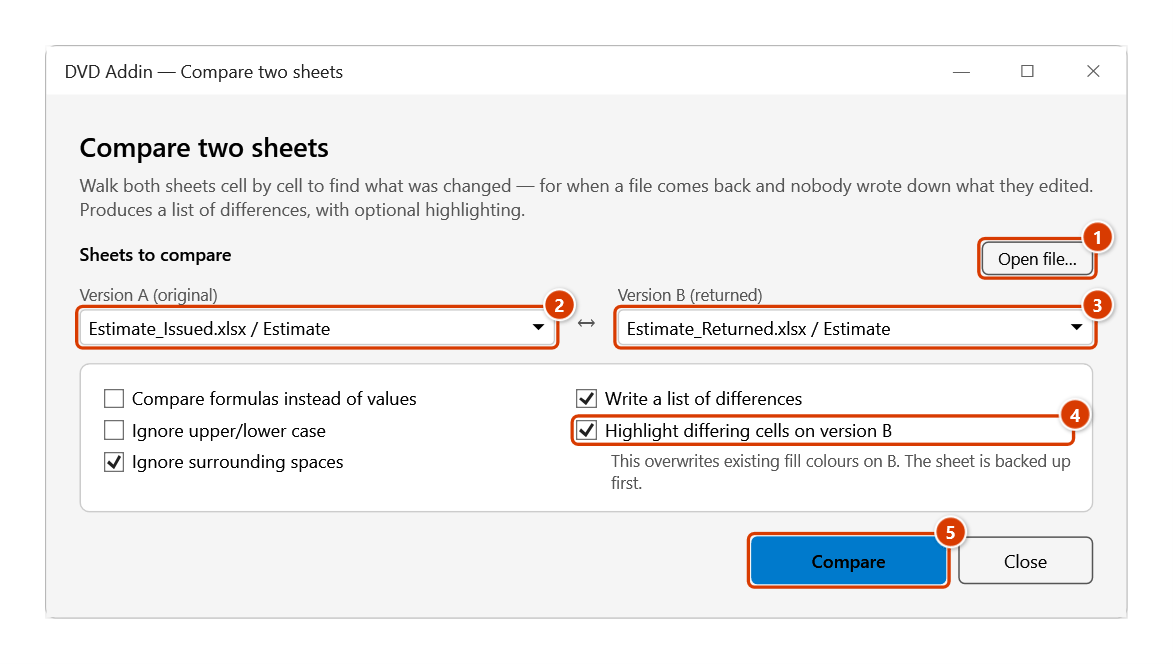
- Pick Version A (original) and Version B (returned). The list holds every sheet of every open workbook, shown as
file name / sheet name. - If the other file is not open yet, click Open file… — it appears in the list straight away.
- Adjust the options if needed:
- Compare formulas instead of values — finds edited formulas even when the result is unchanged.
- Ignore upper/lower case and Ignore surrounding spaces — avoids differences caused by a stray space.
- Write a list of differences — writes every difference to a new sheet.
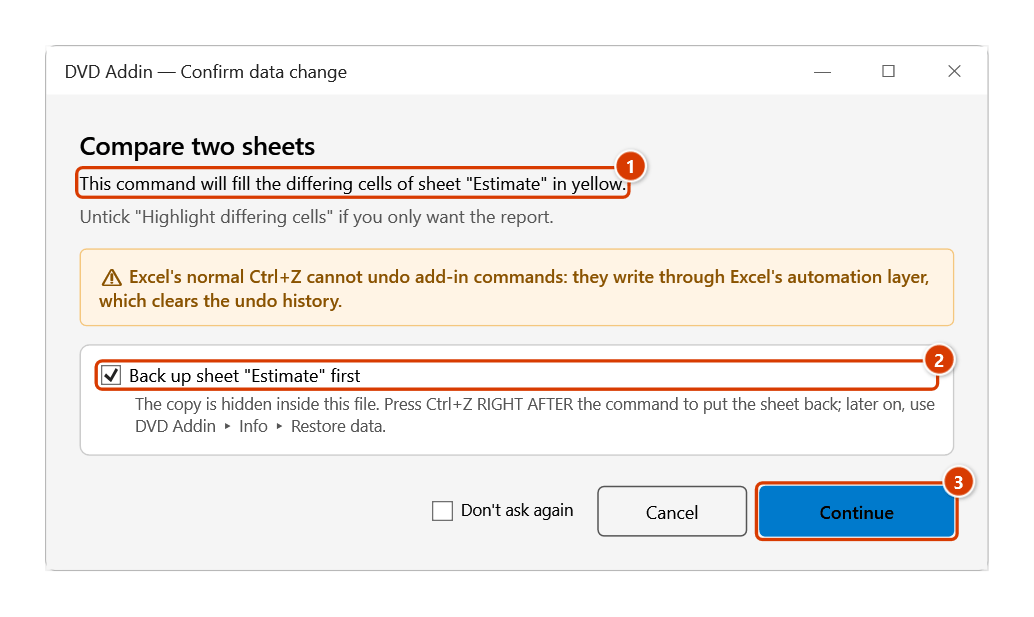
- Highlight differing cells on version B — see them directly on the sheet; the add-in first asks in the Confirm data change window (keep Back up sheet ticked).
- Click Compare. The summary appears at the bottom of the window; the detail goes into a new Compare sheet in version B's workbook.
Video tutorial
Narrated in Vietnamese, with Vietnamese subtitles. So sánh sheet · 6 min 00 s · 10 cases · Download the video · Practice workbook for the video
Chapters (15)
- Giới thiệu
- Mở lệnh
- Cửa sổ So sánh hai sheet
- 1 · Hai file đang mở
- 2 · Cùng file, sheet ẩn
- 3 · Chèn thêm dòng giữa bảng
- 4 · Công thức bị dán giá trị
- 5 · Định dạng không được so
- 6 · Số lẻ ẩn sau định dạng
- 7 · Hoa thường và dấu cách
- 8 · Ô trống, số 0, ô lỗi
- 9 · Ghi đè màu và hoàn tác
- 10 · Khi chọn sai
- Mẹo
- Kết thúc
Illustrated walkthrough
Practice
Download this command's sample workbook — the data matches the pictures below (sheet Compare), so you can follow each step right away.
Step 1. On the ribbon, open the DVD Addin tab → File and Print group → open File Tools → choose Compare sheets.
Step 2. The lists hold every sheet of the open workbooks; if a file (the issued version or the one the contractor sent back) is not open yet, click Open file… (1). Choose Version A (original) (2) and Version B (returned) (3) — each entry reads file name / sheet name. Keep Highlight differing cells on version B (4) to see the changes on the sheet, then click Compare (5).
Step 3. Because version B is about to be coloured (1), the add-in asks for confirmation. Keep Back up sheet "Estimate" (2) so the original fills can be restored, then click Continue (3).
Step 4. The bottom of the window reports Found 8 differences: 3 changed, 0 only in A, 5 only in B. The details are on the new Compare sheet in file B: a summary of both sheets and the number of cells compared (1), then one row per difference — cell address, value in A, value in B and kind (2).
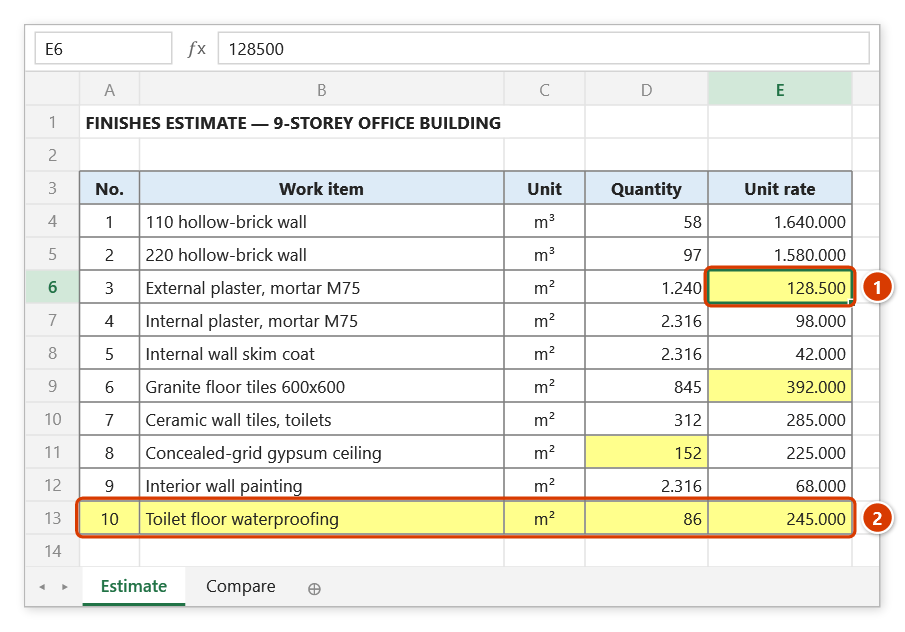
Step 5. On sheet B the differing cells are filled yellow: two unit rates and one quantity were edited (1), and the contractor added row 13 (2). To remove the colouring, restore the backup with Restore data.
Example
You send out a 2,400-row cost estimate and get it back three weeks later, needing to know what the contractor changed.
Result: Found 37 differences: 31 changed, 4 only in A, 2 only in B — with a table of all 37 cell addresses and both values. Exactly 31 unit rates edited, 4 rows deleted, 2 added.
Notes
- Highlighting overwrites existing fill colours on version B — keep Back up sheet ticked in the confirmation and the add-in backs sheet B up first; recover it from Restore data. Untick it to leave B alone and take only the report.
- Comparison is by absolute cell position. If version B had rows inserted in the middle, everything below shifts by one and will be reported as different — read the result with that in mind.
- Numbers are normalised before comparing, so a machine using a decimal comma does not report every number as different.
- Past 20,000 differences the list is truncated and says so — that usually means the two sheets were never the same shape.
- Hold ESC to stop when comparing very large sheets.
See also
- Restore data — recover version B if highlighting went wrong.
- BoQ compare — a bill-of-quantities comparison that matches on item code.
- Combine files · Split table