
Combine files
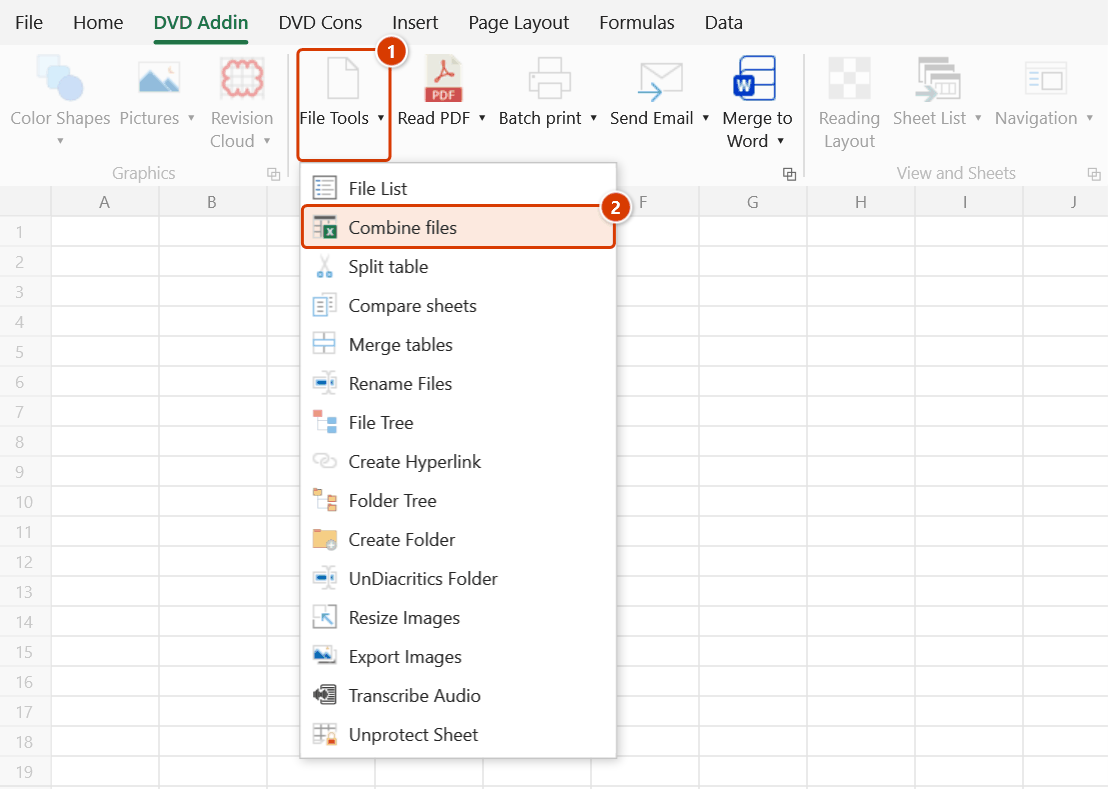
Ribbon location: DVD Addin tab → File and Print group → File Tools menu
Command ID: btnCombineFiles
What it does
Pick several Excel files (or a whole folder) and merge them into one new workbook.
This comes round every reporting cycle: each team or work package sends in a file on the same template, and whoever consolidates has to open each one, copy, paste and rename the sheet. Ten files is ten rounds of that, and one wrong paste means wrong numbers.
How to use it
- Click Combine files in the DVD Addin tab → File and Print group → File Tools menu.
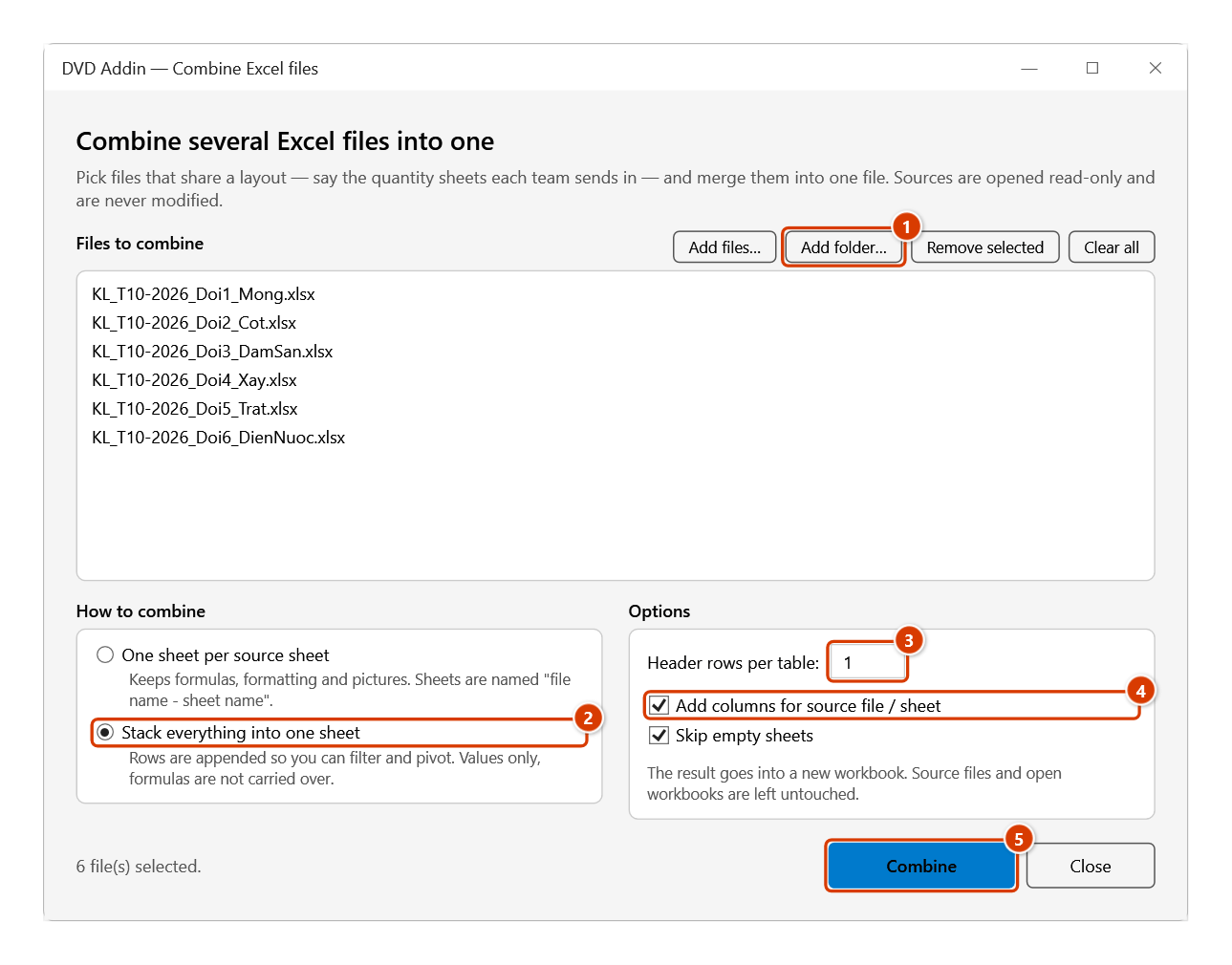
- Add files… to pick them individually, or Add folder… to take every Excel file in a folder.
- Choose how to combine:
- One sheet per source sheet — keeps formulas, formatting and pictures. Sheets are named
file name - sheet name. - Stack everything into one sheet — rows are appended so you can filter and pivot. Values only, formulas are not carried over.
- One sheet per source sheet — keeps formulas, formatting and pictures. Sheets are named
- In stacking mode, state the header rows of each table — the header is kept from the first table only, so later headers do not end up mixed into the data.
- Click Combine. The status bar names the file being read; hold ESC to stop.
Video tutorial
Narrated in Vietnamese, with Vietnamese subtitles. Gộp file · 6 min 29 s · 12 cases · Download the video
Chapters (17)
- Giới thiệu
- Mở lệnh
- Cửa sổ Gộp file
- 1 · Nối các bảng vào một sheet
- 2 · Mỗi sheet nguồn một sheet
- 3 · Thêm file, thêm thư mục
- 4 · Tên sheet dài, trùng tên
- 5 · Công thức trỏ sang sheet khác
- 6 · Bảng có tên bảng ở trên
- 7 · Bảng lệch cột
- 8 · Dòng thừa và sheet ẩn
- 9 · Chỉ lấy giá trị
- 10 · File không mở được
- 11 · Dừng bằng phím Esc
- 12 · Khi nhập sai
- Mẹo
- Kết thúc
Illustrated walkthrough
Step 1. On the ribbon, open the DVD Addin tab → File and Print group → open File Tools → choose Combine files.
Step 2. Click Add folder… (1) to take every Excel file the teams sent (or Add files… to pick them one by one). Choose Stack everything into one sheet (2), enter the header rows (3), keep Add columns for source file / sheet (4) and click Combine (5).
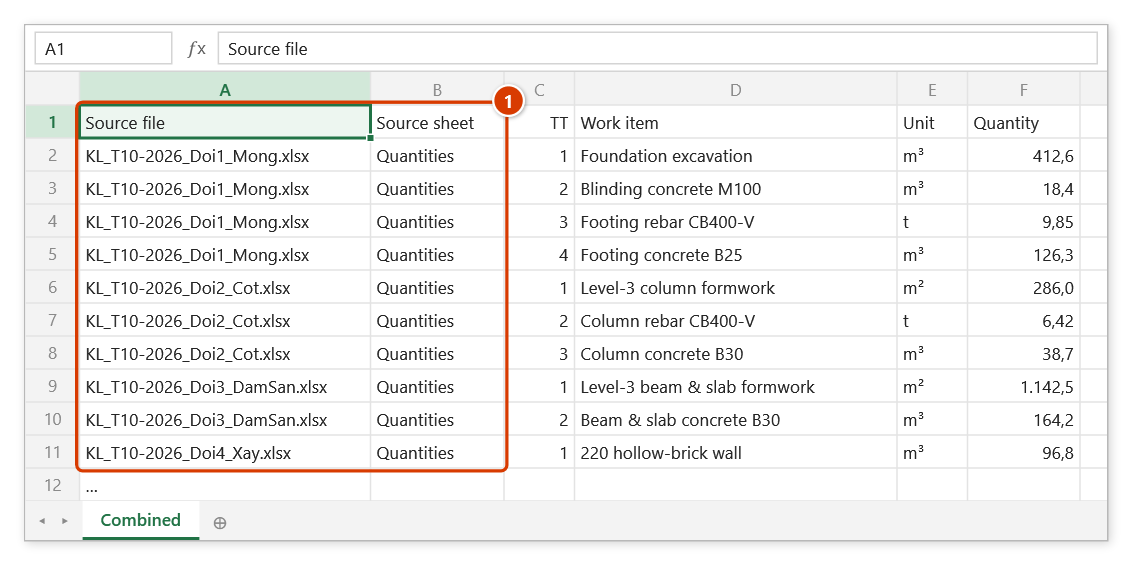
Step 3. The add-in opens the files read-only and writes into a new workbook, sheet Combined: only the first table keeps its header, and the first two columns Source file / Source sheet (1) tell where each row came from, so you can filter by team or build a PivotTable right away. It finishes with Done: 49 rows from 6 sheet(s) across 6 file(s).
Example
12 quantity files, one per team, same 6-column template with a single header row.
Choose Stack everything into one sheet, header rows 1, leave Add columns for source file / sheet on → you get one table with two extra leading columns, Source file and Source sheet, ready to filter by team or drop straight into a PivotTable.
Notes
- The result always goes into a new workbook. Sources are opened read-only and are never modified.
- If a file is already open, the add-in uses the open copy and does not close it — anything you have not saved stays put.
- Stacking takes values only. Use one-sheet-per-source when formulas must survive.
- Tables with different column counts still stack; missing columns are left blank.
~$name.xlsxfiles (Excel's temporary lock files) are skipped automatically when adding a folder.- Files that could not be opened (corrupt, password-protected) are listed at the end rather than silently skipped.
See also
- Split table — the reverse operation.
- Compare sheets — find the differences between two versions.
- Merge tables — bring columns from a lookup table into a main table.
- File list — list a folder's files onto a sheet.