
Merge tables
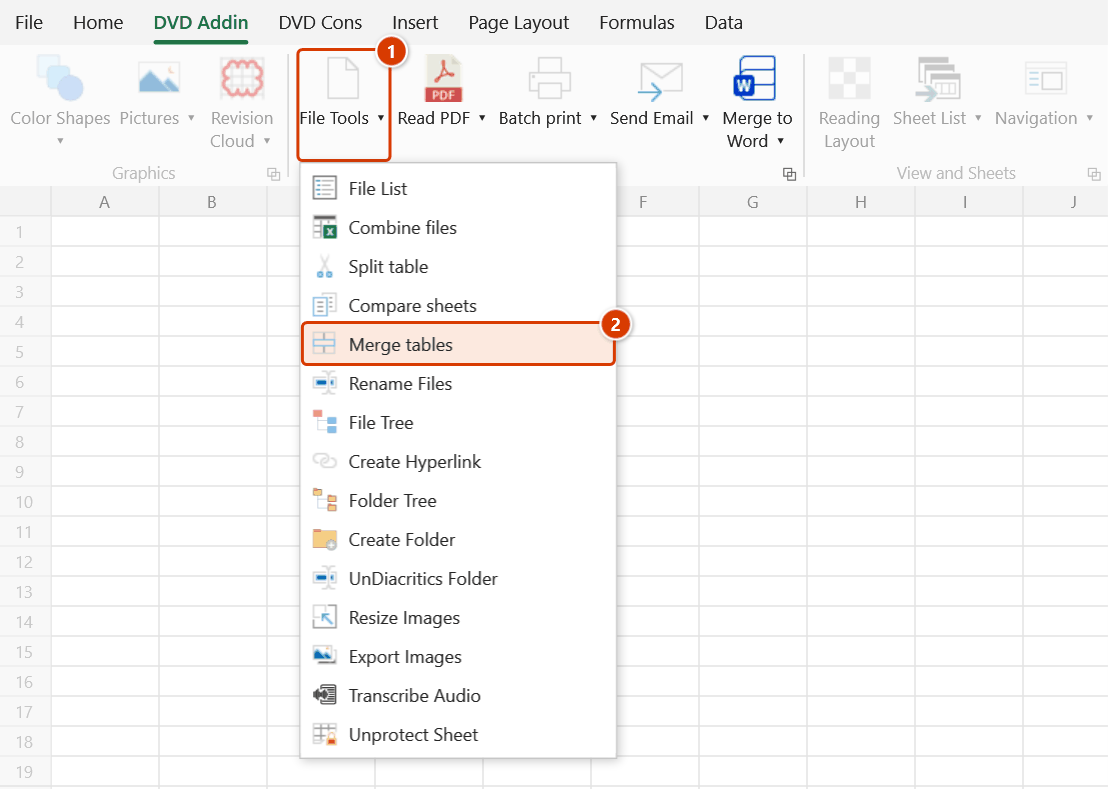
Ribbon location: DVD Addin tab → File and Print group → File Tools menu
Command ID: btnMergeTables
What it does
Brings several columns from a lookup table into your main table, matched on a key column, in one pass.
Three differences from VLOOKUP:
| VLOOKUP | Merge tables | |
|---|---|---|
| Several columns | one formula each | tick once, all done |
| Result | formulas, tied to the lookup file | values, the table stands alone |
| Clean-up | copy → paste values | none needed |
How to use it
- Click Merge tables.
- Pick the Main table (the one being updated) with
⤴, then state its header rows and key column. - Pick the Lookup table the same way. It can live on another sheet or in another open workbook.
- The columns to bring over list appears, each showing what will happen to it:
- update column X — its header matches a column in the main table;
- add as new column — no match, so it is appended to the right.
- Tick the columns you need.
- Use Only fill cells that are empty to fill gaps without overwriting figures that are already there.
- Click Merge, check how many columns will be written in the Confirm data change window and click Continue.
Video tutorial
Narrated in Vietnamese, with Vietnamese subtitles. Trộn bảng · 6 min 28 s · 11 cases · Download the video · Practice workbook for the video
Chapters (17)
- Giới thiệu
- Mở lệnh
- Cửa sổ Trộn bảng
- 1 · Đơn giá từ sheet khác
- 2 · Tên tiêu đề quyết định cột
- 3 · Chèn cột trước Ghi chú
- 4 · Bảng tra ở file khác
- 5 · Mã trùng – khoá ghép
- 6 · Cách so khớp mã
- 7 · Chỉ điền ô đang trống
- 8 · Ô đang có công thức
- 9 · Dòng nhóm, bảng đang lọc
- 10 · Bảng hai dòng tiêu đề
- 11 · Ghi đè và hoàn tác
- So sánh
- Mẹo
- Kết thúc
Illustrated walkthrough
Practice
Download this command's sample workbook — the data matches the pictures below (sheet Quantities), so you can follow each step right away.
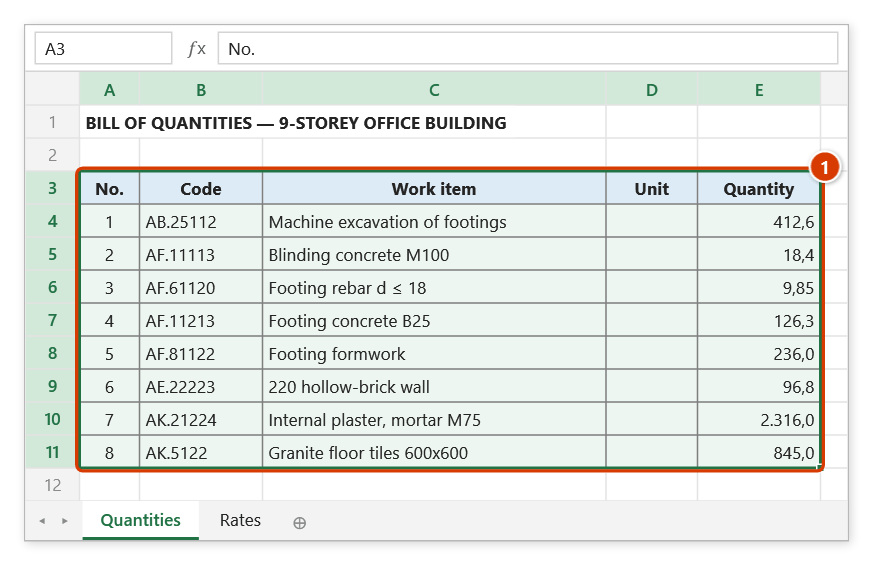
Step 1. The main table (1) has a Code column, but Unit is still empty and there is no Unit rate. The company price list (also keyed by code) is on the Rates sheet — it may also be in another open workbook.
Step 2. On the ribbon, open the DVD Addin tab → File and Print group → open File Tools → choose Merge tables.
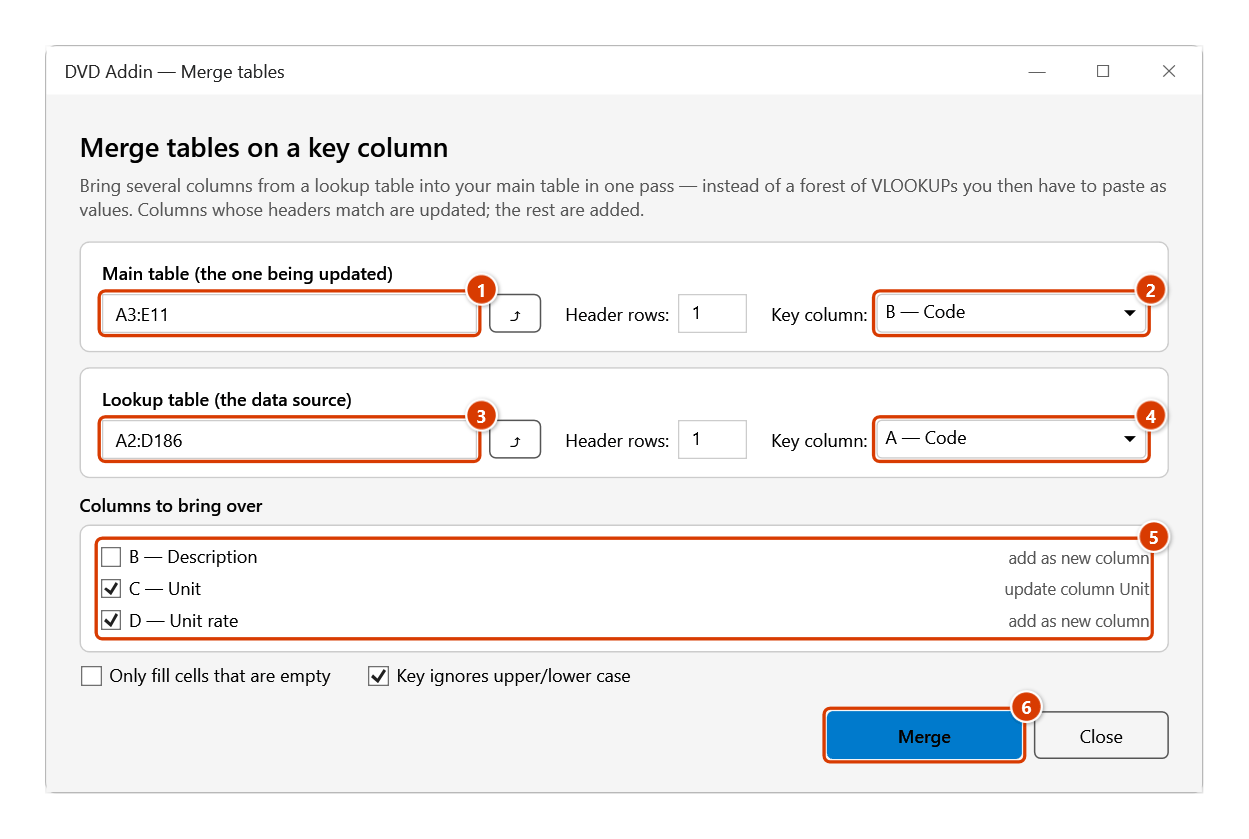
Step 3. Click ⤴ to pick the main table, header row included (1), and set Key column to B — Code (2); do the same for the lookup table (3), key A — Code (4). Under Columns to bring over (5) tick Unit (updates the existing column) and Unit rate (added as a new column), then click Merge (6).
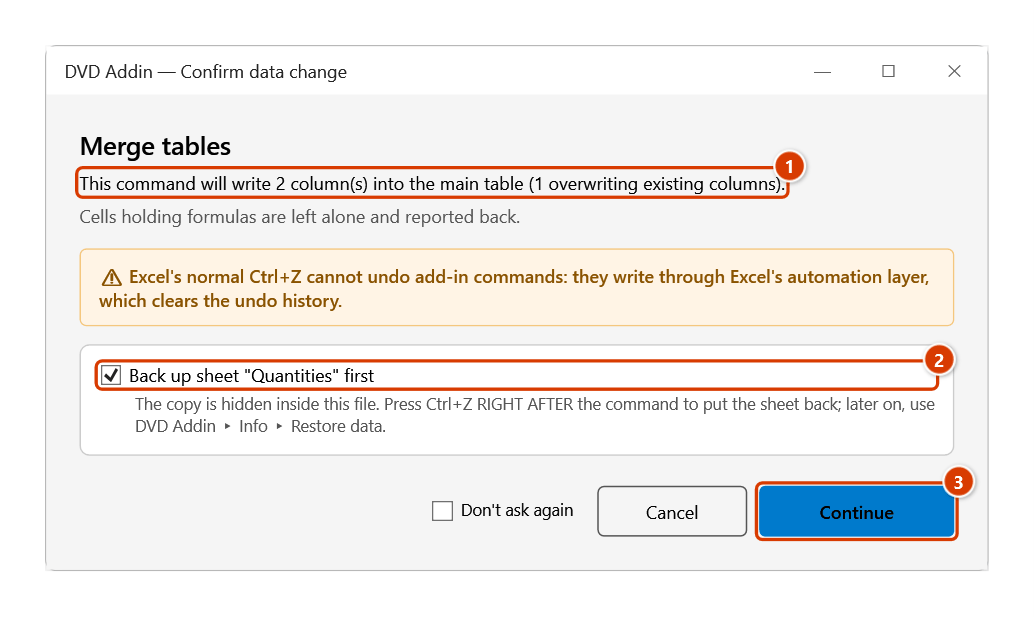
Step 4. The add-in states how many columns it will write and how many overwrite existing ones (1). Keep Back up sheet (2) so Ctrl+Z right after the command can restore the table, then click Continue (3).
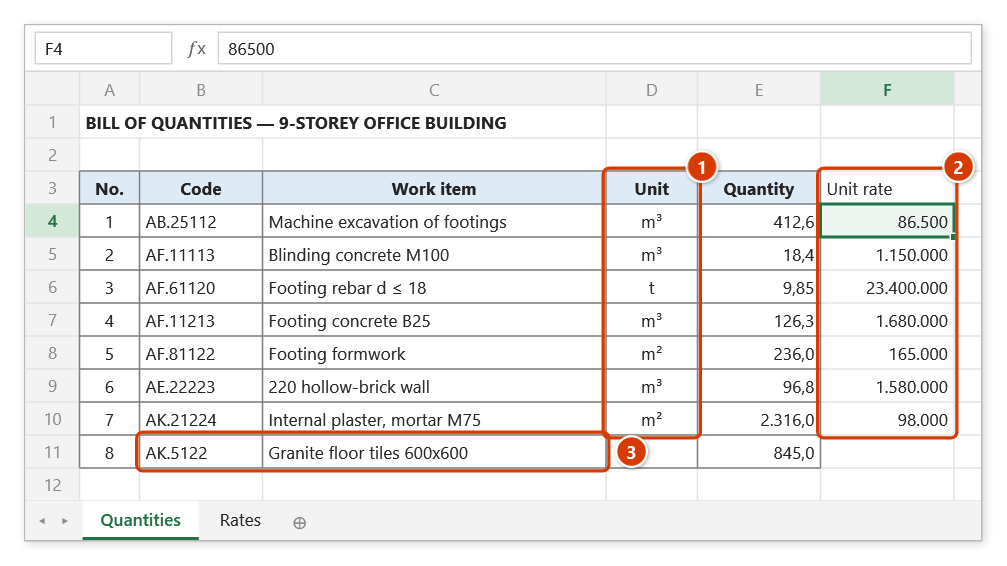
Step 5. The Unit column is filled (1) and a new Unit rate column is added to the right of the table (2) — plain values, no lookup formulas. The add-in reports Matched 7/8 rows. Wrote 16 cell(s), added 1 new column(s). and lists the codes it could not find (AK.5122, a digit missing) (3) so you can fix them.
Example
A 900-row quantity table with an Item code column but no Unit rate or Unit. The company rate library is in another file, also keyed on Item code.
Set both keys to Item code, tick Unit rate and Unit → both columns are filled in one pass. Any code missing from the rate library is listed immediately so you can fix the typo or add the item.
Notes
- Cells holding formulas are left alone rather than replaced with static values — the count of skipped cells is reported at the end. This is the important difference from pasting over a range.
- Writing into the main table overwrites data — the add-in asks in the Confirm data change window; keep Back up sheet ticked and Ctrl+Z right after the command restores the table, or later recover it from Restore data.
- Duplicate keys in the lookup table resolve to the first row, matching
VLOOKUPbehaviour. - Keys are compared as invariant text, so numeric codes (
1.2) do not drift on a machine using a decimal comma. - Unmatched rows are always reported with a sample of the keys — a one-character typo silently loses a whole row's data, so it is never swallowed.
- The lookup table's key column is left out of the list, since it already matches the main table.
- This window does not block Excel: you can keep working on the sheet while it is open. The ⤴ button opens a range picker that does not lock Excel — the window steps aside, and while picking you can scroll, switch sheets or workbooks; click OK or press Enter on the sheet to take the range, Cancel or Esc to keep the old one.
See also
- Restore data — recover the main table if a merge went wrong.
- Merge rows by key — combine rows sharing a key within one table.
- Combine files · Compare sheets